
- Handle Custom Stripe Webhook Events
- suredonation_export_secret_option_keys Filter Hook
- suredonation_import_batch_complete Action Hook
- suredonation_import_complete Action Hook
- suredonation_import_donation_inserted Action Hook
- suredonation_import_donor_inserted Action Hook
- suredonation_import_session_created Action Hook
- suredonation_import_givewp_batch_complete Action Hook
- suredonation_import_givewp_session_created Action Hook
- suredonation_privacy_data_exported Action Hook
- Validate Field Filter Hook
- Validatable Blocks Filter Hook
- Update donation data, Filter Hook
- OttoKit Integration: suredonation_suretriggers_integration_data_filter Filter Hook
- suredonation_show_setup_gateway_notice Filter Hook
- suredonation_show_review_notice_gateway Filter Hook
- suredonation_show_review_notice_donation Filter Hook
- suredonation_registered_payment_methods Filter Hook
- suredonation_register_additional_blocks Filter Hook
- suredonation_receipt_html Filter Hook
- Validatable Blocks Filter Hook
- Update donation data, Filter Hook
- OttoKit Integration: suredonation_suretriggers_integration_data_filter Filter Hook
- suredonation_show_setup_gateway_notice Filter Hook
- suredonation_show_review_notice_gateway Filter Hook
- suredonation_show_review_notice_donation Filter Hook
- suredonation_registered_payment_methods Filter Hook
- suredonation_register_additional_blocks Filter Hook
- suredonation_receipt_html Filter Hook
- suredonation_phone_geo_enabled Filter Hook
Creating Your First Campaign in SureDonation
The Campaigns section in SureDonation allows you to create and manage donation campaigns for your fundraising causes.
If no campaigns are available yet, SureDonation displays an empty state with the option to create your first campaign.
Access Campaigns
To access the Campaigns section:
- Log in to your WordPress Dashboard.
- Navigate to SureDonation > Campaigns.
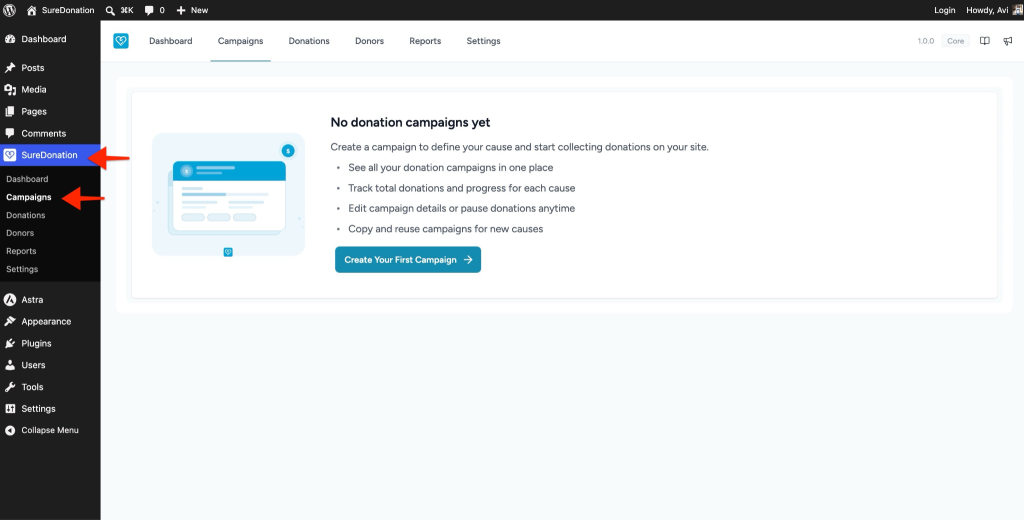
If no campaigns have been created yet, you will see the No donation campaigns yet screen.
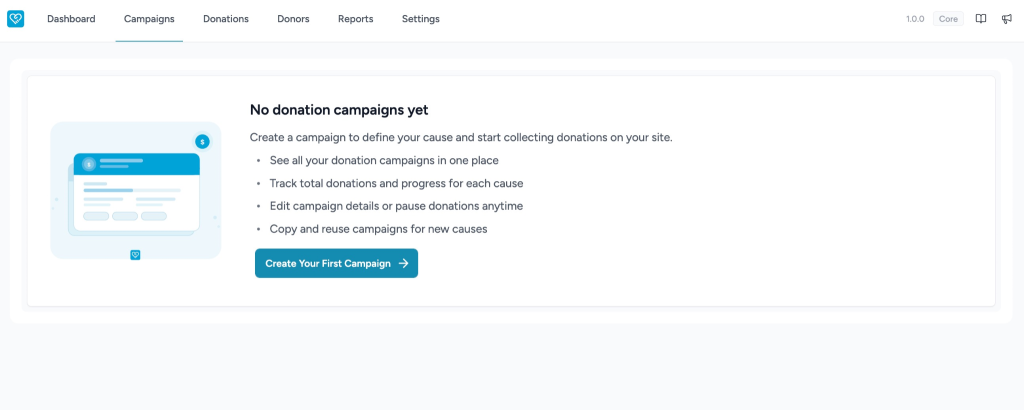
From this page, you can:
- See all donation campaigns in one place.
- Track total donations and progress for each cause.
- Edit campaign details or pause donations anytime.
- Copy and reuse campaigns for new causes.
Create Your First Campaign
To create a new campaign:
- Go to SureDonation > Campaigns.
- Click the Create Your First Campaign button.
- A slide-in panel titled New Campaign will appear from the right side of the screen.
The New Campaign panel allows you to enter details about your fundraising cause.
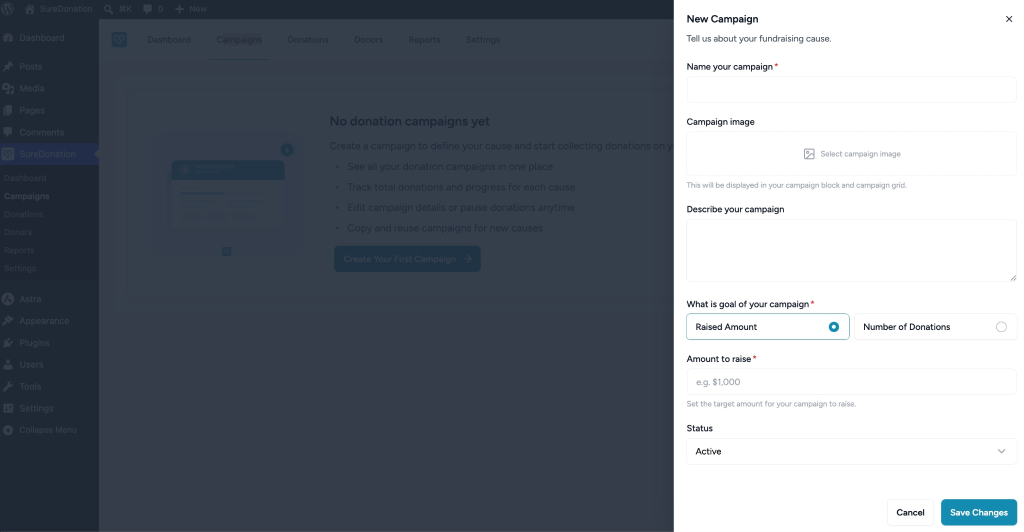
New Campaign Settings
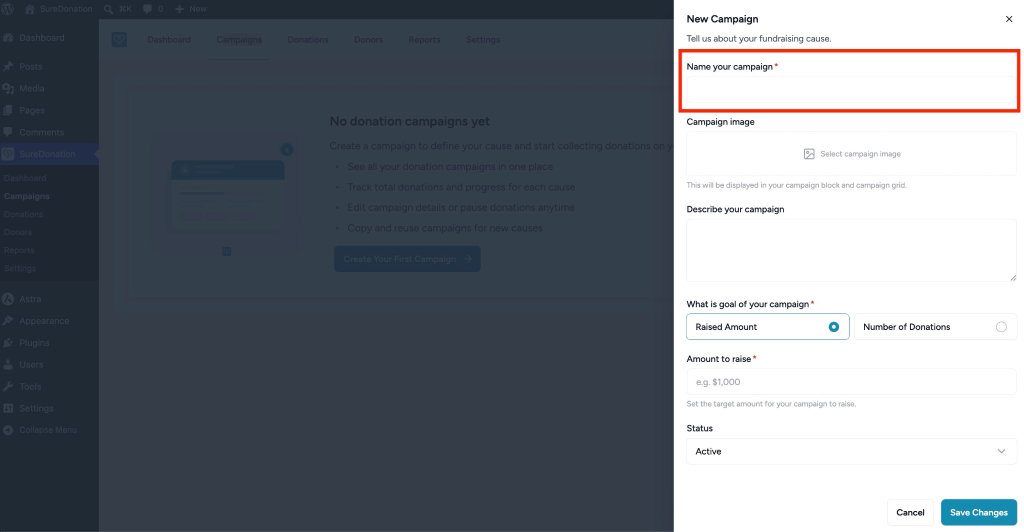
Name Your Campaign
Enter the name of your donation campaign.
This field is required and helps identify the campaign on your website and in the SureDonation dashboard.
Example: Support Education for Children
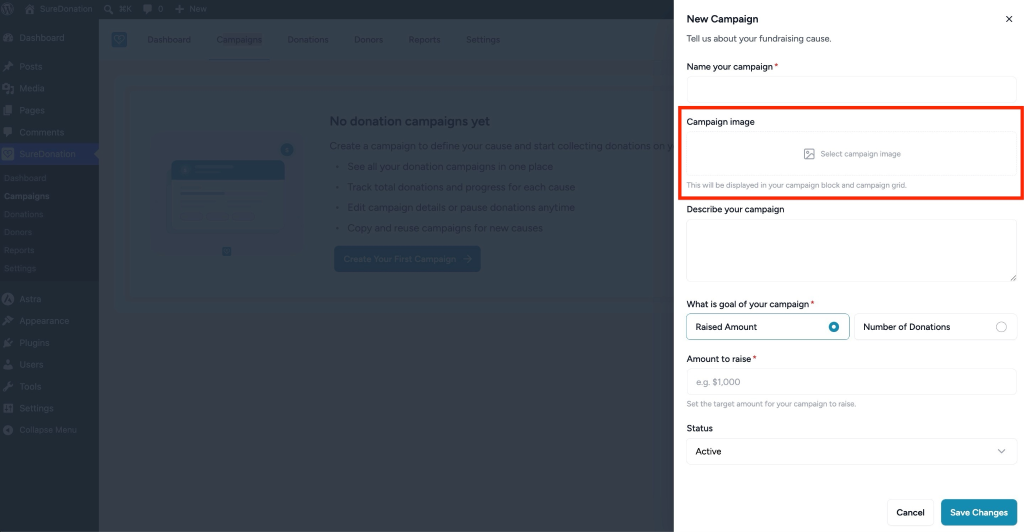
Campaign Image
Use the Campaign image option to add an image for your campaign.
To add an image:
- Click Select campaign image.
- Choose or upload an image from the WordPress Media Library.
This image will be displayed in your campaign block and campaign grid.
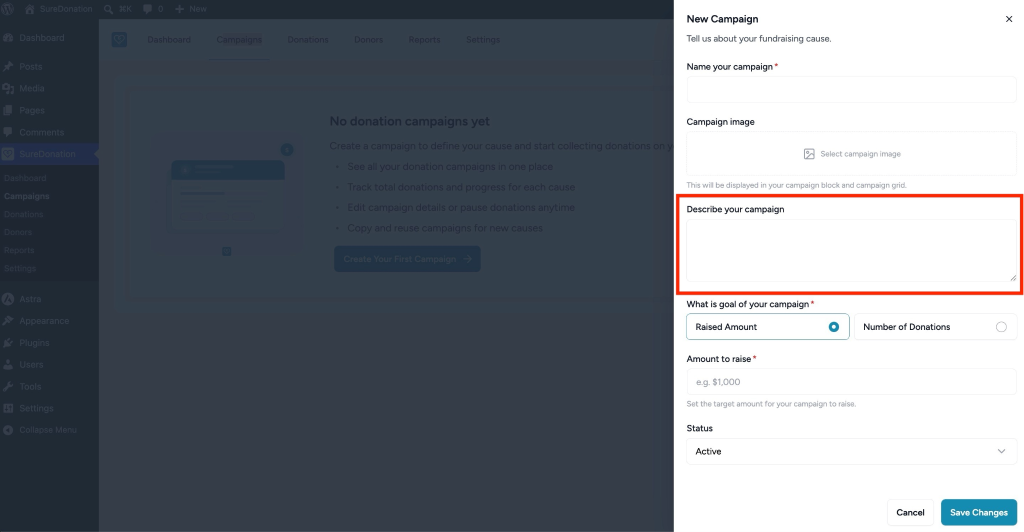
Describe Your Campaign
Use the Describe your campaign field to explain the purpose of your fundraising campaign.
You can include details such as:
- What the campaign supports.
- Why donations are needed.
- How the collected amount will be used.
Example: Help us raise funds to provide school supplies, books, and learning materials for children in need.
Choose the Campaign Goal
In the What is the goal of your campaign section, select how you want to track the campaign goal.
You can choose one of the following options:
Raised Amount
Select Raised Amount if you want to set a target donation amount for the campaign.
Example: $1,000
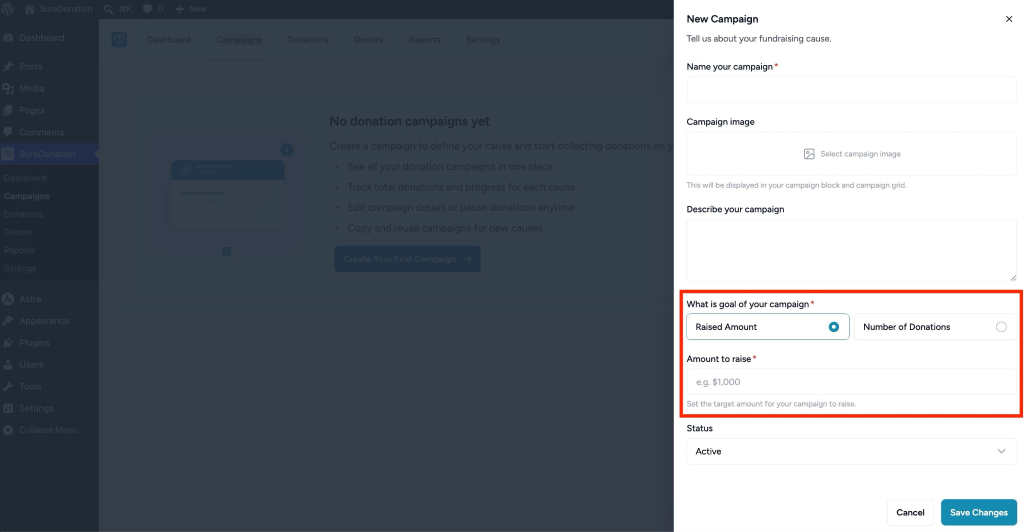
This amount is used to track the campaign’s progress toward the fundraising goal.
Number of Donations
Select Number of Donations if you want the campaign goal to be based on the number of donations received.
Example: 100
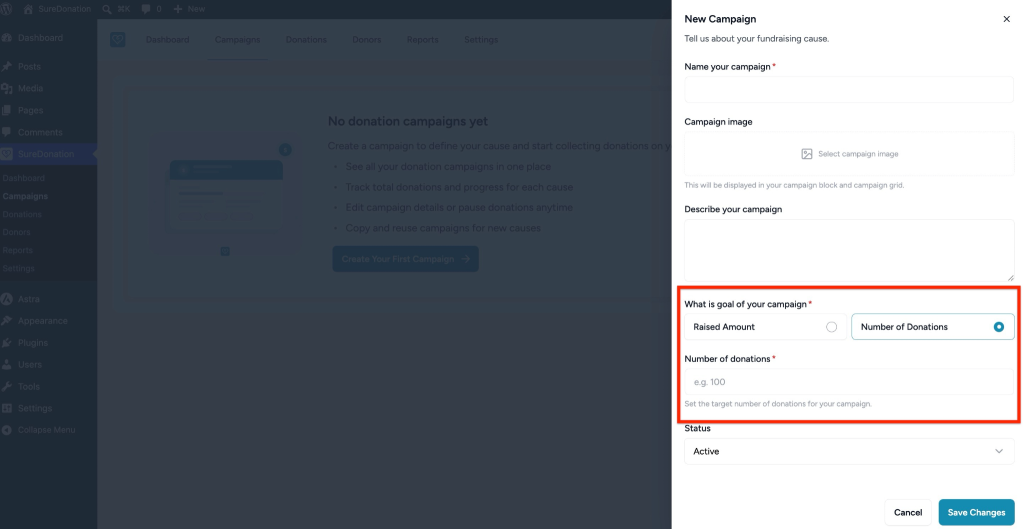
This number is used to track the campaign’s progress toward the fundraising goal.
Set Campaign Status
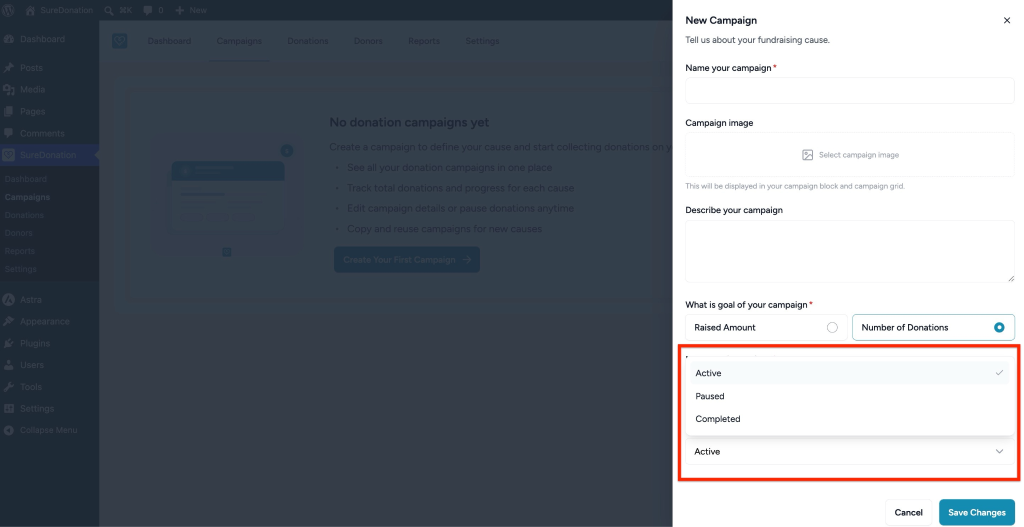
Use the Status dropdown to define the current state of the campaign.
Available status options include:
Active
Select Active when the campaign is live and ready to accept donations.
Paused
Select Paused when you want to temporarily stop accepting donations for the campaign.
Completed
Select Completed when the campaign goal has been achieved or the fundraising activity has ended.
Save or Cancel the Campaign
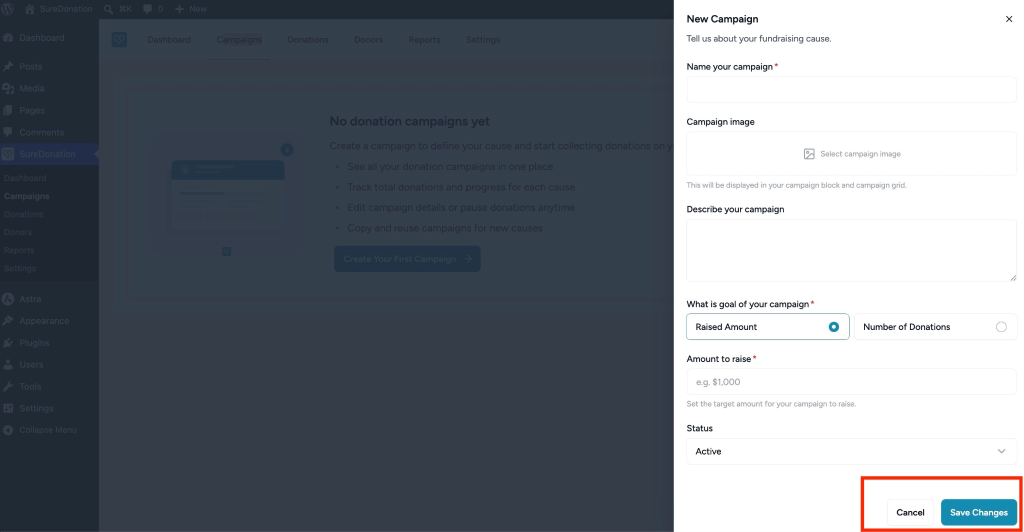
After entering the campaign details, you can choose one of the following actions:
Cancel
Click Cancel to close the New Campaign panel without saving changes.
Save Changes
Click Save Changes to create and save the campaign.
Once saved, the campaign will be available in the Campaigns section and can be used to collect donations on your site.
Important Note
Make sure all required fields are completed before saving the campaign. Required fields are marked with an asterisk (*).
We don't respond to the article feedback, we use it to improve our support content.