
- Add New Form
- Form Settings in SureDonation
- Set a Default Donation Form in SureDonation
- Text Field in SureDonation
- Email Field in SureDonation
- Number Field in SureDonation
- Donation Amount Field in SureDonation
- Payment Field in SureDonation
- Donate Button in SureDonation
- Cover Processing Fees Field
- Handle Custom Stripe Webhook Events
- suredonation_export_secret_option_keys Filter Hook
- suredonation_import_batch_complete Action Hook
- suredonation_import_complete Action Hook
- suredonation_import_donation_inserted Action Hook
- suredonation_import_donor_inserted Action Hook
- suredonation_import_session_created Action Hook
- suredonation_import_givewp_batch_complete Action Hook
- suredonation_import_givewp_session_created Action Hook
- suredonation_privacy_data_exported Action Hook
- Validate Field Filter Hook
- Validatable Blocks Filter Hook
- Update donation data, Filter Hook
- OttoKit Integration: suredonation_suretriggers_integration_data_filter Filter Hook
- suredonation_show_setup_gateway_notice Filter Hook
- suredonation_show_review_notice_gateway Filter Hook
- suredonation_show_review_notice_donation Filter Hook
- suredonation_registered_payment_methods Filter Hook
- suredonation_register_additional_blocks Filter Hook
- suredonation_receipt_html Filter Hook
- Validatable Blocks Filter Hook
- Update donation data, Filter Hook
- OttoKit Integration: suredonation_suretriggers_integration_data_filter Filter Hook
- suredonation_show_setup_gateway_notice Filter Hook
- suredonation_show_review_notice_gateway Filter Hook
- suredonation_show_review_notice_donation Filter Hook
- suredonation_registered_payment_methods Filter Hook
- suredonation_register_additional_blocks Filter Hook
- suredonation_receipt_html Filter Hook
- suredonation_phone_geo_enabled Filter Hook
Connecting Stripe in SureDonation
The Stripe settings allow you to connect and manage your Stripe account so you can securely accept donations through your forms.
Once connected, donors can complete payments using Stripe, and donations can be processed directly from your website.
Access Stripe Settings
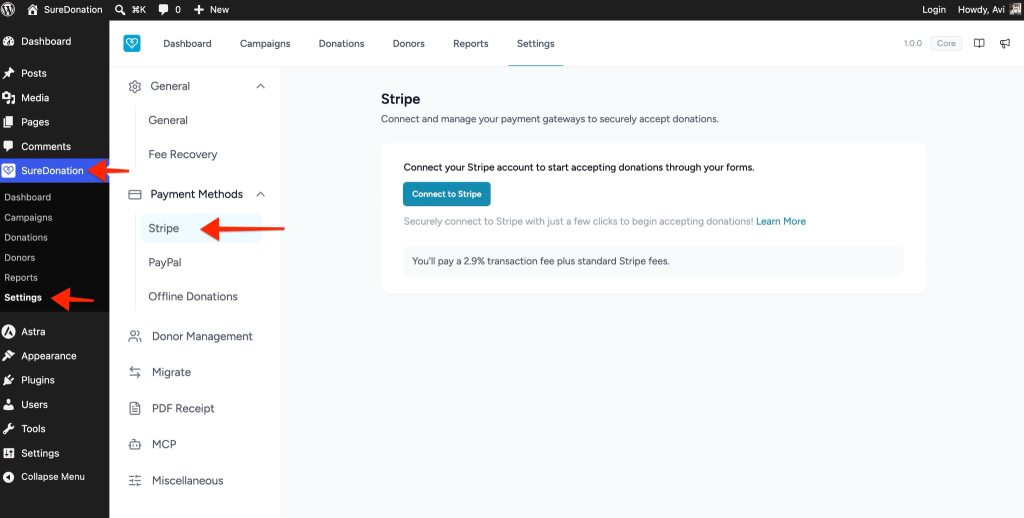
To access the Stripe settings:
- Log in to your WordPress Dashboard.
- Navigate to SureDonation > Settings.
- Expand Payment Methods.
- Select Stripe.
Connect Your Stripe Account
Before accepting donations, you must connect your Stripe account.
To connect Stripe:
- Open SureDonation > Settings > Payment Methods > Stripe.
- Click the Connect to Stripe button.
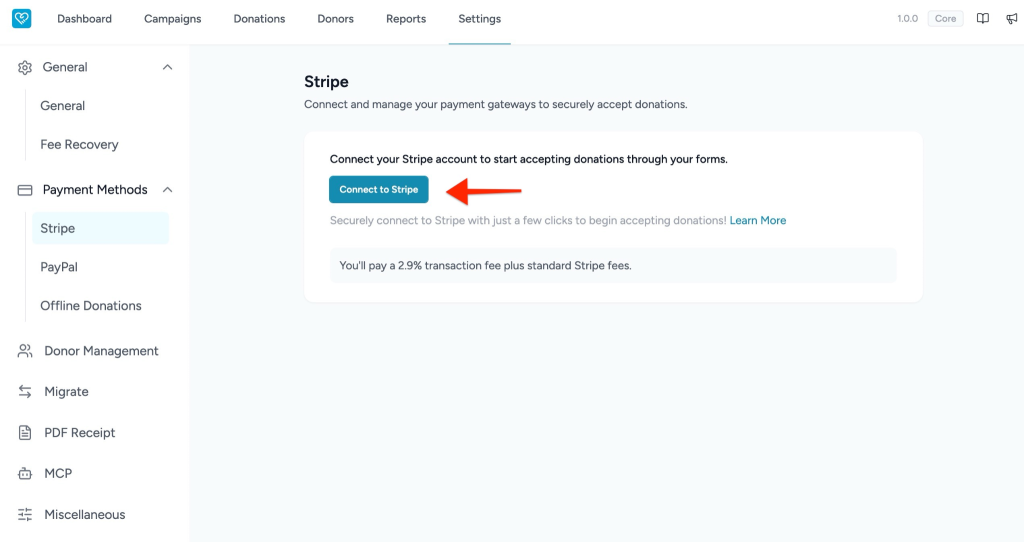
- You will be redirected to the Stripe authorization page.
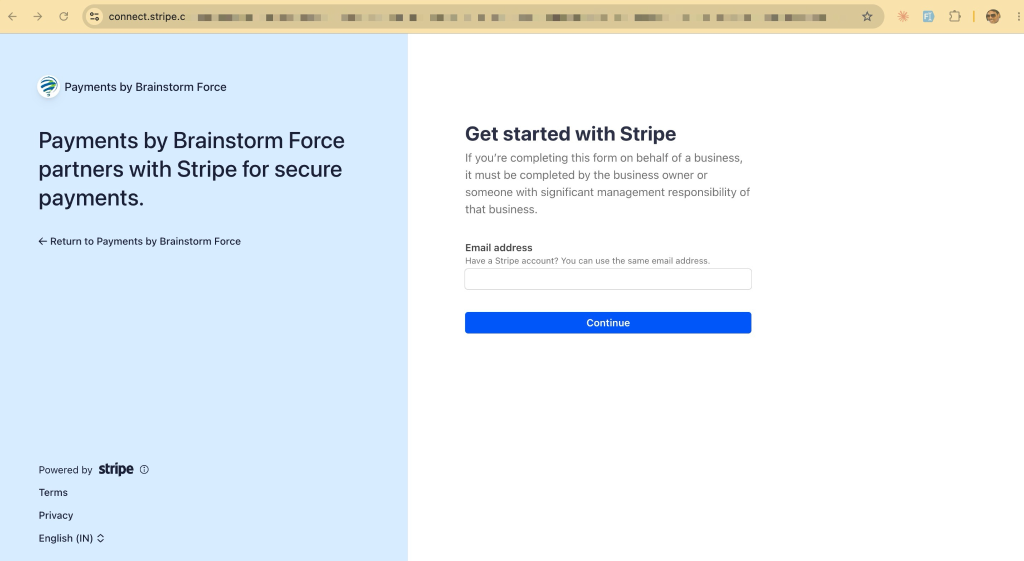
- Sign in to your Stripe account.
- Review the connection permissions.
- Click Connect to authorize the integration.
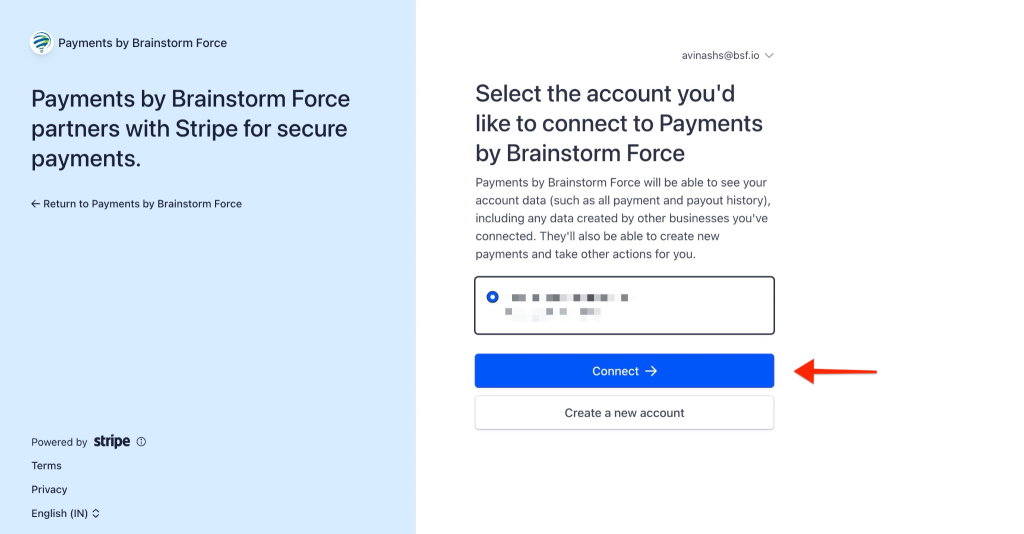
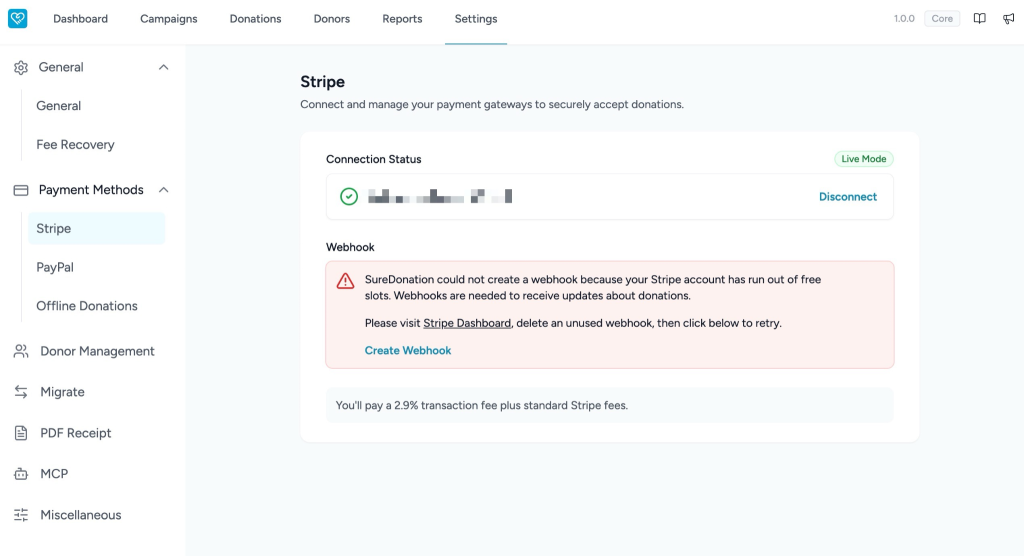
After successful authentication, your Stripe account will be connected to SureDonation and ready for configuration.
Configure Stripe After Connection
Once Stripe is connected:
- Verify that the connection status appears successful.
- Configure your donation settings.
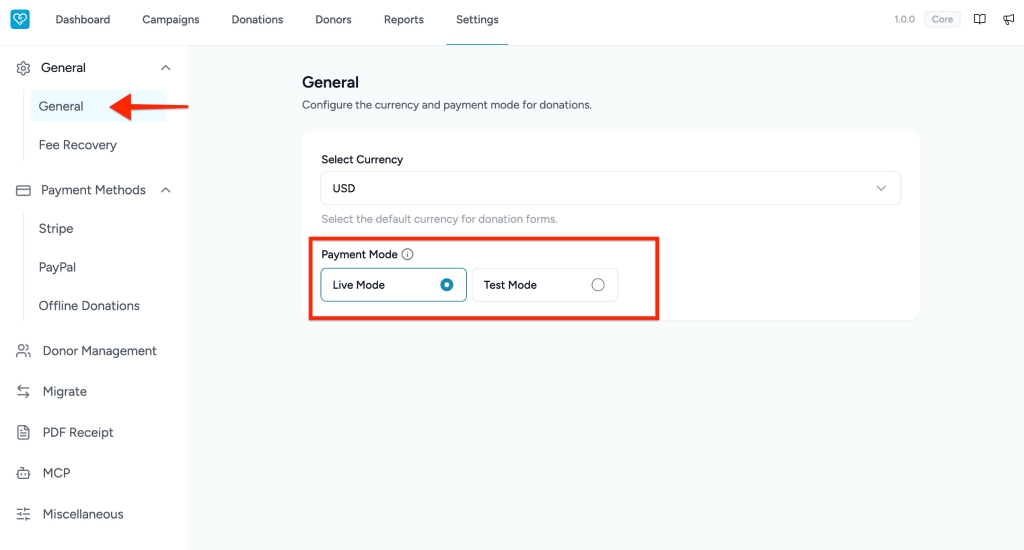
- Select the preferred currency from the General settings.
- Choose the payment mode:
- Live Mode – Accept real donations.
- Test Mode – Test the donation workflow without processing real payments.
Stripe supports test environments to validate your setup before accepting live donations.
Verify the Connection
After completing the setup:
- Open a donation form.
- Submit a test donation.
- Confirm that the payment appears in your Stripe Dashboard.
- Switch to Live Mode only after testing is complete.
Note: Stripe transaction and processing fees vary by country and account configuration. Review your Stripe account dashboard for your current processing rates before going live.
We don't respond to the article feedback, we use it to improve our support content.