
- Add New Form
- Form Settings in SureDonation
- Set a Default Donation Form in SureDonation
- Text Field in SureDonation
- Email Field in SureDonation
- Number Field in SureDonation
- Donation Amount Field in SureDonation
- Payment Field in SureDonation
- Donate Button in SureDonation
- Cover Processing Fees Field
- Handle Custom Stripe Webhook Events
- suredonation_export_secret_option_keys Filter Hook
- suredonation_import_batch_complete Action Hook
- suredonation_import_complete Action Hook
- suredonation_import_donation_inserted Action Hook
- suredonation_import_donor_inserted Action Hook
- suredonation_import_session_created Action Hook
- suredonation_import_givewp_batch_complete Action Hook
- suredonation_import_givewp_session_created Action Hook
- suredonation_privacy_data_exported Action Hook
- Validate Field Filter Hook
- Validatable Blocks Filter Hook
- Update donation data, Filter Hook
- OttoKit Integration: suredonation_suretriggers_integration_data_filter Filter Hook
- suredonation_show_setup_gateway_notice Filter Hook
- suredonation_show_review_notice_gateway Filter Hook
- suredonation_show_review_notice_donation Filter Hook
- suredonation_registered_payment_methods Filter Hook
- suredonation_register_additional_blocks Filter Hook
- suredonation_receipt_html Filter Hook
- Validatable Blocks Filter Hook
- Update donation data, Filter Hook
- OttoKit Integration: suredonation_suretriggers_integration_data_filter Filter Hook
- suredonation_show_setup_gateway_notice Filter Hook
- suredonation_show_review_notice_gateway Filter Hook
- suredonation_show_review_notice_donation Filter Hook
- suredonation_registered_payment_methods Filter Hook
- suredonation_register_additional_blocks Filter Hook
- suredonation_receipt_html Filter Hook
- suredonation_phone_geo_enabled Filter Hook
Configuring MCP in SureDonation
The MCP settings allow you to control AI agent access to your donation data through the WordPress Abilities API.
Using these settings, you can decide whether AI clients can read, create, edit, or delete SureDonation data, such as campaigns, donations, and donors.
Note: MCP and Abilities API options are marked as Experimental. Use them carefully, especially when enabling edit or delete access.
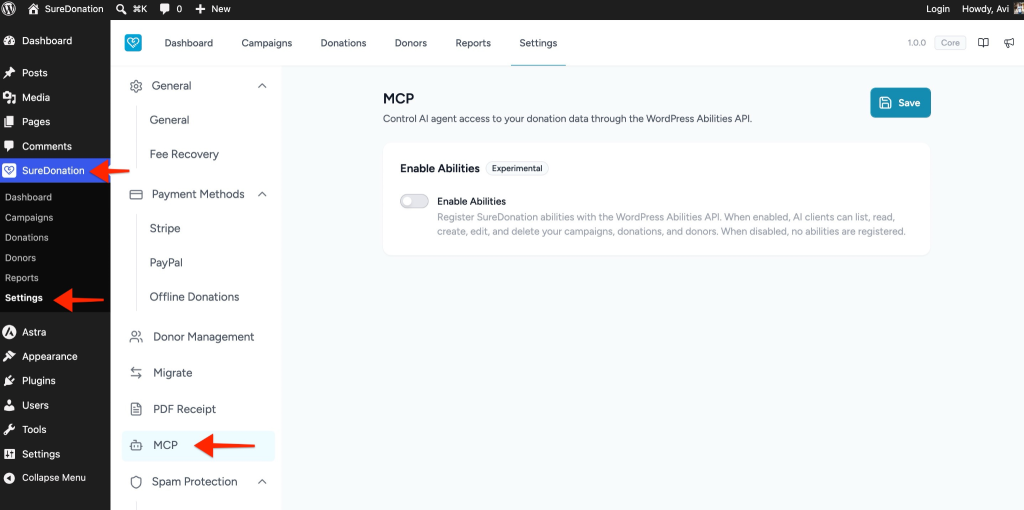
Access MCP Settings
To access the MCP settings:
- Log in to your WordPress Dashboard.
- Navigate to SureDonation > Settings.
- Click MCP from the left sidebar.
Enable Abilities
The Enable Abilities option registers SureDonation abilities with the WordPress Abilities API.
When enabled, AI clients can access SureDonation abilities based on the permissions you allow.
To enable this option:
- Go to SureDonation > Settings > MCP.
- Locate the Enable Abilities section.
- Turn on the Enable Abilities toggle.
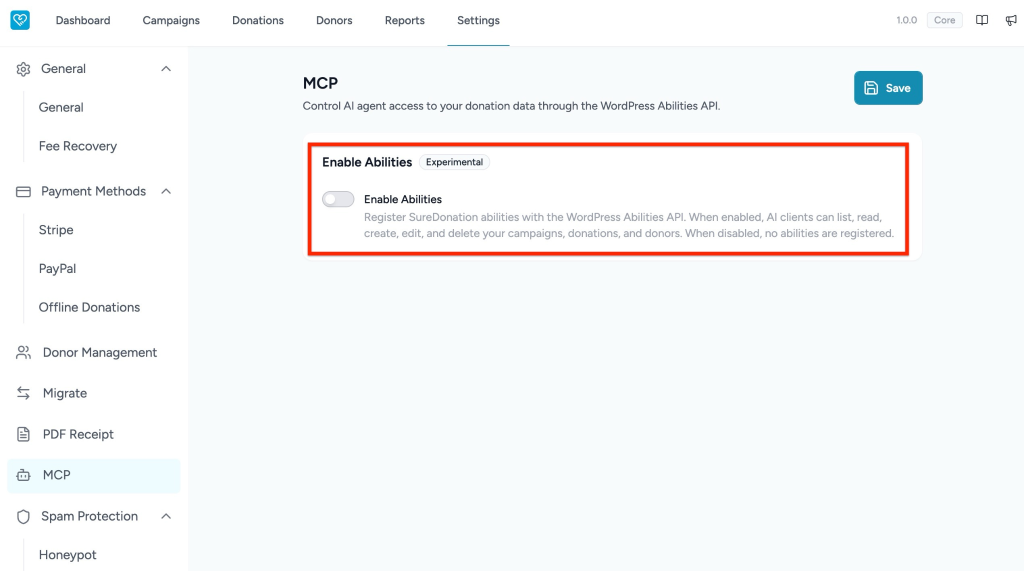
When enabled, AI clients can list, read, create, edit, and delete campaigns, donations, and donors depending on the additional abilities enabled.
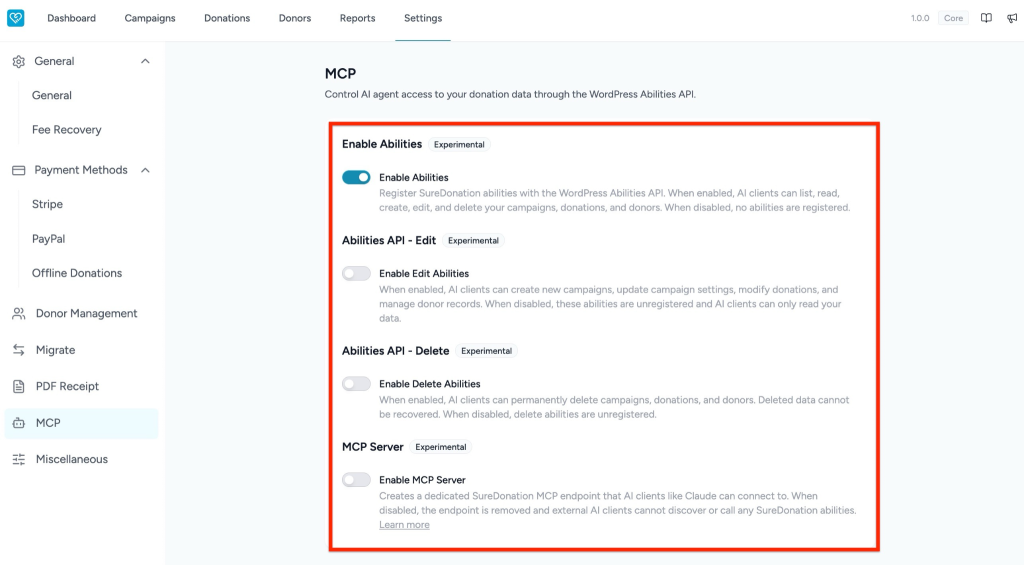
When disabled, no abilities are registered.
Abilities API – Edit
After enabling Enable Abilities, the Abilities API – Edit option becomes available.
The Enable Edit Abilities option allows AI clients to create and update SureDonation data.
When enabled, AI clients can:
- Create new campaigns.
- Update campaign settings.
- Modify donations.
- Manage donor records.
To enable edit access:
- Enable Enable Abilities.
- Locate Abilities API – Edit.
- Turn on the Enable Edit Abilities toggle.
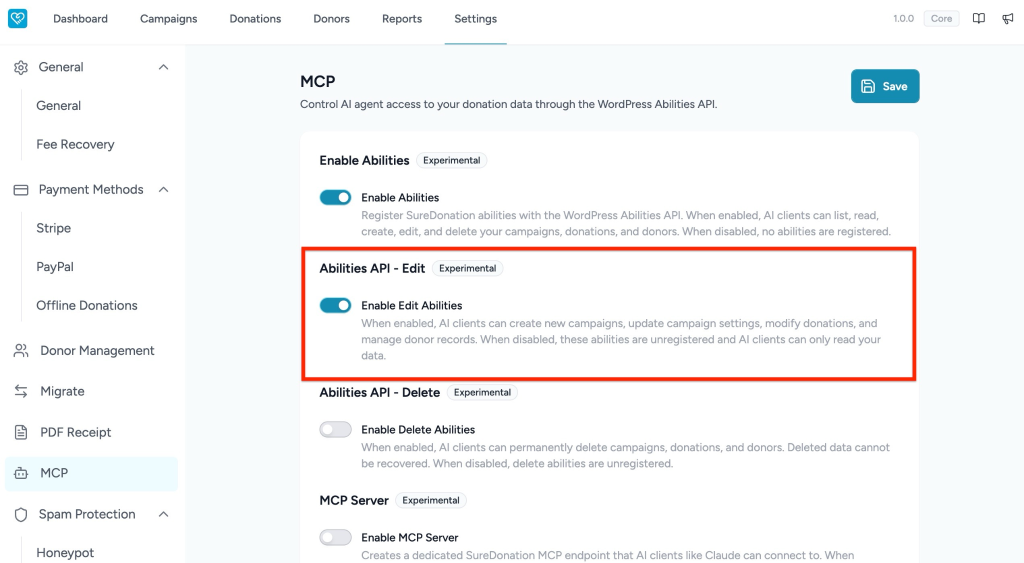
When disabled, edit abilities are unregistered and AI clients can only read your data.
Abilities API – Delete
The Abilities API – Delete option controls whether AI clients can permanently delete SureDonation data.
When enabled, AI clients can permanently delete:
- Campaigns
- Donations
- Donors
To enable delete access:
- Enable Enable Abilities.
- Locate Abilities API – Delete.
- Turn on the Enable Delete Abilities toggle.
Important: Deleted data cannot be recovered. Enable this option only if you fully trust the connected AI client and understand the risk.
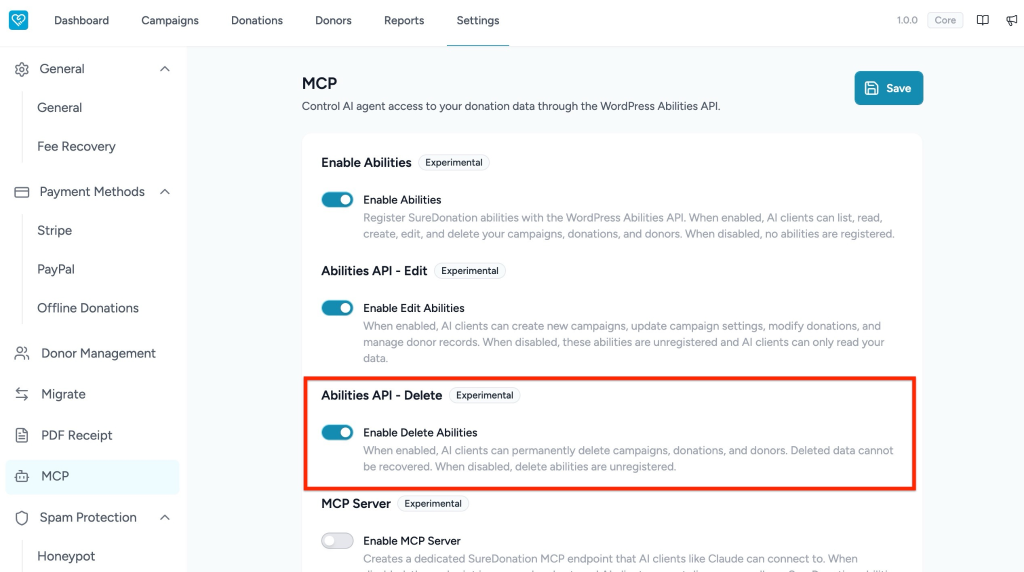
When disabled, delete abilities are unregistered.
MCP Server
The MCP Server option creates a dedicated SureDonation MCP endpoint that external AI clients can connect to.
When enabled, AI clients such as Claude can connect to your SureDonation MCP endpoint and discover or call available SureDonation abilities.
To enable the MCP Server:
- Enable Enable Abilities.
- Locate the MCP Server section.
- Turn on the Enable MCP Server toggle.
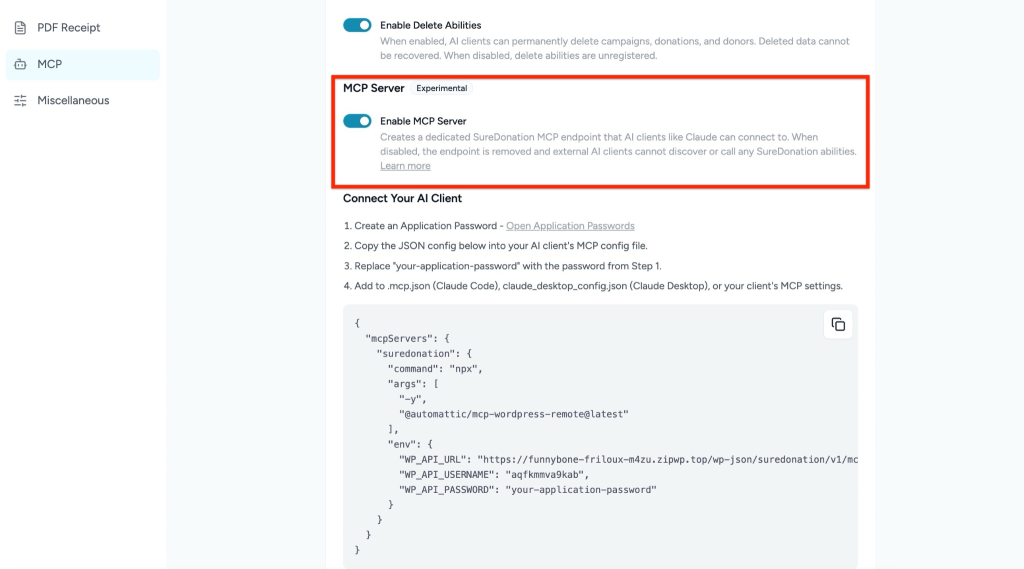
When disabled, the MCP endpoint is removed, and external AI clients cannot discover or call any SureDonation abilities.
Connect Your AI Client
After enabling the MCP Server, the Connect Your AI Client section appears.
Follow the steps shown in the settings page:
- Create an application password from WordPress.
- Copy the JSON configuration shown in the MCP settings.
- Replace your-application-password with the application password created in Step 1.
- Add the configuration to your AI client’s MCP configuration file.
You can add the configuration to:
- .mcp.json for Claude Code.
- claude_desktop_config.json for Claude Desktop.
- Your AI client’s MCP settings.
Use the copy icon beside the configuration block to copy the JSON config quickly.
Recommended Usage
For safer access, start with only Enable Abilities turned on and keep edit and delete abilities disabled.
Enable Edit Abilities only when your AI client needs to create or modify campaigns, donations, or donor records.
Enable Delete Abilities only when deletion access is absolutely required.
Important Security Notes
MCP settings can expose sensitive donation and donor data to connected AI clients. Before enabling these options:
- Make sure you trust the AI client.
- Use a secure WordPress application password.
- Avoid sharing MCP credentials publicly.
- Enable only the permissions required for your workflow.
- Keep delete access disabled unless necessary.
We don't respond to the article feedback, we use it to improve our support content.