
- Handle Custom Stripe Webhook Events
- suredonation_export_secret_option_keys Filter Hook
- suredonation_import_batch_complete Action Hook
- suredonation_import_complete Action Hook
- suredonation_import_donation_inserted Action Hook
- suredonation_import_donor_inserted Action Hook
- suredonation_import_session_created Action Hook
- suredonation_import_givewp_batch_complete Action Hook
- suredonation_import_givewp_session_created Action Hook
- suredonation_privacy_data_exported Action Hook
- Validate Field Filter Hook
- Validatable Blocks Filter Hook
- Update donation data, Filter Hook
- OttoKit Integration: suredonation_suretriggers_integration_data_filter Filter Hook
- suredonation_show_setup_gateway_notice Filter Hook
- suredonation_show_review_notice_gateway Filter Hook
- suredonation_show_review_notice_donation Filter Hook
- suredonation_registered_payment_methods Filter Hook
- suredonation_register_additional_blocks Filter Hook
- suredonation_receipt_html Filter Hook
- Validatable Blocks Filter Hook
- Update donation data, Filter Hook
- OttoKit Integration: suredonation_suretriggers_integration_data_filter Filter Hook
- suredonation_show_setup_gateway_notice Filter Hook
- suredonation_show_review_notice_gateway Filter Hook
- suredonation_show_review_notice_donation Filter Hook
- suredonation_registered_payment_methods Filter Hook
- suredonation_register_additional_blocks Filter Hook
- suredonation_receipt_html Filter Hook
- suredonation_phone_geo_enabled Filter Hook
How to Edit a Campaign in SureDonation
You can edit an existing campaign anytime to update details such as the campaign name, image, description, fundraising goal, or status.
Access the Campaign
- Log in to your WordPress Dashboard.
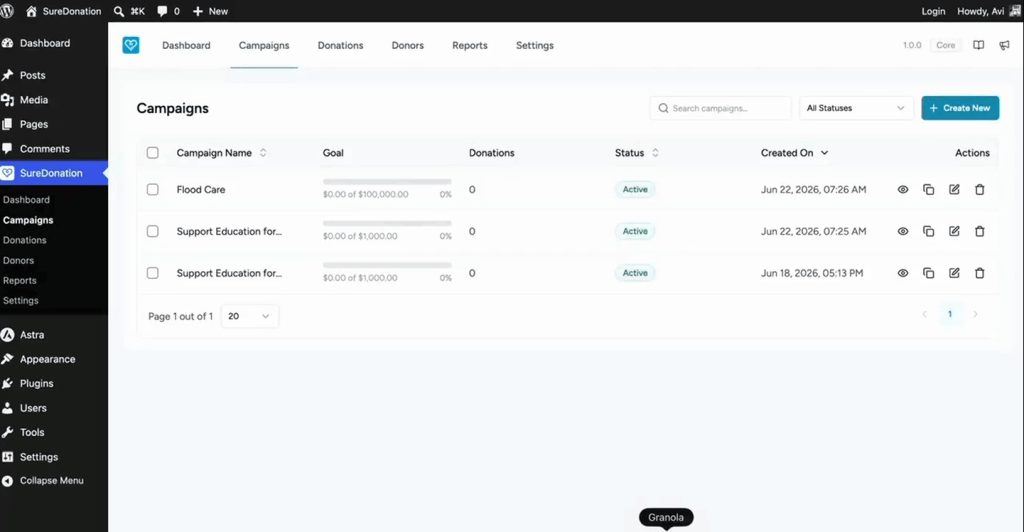
- Navigate to SureDonation > Campaigns.
- Locate the campaign you want to update.
- Hover over the campaign row and click Edit.
A slide-in panel will open.
Update Campaign Details
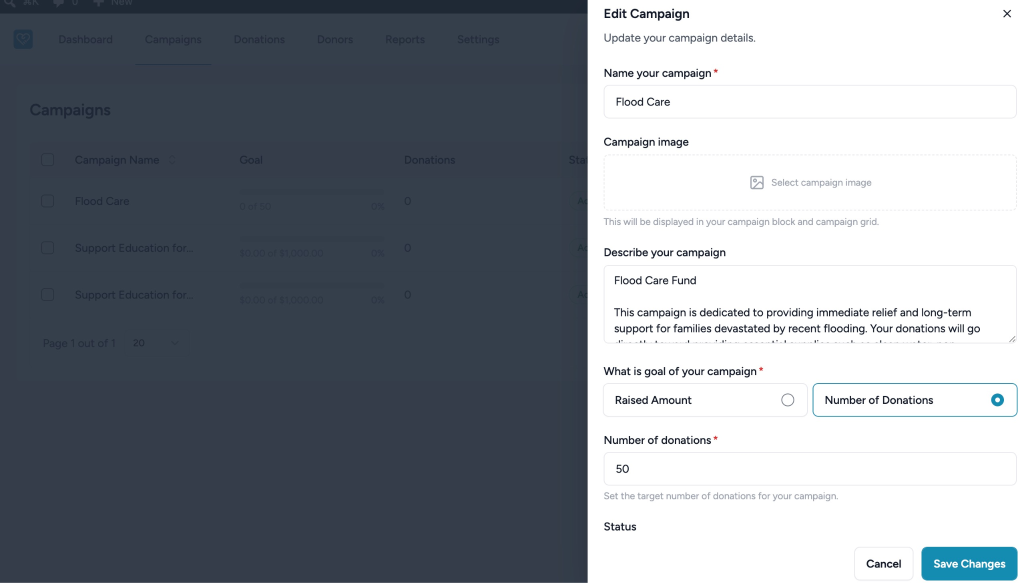
You can modify the following:
- Campaign Name – Update the campaign title.
- Campaign Image – Upload or replace the campaign image.
- Campaign Description – Edit campaign information and fundraising details.
- Goal Type – Choose Raised Amount or Number of Donations.
- Amount to Raise – Set a new fundraising target.
- Status – Change the campaign status:
- Active – Accept donations.
- Paused – Temporarily stop donations.
- Completed – Mark fundraising as finished.
Save Changes
After making updates:
- Click Save Changes to apply changes.
- Click Cancel to discard changes.
Your campaign updates will appear immediately after saving.
Was this doc helpful?
What went wrong?
We don't respond to the article feedback, we use it to improve our support content.
Table of Contents