
- Add New Form
- Form Settings in SureDonation
- Set a Default Donation Form in SureDonation
- Text Field in SureDonation
- Email Field in SureDonation
- Number Field in SureDonation
- Donation Amount Field in SureDonation
- Payment Field in SureDonation
- Donate Button in SureDonation
- Cover Processing Fees Field
- Anonymous Donation Field
- Time Picker Field in SureDonation
- Handle Custom Stripe Webhook Events
- suredonation_export_secret_option_keys Filter Hook
- suredonation_import_batch_complete Action Hook
- suredonation_import_complete Action Hook
- suredonation_import_donation_inserted Action Hook
- suredonation_import_donor_inserted Action Hook
- suredonation_import_session_created Action Hook
- suredonation_import_givewp_batch_complete Action Hook
- suredonation_import_givewp_session_created Action Hook
- suredonation_privacy_data_exported Action Hook
- Validate Field Filter Hook
- Validatable Blocks Filter Hook
- Update donation data, Filter Hook
- OttoKit Integration: suredonation_suretriggers_integration_data_filter Filter Hook
- suredonation_show_setup_gateway_notice Filter Hook
- suredonation_show_review_notice_gateway Filter Hook
- suredonation_show_review_notice_donation Filter Hook
- suredonation_registered_payment_methods Filter Hook
- suredonation_register_additional_blocks Filter Hook
- suredonation_receipt_html Filter Hook
- Validatable Blocks Filter Hook
- Update donation data, Filter Hook
- OttoKit Integration: suredonation_suretriggers_integration_data_filter Filter Hook
- suredonation_show_setup_gateway_notice Filter Hook
- suredonation_show_review_notice_gateway Filter Hook
- suredonation_show_review_notice_donation Filter Hook
- suredonation_registered_payment_methods Filter Hook
- suredonation_register_additional_blocks Filter Hook
- suredonation_receipt_html Filter Hook
- suredonation_phone_geo_enabled Filter Hook
Anonymous Donation Field
The Anonymous Donation field allows donors to choose whether their donation should remain anonymous.
When enabled, donors can hide their identity from public-facing donation displays while still completing the donation process normally.
This option helps provide privacy and flexibility for donors who prefer not to publicly display their contribution.
Common use cases include:
- Allowing private donations
- Protecting donor identity
- Supporting confidential contributions
- Giving donors more control over visibility
Example:
Public donor list:
Anonymous – $100
Instead of:
John Smith – $100
Note: Anonymous donations only affect donor visibility where supported. Donation records and administrative details may still remain available in the dashboard.
Add an Anonymous Donation Field
To add this field:
- Open the donation form editor.
- Click the Add (+) button.
- Select Anonymous Donation from the available blocks.
- The field will appear in the donation form.
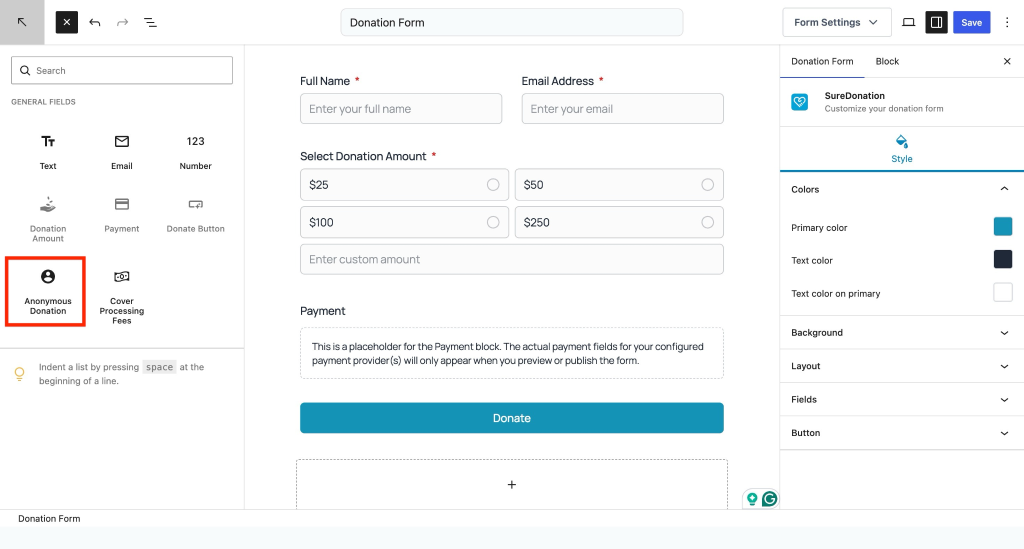
To configure the field:
- Select the Anonymous Donation field.
- Open the Block settings panel.
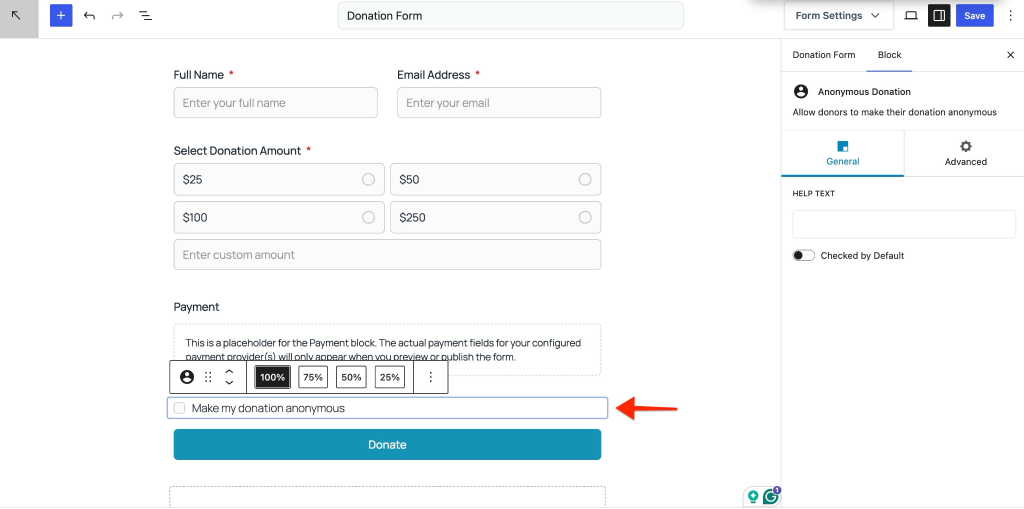
General Settings
The General tab controls how anonymous donations are presented to donors.
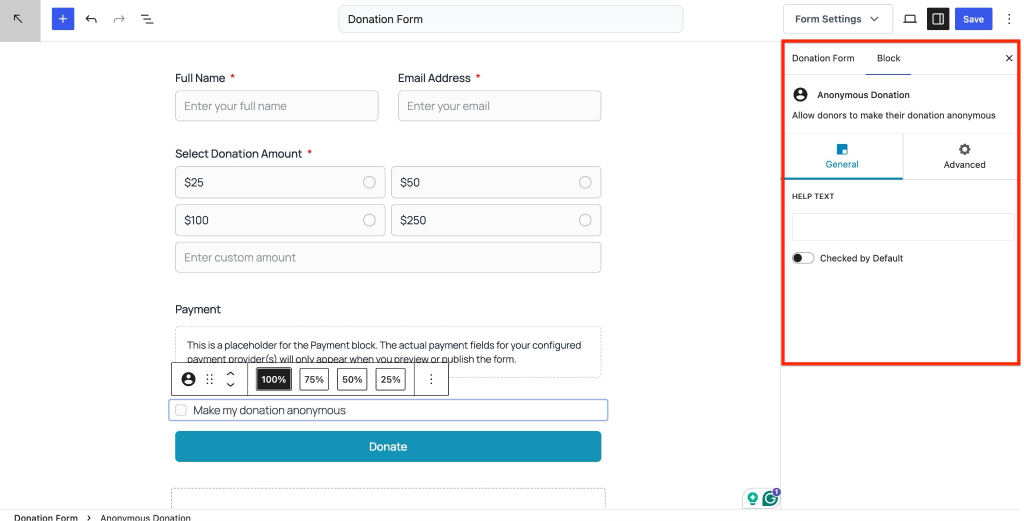
Help Text
Display additional information below the anonymous donation option.
Use Help Text to explain what anonymous donations mean.
Example messages:
- Hide my name from public donor lists.
- Your donation will remain private.
- Donate anonymously while still supporting the campaign.
This helps donors understand how anonymity works.
Checked by Default
Enable Checked by Default to automatically select the anonymous donation option.
When enabled:
- The anonymous option is pre-selected.
- Donors can manually deselect it before submitting the donation.
Example use cases:
- Privacy-focused campaigns
- Sensitive fundraising initiatives
- Anonymous supporter programs
If disabled, donors can choose anonymity manually during submission.
Advanced Settings
The Advanced tab provides additional styling controls.
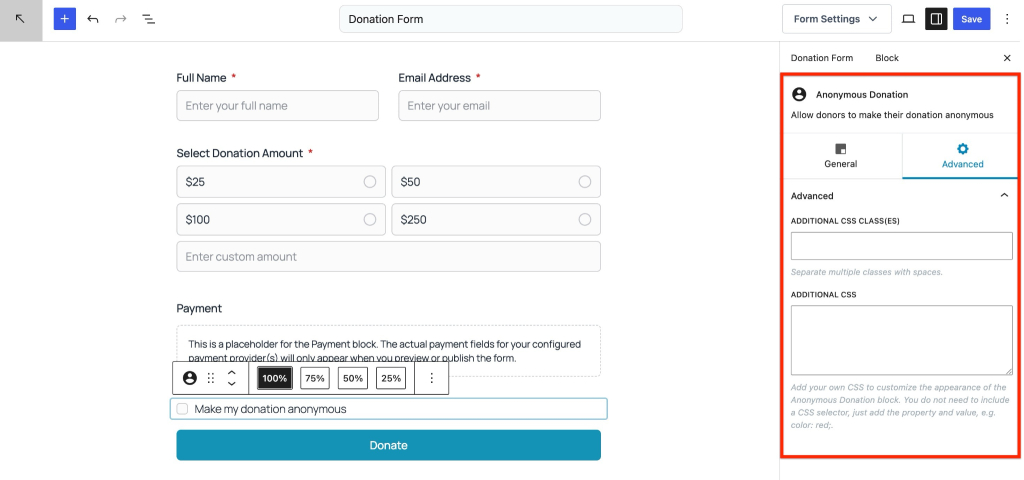
Additional CSS Class(es)
Add one or more CSS classes to customize the appearance of the Anonymous Donation field.
Separate multiple classes using spaces.
Example: anonymous-toggle privacy-option
This is useful for applying custom styles.
Additional CSS
Apply custom CSS properties directly to customize the field appearance.
You only need to enter CSS properties and values.
Example:
background-color: #f8f8f8;
padding: 12px;
border-radius: 8px;Do not include CSS selectors.
Use this option to customize the appearance without editing theme files.
We don't respond to the article feedback, we use it to improve our support content.