
- Add New Form
- Form Settings in SureDonation
- Set a Default Donation Form in SureDonation
- Text Field in SureDonation
- Email Field in SureDonation
- Number Field in SureDonation
- Donation Amount Field in SureDonation
- Payment Field in SureDonation
- Donate Button in SureDonation
- Cover Processing Fees Field
- Handle Custom Stripe Webhook Events
- suredonation_export_secret_option_keys Filter Hook
- suredonation_import_batch_complete Action Hook
- suredonation_import_complete Action Hook
- suredonation_import_donation_inserted Action Hook
- suredonation_import_donor_inserted Action Hook
- suredonation_import_session_created Action Hook
- suredonation_import_givewp_batch_complete Action Hook
- suredonation_import_givewp_session_created Action Hook
- suredonation_privacy_data_exported Action Hook
- Validate Field Filter Hook
- Validatable Blocks Filter Hook
- Update donation data, Filter Hook
- OttoKit Integration: suredonation_suretriggers_integration_data_filter Filter Hook
- suredonation_show_setup_gateway_notice Filter Hook
- suredonation_show_review_notice_gateway Filter Hook
- suredonation_show_review_notice_donation Filter Hook
- suredonation_registered_payment_methods Filter Hook
- suredonation_register_additional_blocks Filter Hook
- suredonation_receipt_html Filter Hook
- Validatable Blocks Filter Hook
- Update donation data, Filter Hook
- OttoKit Integration: suredonation_suretriggers_integration_data_filter Filter Hook
- suredonation_show_setup_gateway_notice Filter Hook
- suredonation_show_review_notice_gateway Filter Hook
- suredonation_show_review_notice_donation Filter Hook
- suredonation_registered_payment_methods Filter Hook
- suredonation_register_additional_blocks Filter Hook
- suredonation_receipt_html Filter Hook
- suredonation_phone_geo_enabled Filter Hook
Migrate Donations to SureDonation
The Migrate feature allows you to import your existing donation data into SureDonation from supported donation plugins or by uploading a CSV file. This makes it easy to move your donation records without manually recreating them.
Access the Migration Settings
To access the migration settings:
- Go to SureDonation > Settings.
- Click Migrate from the left sidebar.
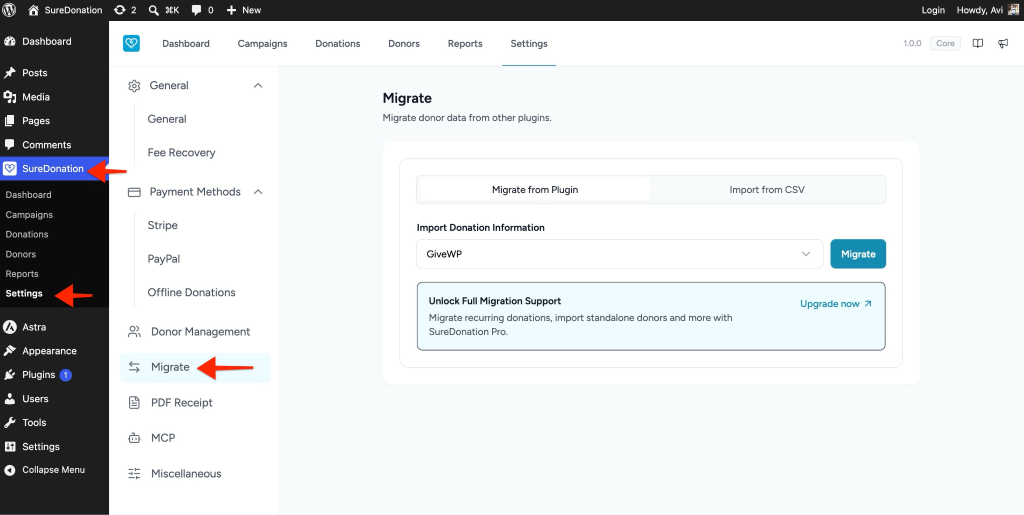
The migration screen provides two options:
- Migrate from Plugin
- Import from CSV
Migrate from Plugin
Use this option to import donation data directly from a supported WordPress donation plugin.
Steps
- Open the Migrate from Plugin tab.
- Under Import Donation Information, select the source plugin from the dropdown.
- Example: GiveWP
- Click Migrate.
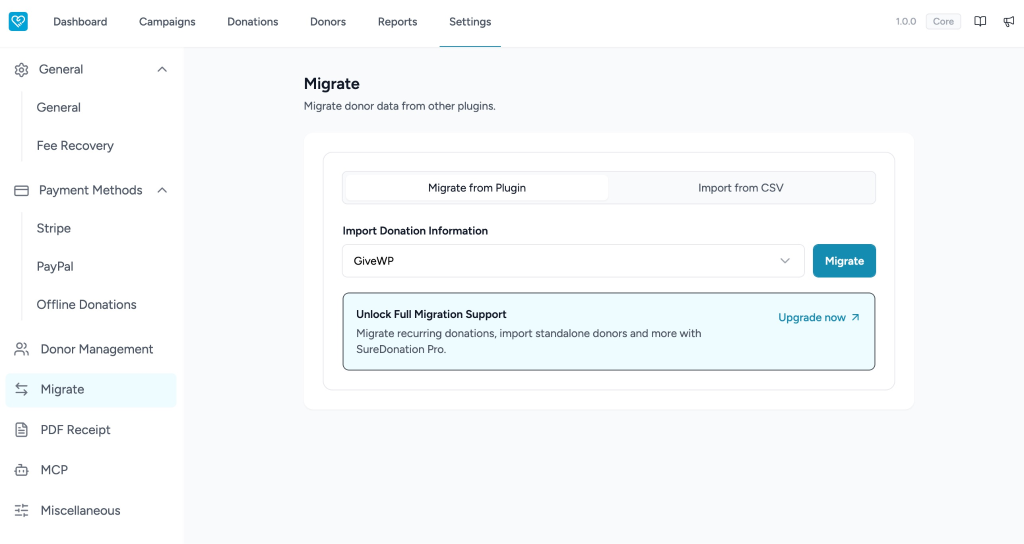
SureDonation will import the available donation records from the selected plugin.
Note: The free version supports importing donation data. Additional migration features, such as recurring donations and standalone donor imports, are available in SureDonation Pro.
Import from CSV
If you have exported your donation data as a CSV file, you can import it into SureDonation.
Steps
- Open the Import from CSV tab.
- Select the platform that generated your CSV file.
- Example: GiveWP
- Click Choose File and select your donation CSV file.
- Click Import.
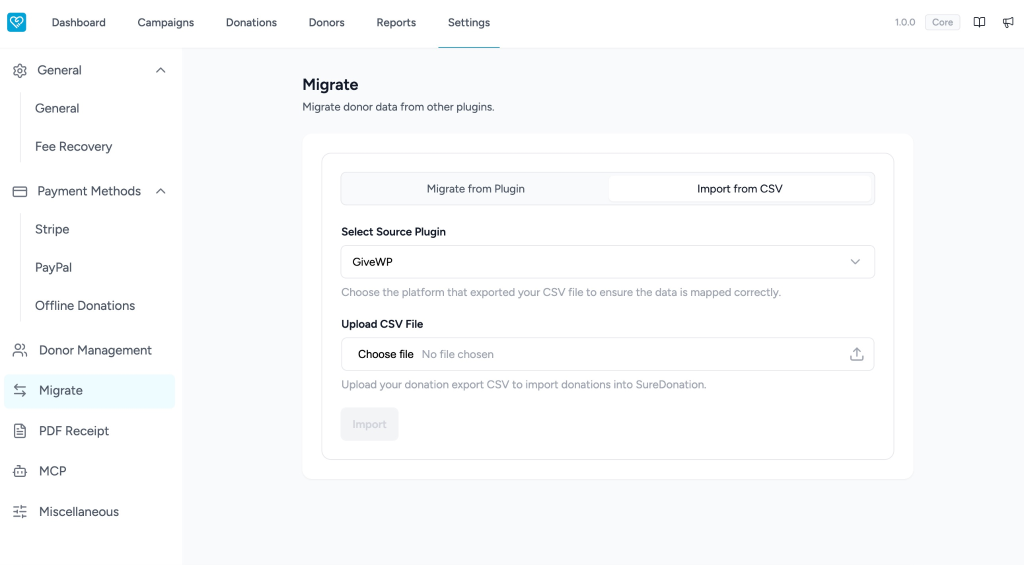
SureDonation will process the file and import the donation records into your site.
Available Options
Migrate from Plugin
Imports donation data directly from a supported WordPress donation plugin installed on your website.
Import from CSV
Imports donation records from a CSV file exported from another donation platform.
Select Source Plugin
Choose the platform that created the CSV file or the plugin you want to migrate from. This ensures the data is mapped correctly during import.
Upload CSV File
Select the CSV file containing your exported donation data.
Supported Sources
SureDonation currently supports importing donation data from:
- GiveWP
Additional migration options may be available in future releases.
Important Notes
- Always create a complete backup of your website before performing a migration.
- Ensure your CSV file is exported from the selected platform.
- Large imports may take longer depending on your server resources.
- The free version supports basic donation imports. Advanced migration features are available in SureDonation Pro.
We don't respond to the article feedback, we use it to improve our support content.