
- Add New Form
- Form Settings in SureDonation
- Set a Default Donation Form in SureDonation
- Text Field in SureDonation
- Email Field in SureDonation
- Number Field in SureDonation
- Donation Amount Field in SureDonation
- Payment Field in SureDonation
- Donate Button in SureDonation
- Cover Processing Fees Field
- Handle Custom Stripe Webhook Events
- suredonation_export_secret_option_keys Filter Hook
- suredonation_import_batch_complete Action Hook
- suredonation_import_complete Action Hook
- suredonation_import_donation_inserted Action Hook
- suredonation_import_donor_inserted Action Hook
- suredonation_import_session_created Action Hook
- suredonation_import_givewp_batch_complete Action Hook
- suredonation_import_givewp_session_created Action Hook
- suredonation_privacy_data_exported Action Hook
- Validate Field Filter Hook
- Validatable Blocks Filter Hook
- Update donation data, Filter Hook
- OttoKit Integration: suredonation_suretriggers_integration_data_filter Filter Hook
- suredonation_show_setup_gateway_notice Filter Hook
- suredonation_show_review_notice_gateway Filter Hook
- suredonation_show_review_notice_donation Filter Hook
- suredonation_registered_payment_methods Filter Hook
- suredonation_register_additional_blocks Filter Hook
- suredonation_receipt_html Filter Hook
- Validatable Blocks Filter Hook
- Update donation data, Filter Hook
- OttoKit Integration: suredonation_suretriggers_integration_data_filter Filter Hook
- suredonation_show_setup_gateway_notice Filter Hook
- suredonation_show_review_notice_gateway Filter Hook
- suredonation_show_review_notice_donation Filter Hook
- suredonation_registered_payment_methods Filter Hook
- suredonation_register_additional_blocks Filter Hook
- suredonation_receipt_html Filter Hook
- suredonation_phone_geo_enabled Filter Hook
How to Flush WordPress Permalinks for SureDonation
SureDonation uses WordPress rewrite rules to manage campaign pages, donation forms, and other plugin URLs. In some cases, these rewrite rules may not update automatically after installing, activating, or updating the plugin.
Flushing your WordPress permalinks refreshes the rewrite rules and helps ensure that all SureDonation pages and URLs work correctly.
When Should You Flush Permalinks?
You should flush permalinks if you experience any of the following issues:
- Campaign pages return a 404 Page Not Found error.
- Donation forms are not loading.
- Campaign URLs are inaccessible.
- Newly created campaigns cannot be viewed.
- You have recently installed, activated, or updated SureDonation.
- You have changed your site’s permalink structure.
Refreshing the permalinks rebuilds WordPress rewrite rules without affecting your website content.
Why Is This Important for SureDonation?
SureDonation relies on WordPress permalinks to display campaign pages and process donation URLs correctly.
If the rewrite rules become outdated, visitors may encounter:
- Broken campaign links.
- 404 errors on campaign pages.
- Donation pages that fail to load.
- Invalid or inaccessible campaign URLs.
Flushing permalinks ensures that WordPress recognizes all SureDonation routes and serves them correctly.
How to Flush WordPress Permalinks
Follow these steps to refresh your site’s permalink settings.
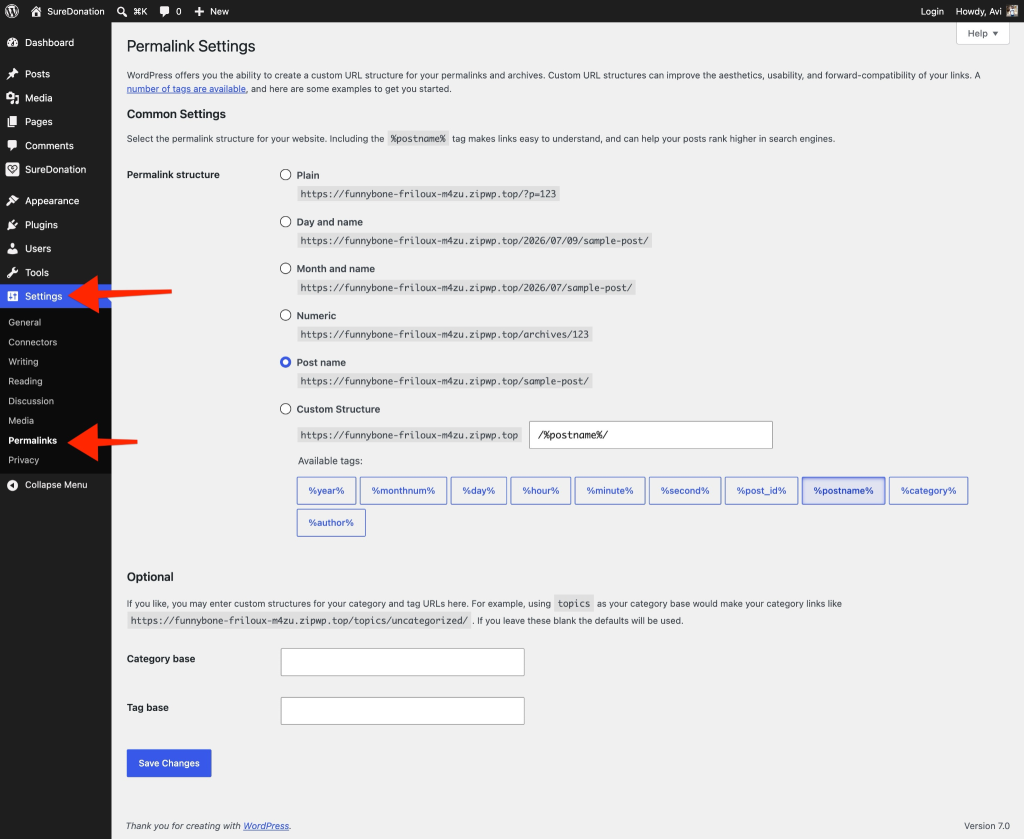
Step 1: Open Permalink Settings
- Log in to your WordPress dashboard.
- Navigate to Settings → Permalinks.
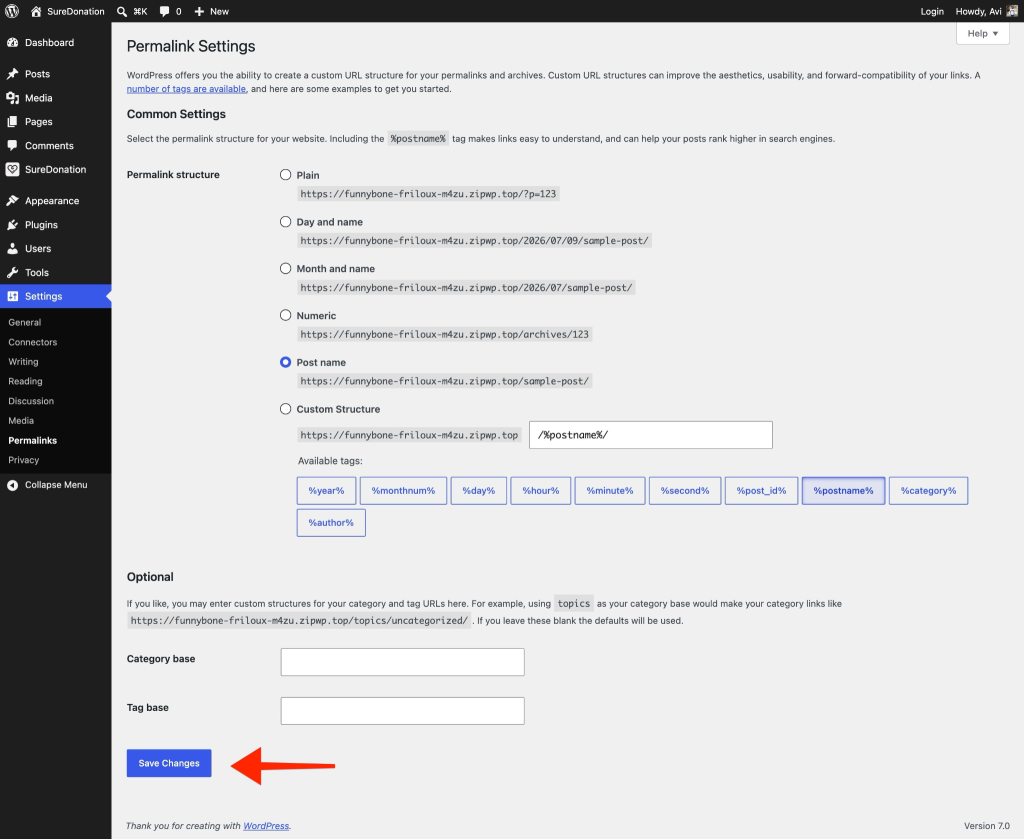
Step 2: Save the Permalink Settings
You do not need to change your permalink structure.
Simply click the Save Changes button.
WordPress will automatically regenerate its rewrite rules.
Step 3: Verify SureDonation
After saving the permalink settings:
- Open a SureDonation campaign page.
- Verify that the campaign loads correctly.
- Test a donation form to ensure it functions as expected.
When Should You Flush Permalinks Again?
You may need to refresh your permalinks after:
- Installing SureDonation for the first time.
- Updating the SureDonation plugin.
- Changing your website’s permalink structure.
- Restoring your website from a backup.
- Migrating your website to a new server or domain.
- Resolving 404 errors on campaign pages.
Troubleshooting
If campaign pages still do not work after flushing permalinks:
- Clear your website and browser cache.
- Ensure SureDonation is activated.
- Verify that no security or caching plugin is blocking the campaign URLs.
- Check for plugin or theme conflicts by temporarily disabling other plugins.
- Confirm that your web server supports WordPress rewrite rules (Apache or Nginx configuration).
If the issue persists, contact the SureDonation support team with the following information:
- Your WordPress version
- SureDonation version
- Active theme
- List of active plugins
- The URL of the affected campaign page
This information will help the support team diagnose the issue more efficiently.
We don't respond to the article feedback, we use it to improve our support content.