
- Add New Form
- Form Settings in SureDonation
- Set a Default Donation Form in SureDonation
- Text Field in SureDonation
- Email Field in SureDonation
- Number Field in SureDonation
- Donation Amount Field in SureDonation
- Payment Field in SureDonation
- Donate Button in SureDonation
- Cover Processing Fees Field
- Handle Custom Stripe Webhook Events
- suredonation_export_secret_option_keys Filter Hook
- suredonation_import_batch_complete Action Hook
- suredonation_import_complete Action Hook
- suredonation_import_donation_inserted Action Hook
- suredonation_import_donor_inserted Action Hook
- suredonation_import_session_created Action Hook
- suredonation_import_givewp_batch_complete Action Hook
- suredonation_import_givewp_session_created Action Hook
- suredonation_privacy_data_exported Action Hook
- Validate Field Filter Hook
- Validatable Blocks Filter Hook
- Update donation data, Filter Hook
- OttoKit Integration: suredonation_suretriggers_integration_data_filter Filter Hook
- suredonation_show_setup_gateway_notice Filter Hook
- suredonation_show_review_notice_gateway Filter Hook
- suredonation_show_review_notice_donation Filter Hook
- suredonation_registered_payment_methods Filter Hook
- suredonation_register_additional_blocks Filter Hook
- suredonation_receipt_html Filter Hook
- Validatable Blocks Filter Hook
- Update donation data, Filter Hook
- OttoKit Integration: suredonation_suretriggers_integration_data_filter Filter Hook
- suredonation_show_setup_gateway_notice Filter Hook
- suredonation_show_review_notice_gateway Filter Hook
- suredonation_show_review_notice_donation Filter Hook
- suredonation_registered_payment_methods Filter Hook
- suredonation_register_additional_blocks Filter Hook
- suredonation_receipt_html Filter Hook
- suredonation_phone_geo_enabled Filter Hook
How to Style a Donation Form
SureDonation lets you customize the appearance of your donation form directly from the form editor. You can change colors, backgrounds, spacing, and button alignment to match your website’s design.
Access the Style Settings
To style your donation form:
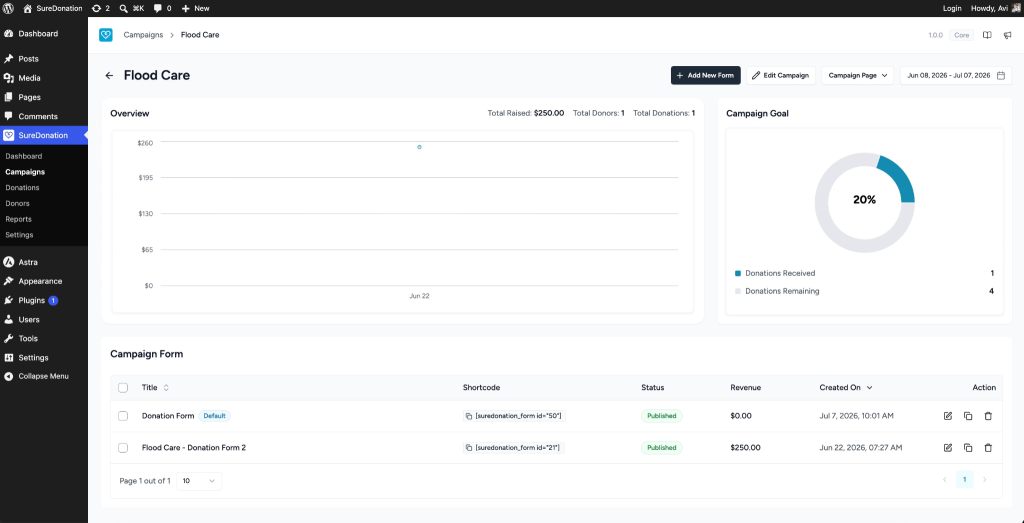
- Navigate to SureDonation > Campaigns.
- Open the campaign that contains your donation form.
- Edit the donation form.
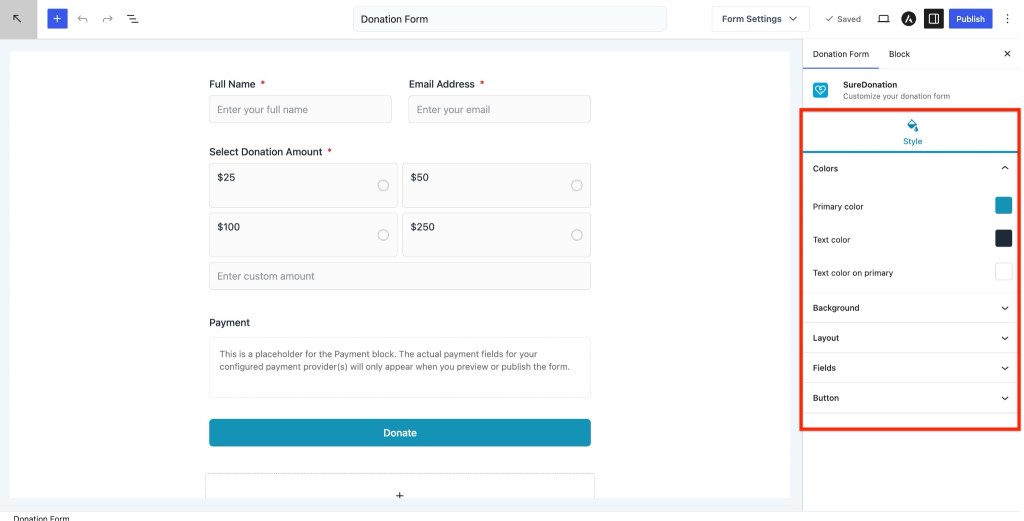
- Select the Donation Form block.
- In the right sidebar, open the Style tab.
Style Options
The Style tab includes the following sections:
- Colors
- Background
- Layout
- Fields
- Button
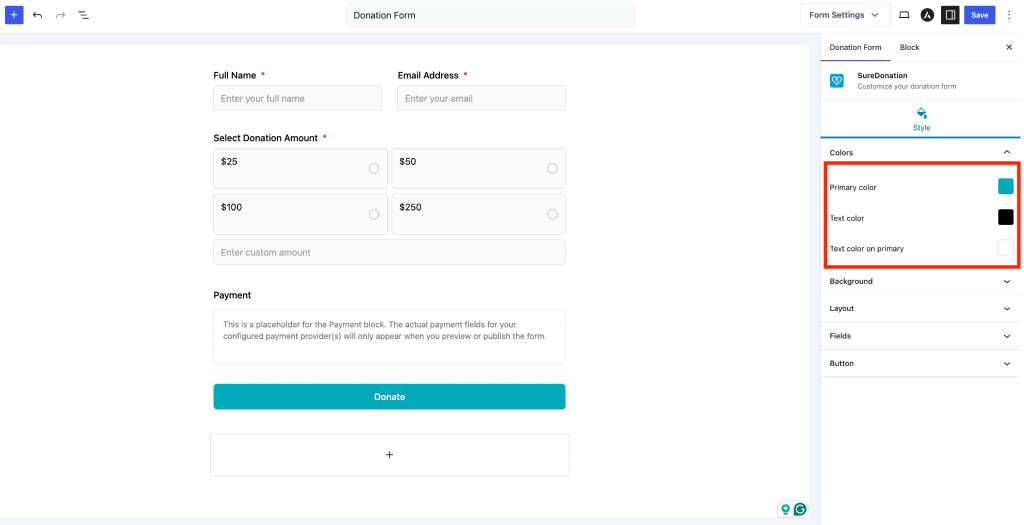
Colors
The Colors section lets you customize the colors used throughout the donation form.
Available options:
Primary Color
Choose the primary accent color used for elements such as:
- Donate button
- Selected donation amount
- Interactive form elements
Text Color
Select the color used for the form labels and other text.
Text Color on Primary
Choose the text color displayed on primary-colored elements, such as the Donate button.
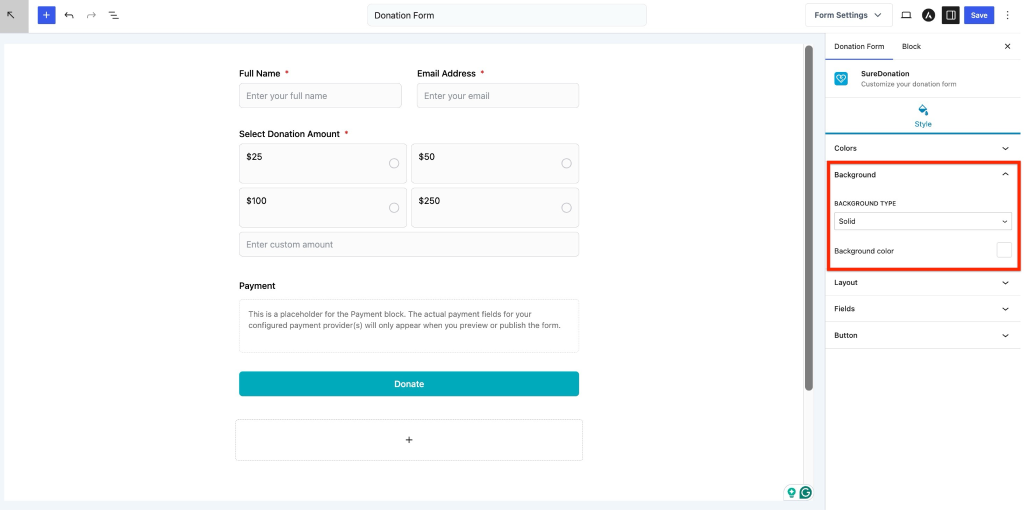
Background
The Background section allows you to customize the donation form background.
The Background Type dropdown includes three options:
- Solid
- Gradient
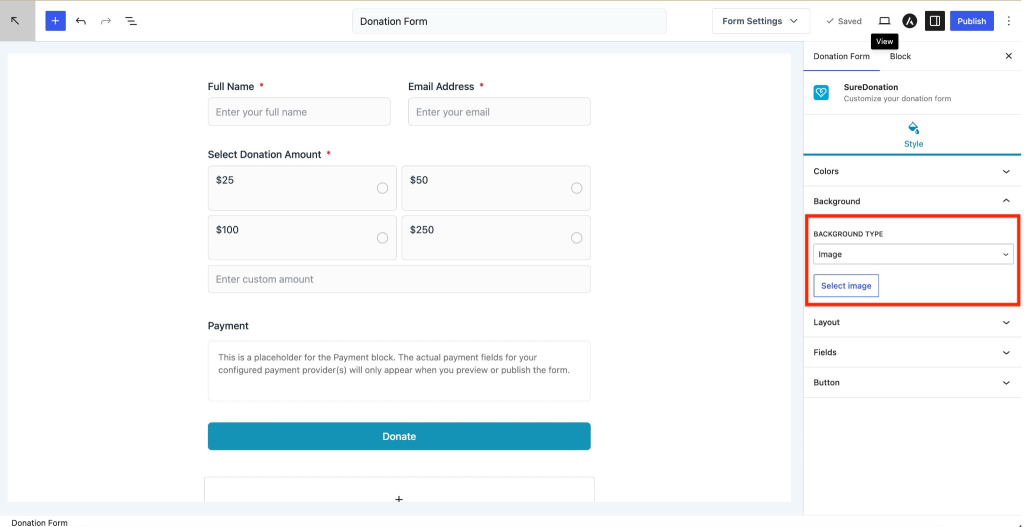
- Image
Solid Background
Select Solid to apply a single background color.
Available option:
- Background Color – Choose any color for the form background.
Gradient Background
Select Gradient to create a gradient background.
Available settings:
Type
Choose the gradient style:
- Linear
- Radial
Angle
For Linear gradients, specify the gradient angle.
Clear
Click Clear to remove the selected gradient.
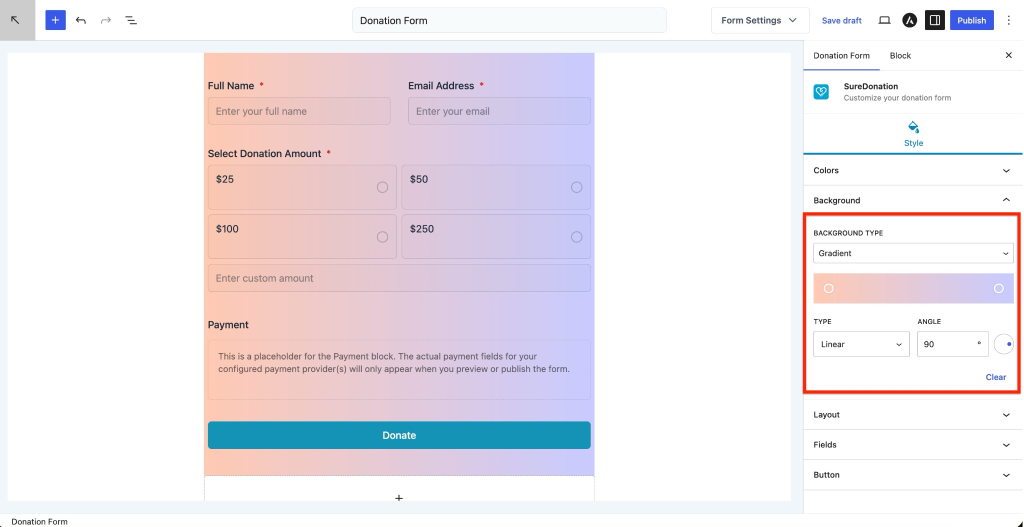
Image Background
Select an image to use as the form background.
Available option:
- Select Image – Upload an image or choose one from the Media Library.
Layout
The Layout section controls the spacing and corner radius of the donation form.
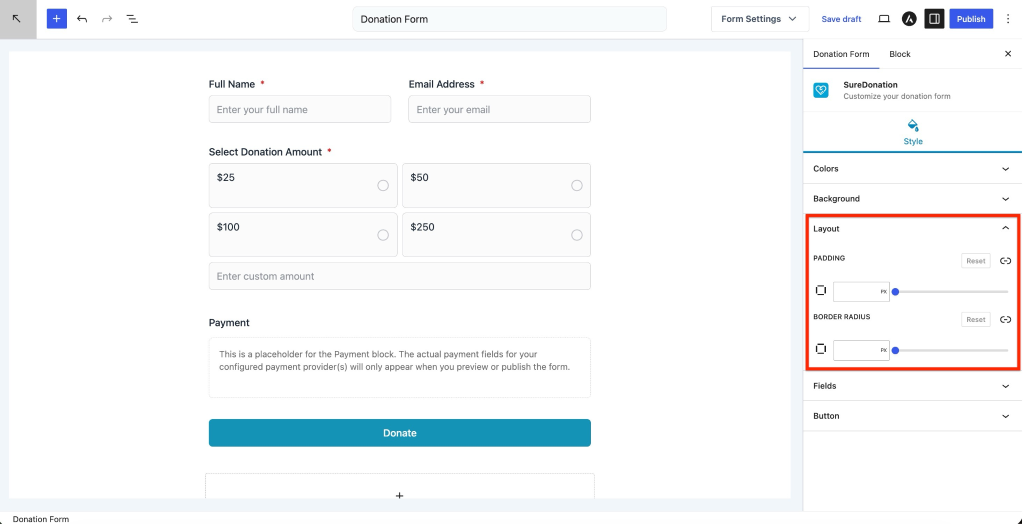
Padding
Padding adds space inside the form.
Available options:
- Enter the padding value in PX.
- Use the Link Sides option to apply the same padding to all sides.
- Click Reset to restore the default padding.
Border Radius
Border radius controls the roundness of the form corners.
Available options:
- Enter the border radius value in PX.
- Use the Link Sides option to apply the same radius to all corners.
- Click Reset to restore the default value.
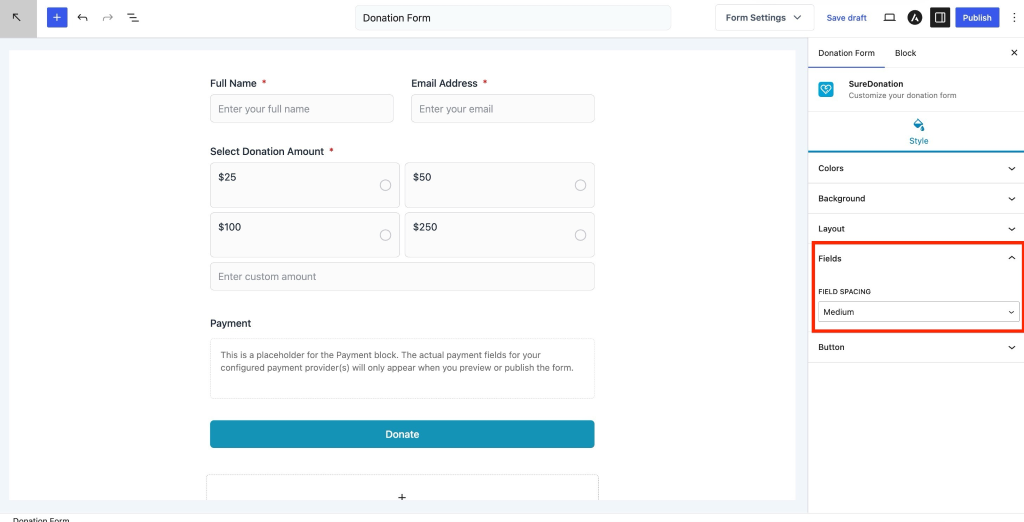
Fields
The Fields section lets you adjust the spacing between form fields.
Field Spacing
Choose one of the following options:
- Small
- Medium
- Large
Increasing the spacing creates more room between form fields, while reducing it makes the form more compact.
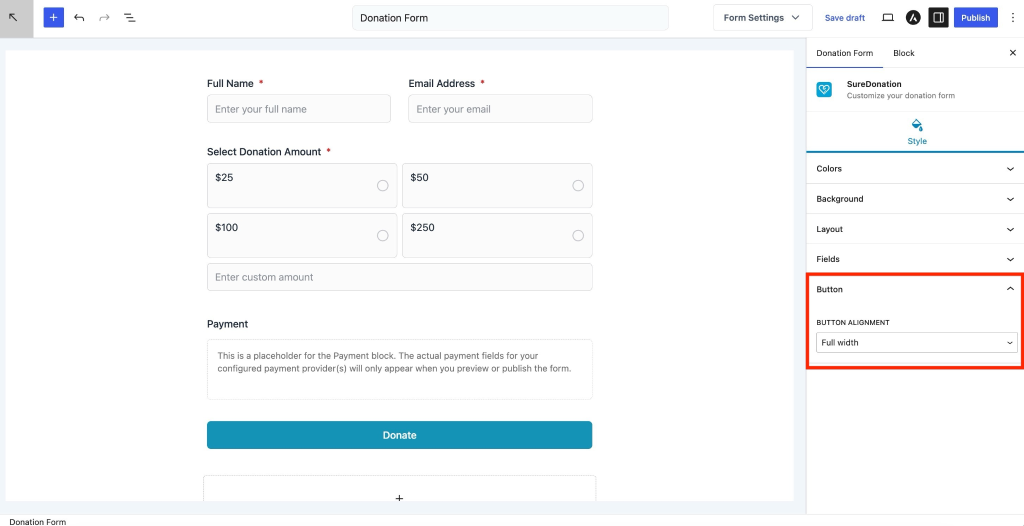
Button
The Button section controls the alignment of the Donate button.
Button Alignment
Choose how the Donate button is displayed.
Available options:
- Left
- Center
- Right
- Full Width
Save Your Changes
After customizing the form style, click Publish or Update to save your changes.
Your donation form will immediately reflect the selected styling on the front end.
We don't respond to the article feedback, we use it to improve our support content.