
- Add New Form
- Form Settings in SureDonation
- Set a Default Donation Form in SureDonation
- Text Field in SureDonation
- Email Field in SureDonation
- Number Field in SureDonation
- Donation Amount Field in SureDonation
- Payment Field in SureDonation
- Donate Button in SureDonation
- Cover Processing Fees Field
- Handle Custom Stripe Webhook Events
- suredonation_export_secret_option_keys Filter Hook
- suredonation_import_batch_complete Action Hook
- suredonation_import_complete Action Hook
- suredonation_import_donation_inserted Action Hook
- suredonation_import_donor_inserted Action Hook
- suredonation_import_session_created Action Hook
- suredonation_import_givewp_batch_complete Action Hook
- suredonation_import_givewp_session_created Action Hook
- suredonation_privacy_data_exported Action Hook
- Validate Field Filter Hook
- Validatable Blocks Filter Hook
- Update donation data, Filter Hook
- OttoKit Integration: suredonation_suretriggers_integration_data_filter Filter Hook
- suredonation_show_setup_gateway_notice Filter Hook
- suredonation_show_review_notice_gateway Filter Hook
- suredonation_show_review_notice_donation Filter Hook
- suredonation_registered_payment_methods Filter Hook
- suredonation_register_additional_blocks Filter Hook
- suredonation_receipt_html Filter Hook
- Validatable Blocks Filter Hook
- Update donation data, Filter Hook
- OttoKit Integration: suredonation_suretriggers_integration_data_filter Filter Hook
- suredonation_show_setup_gateway_notice Filter Hook
- suredonation_show_review_notice_gateway Filter Hook
- suredonation_show_review_notice_donation Filter Hook
- suredonation_registered_payment_methods Filter Hook
- suredonation_register_additional_blocks Filter Hook
- suredonation_receipt_html Filter Hook
- suredonation_phone_geo_enabled Filter Hook
Configuring Offline Donations in SureDonation
The Offline Donations settings allow you to accept donations without using an online payment gateway. This is useful when donors prefer to pay through methods such as bank transfer, cash, cheque, or any other manual payment method.
When enabled, donors can submit donations without completing an online payment. You can later review the donation and manually mark it as complete after receiving the payment.
Access Offline Donation Settings
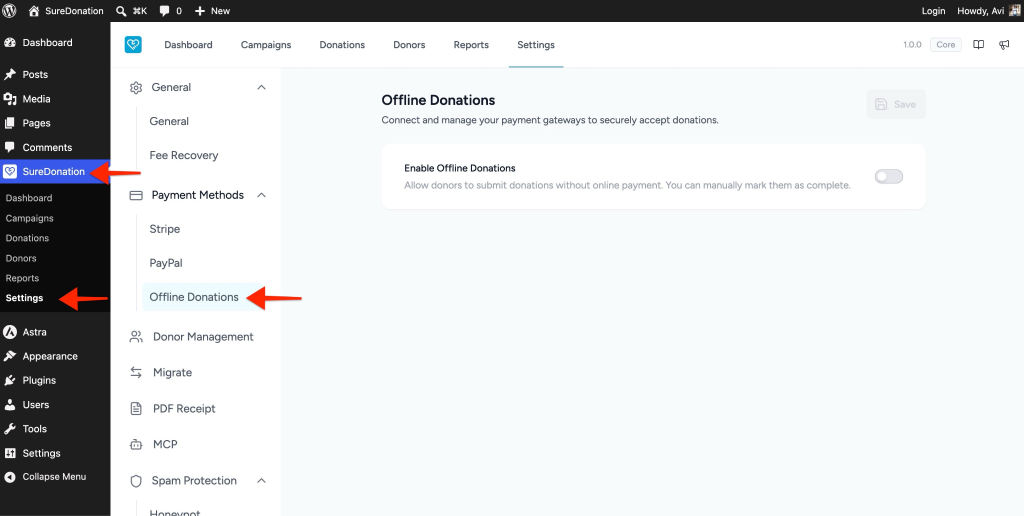
To access the Offline Donations settings:
- Log in to your WordPress Dashboard.
- Navigate to SureDonation > Settings.
- Expand Payment Methods from the left sidebar.
- Click Offline Donations.
Enable Offline Donations
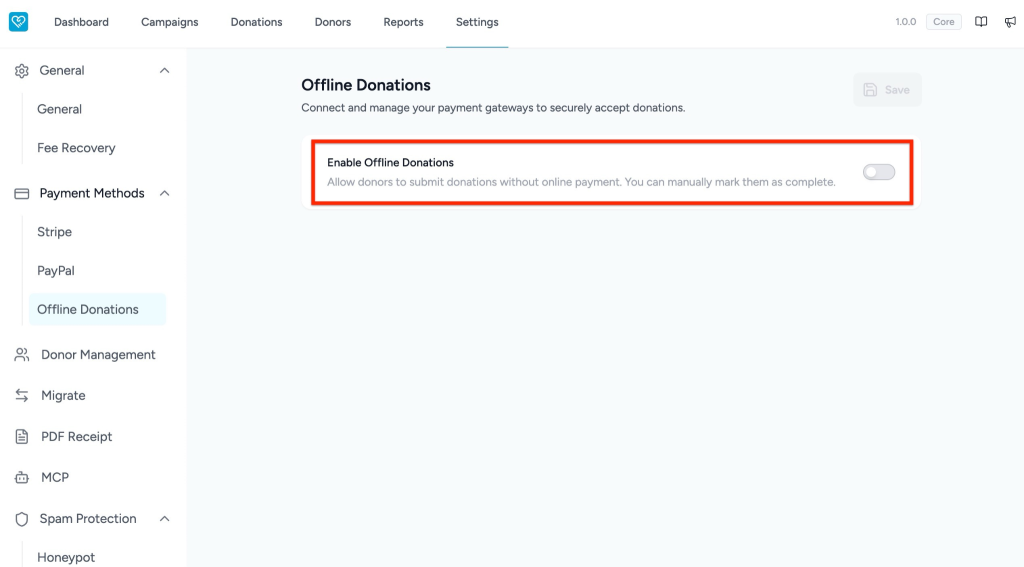
The Enable Offline Donations option allows donors to submit donations without making an online payment.
To enable this option:
- Go to SureDonation > Settings > Payment Methods > Offline Donations.
- Locate the Enable Offline Donations toggle.
- Turn on the toggle.
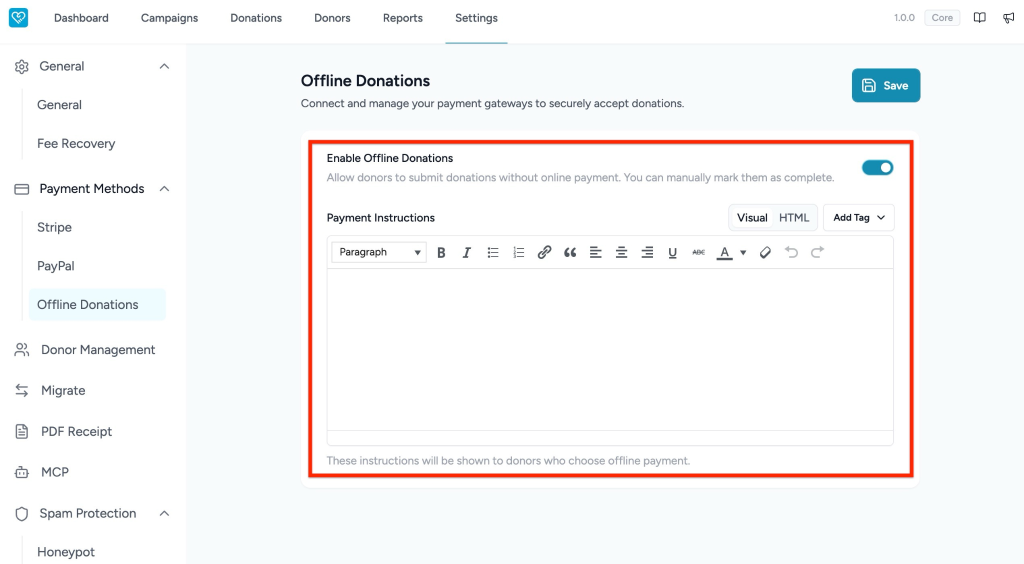
Once enabled, additional options will appear, including the Payment Instructions editor.
Add Payment Instructions
After enabling Offline Donations, you can add instructions that will be shown to donors who choose offline payment.
The Payment Instructions editor lets you add details such as:
- Bank account details
- Cheque payment instructions
- Cash collection information
- Contact details
- Any additional steps donors should follow after submitting the donation
To add payment instructions:
- Enable Offline Donations.
- Locate the Payment Instructions editor.
- Add your instructions in the editor.
- Use the formatting toolbar if needed.
- Click Save Instructions.
These instructions will be displayed to donors when they select offline payment.
Example Payment Instructions
You can use any of the following sample messages in the Payment Instructions field.
Draft Message 1: Bank Transfer
Thank you for choosing offline donation.
Please transfer the donation amount to the bank account details below:
Account Name: [Organization Name]
Bank Name: [Bank Name]
Account Number: [Account Number]
IFSC / Routing Code: [Code]
After completing the transfer, please share the payment reference number with us at [Email Address]. Once verified, we will mark your donation as complete.
Draft Message 2: Cheque Donation
Thank you for your donation.
Please make your cheque payable to [Organization Name] and send it to the following address:
Address: [Organization Address]
Once we receive and verify the cheque, your donation will be marked as complete.
Draft Message 3: Cash Donation
Thank you for choosing to donate offline.
You can complete your donation by visiting our office or contacting our team for cash collection.
Contact: [Phone Number]
Email: [Email Address]
Office Address: [Address]
Your donation will be marked as complete once the payment is received and confirmed.
Draft Message 4: Simple Offline Donation Message
Thank you for submitting your donation.
Please complete the payment using your preferred offline method. Once we receive and verify your payment, we will manually mark your donation as complete.
For any questions, contact us at [Email Address].
How Offline Donations Work
When Offline Donations are enabled:
- The donor selects the offline payment option while submitting the donation.
- The donation is recorded in SureDonation.
- No online payment is processed.
- You manually verify the payment outside the website.
- After confirmation, you can mark the donation as complete.
Important Note
Offline Donations do not process payments automatically. You must collect and verify the payment manually before marking the donation as complete.
We don't respond to the article feedback, we use it to improve our support content.