
- Add New Form
- Form Settings in SureDonation
- Set a Default Donation Form in SureDonation
- Text Field in SureDonation
- Email Field in SureDonation
- Number Field in SureDonation
- Donation Amount Field in SureDonation
- Payment Field in SureDonation
- Donate Button in SureDonation
- Cover Processing Fees Field
- Anonymous Donation Field
- Time Picker Field in SureDonation
- Handle Custom Stripe Webhook Events
- suredonation_export_secret_option_keys Filter Hook
- suredonation_import_batch_complete Action Hook
- suredonation_import_complete Action Hook
- suredonation_import_donation_inserted Action Hook
- suredonation_import_donor_inserted Action Hook
- suredonation_import_session_created Action Hook
- suredonation_import_givewp_batch_complete Action Hook
- suredonation_import_givewp_session_created Action Hook
- suredonation_privacy_data_exported Action Hook
- Validate Field Filter Hook
- Validatable Blocks Filter Hook
- Update donation data, Filter Hook
- OttoKit Integration: suredonation_suretriggers_integration_data_filter Filter Hook
- suredonation_show_setup_gateway_notice Filter Hook
- suredonation_show_review_notice_gateway Filter Hook
- suredonation_show_review_notice_donation Filter Hook
- suredonation_registered_payment_methods Filter Hook
- suredonation_register_additional_blocks Filter Hook
- suredonation_receipt_html Filter Hook
- Validatable Blocks Filter Hook
- Update donation data, Filter Hook
- OttoKit Integration: suredonation_suretriggers_integration_data_filter Filter Hook
- suredonation_show_setup_gateway_notice Filter Hook
- suredonation_show_review_notice_gateway Filter Hook
- suredonation_show_review_notice_donation Filter Hook
- suredonation_registered_payment_methods Filter Hook
- suredonation_register_additional_blocks Filter Hook
- suredonation_receipt_html Filter Hook
- suredonation_phone_geo_enabled Filter Hook
Donate Button in SureDonation
The Donate Button block controls the submission button displayed on the donation form.
This button allows donors to complete and submit their donation after filling in the required fields.
You can customize the button label and apply additional styling to match your campaign branding.
Common use cases include:
- Changing button text to match campaign goals
- Creating personalized call-to-action messages
- Improving donor engagement
- Matching the button style with website branding
Examples of custom button labels:
- Donate Now
- Support This Cause
- Contribute Today
- Complete Donation
- Help Flood Relief
Add a Donate Button
To add a Donate Button:
- Open the donation form editor.
- Click the Add (+) button.
- Select Donate Button from the available blocks.
- The button will appear in the form.
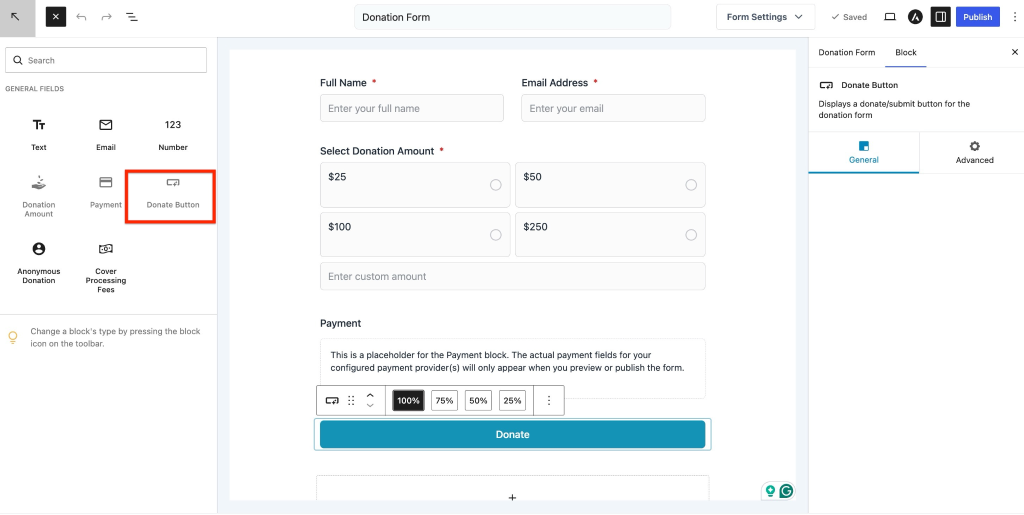
To customize the button:
Edit Button Text
You can edit the button label displayed to donors.
To update the button text:
- Select the Donate Button block.
- Click directly on the button text in the editor.
- Enter your preferred button label.
- Save the changes.
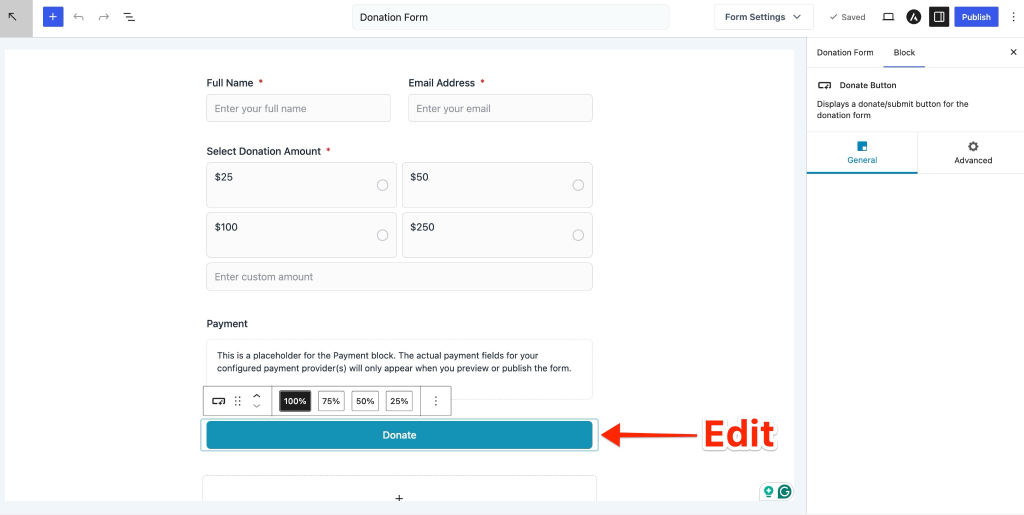
Example:
Default: Donate
Custom: Donate Now
Use clear and action-oriented text to encourage donations.
Advanced Settings
The Advanced tab provides styling controls for the button.
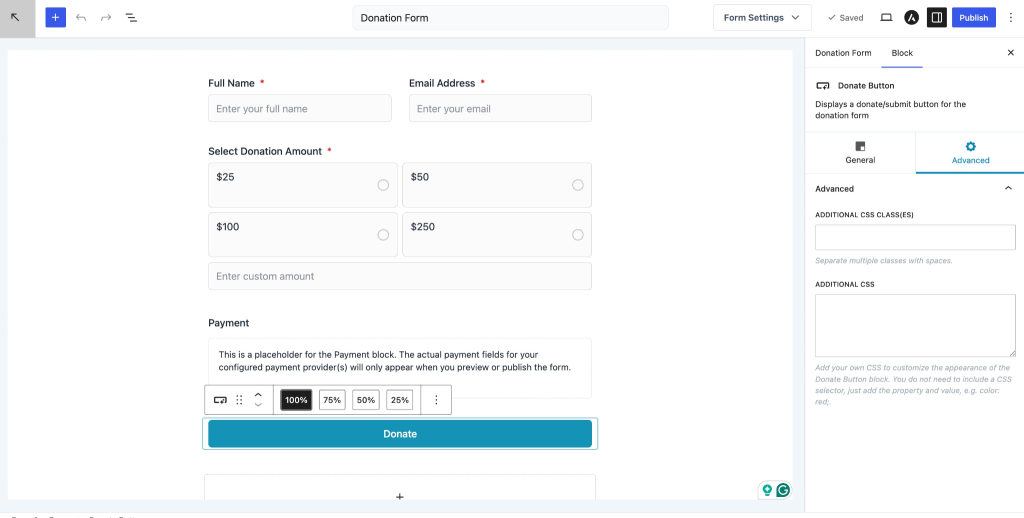
Additional CSS Class(es)
Add one or more CSS classes to customize the button’s appearance.
Separate multiple classes using spaces.
Example:
primary-donate large-button
This is useful when applying custom styles through your theme or site CSS.
Additional CSS
Apply custom CSS properties directly to the Donate Button.
You only need to enter CSS properties and values.
Example:
background-color: #2271b1;
color: white;
border-radius: 8px;
padding: 12px;Do not include CSS selectors.
Use this option to customize the button appearance without editing theme files.
We don't respond to the article feedback, we use it to improve our support content.