
- Handle Custom Stripe Webhook Events
- suredonation_export_secret_option_keys Filter Hook
- suredonation_import_batch_complete Action Hook
- suredonation_import_complete Action Hook
- suredonation_import_donation_inserted Action Hook
- suredonation_import_donor_inserted Action Hook
- suredonation_import_session_created Action Hook
- suredonation_import_givewp_batch_complete Action Hook
- suredonation_import_givewp_session_created Action Hook
- suredonation_privacy_data_exported Action Hook
- Validate Field Filter Hook
- Validatable Blocks Filter Hook
- Update donation data, Filter Hook
- OttoKit Integration: suredonation_suretriggers_integration_data_filter Filter Hook
- suredonation_show_setup_gateway_notice Filter Hook
- suredonation_show_review_notice_gateway Filter Hook
- suredonation_show_review_notice_donation Filter Hook
- suredonation_registered_payment_methods Filter Hook
- suredonation_register_additional_blocks Filter Hook
- suredonation_receipt_html Filter Hook
- Validatable Blocks Filter Hook
- Update donation data, Filter Hook
- OttoKit Integration: suredonation_suretriggers_integration_data_filter Filter Hook
- suredonation_show_setup_gateway_notice Filter Hook
- suredonation_show_review_notice_gateway Filter Hook
- suredonation_show_review_notice_donation Filter Hook
- suredonation_registered_payment_methods Filter Hook
- suredonation_register_additional_blocks Filter Hook
- suredonation_receipt_html Filter Hook
- suredonation_phone_geo_enabled Filter Hook
View Campaign
The View Campaign page allows you to review campaign performance, monitor donations, manage campaign forms, and access campaign-related actions from a single dashboard.
Accessing the View Campaign Page
To access the campaign details page:
- Navigate to SureDonation → Campaigns from your WordPress dashboard.
- Locate the campaign you want to review from the campaign list.
- Click the View (👁️ Eye) icon available under the Action column.
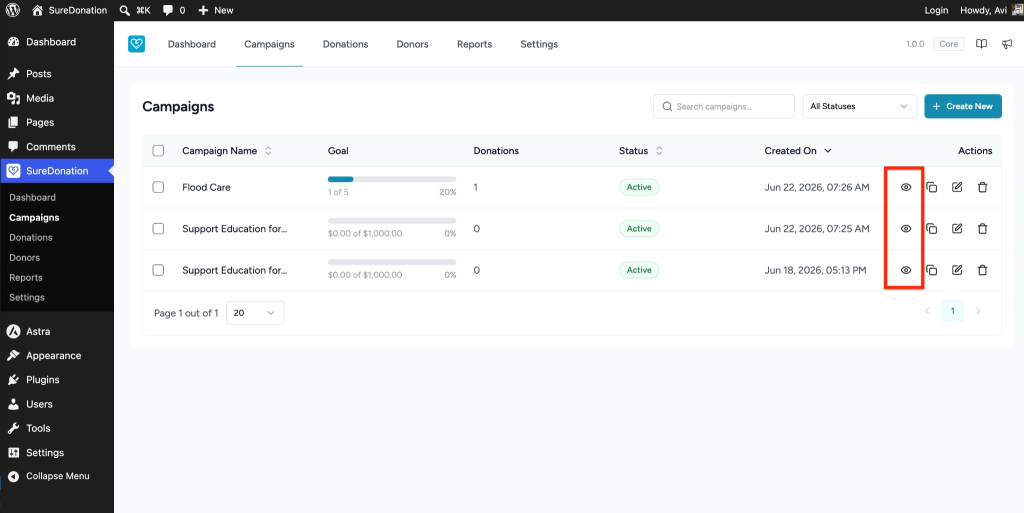
Once clicked, you will be redirected to the selected campaign’s overview page.
Campaign Overview Page
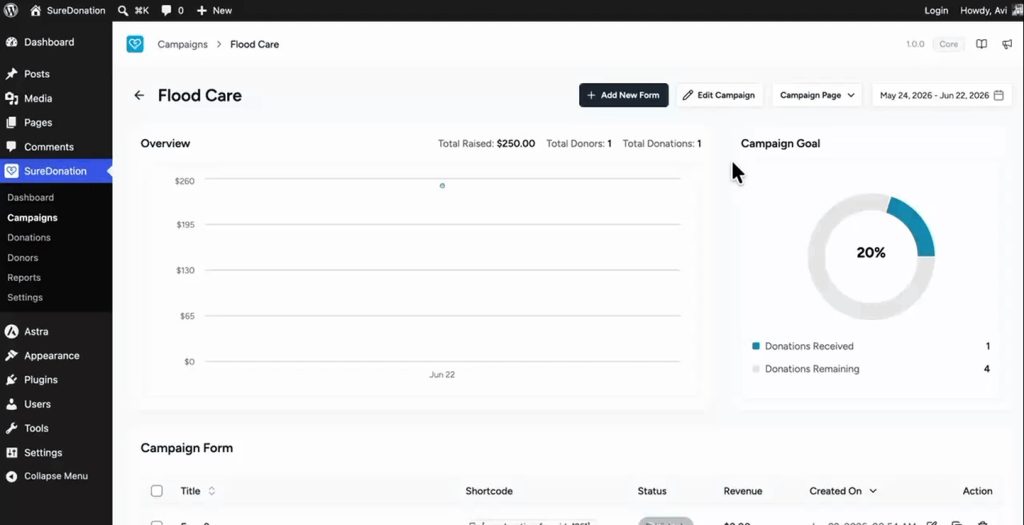
The campaign overview page provides a complete summary of your fundraising campaign including donation performance, forms, and campaign management options.
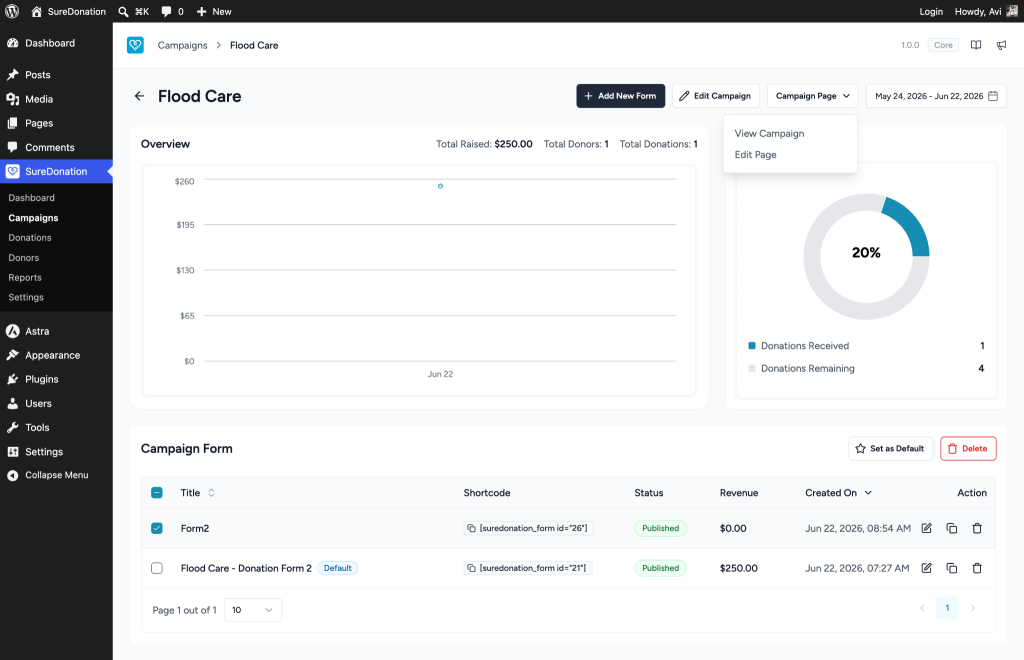
In this example, the campaign displayed is Flood Care.
Campaign Header Actions
At the top of the campaign page, you will find several action options.
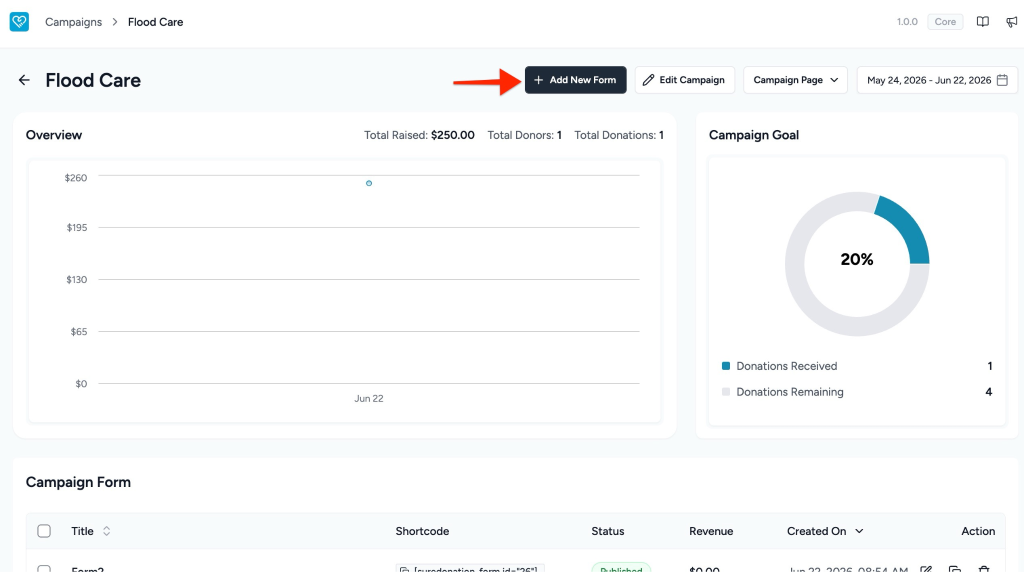
Add New Form
Click Add New Form to create an additional donation form and attach it to the current campaign.
Edit Campaign
Select Edit Campaign to update campaign details such as:
- Campaign title
- Goal amount
- Campaign description
- Display settings
- Additional campaign configuration
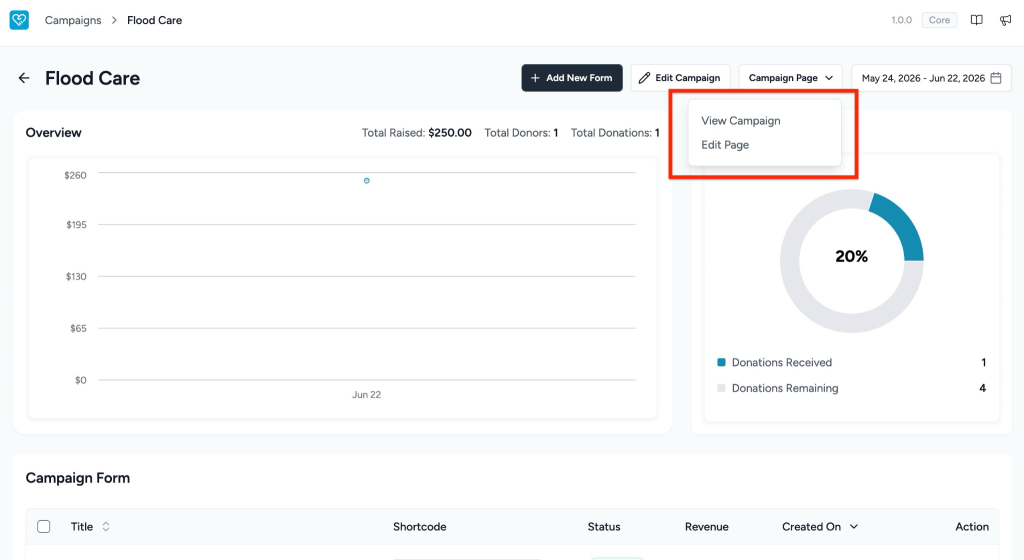
Campaign Page
Use the Campaign Page dropdown to access campaign-related page actions.
Available options:
- View Campaign – Opens the public-facing campaign page.
- Edit Page – Opens the campaign page in the WordPress editor for customization.
Date Range Filter
Use the date selector to filter campaign analytics for a specific timeframe.
Example shown: May 24, 2026 – Jun 22, 2026
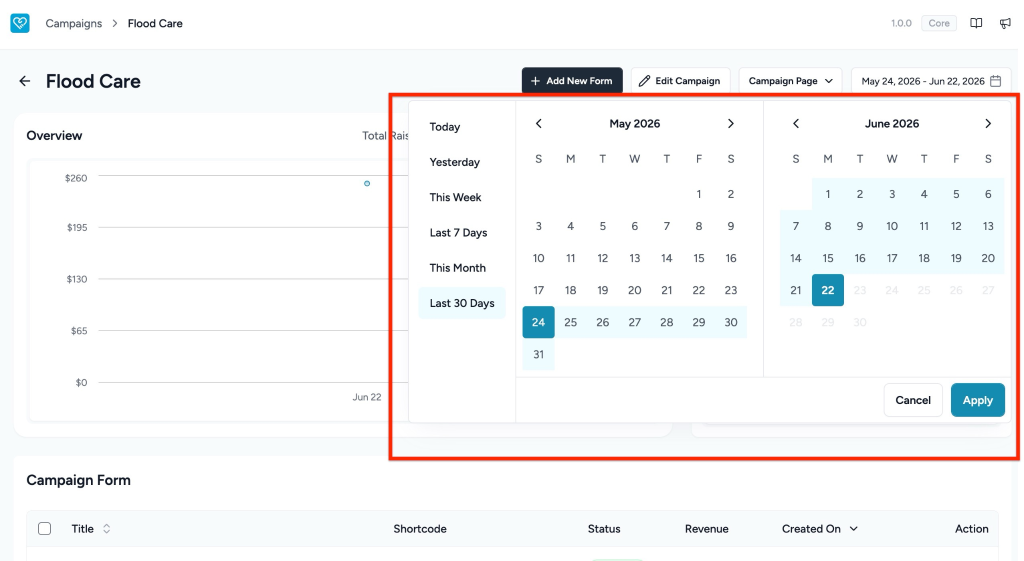
Filtering updates the campaign reporting metrics displayed on the page.
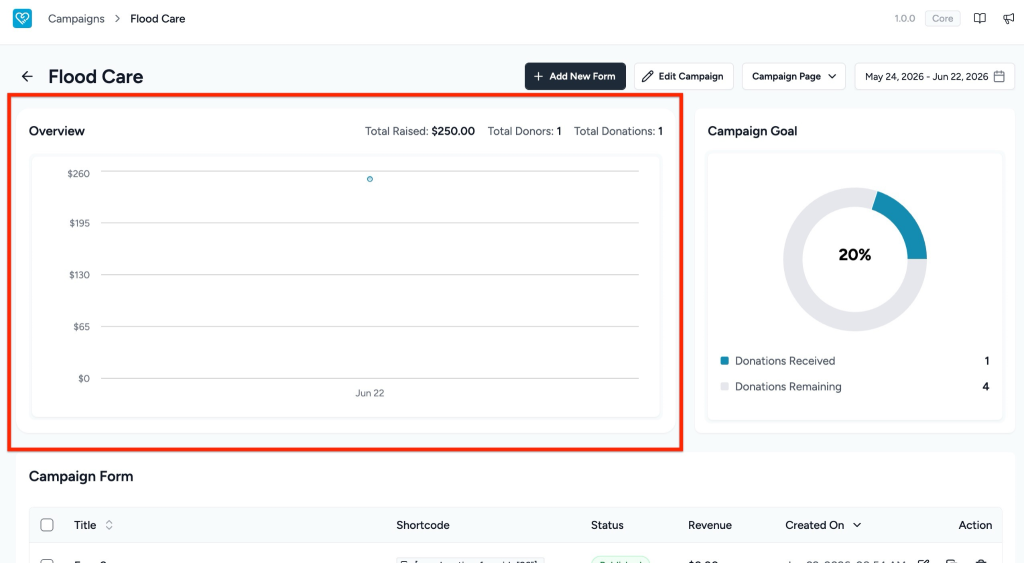
Overview Section
The Overview section provides a visual summary of campaign performance.
It displays:
- Total Raised – Total amount collected for the selected period.
- Total Donors – Number of unique donors.
- Total Donations – Total donation entries received.
Example values:
- Total Raised: $250.00
- Total Donors: 1
- Total Donations: 1
A chart is displayed below the summary to help visualize donation activity over time.
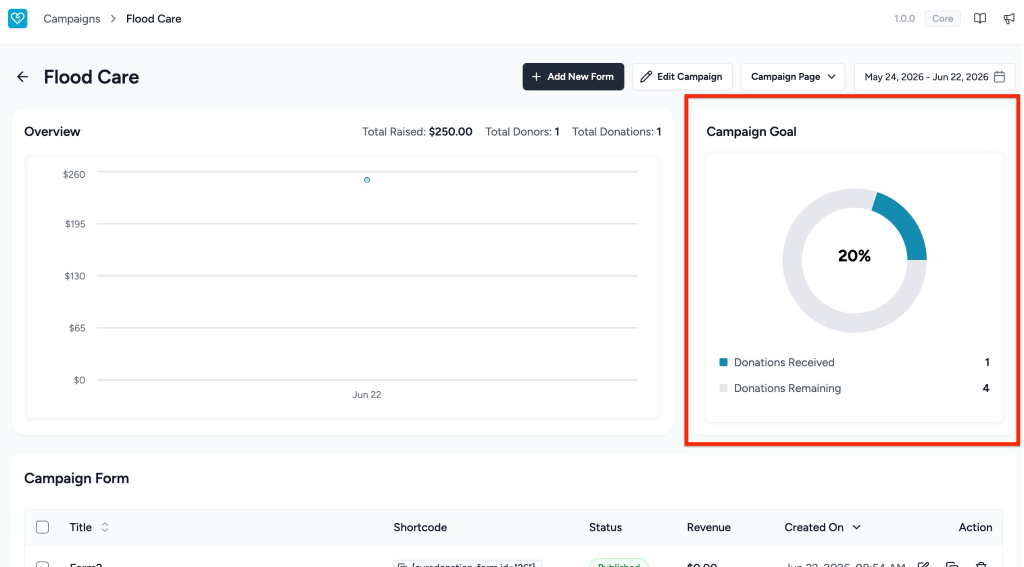
Campaign Goal
The Campaign Goal widget shows progress toward your fundraising target.
The widget displays:
- Percentage of goal completed
- Donations received
- Remaining donations required to reach the goal
Example shown:
- Progress: 20%
- Donations Received: 1
- Donations Remaining: 4
This section helps monitor campaign performance at a glance.
Campaign Form Management
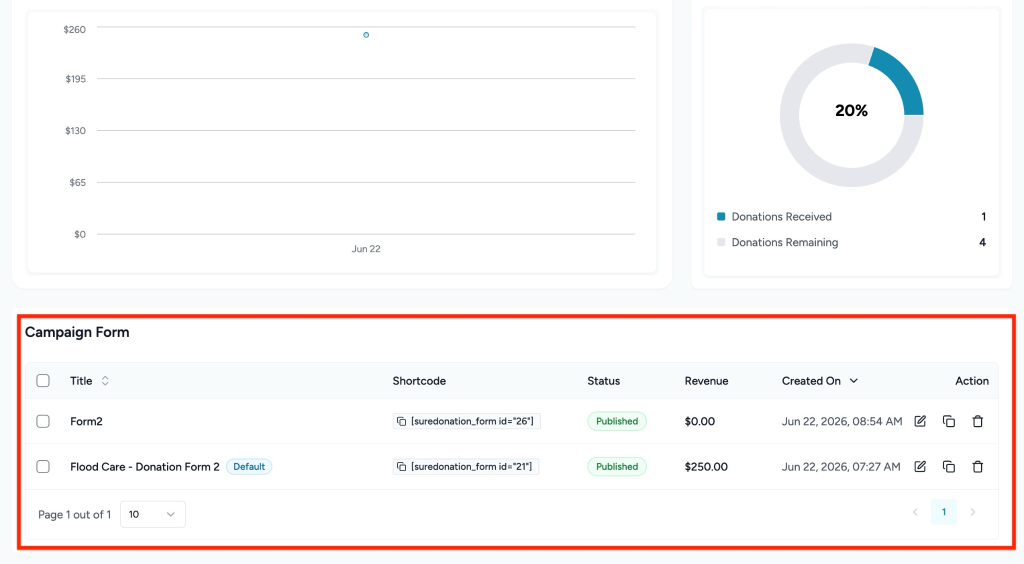
The Campaign Form section displays all forms connected to the campaign.
Available information includes:
| Field | Description |
| Title | Name of the donation form |
| Shortcode | Shortcode used to embed the form |
| Status | Current publishing status |
| Revenue | Amount collected through the form |
| Created On | Form creation date |
| Action | Available management actions |
Form Actions
Each form includes the following actions:
Set as Default
Mark a selected donation form as the default form for the campaign.
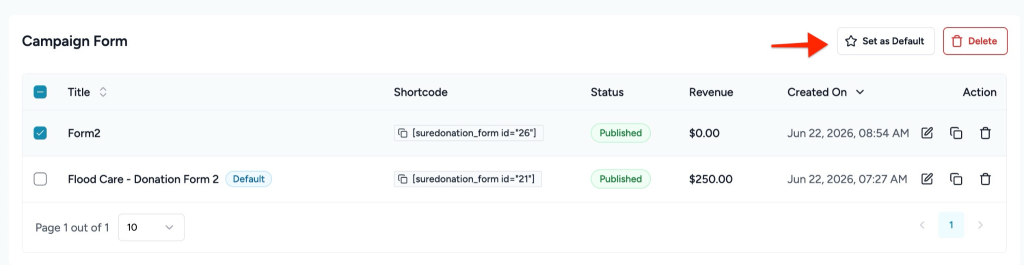
Only one form can remain the default at a time.
Form Actions
Each form inside the Campaign Form section includes the following actions:
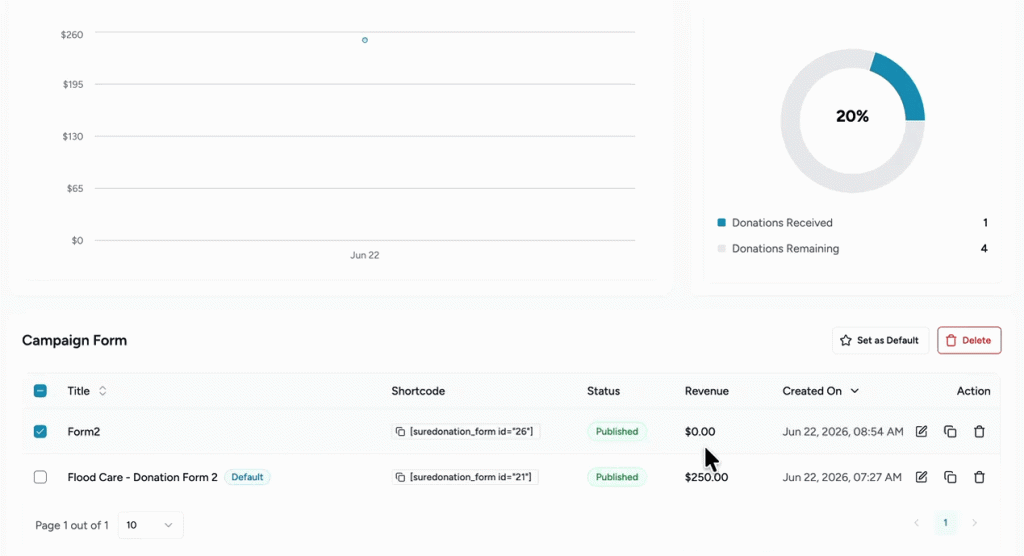
Edit
Click the Edit icon to open and modify the selected donation form.
You can update form elements such as:
- Form fields
- Donation options
- Layout and styling
- Form behavior and configuration
Duplicate
Click the Duplicate icon to create a copy of an existing donation form.
Duplicating a form helps you quickly create similar donation forms without rebuilding them from scratch.
This is useful when:
- Creating multiple variations of a donation form
- Testing different donation experiences
- Reusing an existing form structure
Delete
Click the Delete icon to permanently remove the selected donation form from the campaign.
Note: Deleting a form cannot be undone and may impact pages where the shortcode is currently being used.
Consider verifying shortcode usage before deleting a form.
Copy Shortcode
Use the shortcode copy option to quickly embed the donation form into:
- Pages
- Posts
- Widgets
- Custom templates
We don't respond to the article feedback, we use it to improve our support content.