
- Handle Custom Stripe Webhook Events
- suredonation_export_secret_option_keys Filter Hook
- suredonation_import_batch_complete Action Hook
- suredonation_import_complete Action Hook
- suredonation_import_donation_inserted Action Hook
- suredonation_import_donor_inserted Action Hook
- suredonation_import_session_created Action Hook
- suredonation_import_givewp_batch_complete Action Hook
- suredonation_import_givewp_session_created Action Hook
- suredonation_privacy_data_exported Action Hook
- Validate Field Filter Hook
- Validatable Blocks Filter Hook
- Update donation data, Filter Hook
- OttoKit Integration: suredonation_suretriggers_integration_data_filter Filter Hook
- suredonation_show_setup_gateway_notice Filter Hook
- suredonation_show_review_notice_gateway Filter Hook
- suredonation_show_review_notice_donation Filter Hook
- suredonation_registered_payment_methods Filter Hook
- suredonation_register_additional_blocks Filter Hook
- suredonation_receipt_html Filter Hook
- Validatable Blocks Filter Hook
- Update donation data, Filter Hook
- OttoKit Integration: suredonation_suretriggers_integration_data_filter Filter Hook
- suredonation_show_setup_gateway_notice Filter Hook
- suredonation_show_review_notice_gateway Filter Hook
- suredonation_show_review_notice_donation Filter Hook
- suredonation_registered_payment_methods Filter Hook
- suredonation_register_additional_blocks Filter Hook
- suredonation_receipt_html Filter Hook
- suredonation_phone_geo_enabled Filter Hook
Form Settings in SureDonation
The Form Settings panel allows you to configure what happens after a donor submits the form and manage email notifications generated from donation activity.
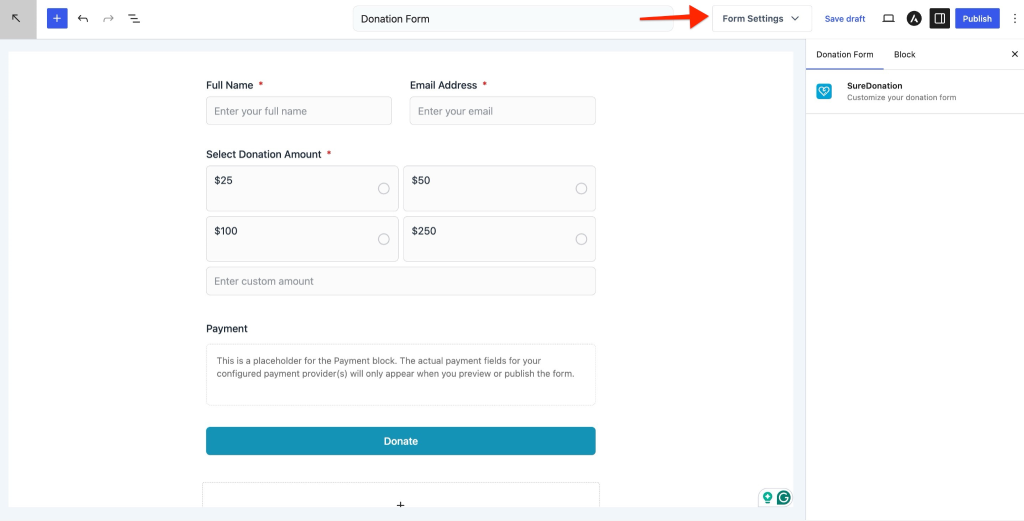
To access these settings:
- Open the donation form editor.
- Click Form Settings from the top toolbar.
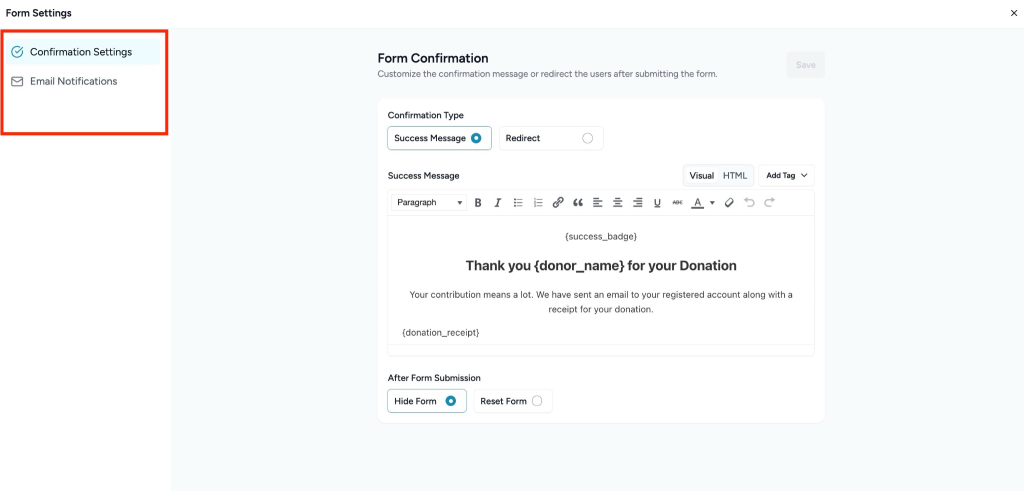
The settings panel includes:
- Form Confirmation
- Email Notifications
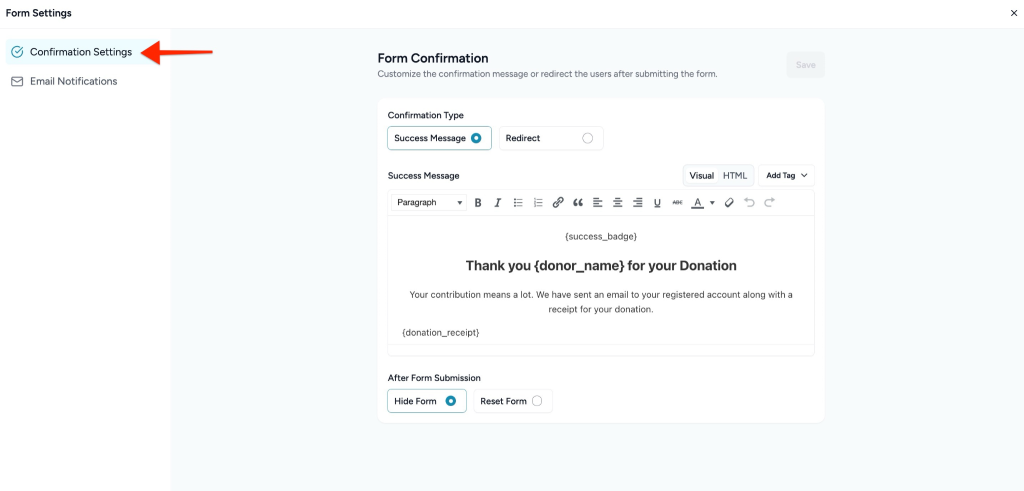
Form Confirmation
The Form Confirmation settings allow you to control what donors see after successfully submitting a donation.
You can customize the confirmation experience by displaying a message or redirecting donors to another page.
Confirmation Type
Choose how the donor should proceed after form submission.
Available options:
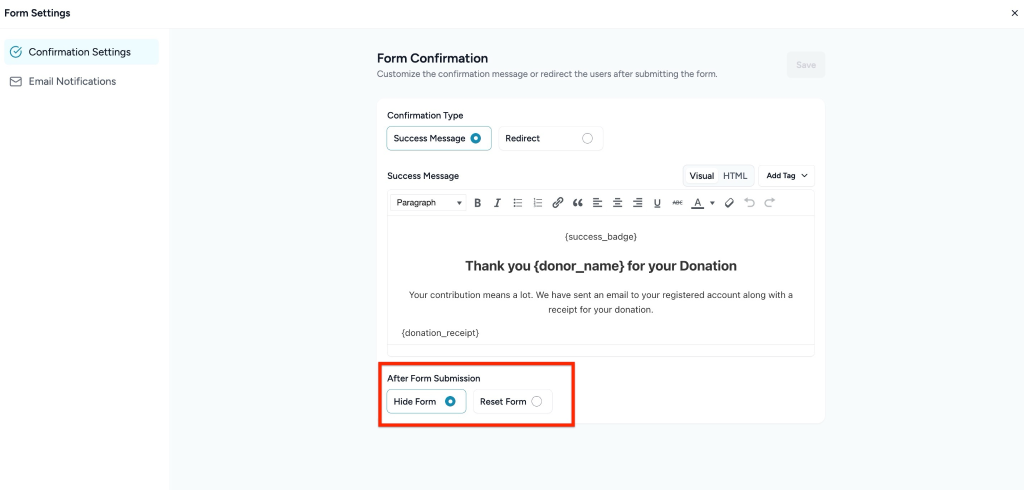
Success Message
Display a custom confirmation message immediately after the donation is submitted.
This option allows you to:
- Show a thank-you message
- Display donation details
- Insert dynamic tags
- Customize confirmation content
The editor includes:
- Visual mode for rich text editing
- HTML mode for advanced customization
- Add Tag to insert dynamic values into the confirmation message
Example placeholders shown in the editor:
- { success_badge }
- { donor_name }
- { donation_receipt }
These placeholders automatically populate information after a successful donation.
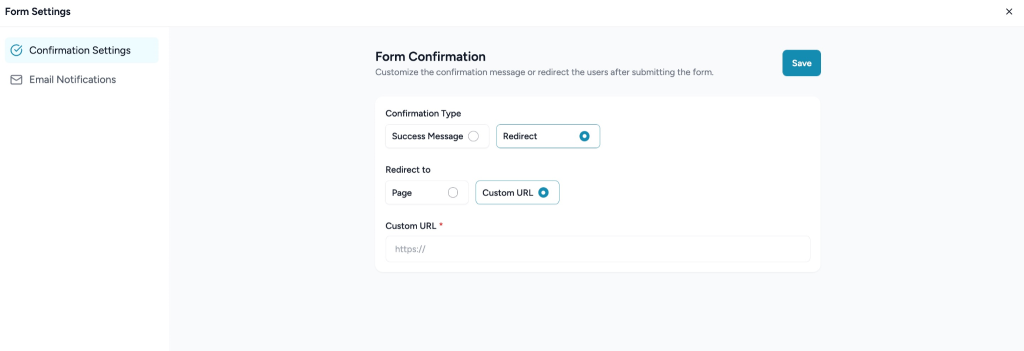
Redirect
Select Redirect if you want donors to be automatically sent to another page after submitting the donation form.
You can configure the redirect using either of the following options:
Select Page
Choose an existing page from the available dropdown list.
This option is useful when redirecting donors to:
- A Thank You page
- Campaign information page
- Event details page
- Donation confirmation page
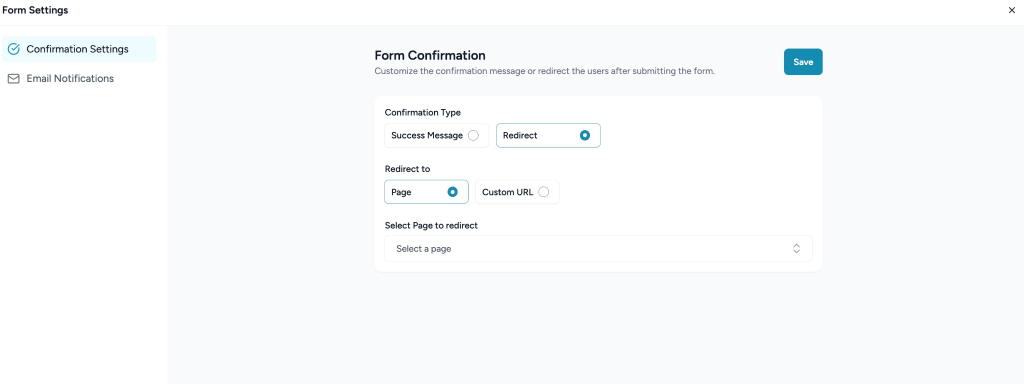
Custom URL
Enter a custom URL in the provided text field to redirect donors to an external or specific destination.
Example use cases:
- Redirect to an external website
- Send users to a custom landing page
- Track conversions using dedicated URLs
Make sure the URL is entered correctly to ensure donors are redirected successfully after submission.
After configuring the redirect destination, click Save to apply the changes.
Customize Success Message
When Success Message is selected, use the editor to configure the confirmation content.
The editor supports:
- Text formatting
- Paragraph styling
- Links
- Lists
- Dynamic tags
After making changes, click Save to apply the updates.
After Form Submission
Choose what should happen to the form after submission.
Available options:
Hide Form
Hide the donation form after submission and display only the confirmation result.
Reset Form
Reset all fields and allow donors to submit another donation.
Click Save after updating your preferred behavior.
Email Notifications
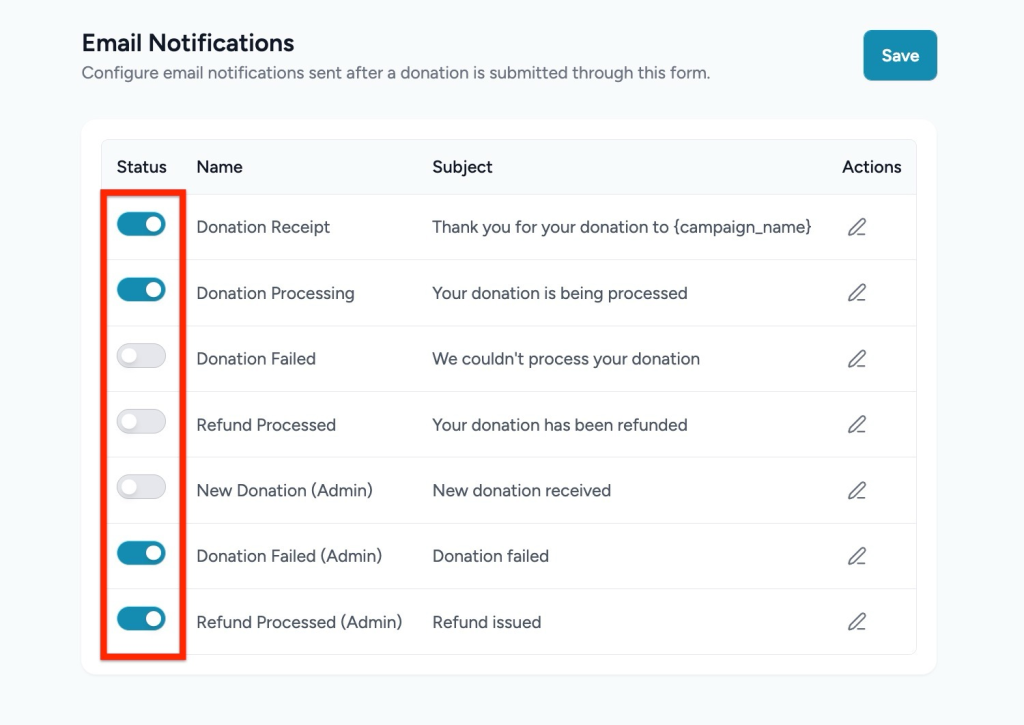
The Email Notifications settings allow you to configure automated emails sent after donation-related events occur.
These notifications can be enabled or disabled individually and customized based on your requirements.
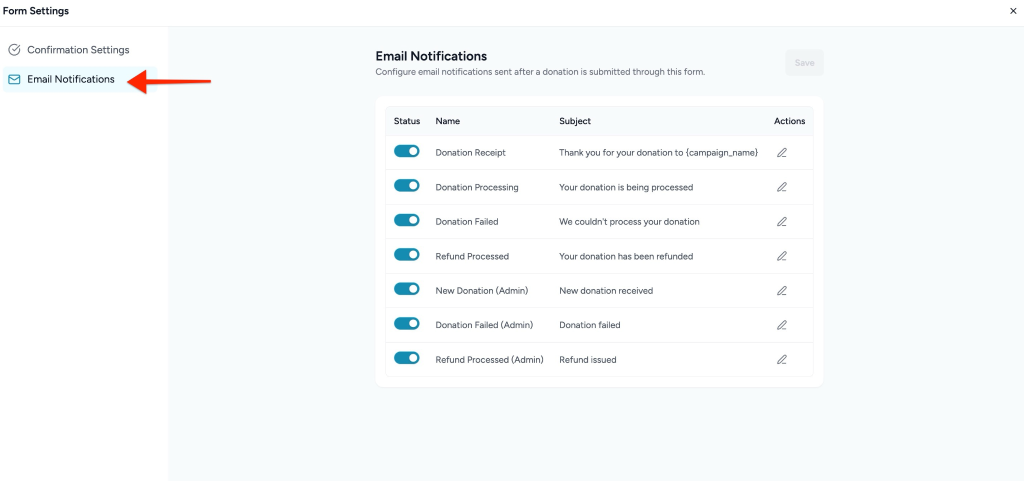
Access Email Notifications
- Open Form Settings.
- Select Email Notifications.
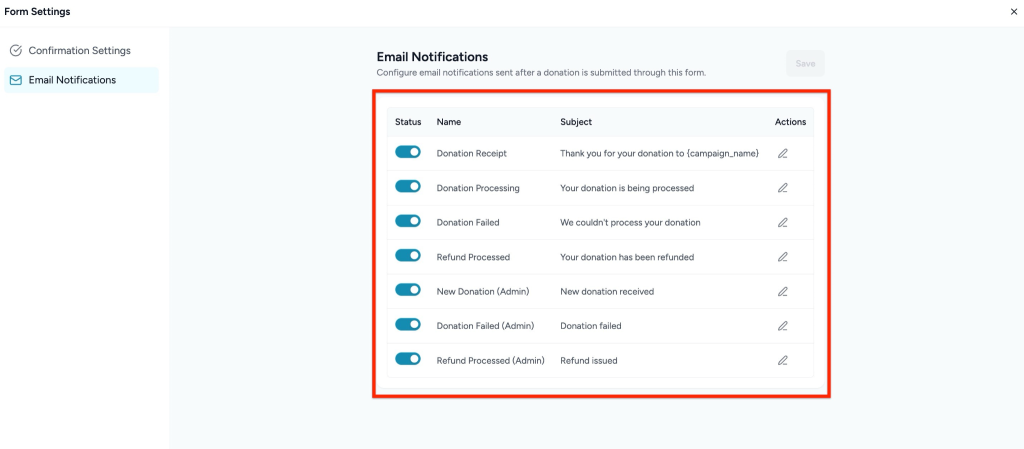
Notification Table
The notification list contains the following columns:
| Setting | Description |
| Status | Enable or disable the notification |
| Name | Notification type |
| Subject | Email subject line |
| Actions | Edit notification content |
After making changes, click Save.
Available Notification Types
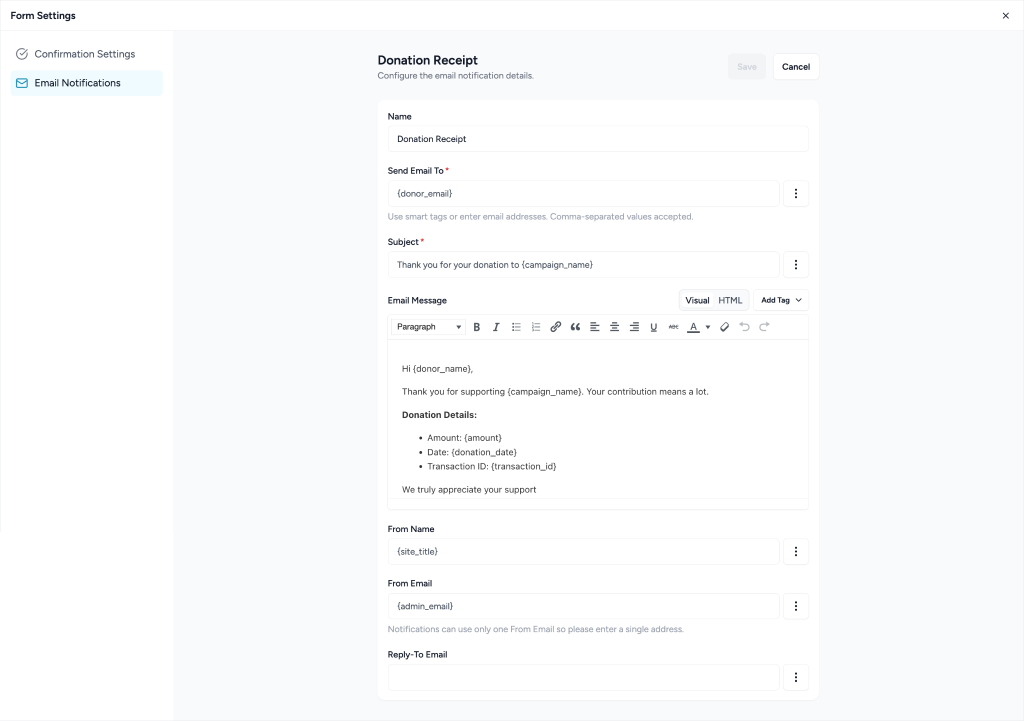
Donation Receipt
Sent to donors after a successful donation.
Default Subject: Thank you for your donation to { campaign_name }
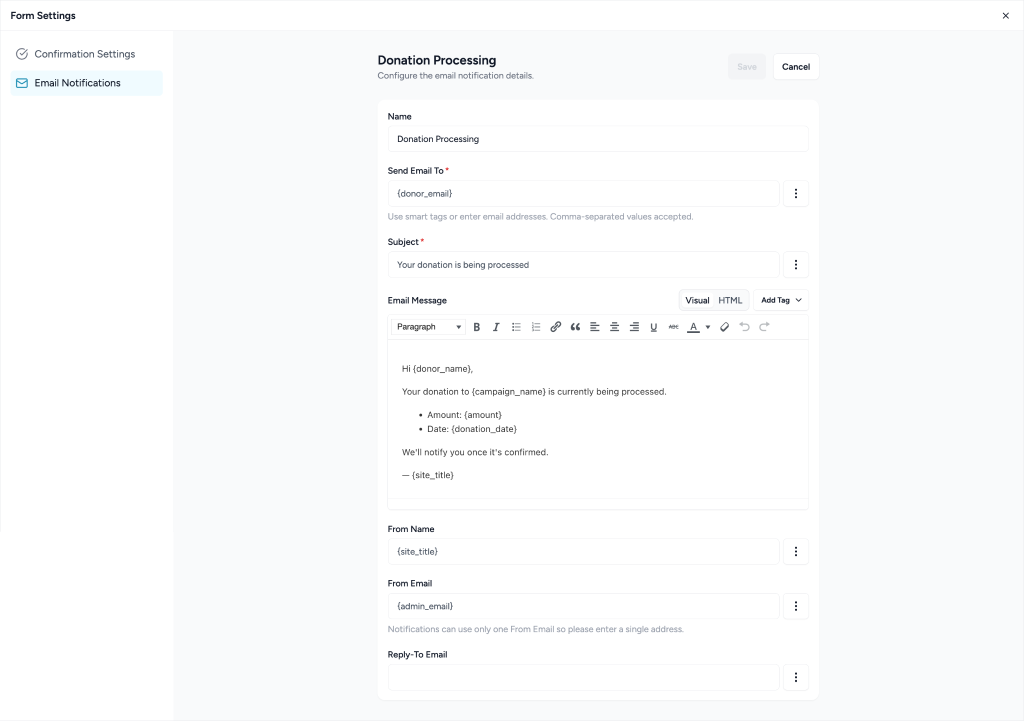
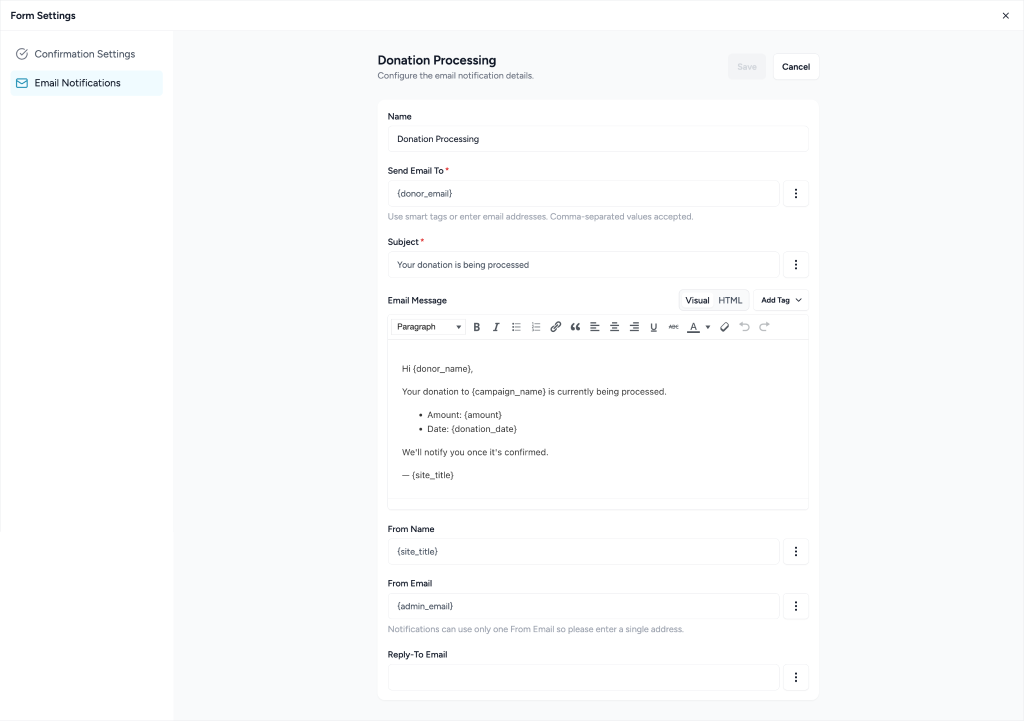
Donation Processing
Sent when the donation is being processed.
Default Subject: Your donation is being processed
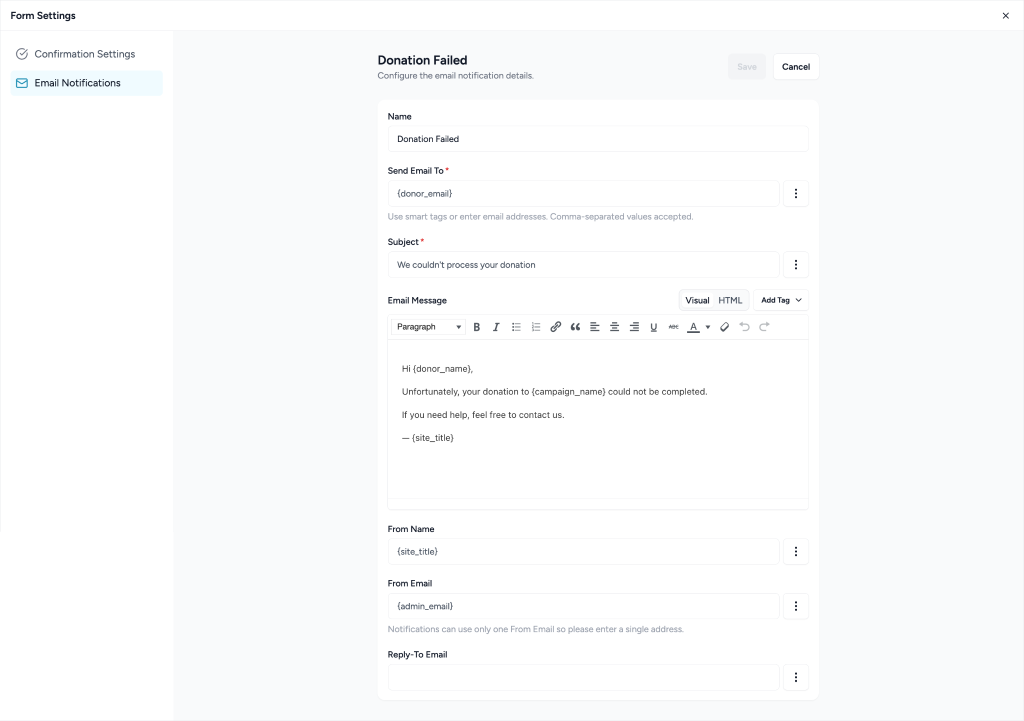
Donation Failed
Sent when a donation attempt could not be completed.
Default Subject: We couldn’t process your donation
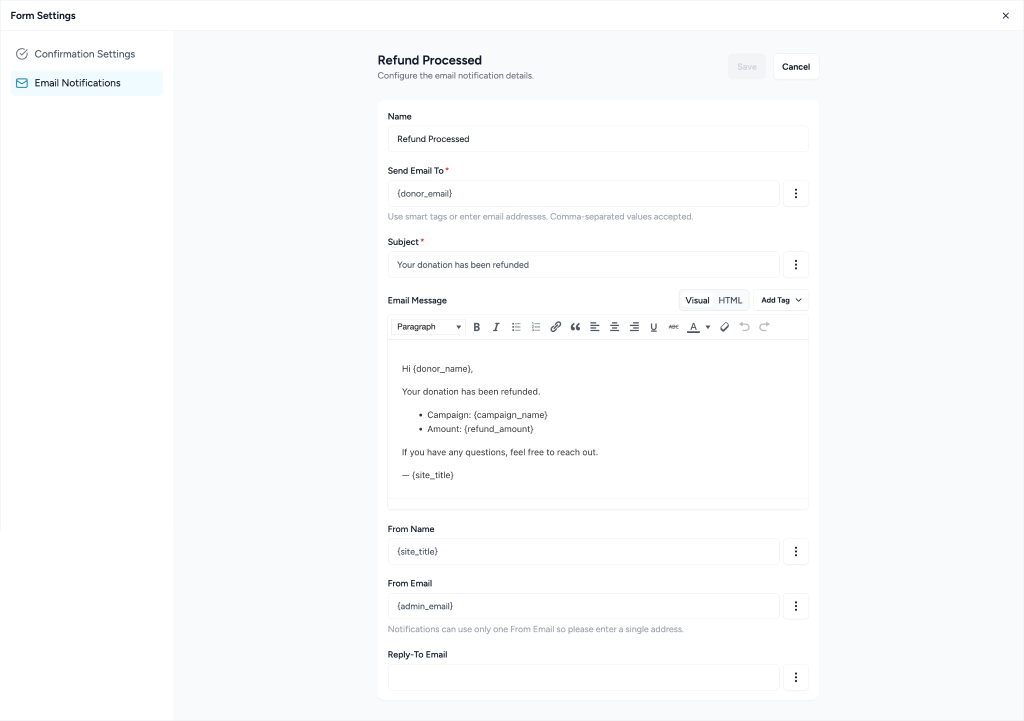
Refund Processed
Sent after a donation refund is completed.
Default Subject: Your donation has been refunded
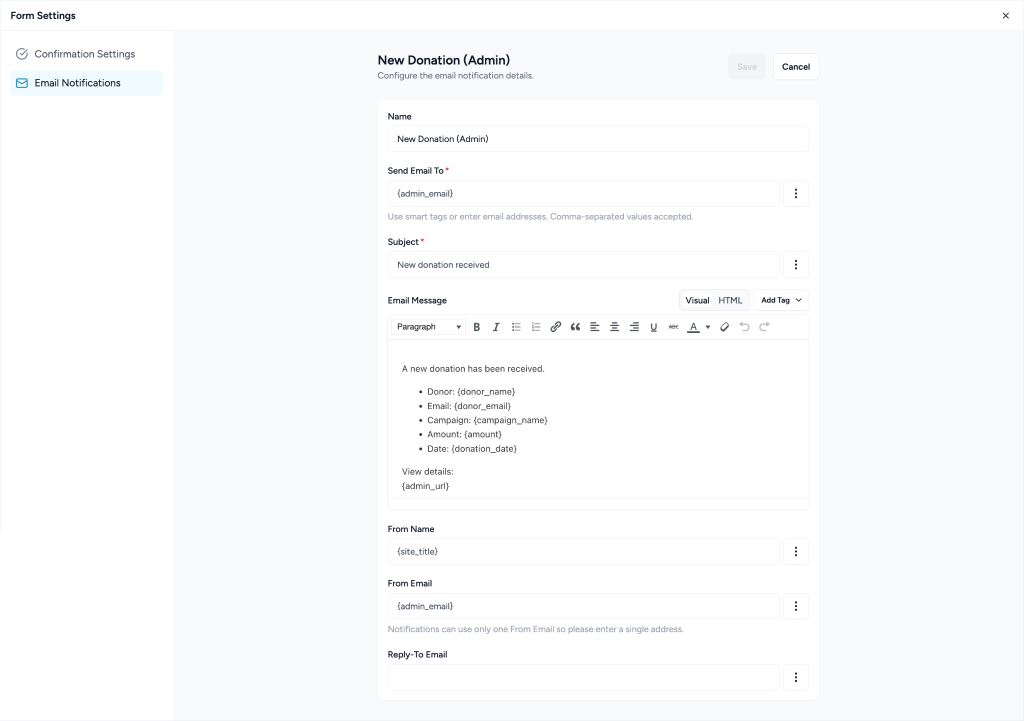
New Donation (Admin)
Sent to administrators when a new donation is received.
Default Subject: New donation received
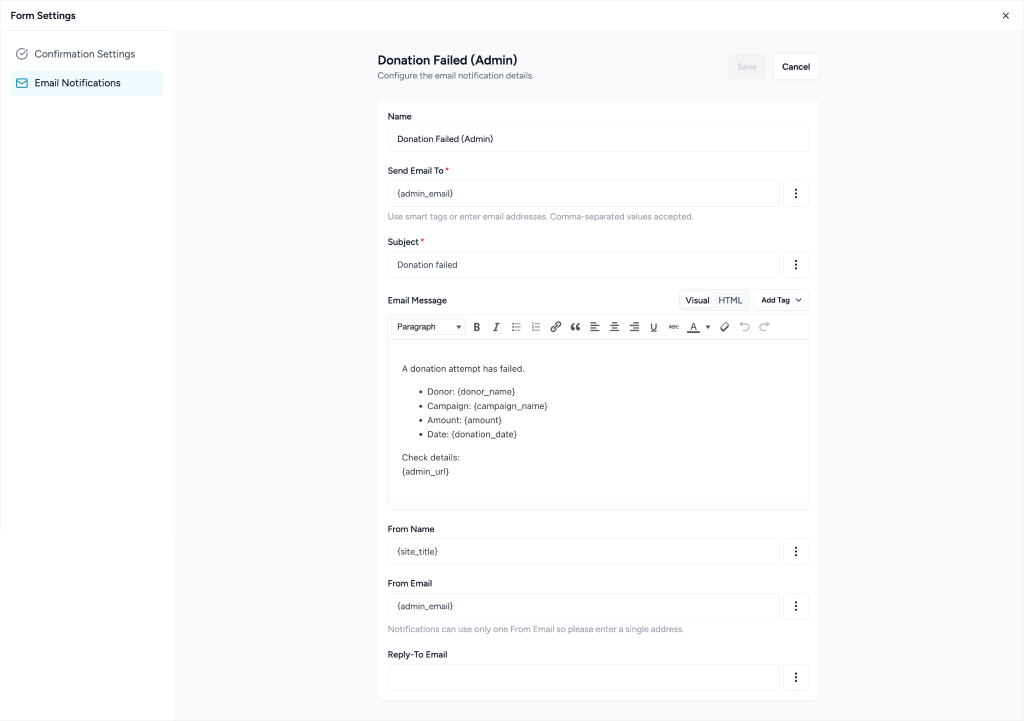
Donation Failed (Admin)
Sent to administrators when a donation fails.
Default Subject: Donation failed
Refund Processed (Admin)
Sent to administrators when a refund is issued.
Default Subject: Refund issued
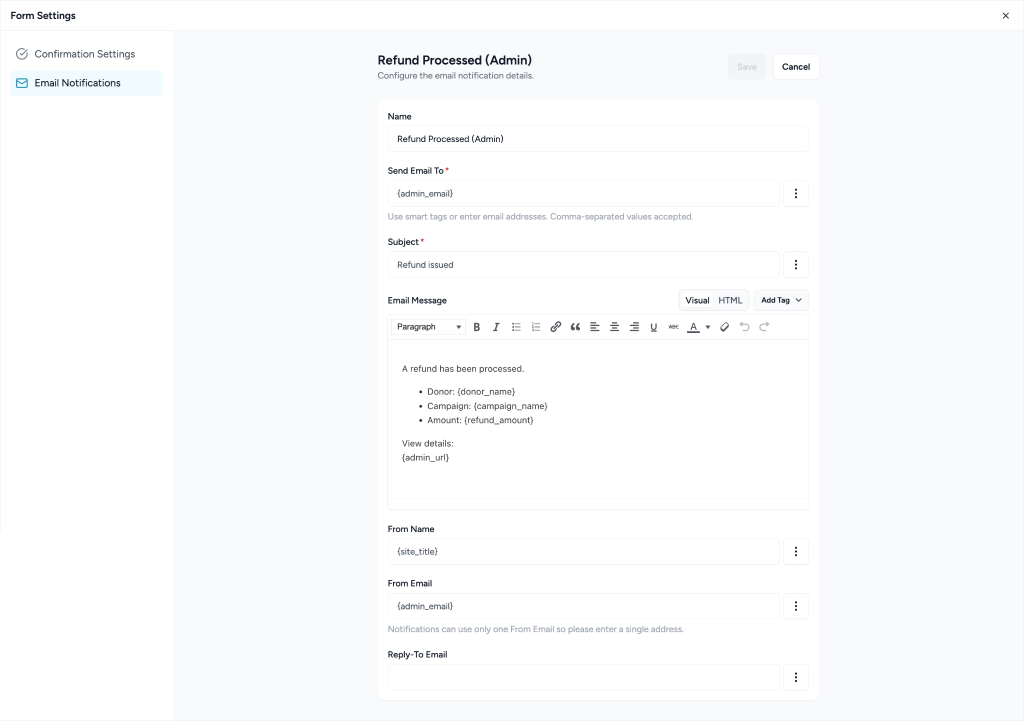
Edit Notifications
Click the Edit icon under Actions to customize:
- Name
- Send Email To *
- Subject
- Email Message
- From Name
- From Email
- Reply-To Email
Use the Status toggle to quickly enable or disable individual notifications.
We don't respond to the article feedback, we use it to improve our support content.