
- Handle Custom Stripe Webhook Events
- suredonation_export_secret_option_keys Filter Hook
- suredonation_import_batch_complete Action Hook
- suredonation_import_complete Action Hook
- suredonation_import_donation_inserted Action Hook
- suredonation_import_donor_inserted Action Hook
- suredonation_import_session_created Action Hook
- suredonation_import_givewp_batch_complete Action Hook
- suredonation_import_givewp_session_created Action Hook
- suredonation_privacy_data_exported Action Hook
- Validate Field Filter Hook
- Validatable Blocks Filter Hook
- Update donation data, Filter Hook
- OttoKit Integration: suredonation_suretriggers_integration_data_filter Filter Hook
- suredonation_show_setup_gateway_notice Filter Hook
- suredonation_show_review_notice_gateway Filter Hook
- suredonation_show_review_notice_donation Filter Hook
- suredonation_registered_payment_methods Filter Hook
- suredonation_register_additional_blocks Filter Hook
- suredonation_receipt_html Filter Hook
- Validatable Blocks Filter Hook
- Update donation data, Filter Hook
- OttoKit Integration: suredonation_suretriggers_integration_data_filter Filter Hook
- suredonation_show_setup_gateway_notice Filter Hook
- suredonation_show_review_notice_gateway Filter Hook
- suredonation_show_review_notice_donation Filter Hook
- suredonation_registered_payment_methods Filter Hook
- suredonation_register_additional_blocks Filter Hook
- suredonation_receipt_html Filter Hook
- suredonation_phone_geo_enabled Filter Hook
Set a Default Donation Form in SureDonation
The Set as Default option allows you to select which donation form should be used as the primary form for a campaign.
When multiple forms are attached to the same campaign, setting one as the default ensures that the selected form becomes the main form displayed and used for donations.
Only one form can be set as the default at a time.
Common use cases include:
- Selecting the primary donation experience
- Switching between multiple donation form variations
- Running campaign-specific donation forms
- Updating the active fundraising form without recreating the campaign
Access Campaign Forms
To set a form as the default:
- Navigate to SureDonation → Campaigns.
- Open the campaign you want to manage.
- Scroll to the Campaign Form section.
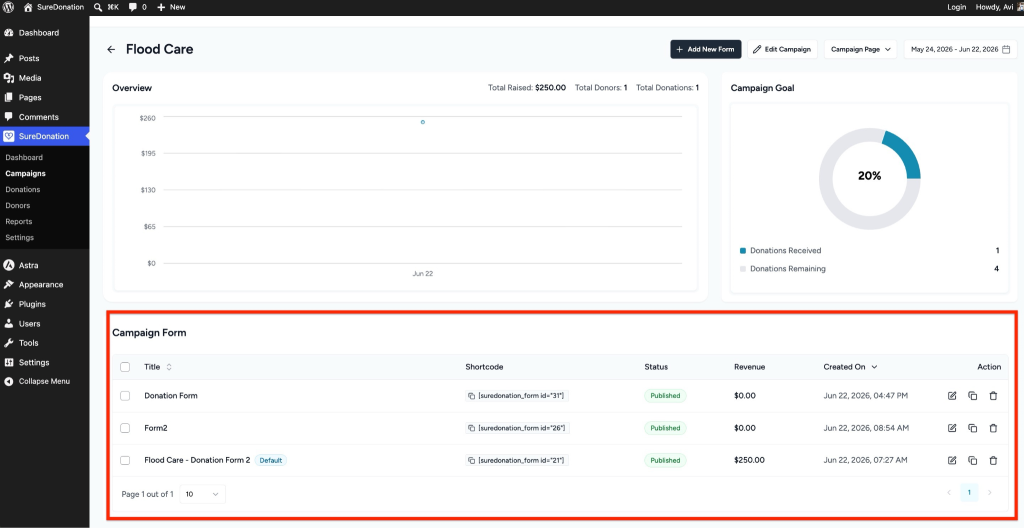
All forms associated with the campaign will appear in the list.
Set a Form as Default
To make a form the default form:
- Locate the form you want to use.
- Select the form.
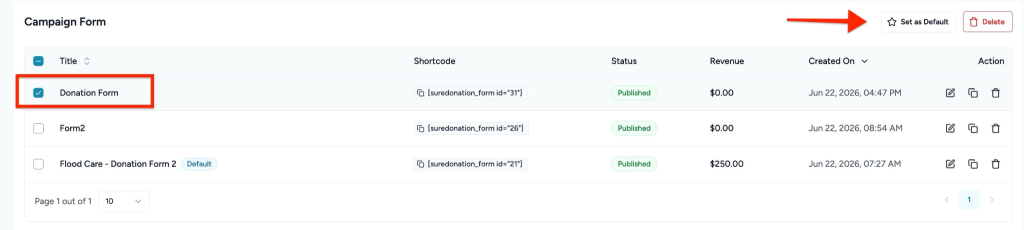
- Click the Set as Default option from the available actions.
- The selected form will be marked as Default.
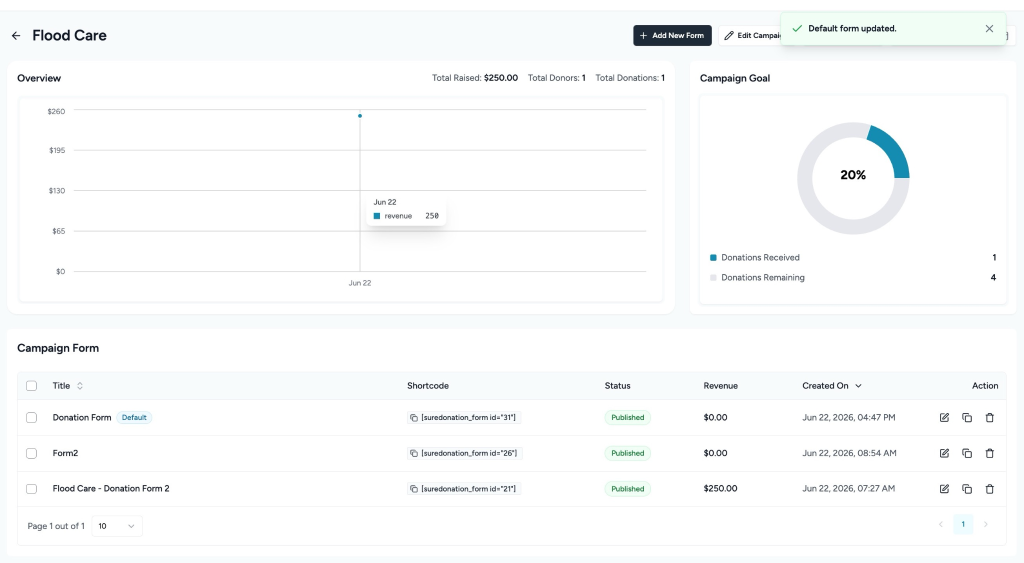
Once selected:
- The chosen form becomes the campaign’s active donation form.
- New donations will use this form.
- The previous default form will automatically lose default status.
Only one form can remain the default for a campaign at any time.
Verify the Default Form
After setting the form as the default:
- Return to the Campaign Form list.
- Confirm the Default label appears beside the selected form.
This confirms the form is now active for the campaign.
When to Change the Default Form
You may want to update the default form when:
- Launching a new fundraising campaign variation
- Testing different donation layouts
- Updating payment or donation options
- Replacing an older form with a redesigned version
Changing the default form does not delete existing forms or donation records.
We don't respond to the article feedback, we use it to improve our support content.