
- Handle Custom Stripe Webhook Events
- suredonation_export_secret_option_keys Filter Hook
- suredonation_import_batch_complete Action Hook
- suredonation_import_complete Action Hook
- suredonation_import_donation_inserted Action Hook
- suredonation_import_donor_inserted Action Hook
- suredonation_import_session_created Action Hook
- suredonation_import_givewp_batch_complete Action Hook
- suredonation_import_givewp_session_created Action Hook
- suredonation_privacy_data_exported Action Hook
- Validate Field Filter Hook
- Validatable Blocks Filter Hook
- Update donation data, Filter Hook
- OttoKit Integration: suredonation_suretriggers_integration_data_filter Filter Hook
- suredonation_show_setup_gateway_notice Filter Hook
- suredonation_show_review_notice_gateway Filter Hook
- suredonation_show_review_notice_donation Filter Hook
- suredonation_registered_payment_methods Filter Hook
- suredonation_register_additional_blocks Filter Hook
- suredonation_receipt_html Filter Hook
- Validatable Blocks Filter Hook
- Update donation data, Filter Hook
- OttoKit Integration: suredonation_suretriggers_integration_data_filter Filter Hook
- suredonation_show_setup_gateway_notice Filter Hook
- suredonation_show_review_notice_gateway Filter Hook
- suredonation_show_review_notice_donation Filter Hook
- suredonation_registered_payment_methods Filter Hook
- suredonation_register_additional_blocks Filter Hook
- suredonation_receipt_html Filter Hook
- suredonation_phone_geo_enabled Filter Hook
Number Field in SureDonation
The Number field allows donors to enter numeric values in the donation form.
This field is designed for collecting numbers only and supports validation rules such as minimum value, maximum value, currency display, and increment steps.
Common use cases include:
- Collecting custom donation amounts
- Asking for the number of participants or attendees
- Allowing donors to enter quantity values
- Capturing supporter counts
- Recording campaign-specific numeric information
The Number block displays a numeric input field inside the donation form.
Add a Number Field
To add a Number field:
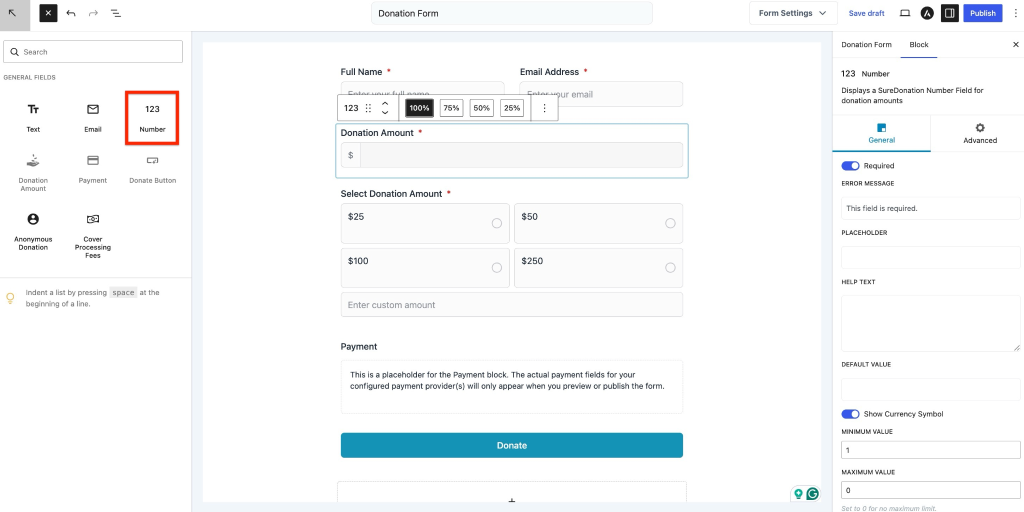
- Open the donation form editor.
- Click the Add (+) button.
- Select Number from the available blocks.
- The Number field will be inserted into the donation form.
To customize the field:
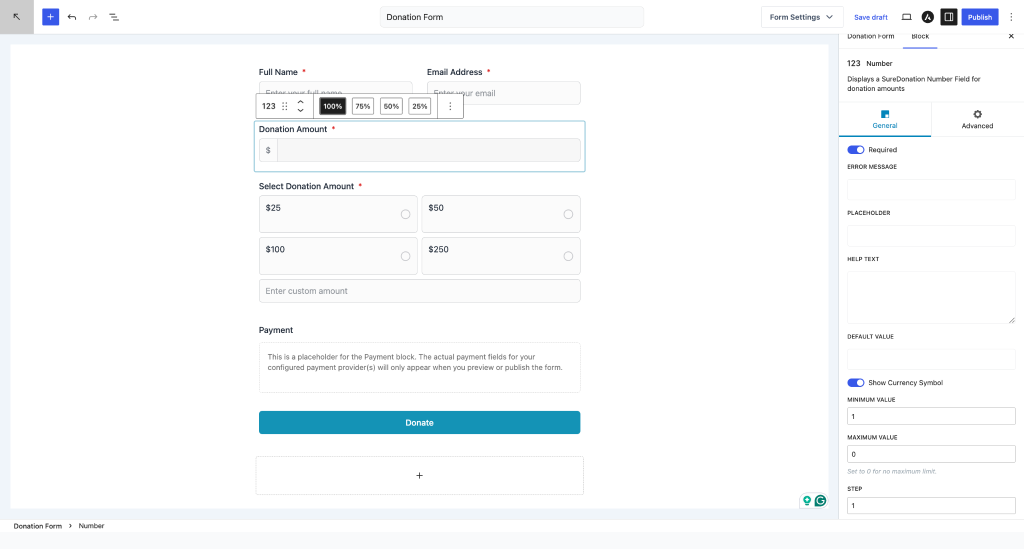
- Select the Number field inside the editor.
- Open the Block settings panel on the right side.
General Settings
The General tab controls validation and display behavior for the Number field.
Required
Enable Required to make the field mandatory before donors can submit the donation form.
Example use case:
Require donors to enter a custom donation amount.
Error Message
Set a custom validation message displayed when the field is required but left empty.
Example:
Please enter a valid amount.
Placeholder
Display instructional text inside the field before donors enter a value.
Examples:
- Enter donation amount
- Enter quantity
- Enter number of attendees
Placeholders help guide users and improve form completion.
Help Text
Add additional instructions below the Number field.
Example:
Minimum donation amount is $10.
Use Help Text when donors need extra guidance.
Default Value
Pre-fill the field with a numeric value.
Example use cases:
- Suggested donation amount
- Default quantity
- Recommended contribution value
Example: 25
Show Currency Symbol
Enable this option to display the configured currency symbol inside the Number field.
Example: $25
This setting is useful when collecting donation-related amounts and helps provide clear pricing information.
Minimum Value
Set the lowest value that donors can enter.
Default: 1
Example:
If the minimum value is set to 10, users cannot enter values lower than 10.
Maximum Value
Set the highest value allowed.
Default: 0
Setting the value to 0 removes the maximum limit.
Example:
Set 1000 to prevent values above 1000.
Step
Define the increment interval for the Number field.
Examples:
- Step = 1 → 1, 2, 3, 4…
- Step = 5 → 5, 10, 15…
- Step = 10 → 10, 20, 30…
This helps control how numeric values increase or decrease.
Advanced Settings
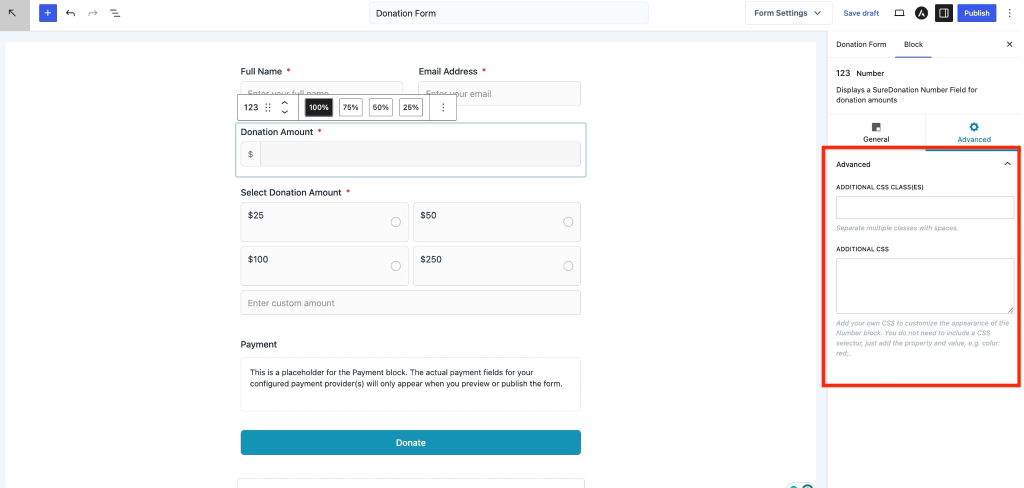
The Advanced tab provides additional styling options.
Additional CSS Class(es)
Add one or more CSS classes to customize the Number field appearance.
Separate multiple classes using spaces.
Example:
donation-amount custom-number
This can be used to target the field with custom styles.
Additional CSS
Apply custom CSS directly to the Number field.
You only need to enter CSS properties and values.
Example:
color: red;
background-color: #f5f5f5;
border-radius: 6px;Do not include CSS selectors.
Use this option to style the field without editing theme files.
We don't respond to the article feedback, we use it to improve our support content.