
- Handle Custom Stripe Webhook Events
- suredonation_export_secret_option_keys Filter Hook
- suredonation_import_batch_complete Action Hook
- suredonation_import_complete Action Hook
- suredonation_import_donation_inserted Action Hook
- suredonation_import_donor_inserted Action Hook
- suredonation_import_session_created Action Hook
- suredonation_import_givewp_batch_complete Action Hook
- suredonation_import_givewp_session_created Action Hook
- suredonation_privacy_data_exported Action Hook
- Validate Field Filter Hook
- Validatable Blocks Filter Hook
- Update donation data, Filter Hook
- OttoKit Integration: suredonation_suretriggers_integration_data_filter Filter Hook
- suredonation_show_setup_gateway_notice Filter Hook
- suredonation_show_review_notice_gateway Filter Hook
- suredonation_show_review_notice_donation Filter Hook
- suredonation_registered_payment_methods Filter Hook
- suredonation_register_additional_blocks Filter Hook
- suredonation_receipt_html Filter Hook
- Validatable Blocks Filter Hook
- Update donation data, Filter Hook
- OttoKit Integration: suredonation_suretriggers_integration_data_filter Filter Hook
- suredonation_show_setup_gateway_notice Filter Hook
- suredonation_show_review_notice_gateway Filter Hook
- suredonation_show_review_notice_donation Filter Hook
- suredonation_registered_payment_methods Filter Hook
- suredonation_register_additional_blocks Filter Hook
- suredonation_receipt_html Filter Hook
- suredonation_phone_geo_enabled Filter Hook
Donation Amount Field in SureDonation
The Donation Amount field allows donors to choose from predefined donation values and optionally enter their own custom amount.
This field helps simplify the donation experience while giving flexibility to donors.
Common use cases include:
- Offering suggested donation amounts
- Encouraging fixed contribution tiers
- Allowing custom donation values
- Creating structured fundraising campaigns
- Reducing friction during checkout
The Donation Amount block displays selectable donation options directly in the form.
Add a Donation Amount Field
To add a Donation Amount field:
- Open the donation form editor.
- Click the Add (+) button.
- Select Donation Amount from the available blocks.
- The field will be inserted into the donation form.
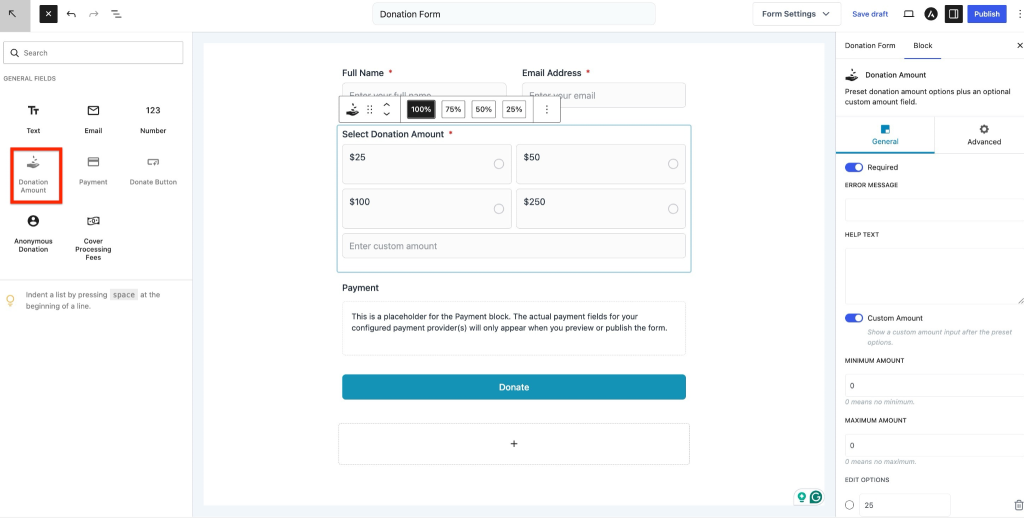
To configure the field:
- Select the Donation Amount field in the editor.
- Open the Block settings panel.
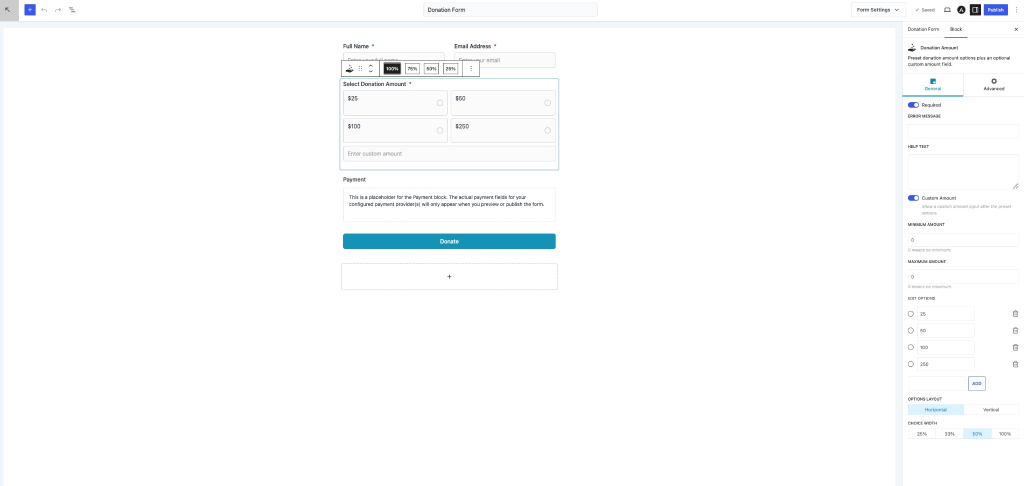
General Settings
The General tab controls how donation amounts are displayed and validated.
Required
Enable Required to ensure donors select or enter an amount before submitting the donation.
Example use case:
Prevent empty donations and require a contribution amount.
Error Message
Set a custom validation message displayed when no amount is selected.
Example:
Please select or enter a donation amount.
Help Text
Add supporting instructions below the donation amount section.
Examples:
- Select a suggested amount
- Choose an amount that supports our mission
- Enter a custom amount if preferred
Help text provides additional guidance for donors.
Custom Amount
Enable Custom Amount to display an additional input field after the preset donation options.
This allows donors to enter their own contribution amount.
Example:
Preset options:
- $25
- $50
- $100
- $250
Custom input:
Enter custom amount
This option is useful when you want to provide flexibility beyond predefined amounts.
Minimum Amount
Set the minimum donation amount allowed.
Default:
0
Setting the value to 0 removes the minimum restriction.
Examples:
- Minimum = 10 → Donors must contribute at least $10
- Minimum = 50 → Donations below $50 are not accepted
Maximum Amount
Set the maximum donation amount allowed.
Default:
0
Setting the value to 0 removes the maximum restriction.
Examples:
- Maximum = 500
- Maximum = 1000
Use this setting to control the highest accepted donation amount.
Edit Options
Configure the preset donation values shown in the form.
Default options:
- 25
- 50
- 100
- 250
Click ADD to create additional donation amounts.
Example:
25
50
100
250
500
1000
You can remove or reorder options depending on your campaign requirements.
Options Layout
Choose how donation choices appear.
Horizontal
Display donation options in a row.
Example:
$25 | $50 | $100 | $250
Recommended for shorter option lists.
Vertical
Display donation options in a stacked layout.
Example:
$25
$50
$100
$250
Recommended for better readability on narrow layouts.
Choice Width
Control the width of each donation option.
Available options:
- 25%
- 33%
- 50%
- 100%
Examples:
- 25% → Four options per row
- 33% → Three options per row
- 50% → Two options per row
- 100% → One option per row
Adjust this setting to improve form appearance and responsiveness.
Advanced Settings
The Advanced tab allows additional visual customization.
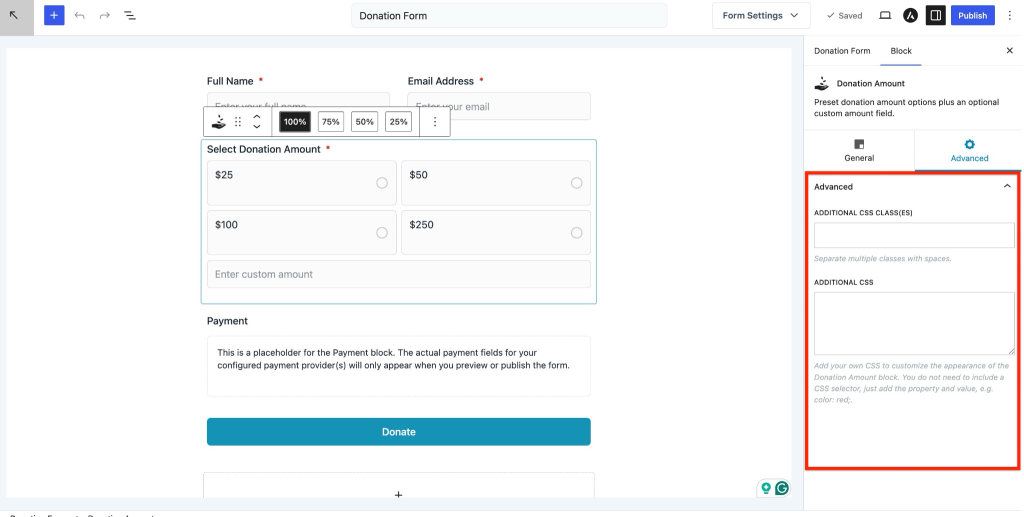
Additional CSS Class(es)
Assign custom CSS classes to the Donation Amount field.
Separate multiple classes using spaces.
Example:
donation-options featured-amount
Useful for applying custom styling.
Additional CSS
Apply custom CSS properties directly to the field.
You only need to enter CSS properties and values.
Example:
background-color: #f8f8f8;
border-radius: 8px;
padding: 10px;Do not include CSS selectors.
Use this setting to customize the appearance without modifying theme files.
We don't respond to the article feedback, we use it to improve our support content.