
- Handle Custom Stripe Webhook Events
- suredonation_export_secret_option_keys Filter Hook
- suredonation_import_batch_complete Action Hook
- suredonation_import_complete Action Hook
- suredonation_import_donation_inserted Action Hook
- suredonation_import_donor_inserted Action Hook
- suredonation_import_session_created Action Hook
- suredonation_import_givewp_batch_complete Action Hook
- suredonation_import_givewp_session_created Action Hook
- suredonation_privacy_data_exported Action Hook
- Validate Field Filter Hook
- Validatable Blocks Filter Hook
- Update donation data, Filter Hook
- OttoKit Integration: suredonation_suretriggers_integration_data_filter Filter Hook
- suredonation_show_setup_gateway_notice Filter Hook
- suredonation_show_review_notice_gateway Filter Hook
- suredonation_show_review_notice_donation Filter Hook
- suredonation_registered_payment_methods Filter Hook
- suredonation_register_additional_blocks Filter Hook
- suredonation_receipt_html Filter Hook
- Validatable Blocks Filter Hook
- Update donation data, Filter Hook
- OttoKit Integration: suredonation_suretriggers_integration_data_filter Filter Hook
- suredonation_show_setup_gateway_notice Filter Hook
- suredonation_show_review_notice_gateway Filter Hook
- suredonation_show_review_notice_donation Filter Hook
- suredonation_registered_payment_methods Filter Hook
- suredonation_register_additional_blocks Filter Hook
- suredonation_receipt_html Filter Hook
- suredonation_phone_geo_enabled Filter Hook
Payment Field in SureDonation
The Payment field allows donors to complete payments directly within the donation form.
This field connects your configured payment gateways and processes donations using either a fixed amount or a dynamic amount collected from other fields in the form.
The Payment field supports collecting donor details and controlling how donation values are charged.
Common use cases include:
- Accepting fixed donation amounts
- Processing custom donation values
- Connecting payment gateways such as Stripe
- Creating flexible fundraising forms
- Charging based on user-selected donation amounts
Before using the Payment field, ensure your payment gateway is configured.
Add a Payment Field
To add a Payment field:
- Open the donation form editor.
- Click the Add (+) button.
- Select Payment from the available blocks.
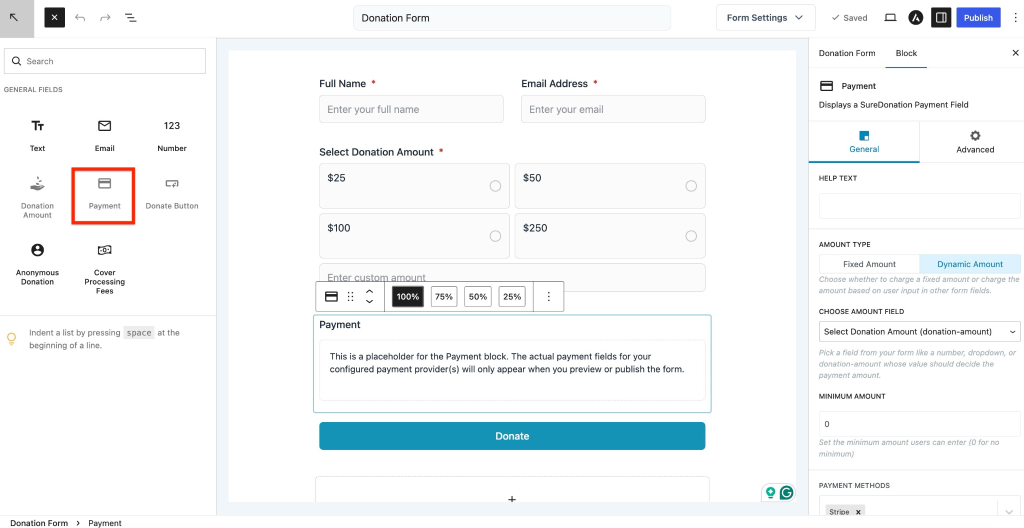
To configure the field:
- Select the Payment field.
- Open the Block settings panel.
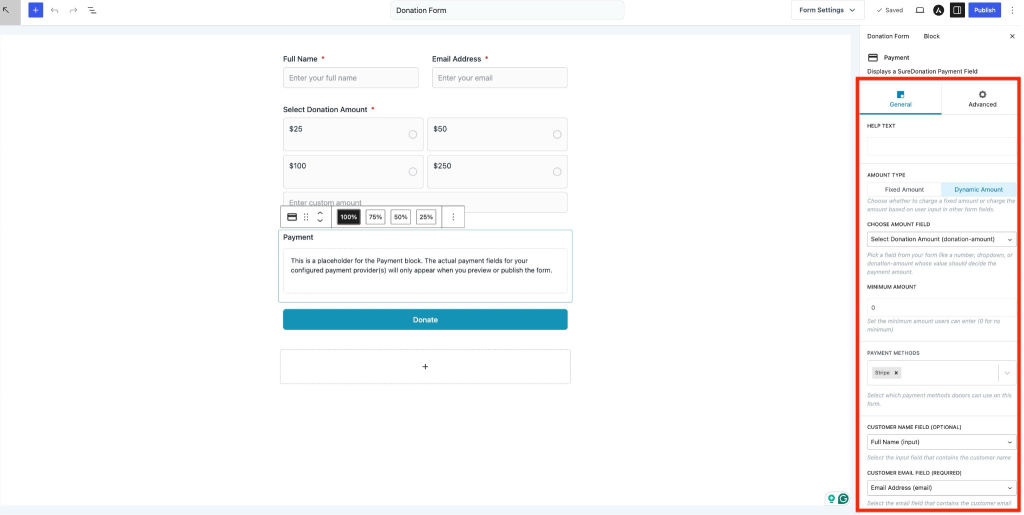
General Settings
The General tab controls payment behavior and donor information.
Help Text
Display additional instructions below the payment area.
Example:
Your donation will be processed securely.
Use Help Text to provide payment guidance or reassure donors.
Amount Type
Choose how the donation amount is determined.
Available options:
- Fixed Amount
- Dynamic Amount
Fixed Amount
Use Fixed Amount when you want every donor to pay the same amount.
Example:
Fixed Amount ($):
10
Donors cannot change this amount during checkout.
Example use cases:
- Membership fees
- Fixed fundraising contributions
- Event registrations
Fixed Amount ($)
Enter the exact amount to charge.
Example:
10
All submissions will process the same payment amount.
Dynamic Amount
Use Dynamic Amount to calculate payment values based on donor input from another field.
This option allows donation values to change dynamically.
Example use cases:
- Custom donations
- Multiple contribution tiers
- Quantity-based fundraising
Choose Amount Field
Select the field that determines the payment amount.
Supported field examples:
- Donation Amount
- Number
- Dropdown
Example:
Select Donation Amount (donation-amount)
The selected field value becomes the payment amount during checkout.
Example flow:
Donation Amount → Payment → Checkout
Minimum Amount
Set the lowest amount accepted for payment.
Default:
0
Setting 0 removes the minimum restriction.
Examples:
- Minimum = 5
- Minimum = 25
Use this setting to enforce minimum donation requirements.
Payment Methods
Choose which payment methods donors can use.
Example:
- Stripe
Only enabled payment gateways will appear.
Customer Name Field (Optional)
Select the field that contains the donor’s name.
Example:
Full Name (input)
This information may be used for receipts, payment processing, and donor records.
If left empty, payments can still be processed depending on gateway requirements.
Customer Email Field (Required)
Select the form field containing the donor email address.
Example:
Email Address (email)
The email field is required for:
- Payment processing
- Donation receipts
- Confirmation emails
- Donor tracking
Make sure an Email field exists in the form before configuring this setting.
Advanced Settings
The Advanced tab provides styling controls.
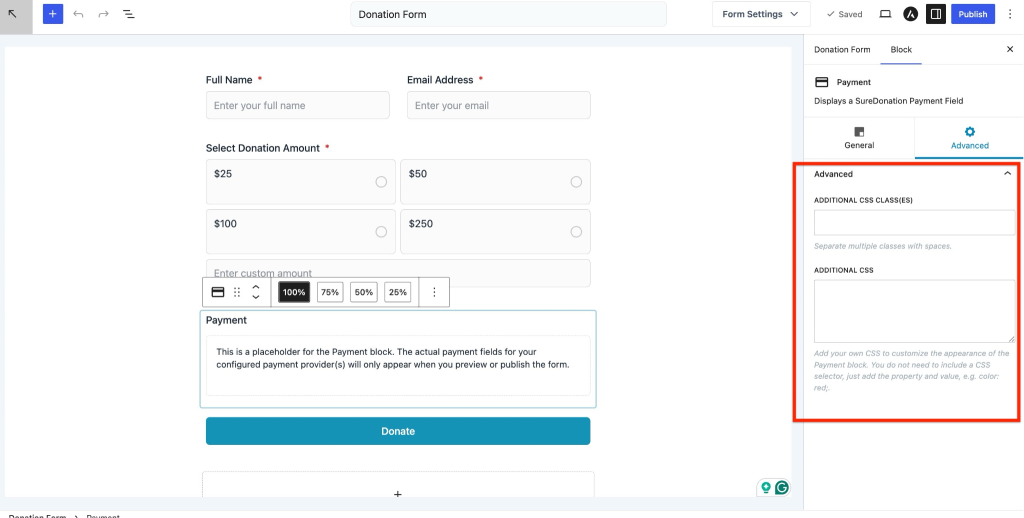
Additional CSS Class(es)
Assign custom CSS classes to customize the Payment field.
Separate multiple classes with spaces.
Example:
payment-section secure-checkout
Useful for targeting specific styling.
Additional CSS
Add custom CSS properties directly to customize the Payment field.
Enter only CSS properties and values.
Example:
background-color: #f8f8f8;
padding: 20px;
border-radius: 8px;Do not include CSS selectors.
Use this option to style the payment section without editing theme files.
We don't respond to the article feedback, we use it to improve our support content.