
- Handle Custom Stripe Webhook Events
- suredonation_export_secret_option_keys Filter Hook
- suredonation_import_batch_complete Action Hook
- suredonation_import_complete Action Hook
- suredonation_import_donation_inserted Action Hook
- suredonation_import_donor_inserted Action Hook
- suredonation_import_session_created Action Hook
- suredonation_import_givewp_batch_complete Action Hook
- suredonation_import_givewp_session_created Action Hook
- suredonation_privacy_data_exported Action Hook
- Validate Field Filter Hook
- Validatable Blocks Filter Hook
- Update donation data, Filter Hook
- OttoKit Integration: suredonation_suretriggers_integration_data_filter Filter Hook
- suredonation_show_setup_gateway_notice Filter Hook
- suredonation_show_review_notice_gateway Filter Hook
- suredonation_show_review_notice_donation Filter Hook
- suredonation_registered_payment_methods Filter Hook
- suredonation_register_additional_blocks Filter Hook
- suredonation_receipt_html Filter Hook
- Validatable Blocks Filter Hook
- Update donation data, Filter Hook
- OttoKit Integration: suredonation_suretriggers_integration_data_filter Filter Hook
- suredonation_show_setup_gateway_notice Filter Hook
- suredonation_show_review_notice_gateway Filter Hook
- suredonation_show_review_notice_donation Filter Hook
- suredonation_registered_payment_methods Filter Hook
- suredonation_register_additional_blocks Filter Hook
- suredonation_receipt_html Filter Hook
- suredonation_phone_geo_enabled Filter Hook
SureDonation Dashboard
The Dashboard gives you a quick overview of your donation activity and campaign performance. Depending on whether you have created any campaigns or received donations, the dashboard displays different information.
Access the Dashboard
To open the dashboard:
- Log in to your WordPress admin area.
- Navigate to SureDonation > Dashboard.
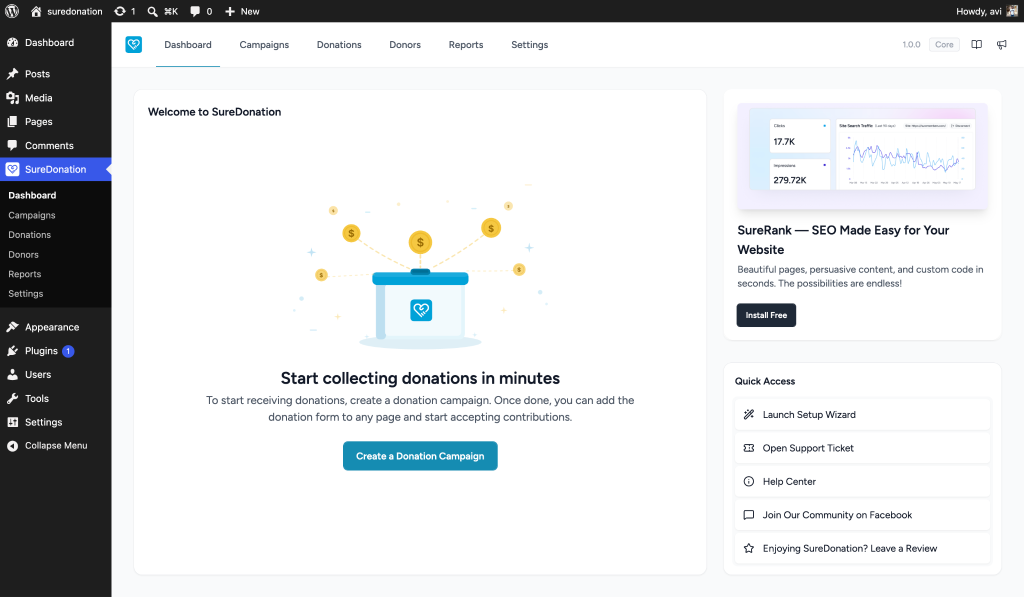
Dashboard Before Creating a Campaign
When SureDonation is newly installed and no campaigns have been created, the dashboard displays a welcome screen to help you get started.
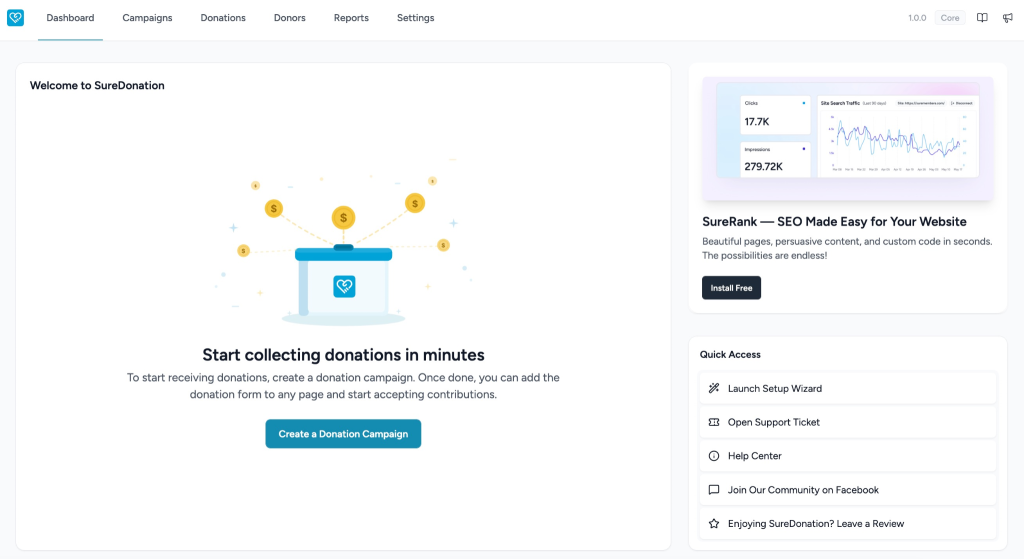
The welcome screen includes:
- Welcome to SureDonation – A brief introduction to the plugin.
- Create a Donation Campaign – Starts the campaign creation process.
- Quick Access – Helpful links for:
- Launch Setup Wizard
- Open Support Ticket
- Help Center
- Join the Community
- Leave a Review
Note: Once you create your first campaign and receive donations, the dashboard automatically changes to the analytics view.
Dashboard After Creating a Campaign
After creating campaigns and receiving donations, the dashboard displays an overview of your fundraising activity.
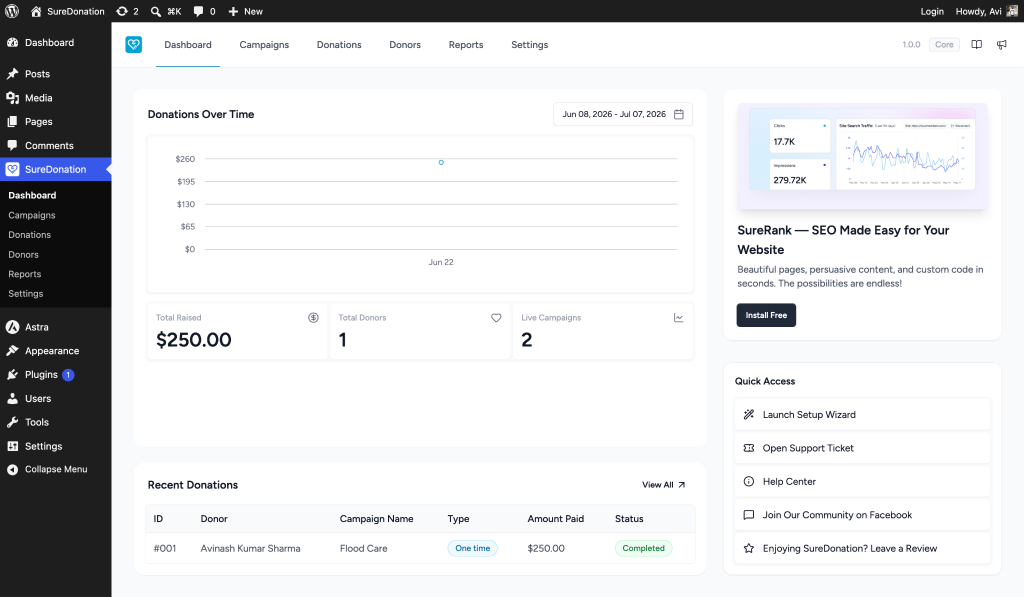
Dashboard Sections
Donations Over Time
Displays a graph showing donation activity over the selected date range.
Use the date picker in the top-right corner to view donations for different periods.
This graph helps you:
- Track fundraising trends
- Monitor donation growth
- Compare donation activity over time
Summary Cards
Below the chart, you’ll find quick statistics for your fundraising performance.
Total Raised
Displays the total amount collected across all campaigns.
Example: $250.00
Total Donors
Shows the total number of unique donors.
Example:
Live Campaigns: Displays the number of currently active campaigns.
Example:
Recent Donations: This section lists the latest donations received on your website.
Each row includes:
- Donation ID
- Donor Name
- Campaign Name
- Donation Type
- Amount Paid
- Payment Status
You can click View All to open the complete Donations page.
Quick Access
Provides shortcuts to commonly used resources:
- Launch Setup Wizard
- Open Support Ticket
- Help Center
- Join the SureDonation Community
- Leave a Review
These links help you quickly access support and documentation.
When Does the Dashboard Update?
The dashboard updates automatically as you use SureDonation.
For example, when you:
- Create a new campaign
- Receive a donation
- Add a new donor
- Change the selected date range
the dashboard statistics and charts are refreshed to reflect the latest data.
Summary
The SureDonation Dashboard provides a centralized overview of your fundraising activity, allowing you to:
- Monitor donations over time
- View total funds raised
- Track donor growth
- See active campaigns
- Review recent donations
- Access helpful resources and support from a single location
We don't respond to the article feedback, we use it to improve our support content.