
- Handle Custom Stripe Webhook Events
- suredonation_export_secret_option_keys Filter Hook
- suredonation_import_batch_complete Action Hook
- suredonation_import_complete Action Hook
- suredonation_import_donation_inserted Action Hook
- suredonation_import_donor_inserted Action Hook
- suredonation_import_session_created Action Hook
- suredonation_import_givewp_batch_complete Action Hook
- suredonation_import_givewp_session_created Action Hook
- suredonation_privacy_data_exported Action Hook
- Validate Field Filter Hook
- Validatable Blocks Filter Hook
- Update donation data, Filter Hook
- OttoKit Integration: suredonation_suretriggers_integration_data_filter Filter Hook
- suredonation_show_setup_gateway_notice Filter Hook
- suredonation_show_review_notice_gateway Filter Hook
- suredonation_show_review_notice_donation Filter Hook
- suredonation_registered_payment_methods Filter Hook
- suredonation_register_additional_blocks Filter Hook
- suredonation_receipt_html Filter Hook
- Validatable Blocks Filter Hook
- Update donation data, Filter Hook
- OttoKit Integration: suredonation_suretriggers_integration_data_filter Filter Hook
- suredonation_show_setup_gateway_notice Filter Hook
- suredonation_show_review_notice_gateway Filter Hook
- suredonation_show_review_notice_donation Filter Hook
- suredonation_registered_payment_methods Filter Hook
- suredonation_register_additional_blocks Filter Hook
- suredonation_receipt_html Filter Hook
- suredonation_phone_geo_enabled Filter Hook
Cover Processing Fees Field
The Cover Processing Fees field allows donors to contribute the payment processing fees along with their donation, optionally.
When enabled, donors can choose to cover transaction charges so the full donation amount goes toward the campaign.
This helps organizations reduce payment processing costs and maximize fundraising impact.
Common use cases include:
- Receiving the full intended donation amount
- Reducing gateway transaction costs
- Increasing campaign contribution value
- Giving donors the option to support processing expenses
Example:
Donation Amount: $100
Processing Fee: $1.93
Total Charged to Donor: $101.93
Campaign Receives: $100
Add a Cover Processing Fees Field
To add this field:
- Open the donation form editor.
- Click the Add (+) button.
- Select Cover Processing Fees from the available blocks.
- The field will appear inside the donation form.
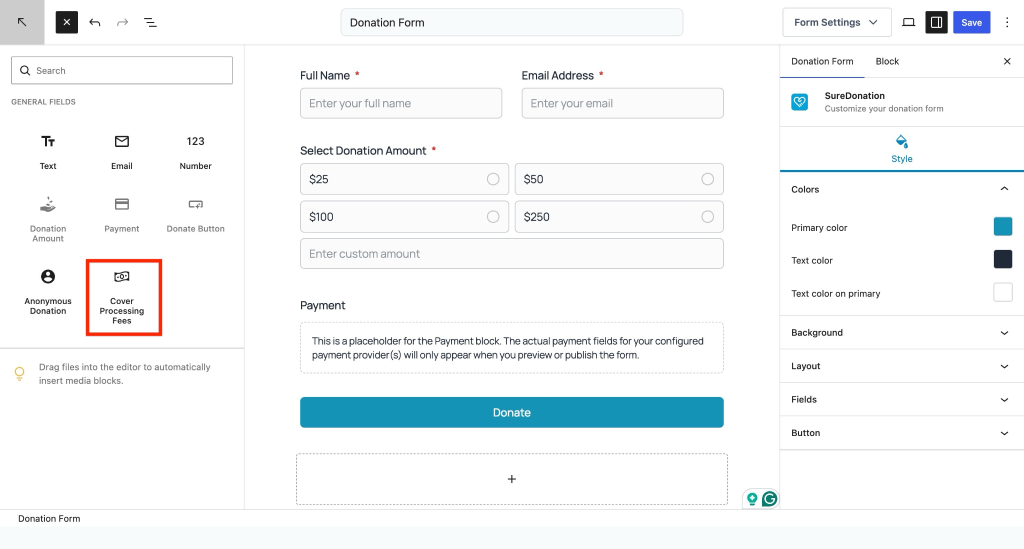
To configure the field:
- Select the Cover Processing Fees field.
- Open the Block settings panel.
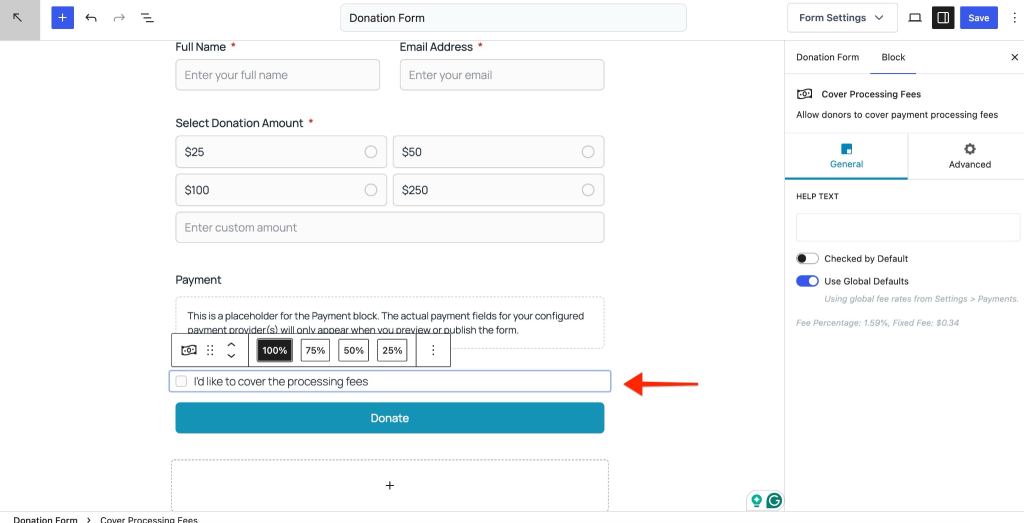
General Settings
The General tab controls how processing fees are offered to donors.
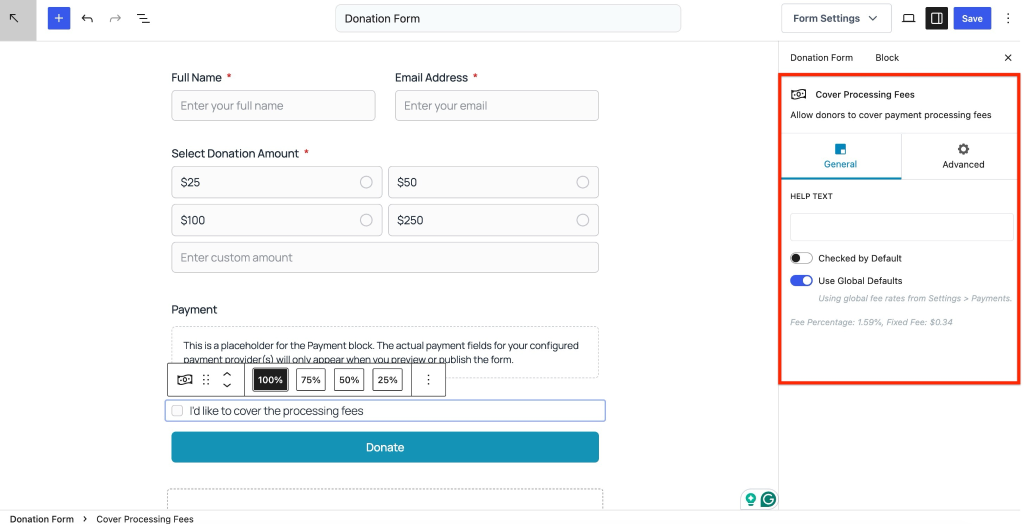
Help Text
Display additional information below the processing fee option.
Use Help Text to explain why donors may want to cover fees.
Example messages:
- Help us receive 100% of your donation.
- Cover processing fees to maximize your impact.
- Support transaction costs with your contribution.
This text helps improve transparency and donor understanding.
Checked by Default
Enable Checked by Default to automatically select the option for donors.
When enabled:
- The processing fee option appears pre-selected.
- Donors can manually deselect it before completing payment.
Example use case: Encourage donors to contribute toward transaction costs while keeping the choice optional.
Use Global Defaults
Enable Use Global Defaults to apply fee settings configured globally.
Fee values are automatically pulled from:
Settings → Payments
Example:
Fee Percentage: 1.59%
Fixed Fee: $0.34
This ensures consistent fee calculations across all donation forms.
Changes made in global payment settings automatically apply to forms using this option.
How Fee Calculation Works
Processing fees are added on top of the donation amount.
Example calculation:
Donation Amount: $50
Processing Fee: $1.14
Total Charged: $51.14
If the donor chooses not to cover the fee:
Donation Amount: $50
Total Charged: $50
Advanced Settings
The Advanced tab allows additional visual customization.
Additional CSS Class(es)
Add one or more CSS classes to customize the appearance of the field.
Separate multiple classes with spaces.
Example:
cover-fees-option highlight-field
This is useful for applying custom styling.
Additional CSS
Add custom CSS properties directly to customize the appearance of the field.
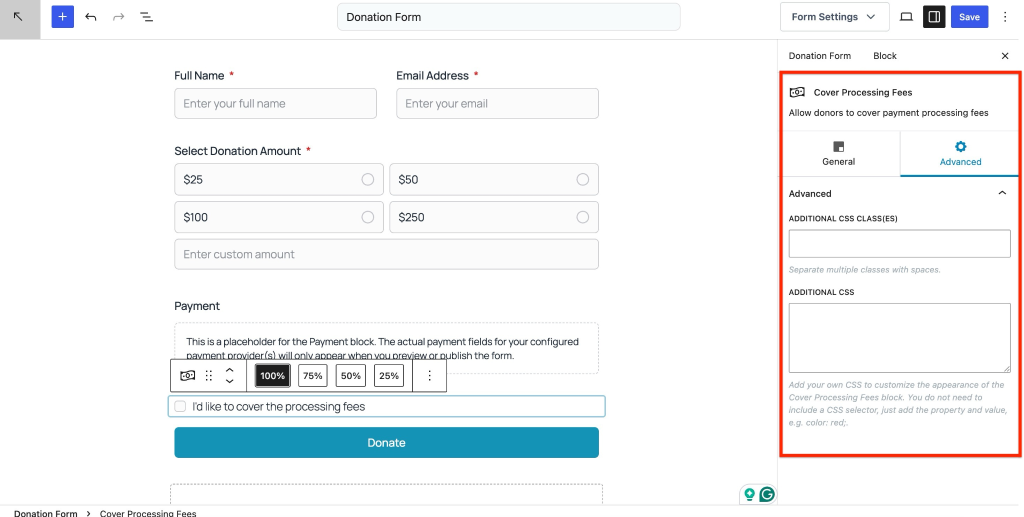
You only need to enter CSS properties and values.
Example:
background-color: #f8f8f8;
padding: 12px;
border-radius: 8px;Do not include CSS selectors.
Use this option to customize styling without editing theme files.
We don't respond to the article feedback, we use it to improve our support content.