
- Handle Custom Stripe Webhook Events
- suredonation_export_secret_option_keys Filter Hook
- suredonation_import_batch_complete Action Hook
- suredonation_import_complete Action Hook
- suredonation_import_donation_inserted Action Hook
- suredonation_import_donor_inserted Action Hook
- suredonation_import_session_created Action Hook
- suredonation_import_givewp_batch_complete Action Hook
- suredonation_import_givewp_session_created Action Hook
- suredonation_privacy_data_exported Action Hook
- Validate Field Filter Hook
- Validatable Blocks Filter Hook
- Update donation data, Filter Hook
- OttoKit Integration: suredonation_suretriggers_integration_data_filter Filter Hook
- suredonation_show_setup_gateway_notice Filter Hook
- suredonation_show_review_notice_gateway Filter Hook
- suredonation_show_review_notice_donation Filter Hook
- suredonation_registered_payment_methods Filter Hook
- suredonation_register_additional_blocks Filter Hook
- suredonation_receipt_html Filter Hook
- Validatable Blocks Filter Hook
- Update donation data, Filter Hook
- OttoKit Integration: suredonation_suretriggers_integration_data_filter Filter Hook
- suredonation_show_setup_gateway_notice Filter Hook
- suredonation_show_review_notice_gateway Filter Hook
- suredonation_show_review_notice_donation Filter Hook
- suredonation_registered_payment_methods Filter Hook
- suredonation_register_additional_blocks Filter Hook
- suredonation_receipt_html Filter Hook
- suredonation_phone_geo_enabled Filter Hook
Configuring Spam Protection in SureDonation
The Spam Protection settings in SureDonation help protect your donation forms from spam submissions.
SureDonation includes Honeypot Security, which adds a hidden field to donation forms. Genuine donors will not see or fill this field, but automated spam bots may fill it. This helps block spam submissions without affecting real donors.
Access Honeypot Settings
To access the Honeypot settings:
- Log in to your WordPress Dashboard.
- Navigate to SureDonation > Settings.
- Expand Spam Protection from the left sidebar.
- Click Honeypot.
You will see the Spam Protection settings page.
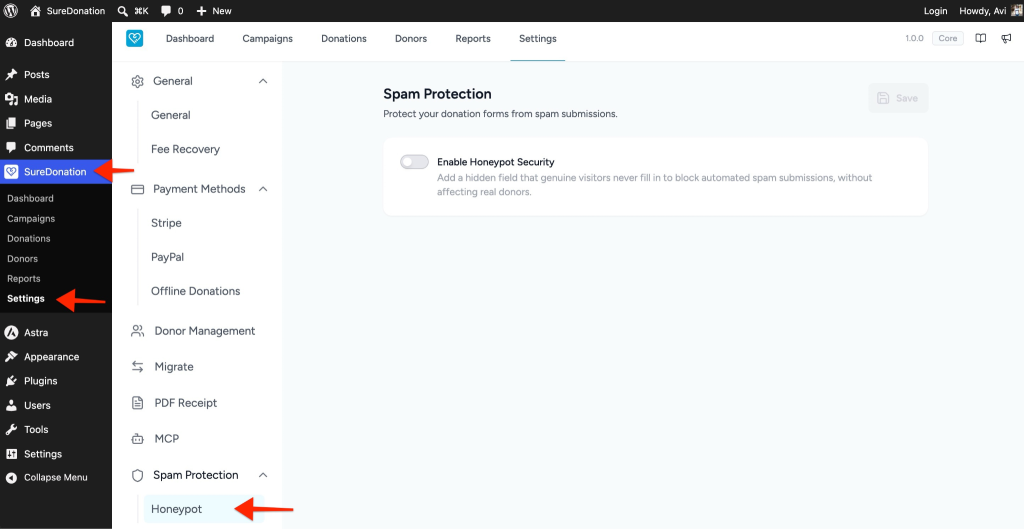
Enable Honeypot Security
The Enable Honeypot Security option helps block automated spam submissions from donation forms.
To enable Honeypot Security:
- Go to SureDonation > Settings > Spam Protection > Honeypot.
- Locate the Enable Honeypot Security option.
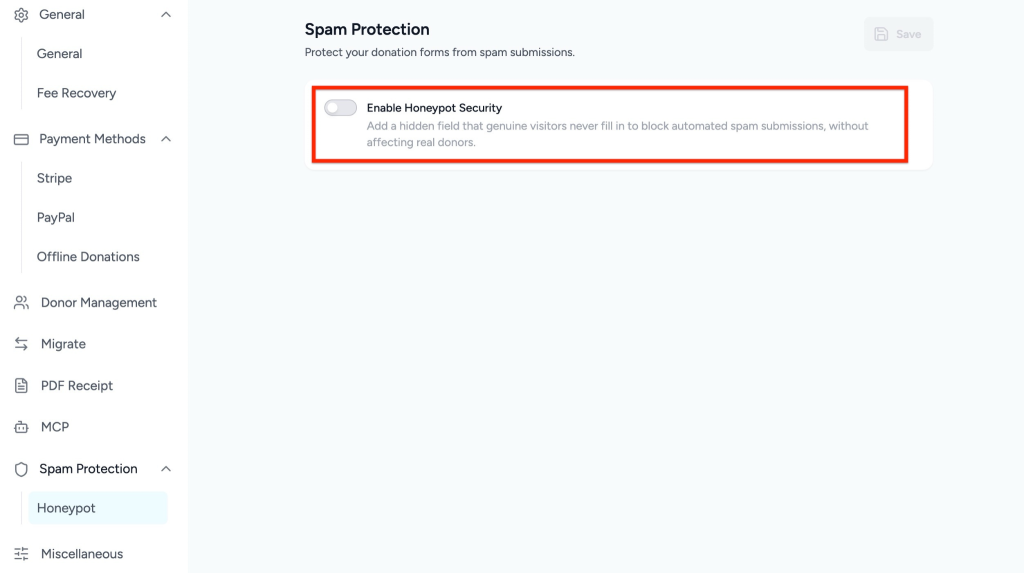
- Turn on the toggle.
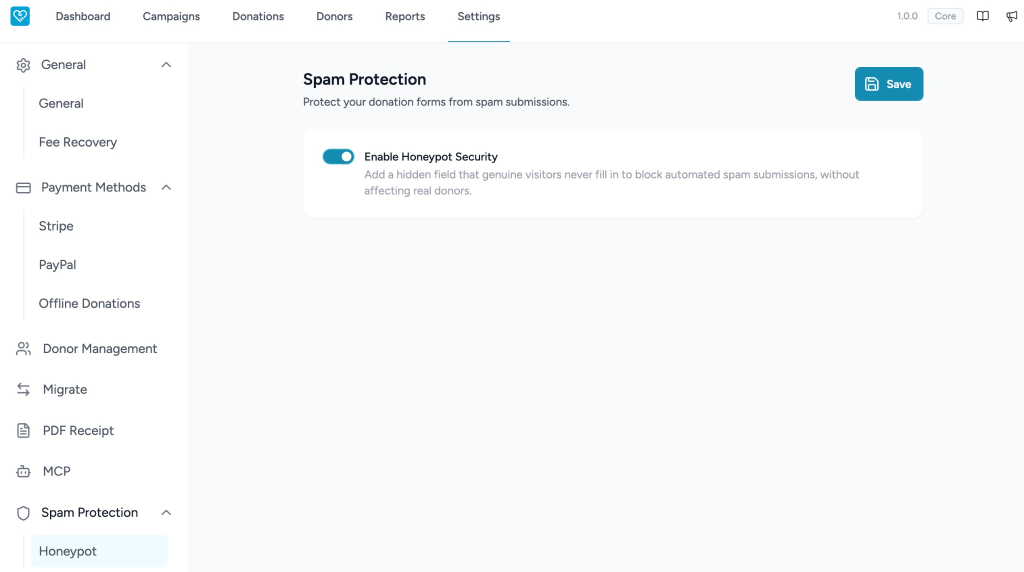
- Click the Save button.
Once enabled, SureDonation adds a hidden field to your donation forms. Real donors will not interact with this field, but automated bots may fill it in. If the hidden field is filled, the submission can be treated as spam.
How Honeypot Security Works
Honeypot Security works silently in the background.
It adds a hidden field to the donation form that genuine visitors cannot see. Since real donors do not fill this field, their donation submissions continue normally.
Automated spam bots may detect and fill all fields, including the hidden honeypot field. When that happens, the submission can be blocked as spam.
Benefits of Honeypot Security
Honeypot Security helps you:
- Reduce automated spam submissions.
- Protect donation forms without adding extra steps for donors.
- Avoid affecting the donor experience.
- Keep donation forms simple and user-friendly.
Important Note
Honeypot Security is designed to block automated spam submissions without requiring donors to complete CAPTCHA or additional verification steps.
After enabling the setting, make sure to click Save to apply the changes.
We don't respond to the article feedback, we use it to improve our support content.