
- Handle Custom Stripe Webhook Events
- suredonation_export_secret_option_keys Filter Hook
- suredonation_import_batch_complete Action Hook
- suredonation_import_complete Action Hook
- suredonation_import_donation_inserted Action Hook
- suredonation_import_donor_inserted Action Hook
- suredonation_import_session_created Action Hook
- suredonation_import_givewp_batch_complete Action Hook
- suredonation_import_givewp_session_created Action Hook
- suredonation_privacy_data_exported Action Hook
- Validate Field Filter Hook
- Validatable Blocks Filter Hook
- Update donation data, Filter Hook
- OttoKit Integration: suredonation_suretriggers_integration_data_filter Filter Hook
- suredonation_show_setup_gateway_notice Filter Hook
- suredonation_show_review_notice_gateway Filter Hook
- suredonation_show_review_notice_donation Filter Hook
- suredonation_registered_payment_methods Filter Hook
- suredonation_register_additional_blocks Filter Hook
- suredonation_receipt_html Filter Hook
- Validatable Blocks Filter Hook
- Update donation data, Filter Hook
- OttoKit Integration: suredonation_suretriggers_integration_data_filter Filter Hook
- suredonation_show_setup_gateway_notice Filter Hook
- suredonation_show_review_notice_gateway Filter Hook
- suredonation_show_review_notice_donation Filter Hook
- suredonation_registered_payment_methods Filter Hook
- suredonation_register_additional_blocks Filter Hook
- suredonation_receipt_html Filter Hook
- suredonation_phone_geo_enabled Filter Hook
Configuring Fee Recovery in SureDonation
The Fee Recovery setting allows donors to cover payment processing fees so your organization receives the full donation amount.
This helps ensure that transaction fees are added separately and do not reduce the actual donation amount collected.
Access Fee Recovery Settings
To access the Fee Recovery settings:
- Log in to your WordPress Dashboard.
- Navigate to SureDonation > Settings.
- Select Fee Recovery under the General section.
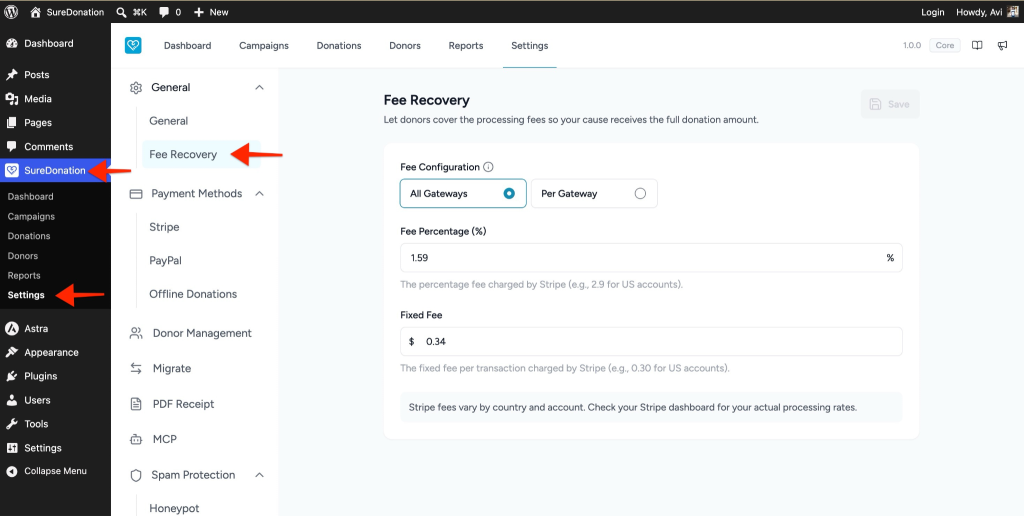
Configure Fee Recovery
The Fee Recovery section allows you to define how processing fees are calculated and applied to donations.
Fee Configuration
You can configure fee recovery using one of the following methods:
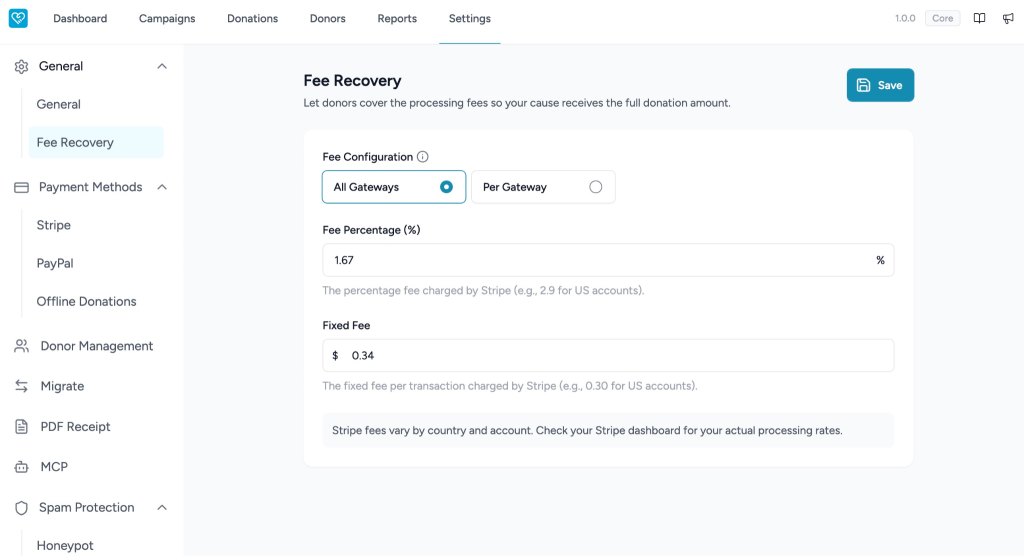
- All Gateways – Apply the same fee settings across all enabled payment gateways.
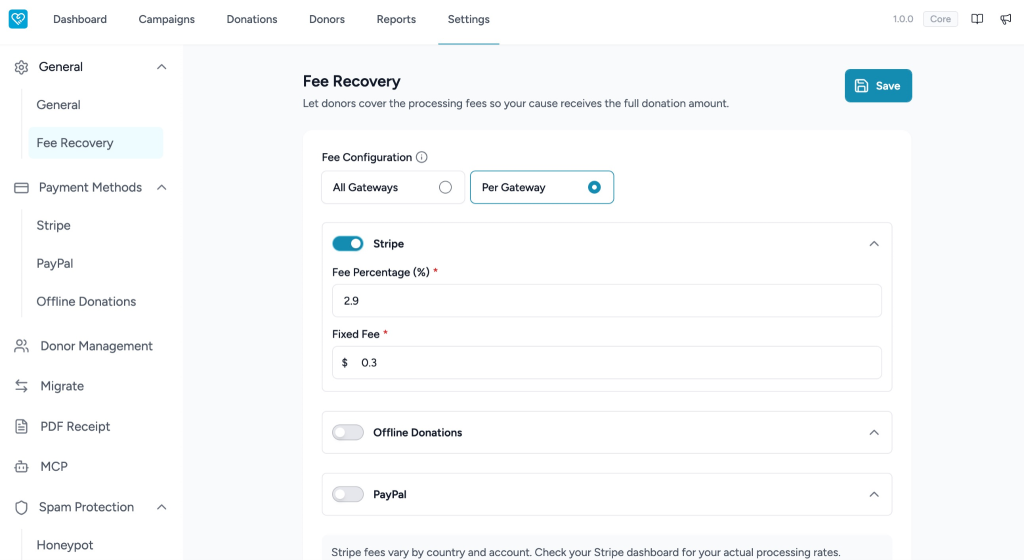
- Per Gateway – Configure individual fee recovery values for each payment gateway separately.
Choose the option that best fits your donation workflow.
All Gateways Configuration
Select All Gateways if you want the same fee recovery settings to apply across all payment methods.
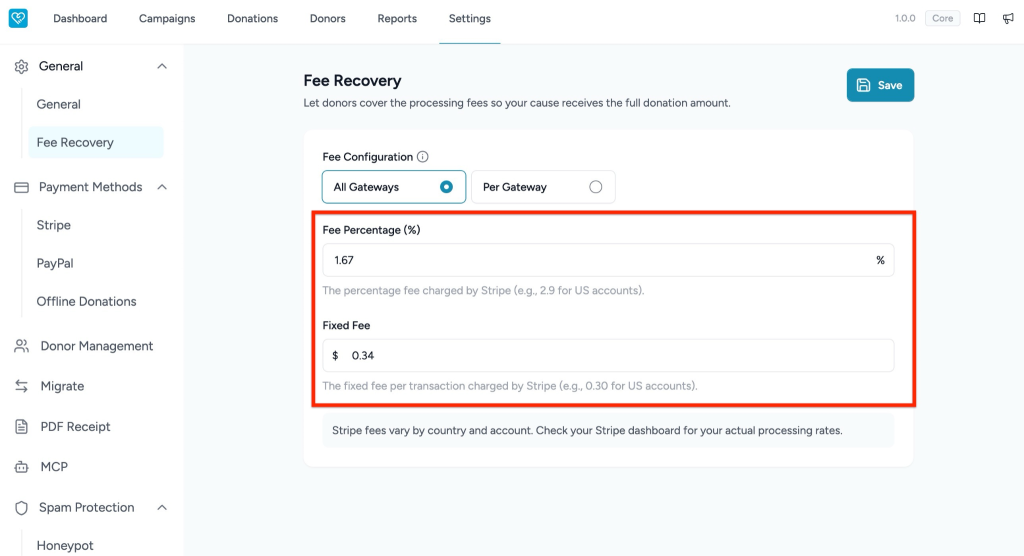
Fee Percentage (%)
This field defines the percentage-based processing fee added to the donation amount.
To configure:
- Select All Gateways.
- Enter the processing percentage in Fee Percentage (%).
Example:
- Enter 1.5 to apply a 1.5% processing fee.
Fixed Fee
This field adds a flat fee per transaction.
To configure:
- Locate the Fixed Fee field.
- Enter the fixed amount charged for each donation.
Example:
- Enter 0.3 to apply a $0.30 fixed fee.
Per Gateway Configuration
Select Per Gateway to define different processing fees for individual payment methods.
This option is useful when each gateway has different transaction charges.
To configure:
- Navigate to SureDonation > Settings > Fee Recovery.
- Select Per Gateway under Fee Configuration.
- Expand the payment gateway you want to configure.
- Enter the Fee Percentage (%) and Fixed Fee values.
- Repeat the steps for additional gateways as needed.
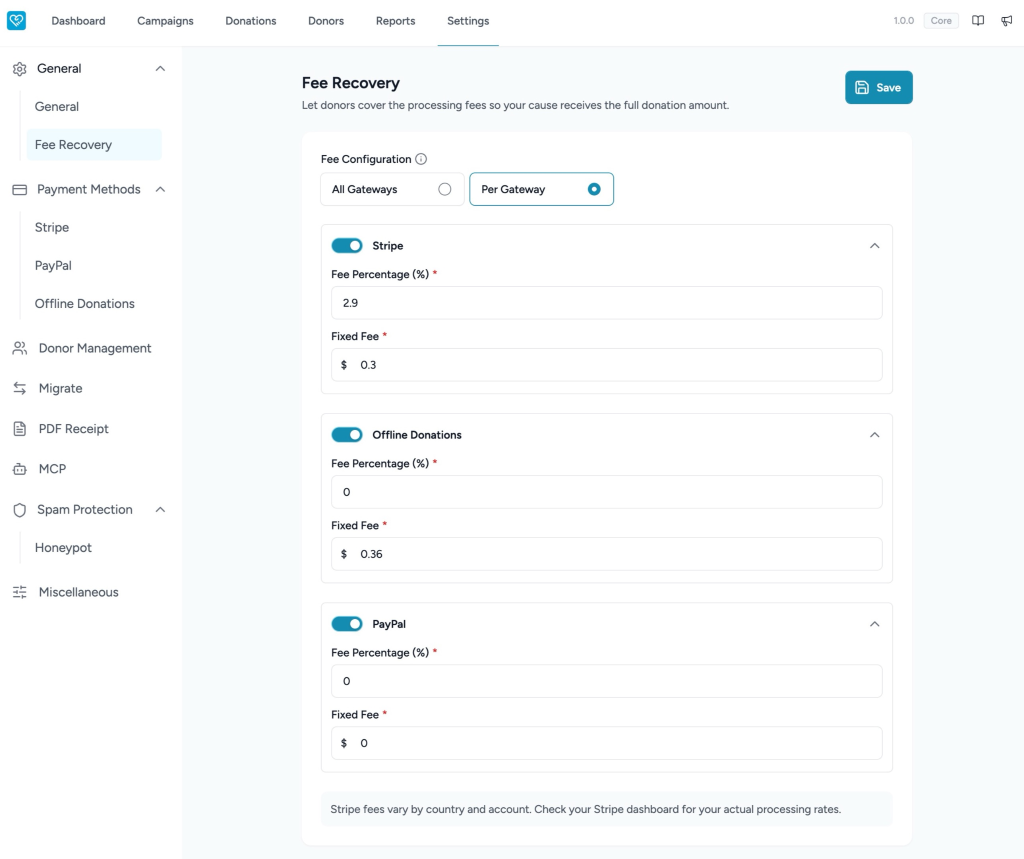
Stripe
Configure Stripe-specific processing fees.
Example values:
- Fee Percentage (%) → 2.9
- Fixed Fee → $0.3
These values represent a common Stripe processing structure and may vary depending on account type and region.
Offline Donations
Configure fee recovery values for offline donation methods.
Example values:
- Fee Percentage (%) → 0
- Fixed Fee → $0
This means no additional processing fee is added.
PayPal
Configure PayPal-specific fee recovery values.
Example values:
- Fee Percentage (%) → 0
- Fixed Fee → $0
Update these values according to your PayPal account processing charges.
Note: Processing fees vary by payment provider, country, and account type. Check your payment gateway dashboard (such as Stripe or PayPal) to confirm your actual processing rates before configuring Fee Recovery.
We don't respond to the article feedback, we use it to improve our support content.