
- Handle Custom Stripe Webhook Events
- suredonation_export_secret_option_keys Filter Hook
- suredonation_import_batch_complete Action Hook
- suredonation_import_complete Action Hook
- suredonation_import_donation_inserted Action Hook
- suredonation_import_donor_inserted Action Hook
- suredonation_import_session_created Action Hook
- suredonation_import_givewp_batch_complete Action Hook
- suredonation_import_givewp_session_created Action Hook
- suredonation_privacy_data_exported Action Hook
- Validate Field Filter Hook
- Validatable Blocks Filter Hook
- Update donation data, Filter Hook
- OttoKit Integration: suredonation_suretriggers_integration_data_filter Filter Hook
- suredonation_show_setup_gateway_notice Filter Hook
- suredonation_show_review_notice_gateway Filter Hook
- suredonation_show_review_notice_donation Filter Hook
- suredonation_registered_payment_methods Filter Hook
- suredonation_register_additional_blocks Filter Hook
- suredonation_receipt_html Filter Hook
- Validatable Blocks Filter Hook
- Update donation data, Filter Hook
- OttoKit Integration: suredonation_suretriggers_integration_data_filter Filter Hook
- suredonation_show_setup_gateway_notice Filter Hook
- suredonation_show_review_notice_gateway Filter Hook
- suredonation_show_review_notice_donation Filter Hook
- suredonation_registered_payment_methods Filter Hook
- suredonation_register_additional_blocks Filter Hook
- suredonation_receipt_html Filter Hook
- suredonation_phone_geo_enabled Filter Hook
Connecting PayPal in SureDonation
The PayPal settings allow you to connect and manage your PayPal account so you can securely accept donations through your forms.
Once connected, donors can complete payments using PayPal, and donations can be processed directly from your website.
Before You Begin
Make sure you have the right account type ready before connecting:
For Live mode – You need a PayPal business account that is fully set up to receive payments. If your account has restrictions or is not yet approved to accept payments, SureDonation will warn you after connecting. You’ll need to resolve any pending requirements in your PayPal account before going live.
For Test mode – You need a PayPal sandbox account, not your regular PayPal login. Sandbox accounts are created separately through the PayPal Developer Dashboard (https://developer.paypal.com/dashboard/). Signing in with your real PayPal credentials in test mode will not work.
Access PayPal Settings
To access the PayPal settings:
- Log in to your WordPress Dashboard.
- Navigate to SureDonation > Settings.
- Expand Payment Methods.
- Select PayPal.
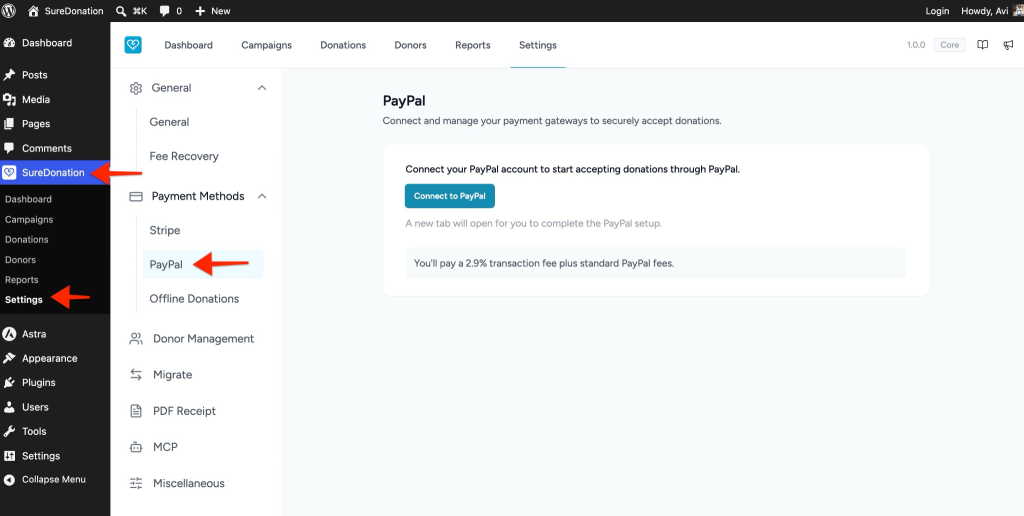
Note: Live mode and test mode require separate connections. You will need to connect your PayPal account independently for each mode.
Connect Your PayPal Account
Before accepting donations, you must connect your PayPal account.
To connect PayPal:
- Open SureDonation > Settings > Payment Methods > PayPal.
- Click the Connect to PayPal button.
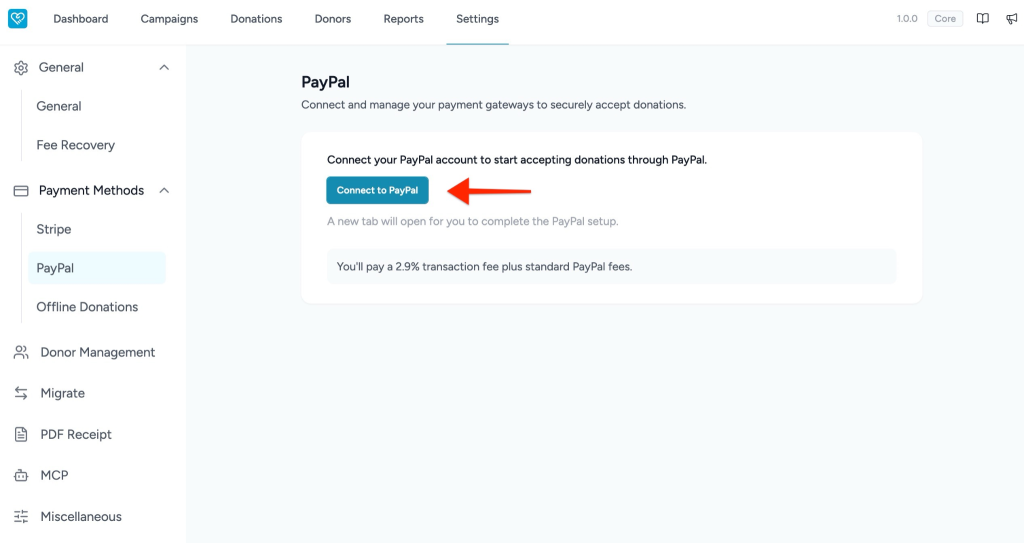
- A new browser tab will open for PayPal authorization.
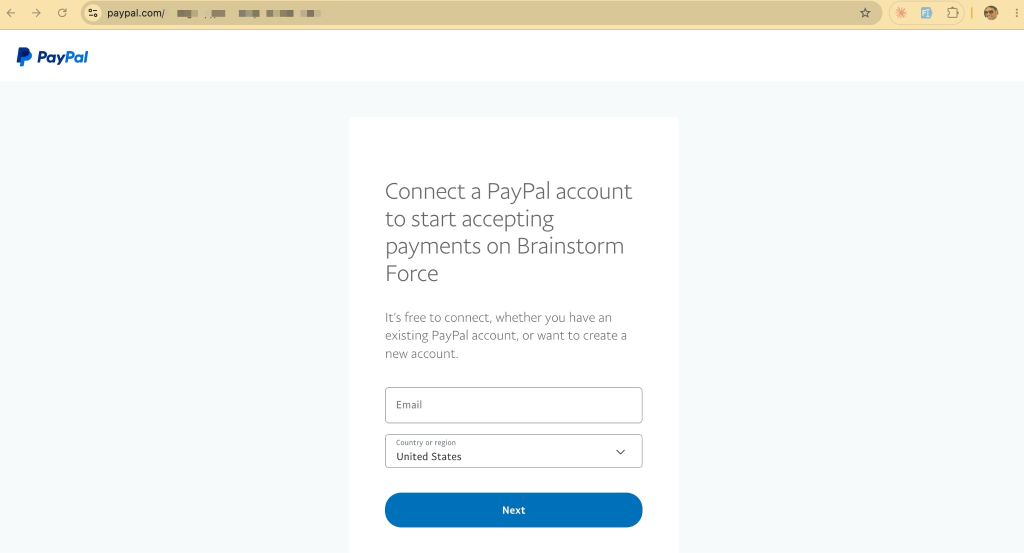
- Sign in to your PayPal account.
- Review and approve the requested permissions.
- Complete the authorization process.
- Return to your WordPress dashboard once the connection is successful.
After successful authentication, your PayPal account will be connected to SureDonation and ready to accept donations.
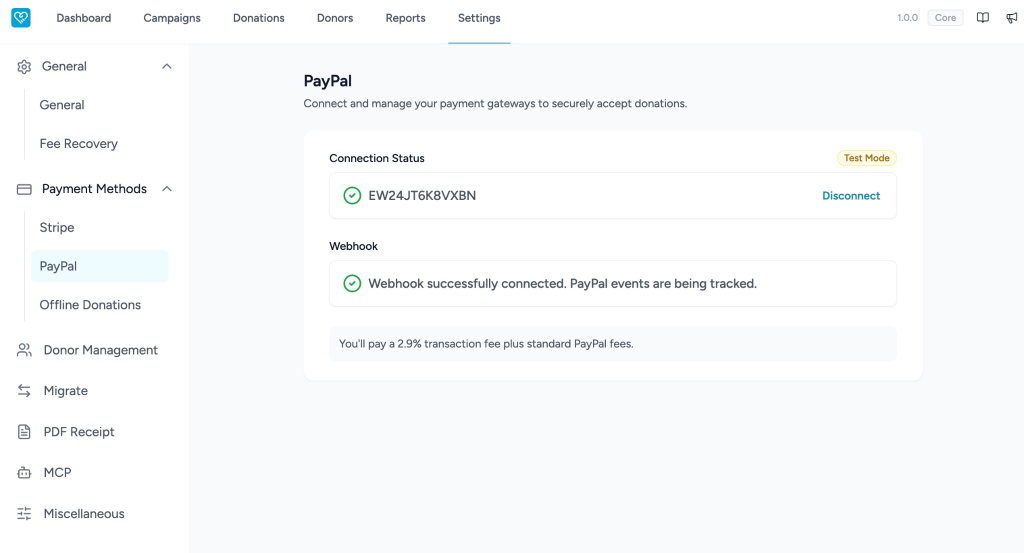
If you see a webhook error during connection: SureDonation sets up webhooks automatically as part of the connection process. If webhook creation fails, you’ll see an error message immediately after connecting. This usually means PayPal couldn’t reach your site. Check that your site is publicly accessible and not behind a firewall or maintenance mode, then reconnect.
Check Connection Status
Once connected, the PayPal settings page shows the connection status for both Live and Test modes, even when only one is active. This lets you confirm at a glance that both modes are properly set up.
If a connected account has restrictions that prevent it from accepting payments (for example, a PayPal account pending verification or under review), SureDonation will show a warning notice. You’ll need to log in to PayPal and resolve any outstanding requirements before donations can be processed in that mode.
Configure PayPal After Connection
After connecting to PayPal:
- Confirm that the PayPal connection status appears successful.
- Configure your donation settings as needed.
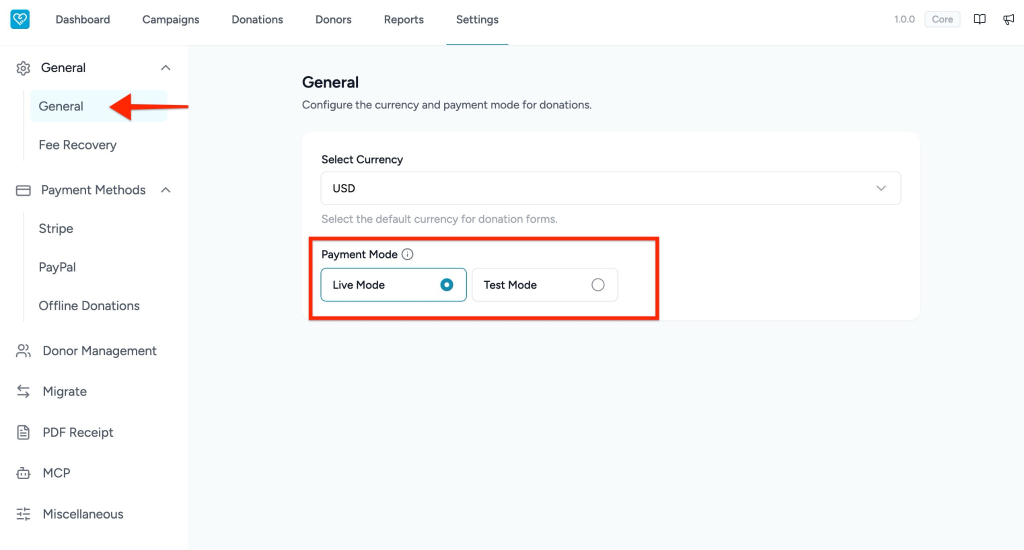
- Select your preferred currency from General Settings.
- Choose the appropriate payment mode:
- Live Mode – Accept real donations.
- Test Mode – Test your donation flow before going live.
Verify the PayPal Connection
After completing setup:
- Open a donation form on your website.
- Submit a test donation.
- Complete the payment using PayPal.
- Confirm the donation appears in your records and PayPal account.
When testing is complete, switch to Live mode to start accepting real donations.
Known Limitations
You cannot donate to your own connected PayPal account
PayPal does not allow a payment from an account to itself. If you try to donate using the same PayPal account that is connected to receive donations, the payment will be declined by PayPal. This is a PayPal platform restriction.
Reference: See PayPal’s developer documentation for details:
https://developer.paypal.com/api/rest/troubleshooting/rest_cannot_pay_self
To test a donation, use a different PayPal account or a sandbox buyer account.
What Donors See When a Payment Fails
If a PayPal payment fails, donors will see a clear, plain-language error message on the donation form, not raw technical output from PayPal. They can try again or use a different payment method.
PayPal Fees
PayPal transaction and processing fees vary depending on country, account type, and transaction volume. Review your PayPal account dashboard for current processing rates.
We don't respond to the article feedback, we use it to improve our support content.