
- Handle Custom Stripe Webhook Events
- suredonation_export_secret_option_keys Filter Hook
- suredonation_import_batch_complete Action Hook
- suredonation_import_complete Action Hook
- suredonation_import_donation_inserted Action Hook
- suredonation_import_donor_inserted Action Hook
- suredonation_import_session_created Action Hook
- suredonation_import_givewp_batch_complete Action Hook
- suredonation_import_givewp_session_created Action Hook
- suredonation_privacy_data_exported Action Hook
- Validate Field Filter Hook
- Validatable Blocks Filter Hook
- Update donation data, Filter Hook
- OttoKit Integration: suredonation_suretriggers_integration_data_filter Filter Hook
- suredonation_show_setup_gateway_notice Filter Hook
- suredonation_show_review_notice_gateway Filter Hook
- suredonation_show_review_notice_donation Filter Hook
- suredonation_registered_payment_methods Filter Hook
- suredonation_register_additional_blocks Filter Hook
- suredonation_receipt_html Filter Hook
- Validatable Blocks Filter Hook
- Update donation data, Filter Hook
- OttoKit Integration: suredonation_suretriggers_integration_data_filter Filter Hook
- suredonation_show_setup_gateway_notice Filter Hook
- suredonation_show_review_notice_gateway Filter Hook
- suredonation_show_review_notice_donation Filter Hook
- suredonation_registered_payment_methods Filter Hook
- suredonation_register_additional_blocks Filter Hook
- suredonation_receipt_html Filter Hook
- suredonation_phone_geo_enabled Filter Hook
Email Field in SureDonation
The Email field allows you to collect donor email addresses during the donation process.
This field is commonly used for:
- Sending donation receipts
- Delivering confirmation emails
- Sharing campaign updates
- Maintaining donor communication
- Processing donation notifications
The Email field validates the entered value to ensure it follows a valid email format.
Add an Email Field
To add an Email field:
- Open the donation form editor.
- Click the Add (+) button.
- Select Email from the available blocks.
- The Email field will be inserted into the donation form.
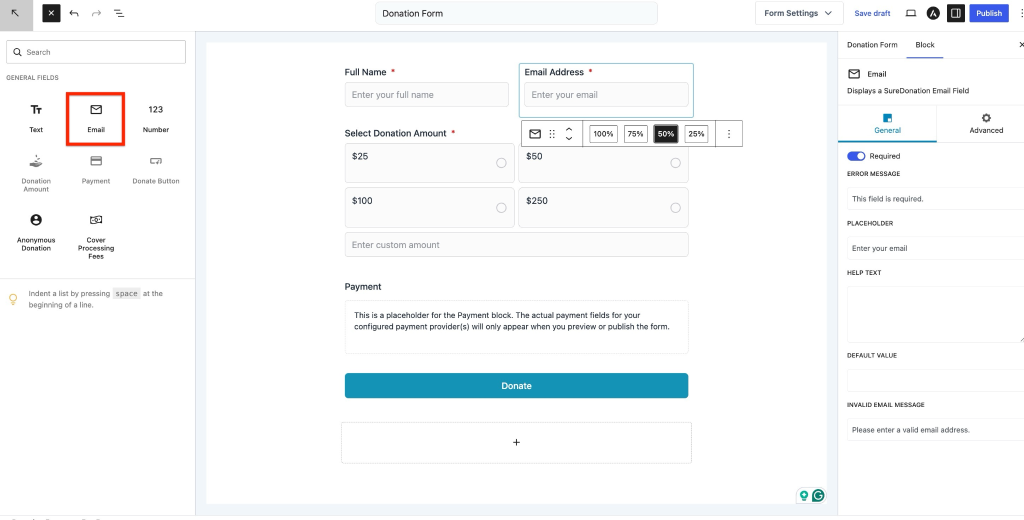
To configure the field:
- Select the Email field in the editor.
- Open the Block settings panel on the right side.
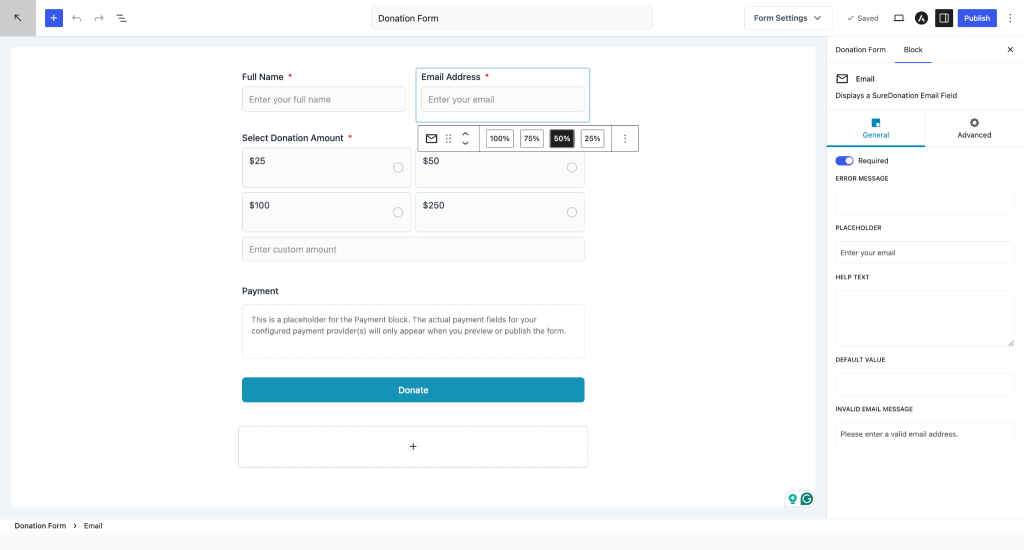
General Settings
The General tab controls validation and display options for the Email field.
Required
Enable Required to make the email field mandatory before the donation form can be submitted.
Example use case:
Require every donor to provide an email address to receive donation confirmations and receipts.
Error Message
Configure the message displayed when a required email field is left empty.
Example:
Email address is required.
This helps guide donors to complete the form correctly.
Placeholder
Display guidance text inside the email field before donors begin typing.
Default value:
Enter your email
Examples:
- Enter your work email
- Enter your contact email
- Enter your registered email
Placeholders improve clarity and reduce incorrect entries.
Help Text
Display additional instructions below the email field.
Example:
We’ll send your donation confirmation to this email address.
Use Help Text when you want to explain how the email will be used.
Default Value
Pre-fill the email field with a predefined value.
Example use cases:
- Internal testing
- Preconfigured forms
- Repeating donor workflows
Note: Avoid using default email values on public donation forms unless required.
Invalid Email Message
Customize the validation message shown when an invalid email format is entered.
Default value:
Please enter a valid email address.
Example scenarios:
Entered value:
john.example.com
Displayed message:
Please enter a valid email address.
Customizing this message can provide a clearer experience for donors.
Advanced Settings
The Advanced tab provides additional customization options for the Email field.
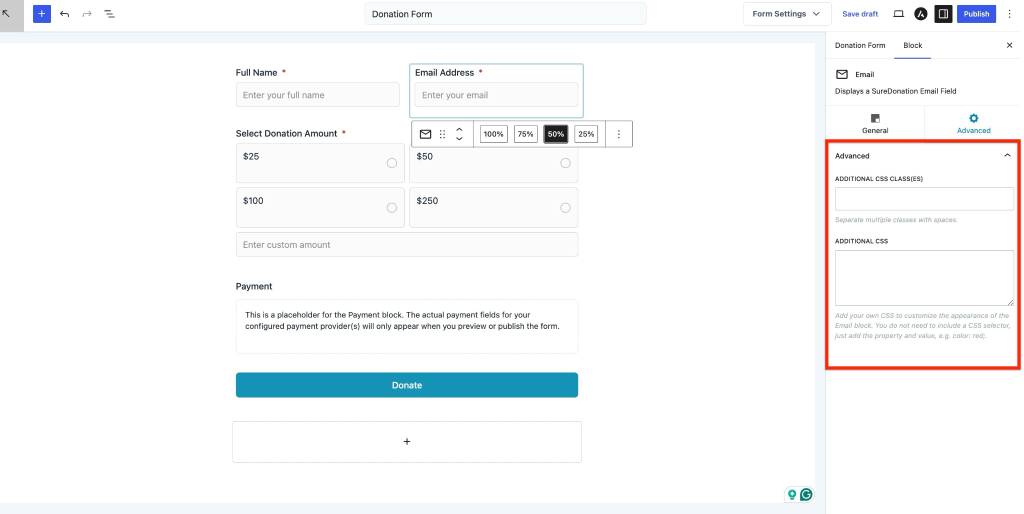
Additional CSS Class(es)
Assign one or more CSS classes to customize the field appearance through your theme or custom styles.
Separate multiple classes with spaces.
Example:
donor-email highlight-input
This is useful for applying targeted styling.
Additional CSS
Add custom CSS properties directly to modify the appearance of the Email field.
You only need to enter CSS properties and values.
Example:
color: red;
background-color: #f5f5f5;
border-radius: 6px;Do not include CSS selectors.
Use this setting to adjust styling without editing theme files.
We don't respond to the article feedback, we use it to improve our support content.