
- Add New Form
- Form Settings in SureDonation
- Set a Default Donation Form in SureDonation
- Text Field in SureDonation
- Email Field in SureDonation
- Number Field in SureDonation
- Donation Amount Field in SureDonation
- Payment Field in SureDonation
- Donate Button in SureDonation
- Cover Processing Fees Field
- Anonymous Donation Field
- Time Picker Field in SureDonation
- Handle Custom Stripe Webhook Events
- suredonation_export_secret_option_keys Filter Hook
- suredonation_import_batch_complete Action Hook
- suredonation_import_complete Action Hook
- suredonation_import_donation_inserted Action Hook
- suredonation_import_donor_inserted Action Hook
- suredonation_import_session_created Action Hook
- suredonation_import_givewp_batch_complete Action Hook
- suredonation_import_givewp_session_created Action Hook
- suredonation_privacy_data_exported Action Hook
- Validate Field Filter Hook
- Validatable Blocks Filter Hook
- Update donation data, Filter Hook
- OttoKit Integration: suredonation_suretriggers_integration_data_filter Filter Hook
- suredonation_show_setup_gateway_notice Filter Hook
- suredonation_show_review_notice_gateway Filter Hook
- suredonation_show_review_notice_donation Filter Hook
- suredonation_registered_payment_methods Filter Hook
- suredonation_register_additional_blocks Filter Hook
- suredonation_receipt_html Filter Hook
- Validatable Blocks Filter Hook
- Update donation data, Filter Hook
- OttoKit Integration: suredonation_suretriggers_integration_data_filter Filter Hook
- suredonation_show_setup_gateway_notice Filter Hook
- suredonation_show_review_notice_gateway Filter Hook
- suredonation_show_review_notice_donation Filter Hook
- suredonation_registered_payment_methods Filter Hook
- suredonation_register_additional_blocks Filter Hook
- suredonation_receipt_html Filter Hook
- suredonation_phone_geo_enabled Filter Hook
Text Field in SureDonation
The Text field allows you to collect custom text-based information from donors during the donation process.
This block can be used to capture additional details beyond the default donor information fields and helps personalize or extend your donation forms.
Example uses include:
- Collecting donor’s full name
- Asking for dedication or memorial messages
- Capturing organization or company names
- Requesting campaign-specific information
- Collecting volunteer interest details
- Gathering custom notes from donors
The Text block displays a standard input field within the donation form.
Add a Text Field
To add a Text field:
- Open the donation form editor.
- Click the Add (+) button.
- Select Text from the available blocks.
- The Text field will be inserted into the form.
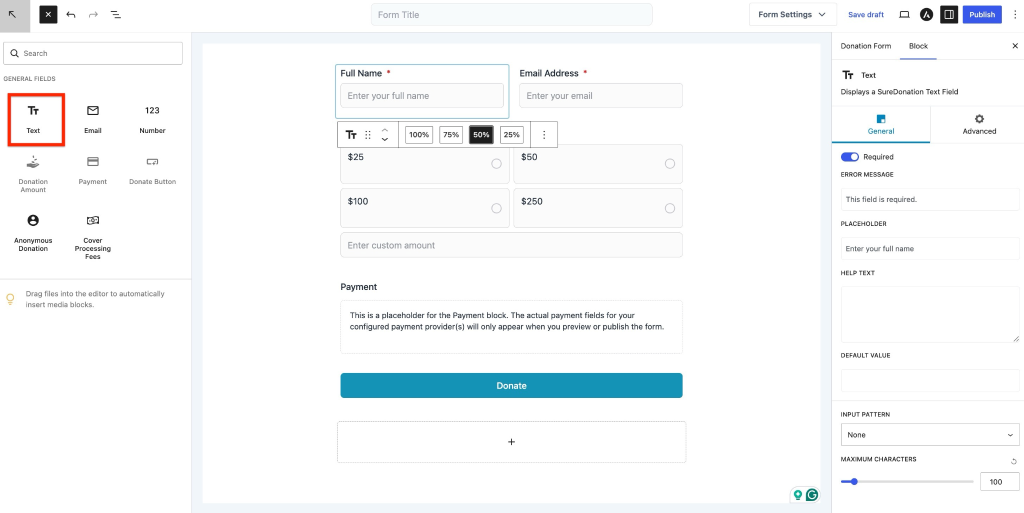
To customize the field:
- Select the Text field inside the editor.
- Open the Block settings panel on the right side.
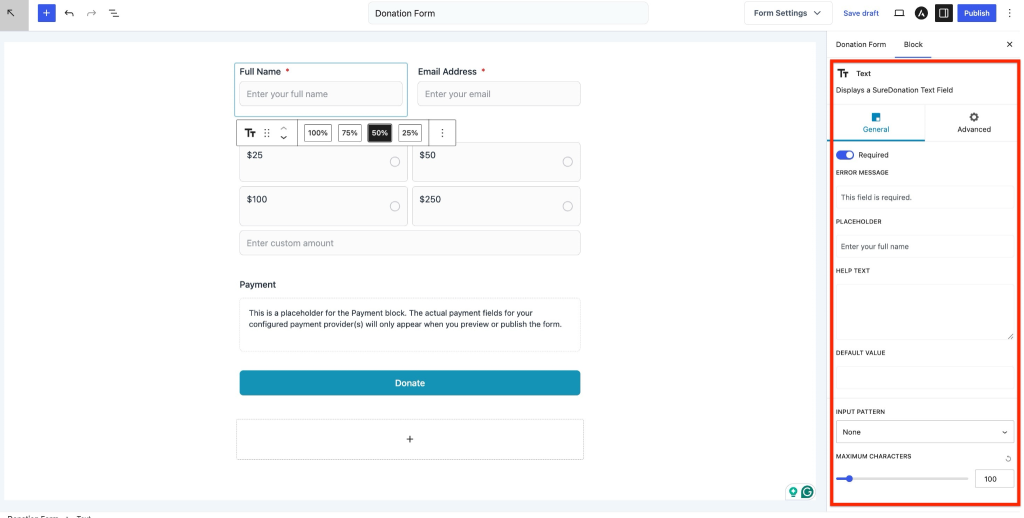
General Settings
The General tab controls how the field behaves and appears to donors.
Required
Enable Required to make the field mandatory before donors can submit the form.
Example use case:
Require donors to enter their full name before completing the donation.
Error Message
Set a custom validation message that appears if a required field is left empty or contains invalid data.
Example:
Please enter your full name.
Placeholder
Display helper text inside the field before the donor enters information.
Default example:
Enter your full name
Use placeholders to guide donors on what information is expected.
Examples:
- Enter your organization name
- Add your message
- Enter event details
Help Text
Add supporting instructions below the field.
This is useful when additional explanation is needed.
Example:
Please enter the name exactly as you would like it displayed.
Default Value
Pre-fill the field with a predefined value.
Example use cases:
- Default campaign labels
- Suggested donor messages
- Prefilled event information
Input Pattern
Use the Input Pattern to control how information can be entered.
Available options include:
None
No formatting restrictions.
Example:
Any text can be entered.
(###) ###-####
Apply a telephone number format.
Example:
(555) 123-4567
(##) ####-####
Apply an alternative phone format.
Example:
(91) 9876-5432
09/05/2026
Restrict the field to a date format.
Example:
22/06/2026
23:59:59
Restrict input to time only.
Example:
10:30:00
09/05/2026 23:59:59
Allow date and time formatting.
Example:
22/06/2026 10:30:00
Custom Mask
Create your own input rules.
Supported formats:
- 9 → Numeric digit
- a → Alphabet character
- * → Alphanumeric value
Examples:
Date format
date: dd/mm/yyyy
Email alias
alias: email
Custom code
AAA-999
Custom masks help standardize donor input and reduce validation errors.
Maximum Characters
Limit how many characters donors can enter.
Example use cases:
- Restrict messages to 100 characters
- Limit campaign reference IDs
- Prevent long text submissions
Advanced Settings
The Advanced tab provides additional customization options.
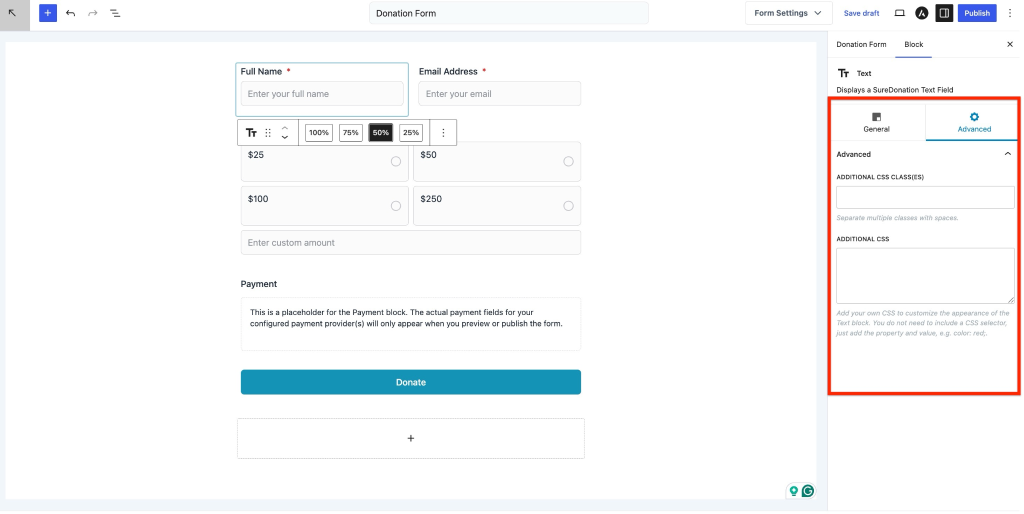
Additional CSS Class(es)
Add one or more CSS classes to target the field with custom styling.
Separate multiple classes with spaces.
Example: donor-name highlight-field
Additional CSS
Apply custom CSS properties directly to the Text field.
You only need to provide CSS properties and values.
Example:
color: red;
background-color: #f5f5f5;
border-radius: 6px;
Use this option to customize the appearance of the field without editing theme files.
We don't respond to the article feedback, we use it to improve our support content.