
- Add New Form
- Form Settings in SureDonation
- Set a Default Donation Form in SureDonation
- Text Field in SureDonation
- Email Field in SureDonation
- Number Field in SureDonation
- Donation Amount Field in SureDonation
- Payment Field in SureDonation
- Donate Button in SureDonation
- Cover Processing Fees Field
- Handle Custom Stripe Webhook Events
- suredonation_export_secret_option_keys Filter Hook
- suredonation_import_batch_complete Action Hook
- suredonation_import_complete Action Hook
- suredonation_import_donation_inserted Action Hook
- suredonation_import_donor_inserted Action Hook
- suredonation_import_session_created Action Hook
- suredonation_import_givewp_batch_complete Action Hook
- suredonation_import_givewp_session_created Action Hook
- suredonation_privacy_data_exported Action Hook
- Validate Field Filter Hook
- Validatable Blocks Filter Hook
- Update donation data, Filter Hook
- OttoKit Integration: suredonation_suretriggers_integration_data_filter Filter Hook
- suredonation_show_setup_gateway_notice Filter Hook
- suredonation_show_review_notice_gateway Filter Hook
- suredonation_show_review_notice_donation Filter Hook
- suredonation_registered_payment_methods Filter Hook
- suredonation_register_additional_blocks Filter Hook
- suredonation_receipt_html Filter Hook
- Validatable Blocks Filter Hook
- Update donation data, Filter Hook
- OttoKit Integration: suredonation_suretriggers_integration_data_filter Filter Hook
- suredonation_show_setup_gateway_notice Filter Hook
- suredonation_show_review_notice_gateway Filter Hook
- suredonation_show_review_notice_donation Filter Hook
- suredonation_registered_payment_methods Filter Hook
- suredonation_register_additional_blocks Filter Hook
- suredonation_receipt_html Filter Hook
- suredonation_phone_geo_enabled Filter Hook
Recurring Donations in SureDonation
The Recurring Donations feature in SureDonation allows you to collect donations automatically at regular intervals instead of receiving one-time contributions.
With this feature, you can create subscription-based donation forms, allowing supporters to contribute daily, weekly, monthly, or yearly.
You can also give donors the flexibility to choose between a one-time donation and a recurring donation.
This is useful for organizations that want to receive regular contributions and maintain consistent fundraising support.
How to Set Up Recurring Donations
To enable recurring donations on your donation form:
- Log in to your WordPress dashboard.
- Navigate to SureDonation → Campaigns.
- Open the campaign where you want to enable recurring donations.
- Edit the donation form associated with the campaign.
- Select the Payment block in the form editor.
- Open the Block settings panel on the right side.
- Locate the Payment Type option.
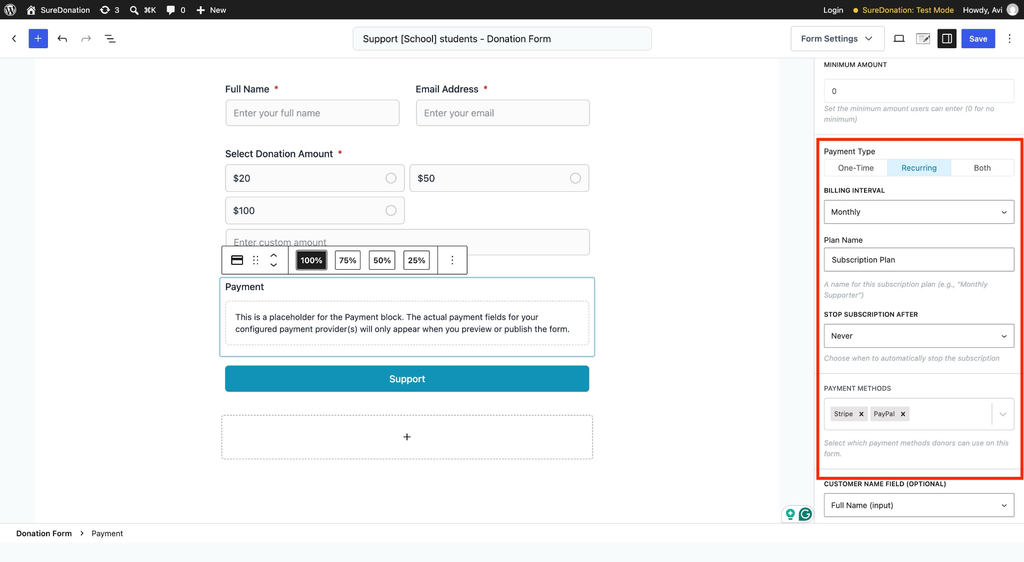
Under Payment Type, you will find three options:
- One-Time: Allows donors to make a single donation without creating a subscription.
- Recurring: Automatically creates a subscription when a donor completes a donation.
- Both: Allows donors to choose between a one-time donation and a recurring donation.
Select Recurring to collect donations automatically at regular intervals.
Configure Recurring Donation Settings
Once you select Recurring as the Payment Type, you can configure the subscription settings.
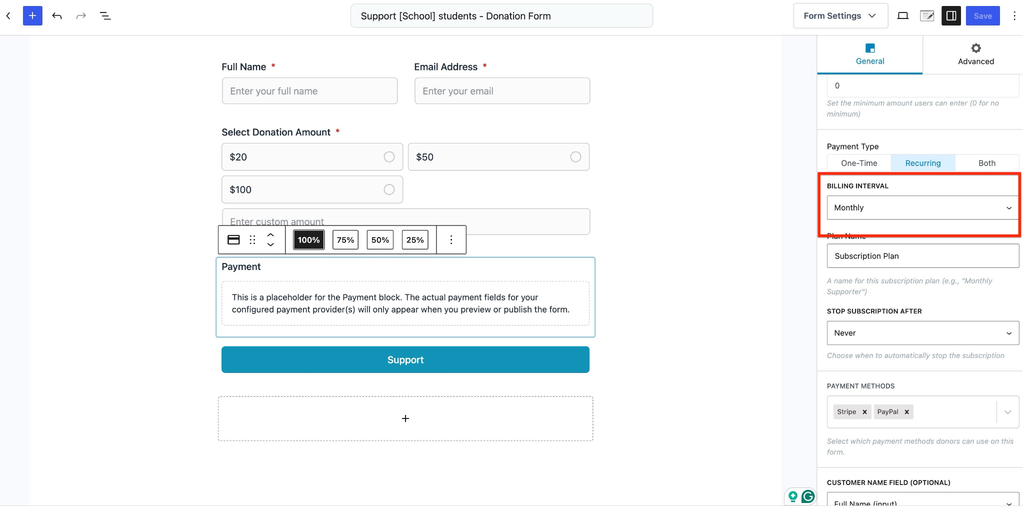
Billing Interval
The Billing Interval option determines how frequently donations are collected.
You can choose from the following options:
- Daily: Collect donations every day.
- Weekly: Collect donations every week.
- Monthly: Collect donations every month.
- Yearly: Collect donations every year.
For example, if you select Monthly, the donor will be charged automatically every month according to the subscription schedule.
Plan Name
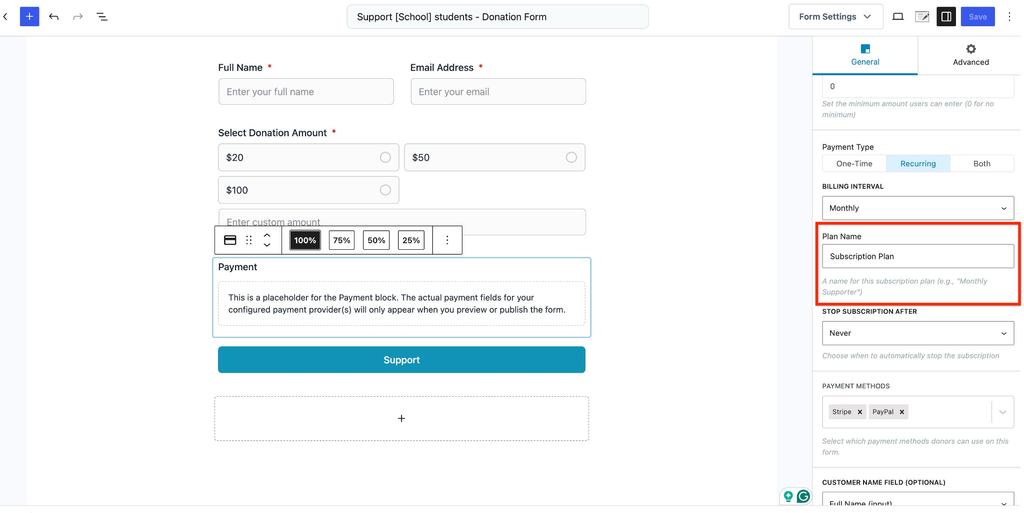
The Plan Name option allows you to enter a name for your recurring donation subscription.
For example, you can use:
- Monthly Supporter
- Education Support Plan
- Annual Donation Plan
By default, the plan name is Subscription Plan.
This helps identify the subscription associated with the recurring donation.
Stop Subscription After
The Stop Subscription After option determines when the recurring donation subscription should automatically end.
You can select:
- Never: The subscription continues until it is canceled.
- 2 Payments: Stops after two payments.
- 3 Payments: Stops after three payments.
- 4 Payments: Stops after four payments.
- 5 Payments: Stops after five payments.
- Custom: Allows you to specify the number of payments.
If you select Custom, an additional Number of Payments field appears.
You can enter a value between 1 and 100 to define how many payments should be collected.
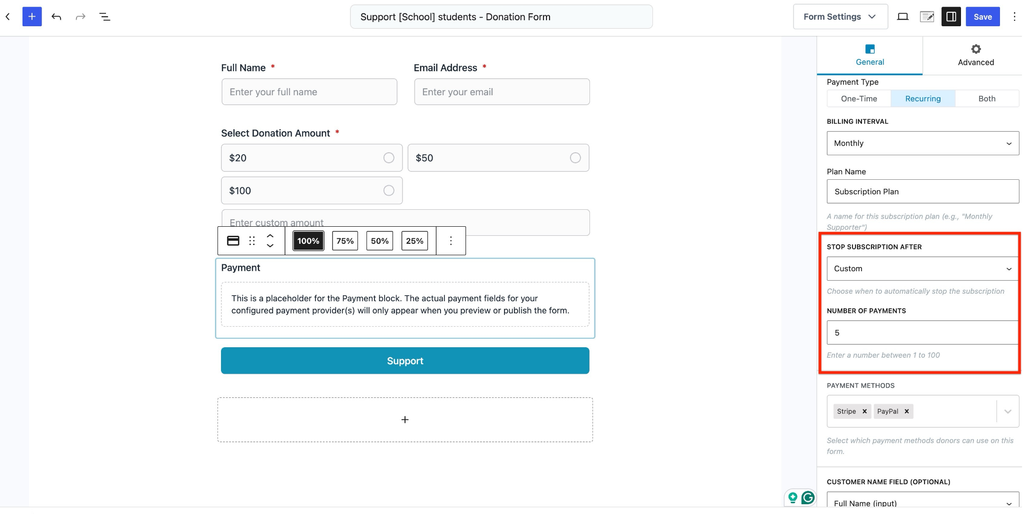
For example, if you select Monthly as the Billing Interval and 5 Payments as the subscription limit, the subscription will stop after five scheduled payments.
Configure Donation Amount
The Payment block allows you to configure the amount donors can contribute.
Depending on the selected amount type, you can configure the following settings.
Fixed Amount
Select Fixed Amount when you want every donor to contribute a predefined amount.
For example, you can set a recurring donation amount of $20 per month.
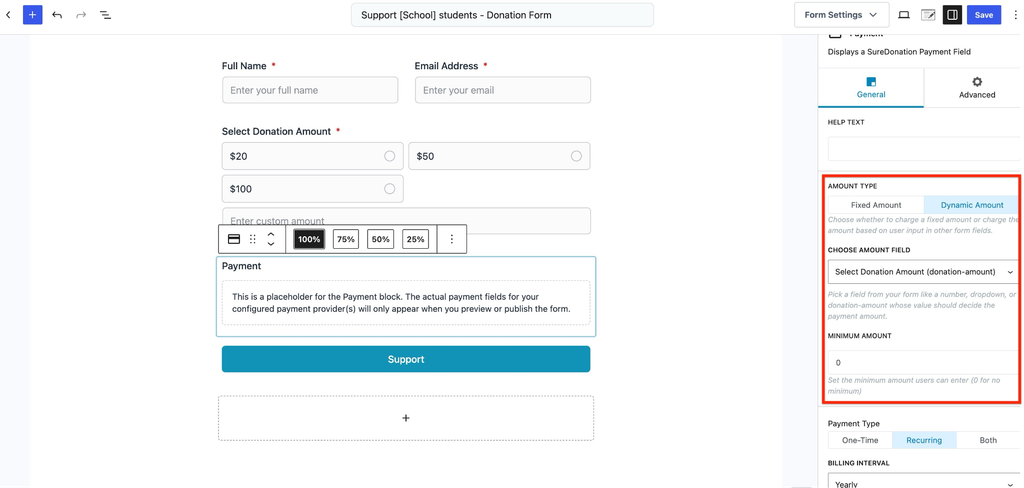
Dynamic Amount
Select Dynamic Amount when you want donors to choose how much they would like to contribute.
You can configure:
- Choose Amount Field: Select the donation amount field from your form.
- Minimum Amount: Set the minimum amount donors can enter. Enter 0 if you do not want to set a minimum.
Allow Both One-Time and Recurring Donations
SureDonation also allows you to offer both one-time and recurring donations within the same form.
To configure this:
- Open the donation form editor.
- Select the Payment block.
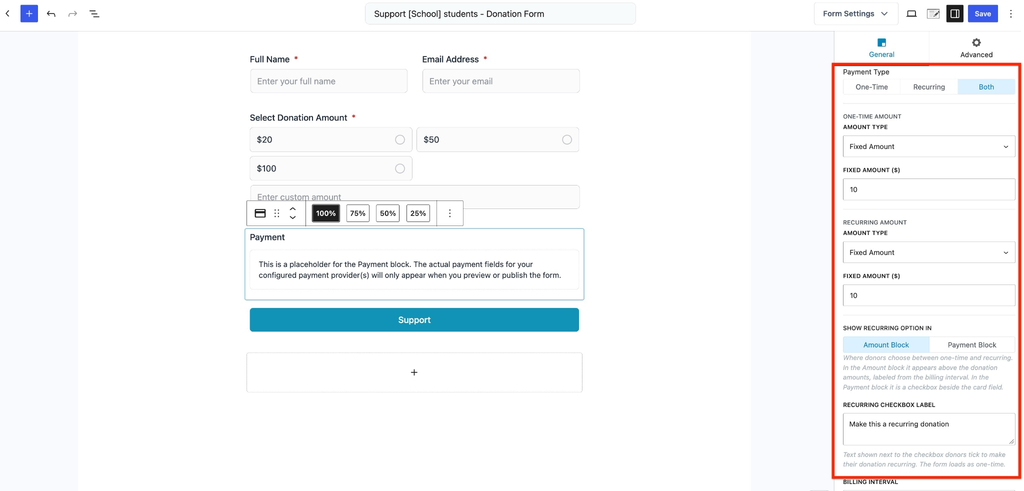
- Under Payment Type, select Both.
- Configure the One-Time Amount settings.
- Configure the Recurring Amount settings.
- Customize the Recurring Checkbox Label.
- Configure the subscription settings.
- Save your changes.
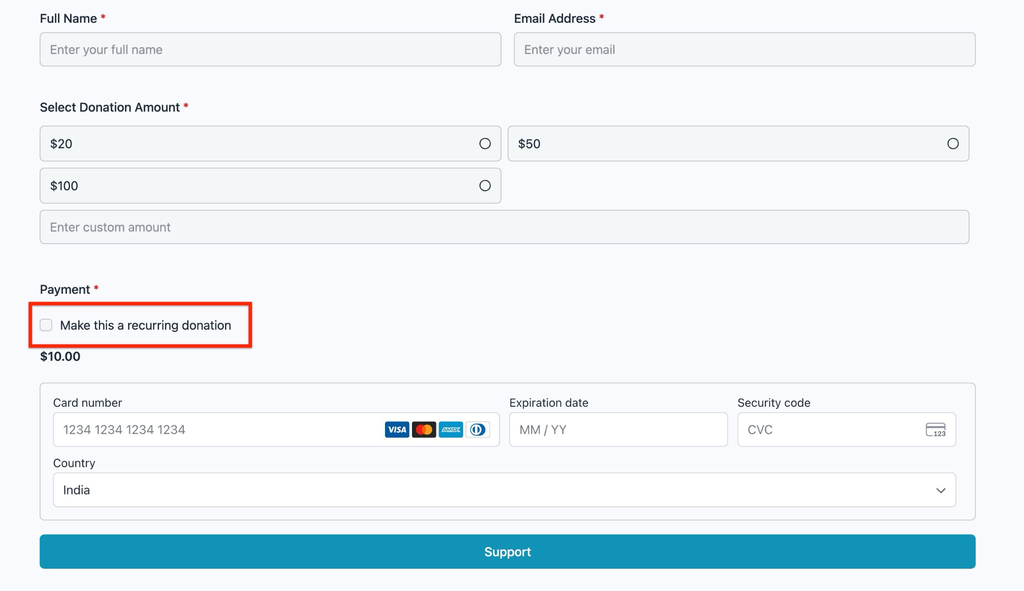
When Both is selected, the donation form displays a checkbox that allows donors to make their contribution recurring.
By default, the form uses the one-time donation option. Donors can select the checkbox to switch to recurring donations.
This allows supporters to choose how they want to contribute.
Configure Payment Methods
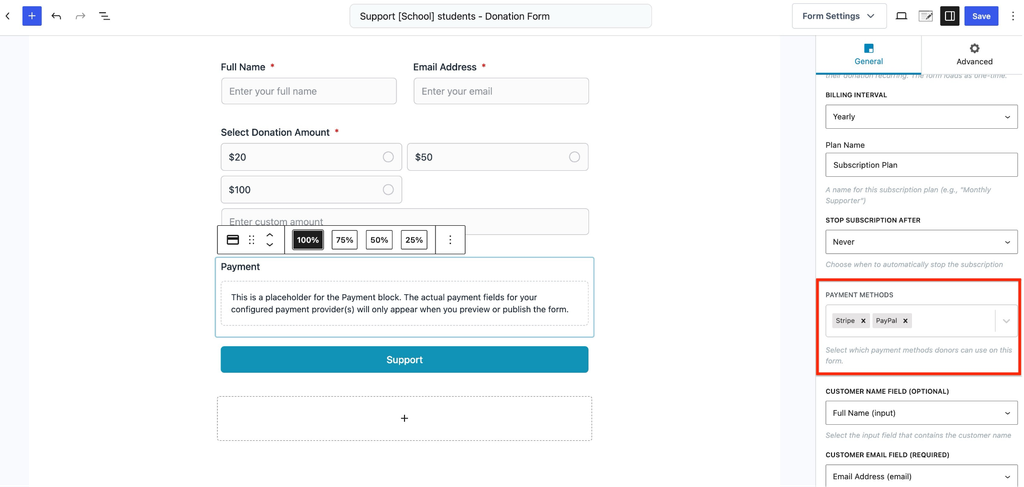
Under the Payment block settings, you can select the payment gateways available for your donation form.
To configure payment methods:
- Select the Payment block.
- Scroll down to Payment Methods.
- Choose the payment gateways you want to use.
- Save the donation form.
For example, you can select Stripe or PayPal, as shown in the Payment Methods settings.
Save and Publish the Donation Form
Once you have configured the recurring donation settings:
- Review the Payment block settings.
- Click Save, Publish, or Update, depending on the editor.
- Open the donation form on your website.
- Test the recurring donation process to confirm everything works as expected.
How to Manage Recurring Donations
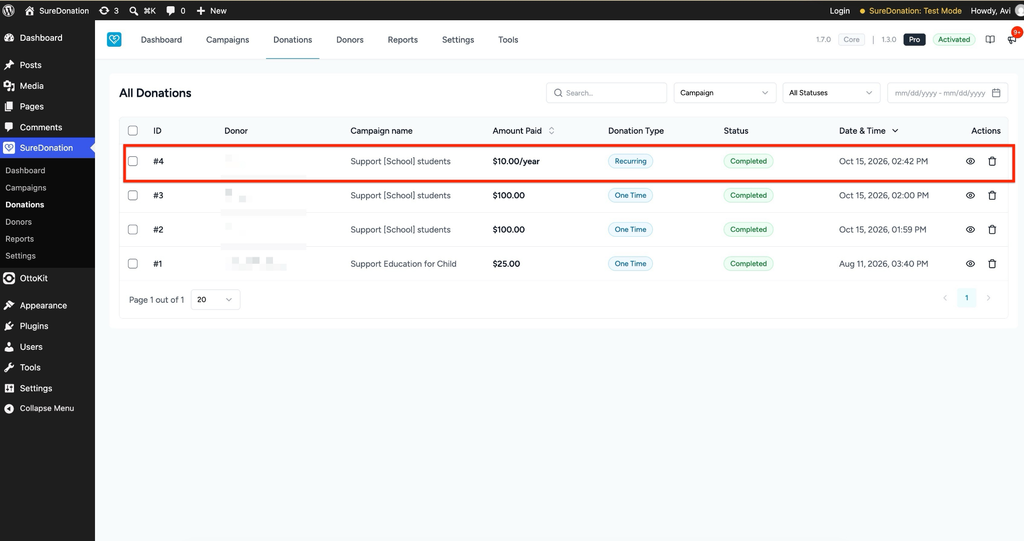
SureDonation allows you to manage subscriptions directly from the WordPress dashboard.
To manage a recurring donation:
- Navigate to SureDonation → Donations.
- Find and open the donation associated with the subscription.
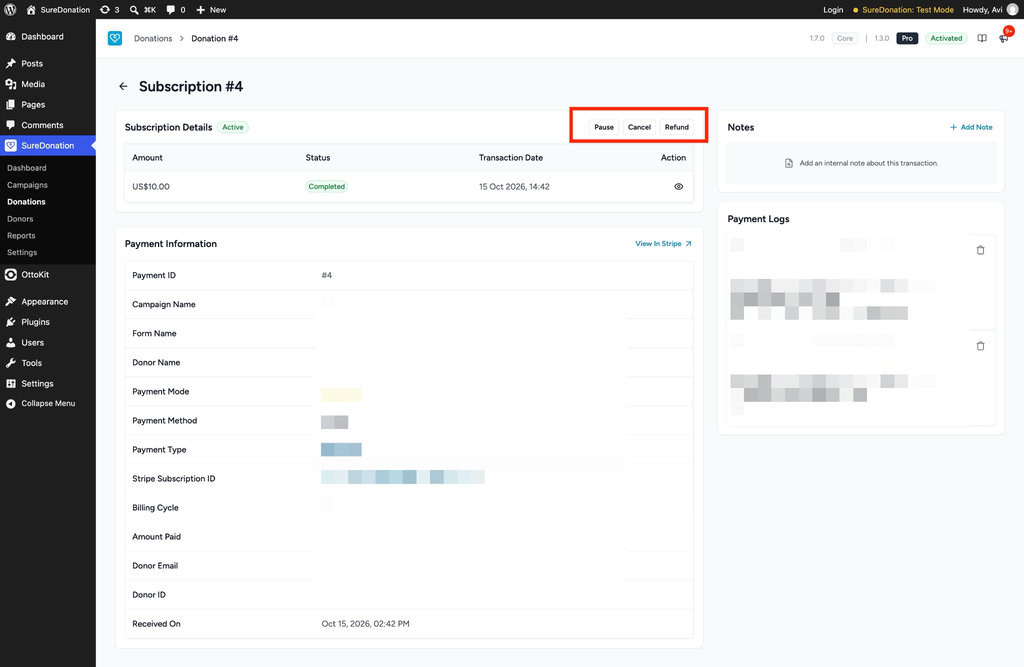
- Scroll down to the Subscription Details section.
From this section, you can perform the following actions:
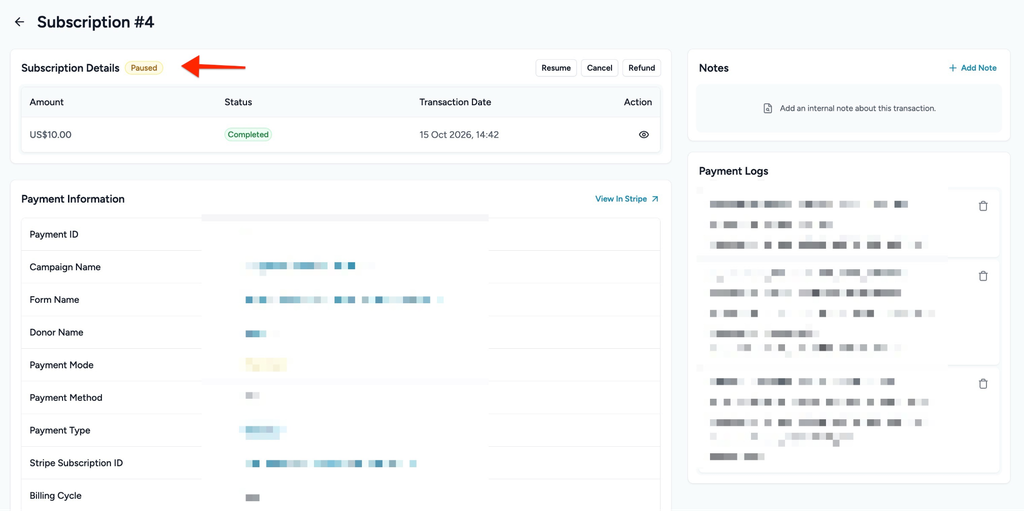
- Pause: Temporarily stop collecting recurring payments.
- Resume: Restart a paused subscription.
- Cancel: Stop the subscription and prevent future recurring payments.
- Refund: Refund an eligible payment.
You can also view the subscription’s billing history, including:
- Amount
- Status
- Transaction Date
- Action
Recurring Donation Statuses
Each recurring donation subscription has a status that helps you understand its current state.
| Status | Description |
| Active | The subscription is active and scheduled payments are being collected. |
| Paused | The subscription is temporarily paused and can be resumed. |
| Canceled | The subscription has been canceled, and future payments are stopped. |
| Incomplete | The subscription was created, but its first payment has not been completed. |
| Past Due | A scheduled subscription payment has not been successfully collected. |
| Unpaid | A subscription payment remains outstanding. |
| Trialing | The subscription is in a trial period and is treated as active by SureDonation. |
Donation Types
SureDonation identifies recurring donation records using different donation types.
You can view these records under SureDonation → Donations.
- Recurring: The initial donation that creates the subscription.
- Renewal: A subsequent payment collected as part of an existing subscription.
- Subscription: The record associated with the recurring donation subscription.
These donation types help you distinguish between the initial contribution and subsequent subscription payments.
Donor Subscription Management
Donors can also manage their recurring donations from the Donor Dashboard.
Depending on the available subscription options, donors can:
- Pause their recurring donations.
- Resume paused subscriptions.
- Cancel existing subscriptions.
- Change their recurring donation amount.
This gives donors more control over their ongoing contributions.
Example: Monthly Donations for Education Support
Suppose you are running an education fundraising campaign and want supporters to contribute $20 every month.
You can configure the donation form using the following settings:
| Setting | Value |
| Payment Type | Recurring |
| Amount Type | Fixed Amount |
| Fixed Amount | $20 |
| Billing Interval | Monthly |
| Plan Name | Monthly Education Support |
| Stop Subscription After | Never |
| Payment Method | Stripe or PayPal |
With this configuration, donors can sign up to contribute $20 every month.
Their recurring donations will continue according to the subscription schedule until the subscription is canceled or otherwise stopped.
That’s it! You can now use Recurring Donations in SureDonation Pro to collect regular contributions, manage subscriptions, and provide donors with flexible giving options.
We don't respond to the article feedback, we use it to improve our support content.