
- Add New Form
- Form Settings in SureDonation
- Set a Default Donation Form in SureDonation
- Text Field in SureDonation
- Email Field in SureDonation
- Number Field in SureDonation
- Donation Amount Field in SureDonation
- Payment Field in SureDonation
- Donate Button in SureDonation
- Cover Processing Fees Field
- Handle Custom Stripe Webhook Events
- suredonation_export_secret_option_keys Filter Hook
- suredonation_import_batch_complete Action Hook
- suredonation_import_complete Action Hook
- suredonation_import_donation_inserted Action Hook
- suredonation_import_donor_inserted Action Hook
- suredonation_import_session_created Action Hook
- suredonation_import_givewp_batch_complete Action Hook
- suredonation_import_givewp_session_created Action Hook
- suredonation_privacy_data_exported Action Hook
- Validate Field Filter Hook
- Validatable Blocks Filter Hook
- Update donation data, Filter Hook
- OttoKit Integration: suredonation_suretriggers_integration_data_filter Filter Hook
- suredonation_show_setup_gateway_notice Filter Hook
- suredonation_show_review_notice_gateway Filter Hook
- suredonation_show_review_notice_donation Filter Hook
- suredonation_registered_payment_methods Filter Hook
- suredonation_register_additional_blocks Filter Hook
- suredonation_receipt_html Filter Hook
- Validatable Blocks Filter Hook
- Update donation data, Filter Hook
- OttoKit Integration: suredonation_suretriggers_integration_data_filter Filter Hook
- suredonation_show_setup_gateway_notice Filter Hook
- suredonation_show_review_notice_gateway Filter Hook
- suredonation_show_review_notice_donation Filter Hook
- suredonation_registered_payment_methods Filter Hook
- suredonation_register_additional_blocks Filter Hook
- suredonation_receipt_html Filter Hook
- suredonation_phone_geo_enabled Filter Hook
Reports in SureDonation
The Reports feature in SureDonation allows you to track and analyze your fundraising performance from one place.
You can view donation trends, total donations, campaign performance, and donor activity for a selected period.
This helps you understand how your campaigns are performing and track your fundraising progress.
Access Reports
To access the Reports section:
- Log in to your WordPress dashboard.
- Navigate to SureDonation → Reports.
- The Reports dashboard will open, displaying your donation statistics and campaign performance.
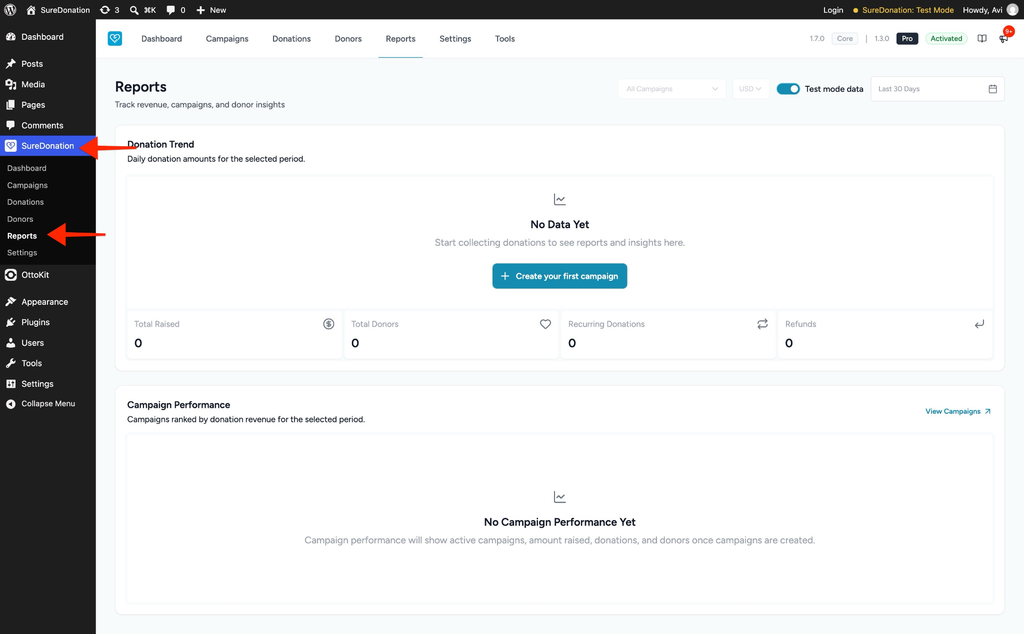
If you haven’t received any donations yet, the Donation Trend section displays a No Data Yet message.
If you are using the free version of SureDonation, the Reports section displays a preview with sample data and an Upgrade to Pro option.
Filter Reports
The Reports dashboard provides several filters to help you view specific donation data.
You can find these filters at the top-right corner of the Reports screen.
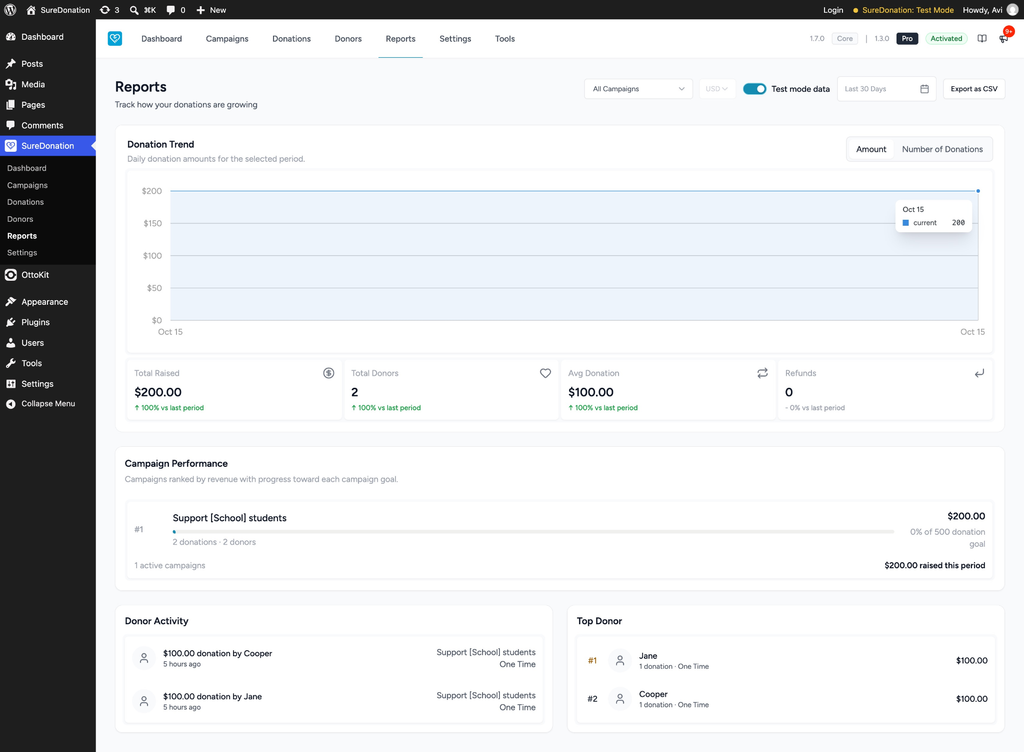
All Campaigns
The All Campaigns dropdown allows you to filter reports by campaign.
- Select All Campaigns to view data from all your campaigns.
- Select a specific campaign to view its individual performance.
Currency
The Currency dropdown allows you to view donation reports in a selected currency.
This option is available when your donation records contain multiple currencies.
Test Mode Data
The Test mode data toggle allows you to switch between test donations and live donations.
- Enabled: Displays donations made in Test Mode.
- Disabled: Displays donations made in Live Mode.
By default, the toggle follows your site’s current payment mode.
Date Range
The Date Range option allows you to view reports for a specific period.
To change the date range:
- Click the Date Range field.
- Select a predefined period or choose a custom date range.
- The report will update based on your selected dates.
For example, you can select Last 30 Days to review donations received during that period.
Donation Trend
The Donation Trend section displays a chart showing donation amounts received during the selected period.
This helps you identify donation activity and understand how your fundraising is progressing over time.
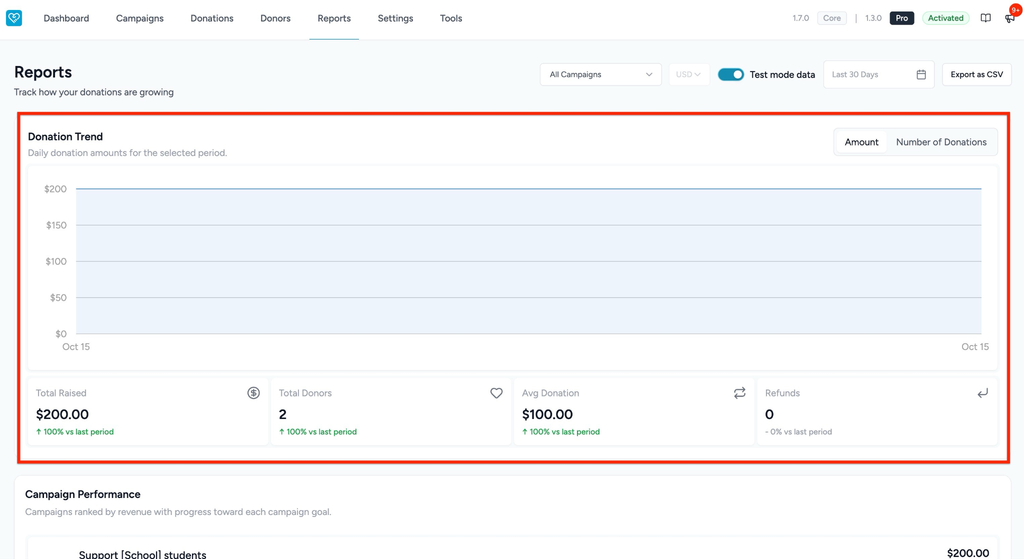
Below the chart, you can view the following donation statistics.
Total Raised
Displays the total amount raised during the selected period.
Total Donors
Displays the total number of donors who contributed during the selected period.
Recurring Donations
Displays the number of recurring donations recorded during the selected period.
Refunds
Displays the refunds recorded during the selected period.
Campaign Performance
The Campaign Performance section allows you to compare the fundraising performance of your campaigns.
Campaigns are ranked based on the donation revenue received during the selected period.
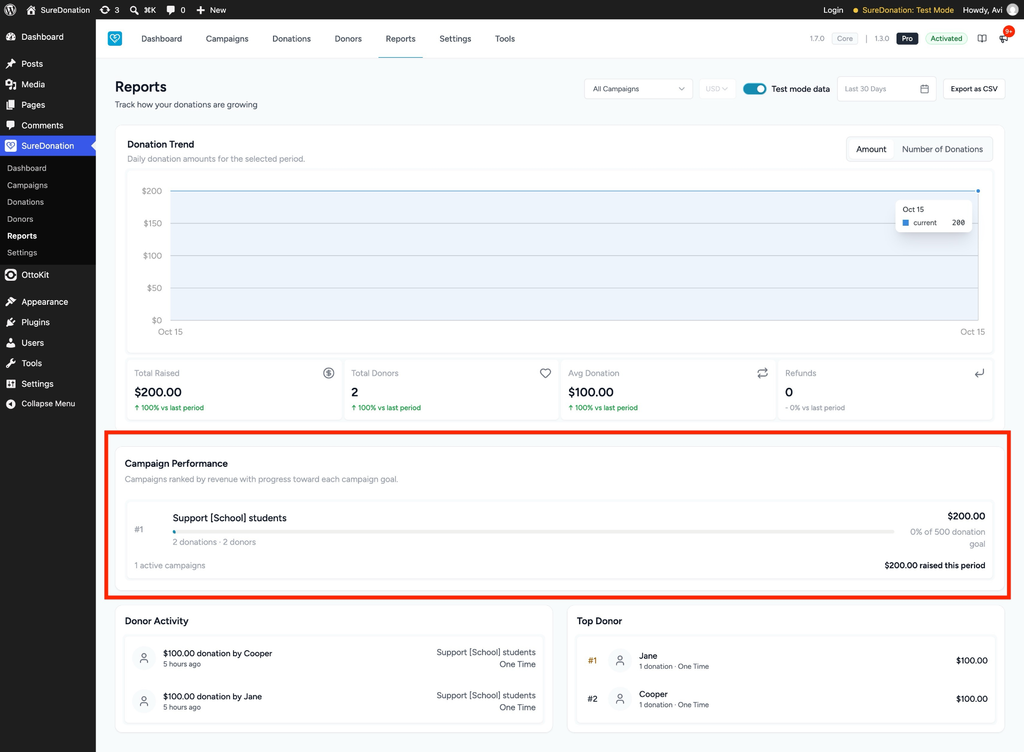
For each campaign, you can view:
- Campaign Name: The name of the donation campaign.
- Total Donations: The number of donations received.
- Total Donors: The number of donors who contributed.
- Amount Raised: The amount collected during the selected period.
- Campaign Goal: The fundraising target configured for the campaign.
- Goal Progress: The percentage of the campaign goal achieved.
If a campaign has not received any donations, its donation totals will show zero.
You can also click View Campaigns to open the Campaigns section and manage your donation campaigns.
When additional campaigns are available, use Show More to expand the list and Show Less to collapse it.
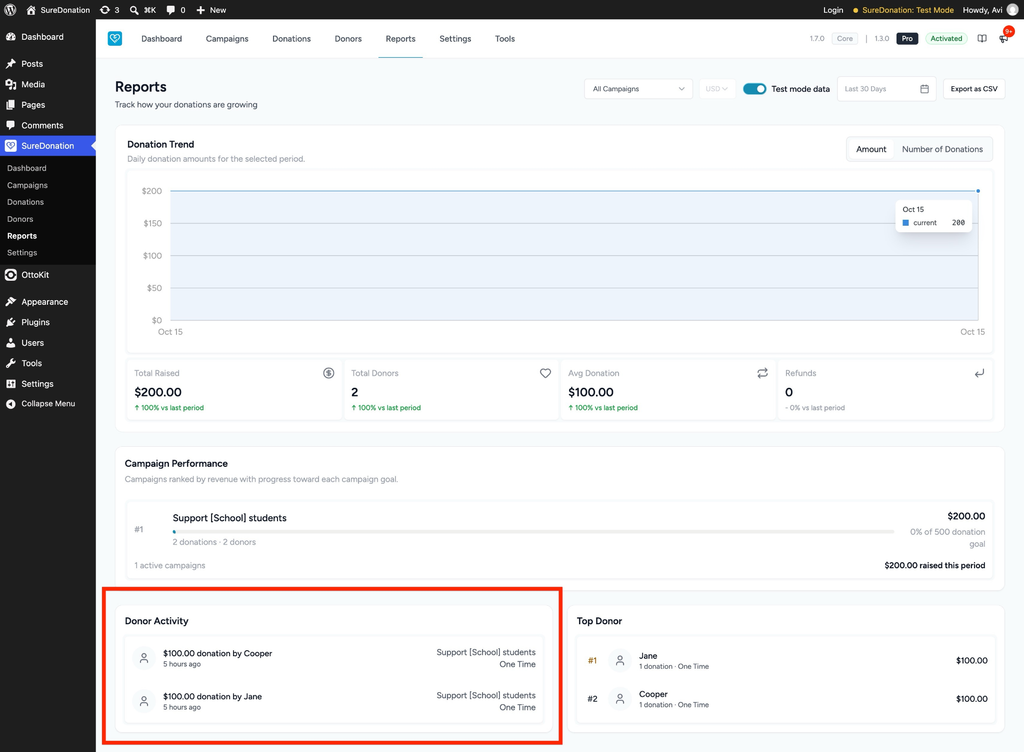
Donor Activity
The Donor Activity section displays recent donation-related activities.
You can use this section to review new donations, recurring donations, and refunds.
Each activity includes details such as the donor’s name, donation amount, and activity type.
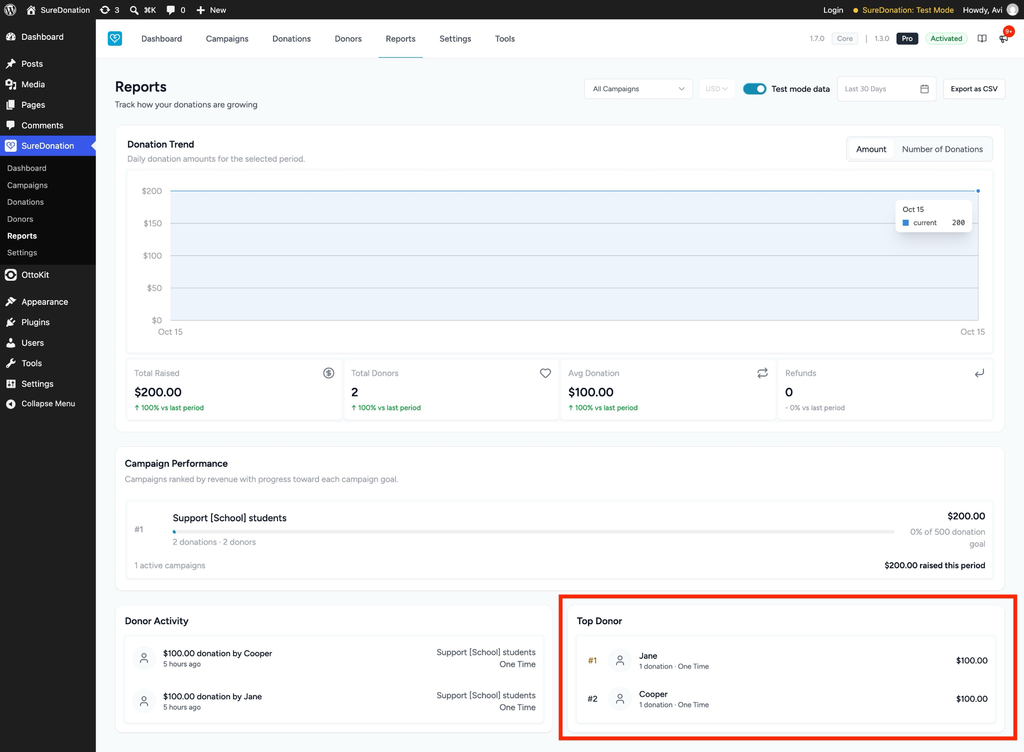
Top Donor
The Top Donor section highlights the donor who contributed the highest amount during the selected period.
This helps you identify your top supporters and understand their contributions.
Export Reports
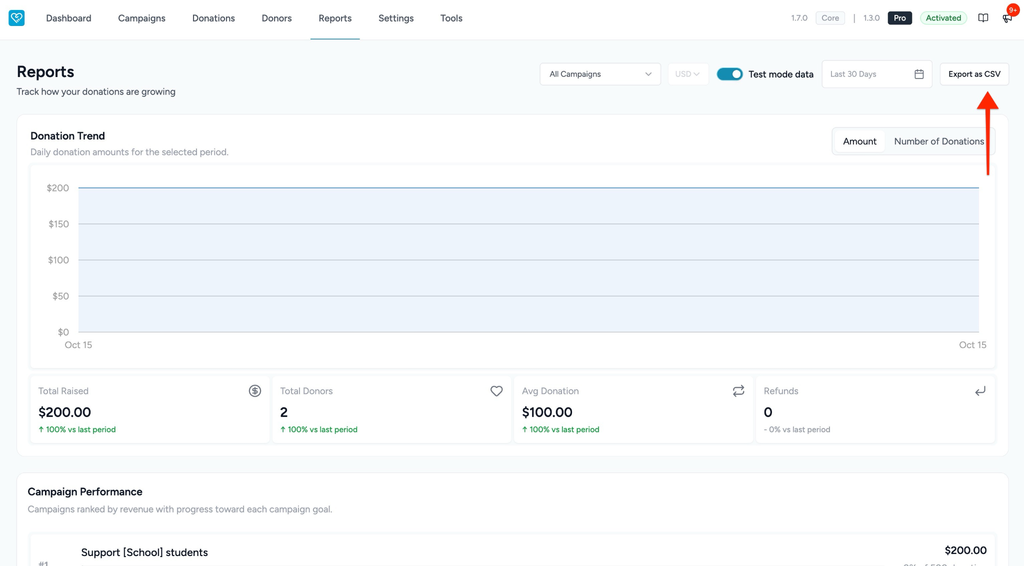
SureDonation allows you to export donation report data as a CSV file.
To export a report:
- Navigate to SureDonation → Reports.
- Select the required Date Range.
- Choose a specific campaign or keep All Campaigns selected.
- Select the appropriate Currency and Test mode data settings.
- Click Export as CSV.
The report will be downloaded as a CSV file.
The exported file contains donation information, including:
- Date
- Donor Name
- Donor Email
- Campaign
- Amount
- Fee
- Net Amount
- Type (One Time / Recurring)
- Payment Method
- Status
- Transaction ID
That’s it! You can now use Reports in SureDonation Pro to track donation trends, monitor campaign performance, review donor activity, and export your fundraising data.
We don't respond to the article feedback, we use it to improve our support content.