
- Add New Form
- Form Settings in SureDonation
- Set a Default Donation Form in SureDonation
- Text Field in SureDonation
- Email Field in SureDonation
- Number Field in SureDonation
- Donation Amount Field in SureDonation
- Payment Field in SureDonation
- Donate Button in SureDonation
- Cover Processing Fees Field
- Anonymous Donation Field
- Time Picker Field in SureDonation
- Handle Custom Stripe Webhook Events
- suredonation_export_secret_option_keys Filter Hook
- suredonation_import_batch_complete Action Hook
- suredonation_import_complete Action Hook
- suredonation_import_donation_inserted Action Hook
- suredonation_import_donor_inserted Action Hook
- suredonation_import_session_created Action Hook
- suredonation_import_givewp_batch_complete Action Hook
- suredonation_import_givewp_session_created Action Hook
- suredonation_privacy_data_exported Action Hook
- Validate Field Filter Hook
- Validatable Blocks Filter Hook
- Update donation data, Filter Hook
- OttoKit Integration: suredonation_suretriggers_integration_data_filter Filter Hook
- suredonation_show_setup_gateway_notice Filter Hook
- suredonation_show_review_notice_gateway Filter Hook
- suredonation_show_review_notice_donation Filter Hook
- suredonation_registered_payment_methods Filter Hook
- suredonation_register_additional_blocks Filter Hook
- suredonation_receipt_html Filter Hook
- Validatable Blocks Filter Hook
- Update donation data, Filter Hook
- OttoKit Integration: suredonation_suretriggers_integration_data_filter Filter Hook
- suredonation_show_setup_gateway_notice Filter Hook
- suredonation_show_review_notice_gateway Filter Hook
- suredonation_show_review_notice_donation Filter Hook
- suredonation_registered_payment_methods Filter Hook
- suredonation_register_additional_blocks Filter Hook
- suredonation_receipt_html Filter Hook
- suredonation_phone_geo_enabled Filter Hook
Time Picker Field in SureDonation
The Time Picker field allows donors to select a specific time when filling out a donation form.
This field is useful when you need to collect a preferred time for donation pickups, events, volunteer activities, or other scheduled activities.
You can also use the Time Picker field with the Date Picker field to collect both the date and time.
Add a Time Picker Field
To add a Time Picker field to your donation form:
- Navigate to SureDonation → Campaigns from your WordPress dashboard.
- Open the campaign containing the donation form you want to edit.
- Open the donation form editor.
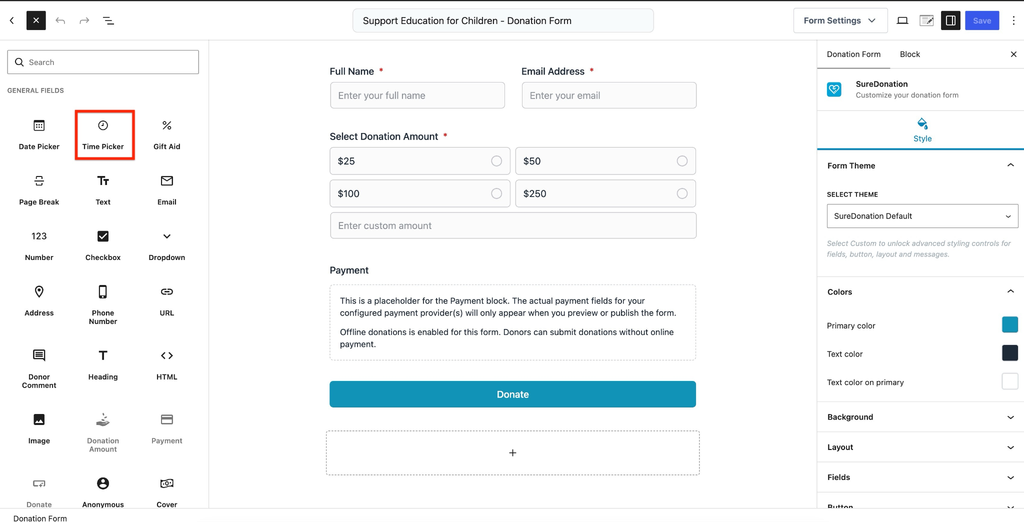
- Click the Add (+) button.
- Under General Fields, select Time Picker.
- The Time Picker field will be added to your donation form.
To configure the field:
- Select the Time Picker field in the editor.
- Open the Block settings panel on the right.
- Choose the General or Advanced tab to customize the field.
You can also change the field label directly in the editor.
General Settings
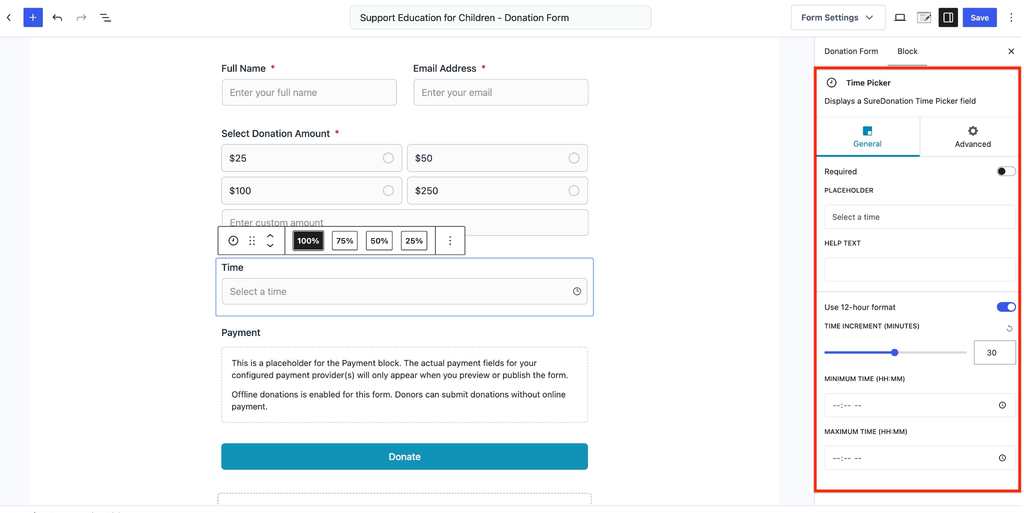
The General tab controls how the Time Picker field works and what donors see when selecting a time.
Label
The Label is the name displayed above the Time Picker field.
The default label is Time.
You can edit the label directly in the form editor.
For example, you can change it to Preferred Pickup Time.
Required
Enable Required to make the Time Picker field mandatory.
When enabled, donors must select a time before submitting the donation form.
By default, this option is disabled.
Placeholder
The Placeholder option lets you change the text displayed inside the field before a donor selects a time.
The default placeholder is Select a time.
For example, you can change it to Choose your preferred time.
Help Text
Use Help Text to display additional instructions below the Time Picker field.
For example: Please select your preferred time for donation pickup.
Use 12-hour Format
The Use 12-hour format option controls how the selected time is displayed.
- Enabled: Displays time in a 12-hour format, such as 2:30 PM.
- Disabled: Displays time in a 24-hour format, such as 14:30.
This option is enabled by default.
Time Increment (Minutes)
The Time Increment (Minutes) option controls the interval between available time selections.
You can set the interval between 1 and 60 minutes.
The default value is 30 minutes.
For example, if you set the increment to 30 minutes, donors can select times such as 9:00 AM, 9:30 AM, 10:00 AM, and 10:30 AM.
You can adjust the value using the slider or enter it manually.
Minimum Time (HH)
The Minimum Time option allows you to set the earliest time donors can select.
For example, enter 09:00 to allow donors to select times starting from 9:00 AM.
Leave this option empty if you do not want to set a minimum time.
Maximum Time (HH)
The Maximum Time option allows you to set the latest time donors can select.
For example, enter 17:30 to allow donors to select times up to 5:30 PM.
Leave this option empty if you do not want to set a maximum time.
Advanced Settings
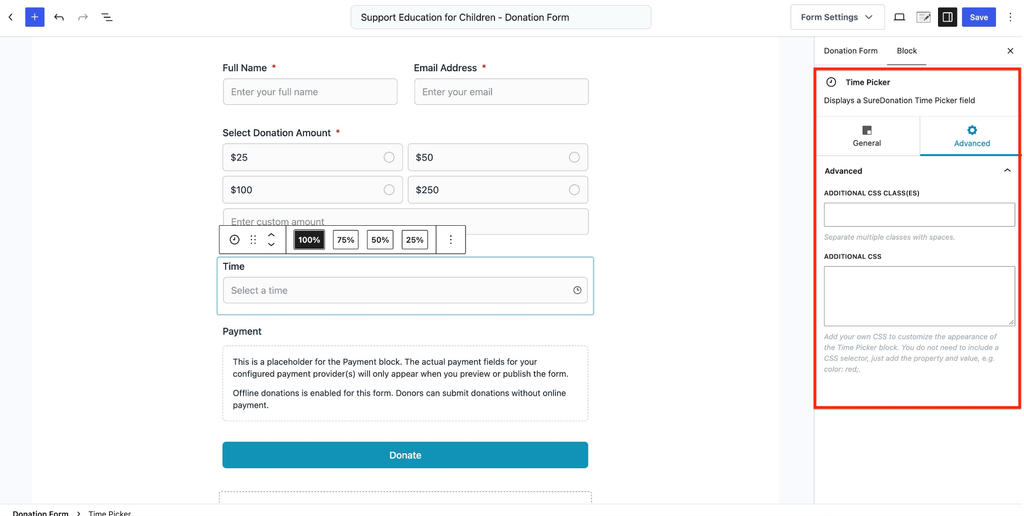
The Advanced tab allows you to customize the appearance of the Time Picker field using CSS.
To access these settings, select the Time Picker field and click the Advanced tab in the Block settings panel.
Additional CSS Class(es)
Use Additional CSS Class(es) to add custom CSS classes to the Time Picker field.
If you want to add multiple classes, separate them with spaces.
For example: custom-time-picker
Additional CSS
Use Additional CSS to customize the appearance of the Time Picker field.
You do not need to include a CSS selector. Simply enter the CSS property and value.
For example: color: red;
Save the Time Picker Field
Once you have configured the Time Picker field:
- Click Save in the top-right corner of the form editor.
- Check that the Time Picker field displays correctly and allows donors to select a time based on your settings.
That’s it! You have successfully added and configured the Time Picker field in your SureDonation form.
We don't respond to the article feedback, we use it to improve our support content.