
- Add New Form
- Form Settings in SureDonation
- Set a Default Donation Form in SureDonation
- Text Field in SureDonation
- Email Field in SureDonation
- Number Field in SureDonation
- Donation Amount Field in SureDonation
- Payment Field in SureDonation
- Donate Button in SureDonation
- Cover Processing Fees Field
- Creating Your First Campaign in SureDonation
- Configuring Spam Protection in SureDonation
- Creating and Managing Campaigns in SureDonation
- How to Edit a Campaign in SureDonation
- View Campaign
- View a SureDonation Campaign on the Frontend
- Campaign Social Sharing in SureDonation
- Importing and Exporting Your Data in SureDonation
- Handle Custom Stripe Webhook Events
- suredonation_export_secret_option_keys Filter Hook
- suredonation_import_batch_complete Action Hook
- suredonation_import_complete Action Hook
- suredonation_import_donation_inserted Action Hook
- suredonation_import_donor_inserted Action Hook
- suredonation_import_session_created Action Hook
- suredonation_import_givewp_batch_complete Action Hook
- suredonation_import_givewp_session_created Action Hook
- suredonation_privacy_data_exported Action Hook
- Validate Field Filter Hook
- Validatable Blocks Filter Hook
- Update donation data, Filter Hook
- OttoKit Integration: suredonation_suretriggers_integration_data_filter Filter Hook
- suredonation_show_setup_gateway_notice Filter Hook
- suredonation_show_review_notice_gateway Filter Hook
- suredonation_show_review_notice_donation Filter Hook
- suredonation_registered_payment_methods Filter Hook
- suredonation_register_additional_blocks Filter Hook
- suredonation_receipt_html Filter Hook
- suredonation_phone_geo_enabled Filter Hook
Configuring Privacy Settings in SureDonation
The Privacy settings in SureDonation let you manage donor consent, privacy policy, terms and conditions, and donor data retention for your donation forms.
Access Privacy Settings
To access the Privacy settings:
- Log in to your WordPress Dashboard.
- Navigate to SureDonation > Settings.
- Select Privacy.
Each setting has a toggle. Additional options appear when the related setting is enabled.
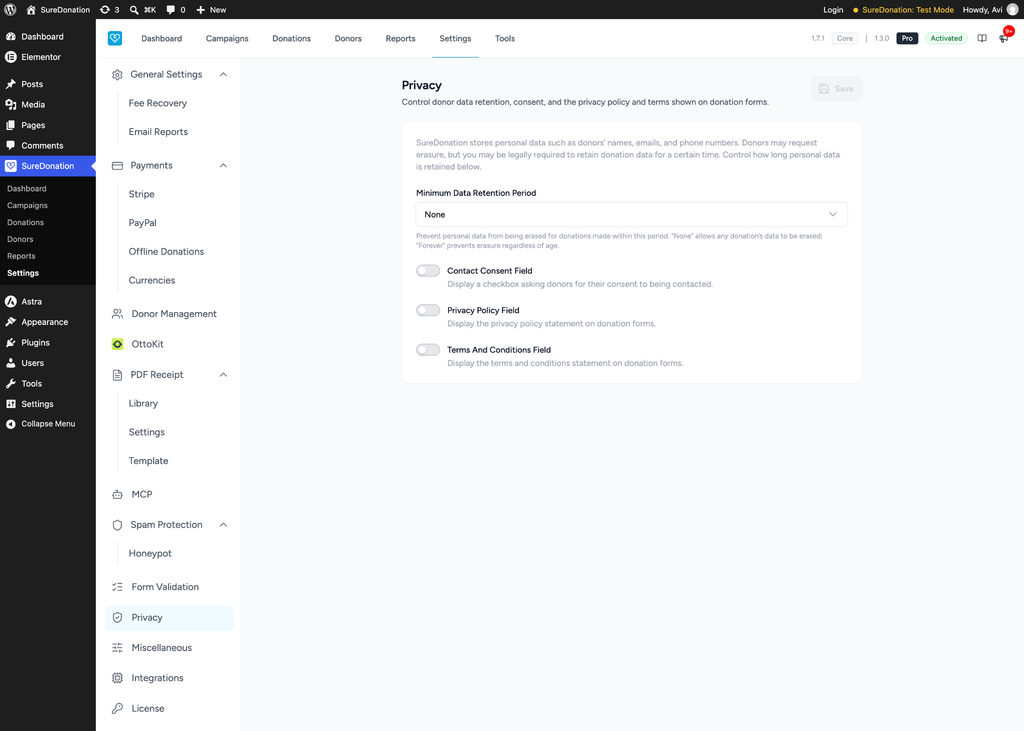
Minimum Data Retention Period
Use Minimum Data Retention Period to control how long donation records must be kept before they can be erased.
Available options include:
- None – No minimum retention period.
- 1 year to 10 years – Donations within the selected period are retained.
- Forever – Donation records cannot be erased.
This setting only controls whether data can be removed through an erasure request. SureDonation does not automatically delete donation records.
Choose the retention period according to your organization’s legal, tax, and accounting requirements.
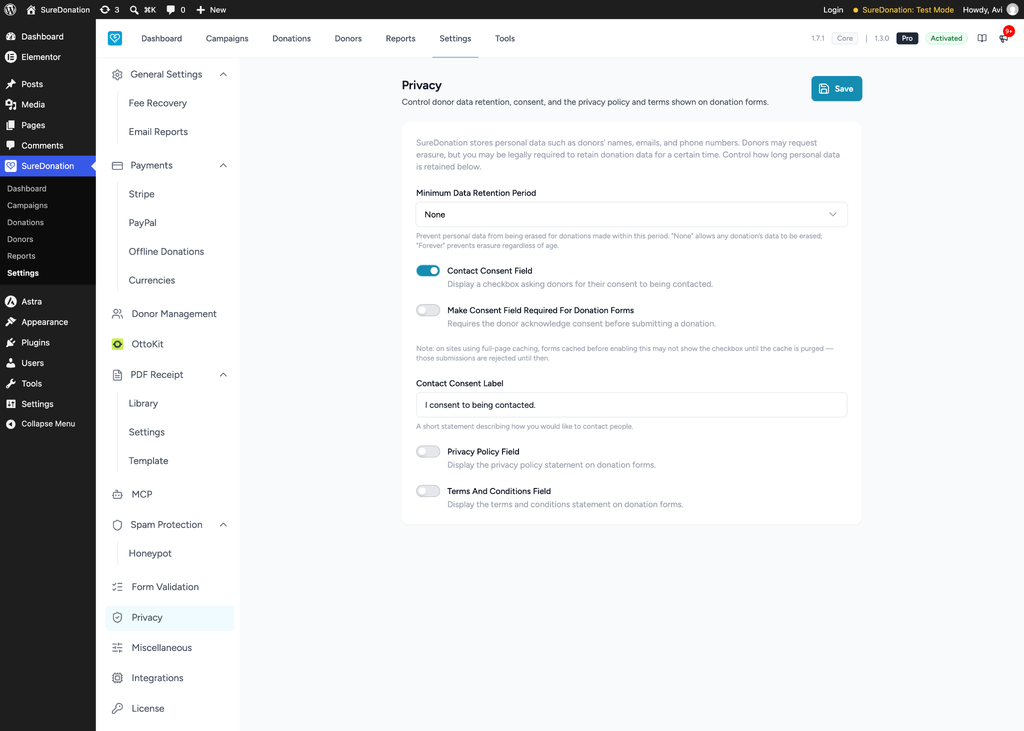
Contact Consent Field
Enable Contact Consent Field to display a checkbox asking donors for permission to be contacted.
For example:
Yes, I’d like to receive email updates about this campaign.
Make Consent Field Required For Donation Forms
When enabled, donors must select the consent checkbox before submitting a donation.
Contact Consent Label
Use this field to customize the text displayed next to the consent checkbox.
Privacy Policy Field
Enable Privacy Policy Field to display a privacy policy notice on your donation forms.
Privacy Policy
Enter the message you want donors to see.
Example:
Your personal data will be used to process your donation and support your experience on this website.
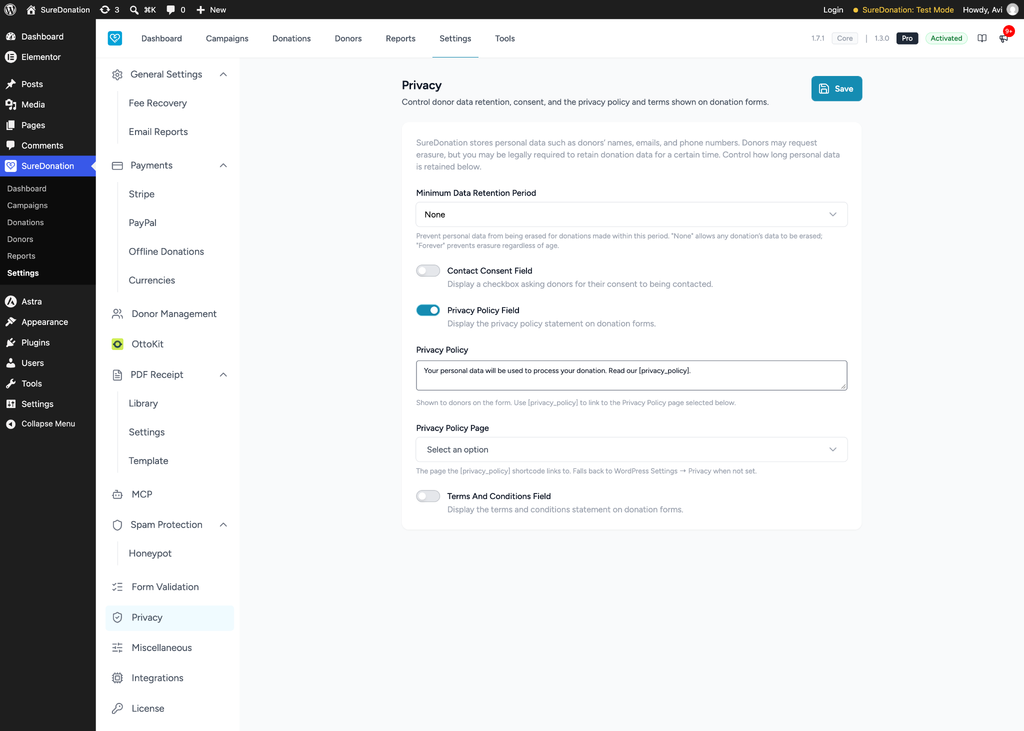
Privacy Policy Page
Select the WordPress page containing your full privacy policy. The notice on the donation form will link to this page.
Terms And Conditions Field
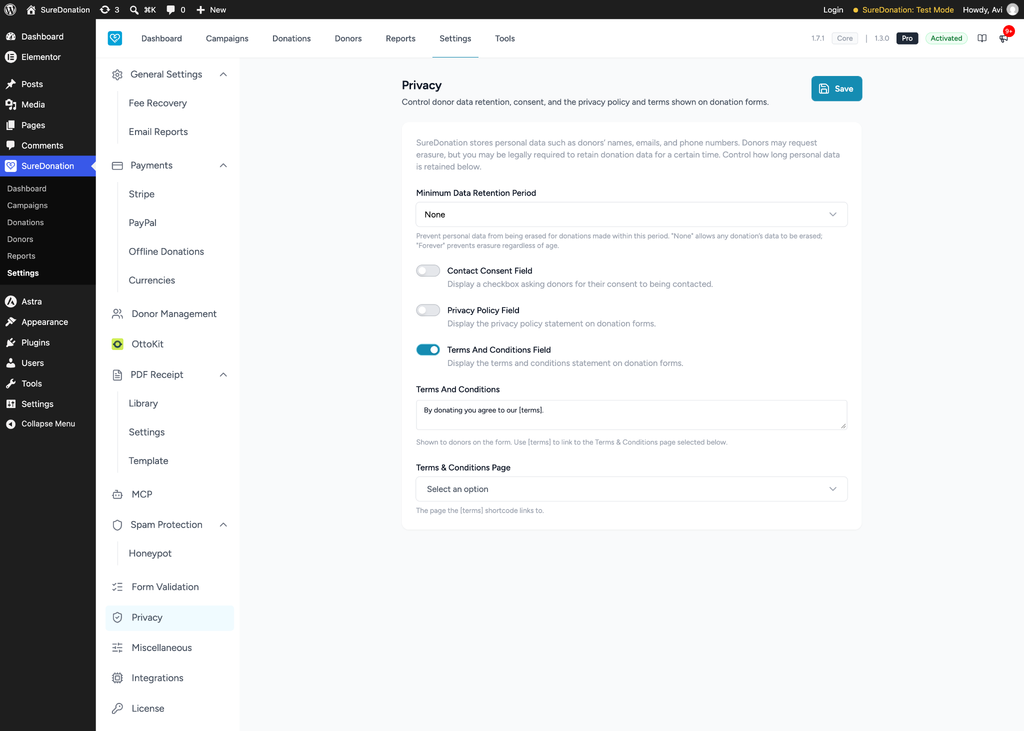
Enable Terms And Conditions Field to display your terms and conditions on donation forms.
Terms And Conditions
Enter the message shown to donors.
Example: By donating, you agree to our terms and conditions.
Terms & Conditions Page
Select the WordPress page containing your complete terms and conditions.
Field Order on the Donation Form
When enabled, these privacy-related fields appear at the end of the donation form in the following order:
- Contact consent checkbox
- Privacy policy notice
- Terms and conditions notice
You do not need to add these fields manually in the form editor. They are controlled from the Privacy settings.
Export or Erase Donor Data
SureDonation integrates with WordPress’s personal-data tools to support donor data export and erasure requests.
Export Donor Data
- Navigate to Tools > Export Personal Data.
- Enter the donor’s email address.
- Send and confirm the request.
Erase Donor Data
- Navigate to Tools > Erase Personal Data.
- Enter the donor’s email address.
- Send and confirm the request.
Donations within the configured Minimum Data Retention Period are retained. Donations outside the retention period can be anonymized.
Verify Your Privacy Settings
After configuring the settings:
- Open a donation form on your website.
- Confirm the enabled privacy fields appear at the end of the form.
- If consent is required, submit the form without selecting the checkbox and verify the validation message.
- Check that the privacy policy and terms links open the correct pages.
- Click Save in the Privacy settings to apply your changes.
We don't respond to the article feedback, we use it to improve our support content.