
- Add New Form
- Form Settings in SureDonation
- Set a Default Donation Form in SureDonation
- Text Field in SureDonation
- Email Field in SureDonation
- Number Field in SureDonation
- Donation Amount Field in SureDonation
- Payment Field in SureDonation
- Donate Button in SureDonation
- Cover Processing Fees Field
- Creating Your First Campaign in SureDonation
- Configuring Spam Protection in SureDonation
- Creating and Managing Campaigns in SureDonation
- How to Edit a Campaign in SureDonation
- View Campaign
- View a SureDonation Campaign on the Frontend
- Campaign Social Sharing in SureDonation
- Importing and Exporting Your Data in SureDonation
- Handle Custom Stripe Webhook Events
- suredonation_export_secret_option_keys Filter Hook
- suredonation_import_batch_complete Action Hook
- suredonation_import_complete Action Hook
- suredonation_import_donation_inserted Action Hook
- suredonation_import_donor_inserted Action Hook
- suredonation_import_session_created Action Hook
- suredonation_import_givewp_batch_complete Action Hook
- suredonation_import_givewp_session_created Action Hook
- suredonation_privacy_data_exported Action Hook
- Validate Field Filter Hook
- Validatable Blocks Filter Hook
- Update donation data, Filter Hook
- OttoKit Integration: suredonation_suretriggers_integration_data_filter Filter Hook
- suredonation_show_setup_gateway_notice Filter Hook
- suredonation_show_review_notice_gateway Filter Hook
- suredonation_show_review_notice_donation Filter Hook
- suredonation_registered_payment_methods Filter Hook
- suredonation_register_additional_blocks Filter Hook
- suredonation_receipt_html Filter Hook
- suredonation_phone_geo_enabled Filter Hook
How to Send SureDonation Events to Google Analytics 4 via Google Tag Manager
This guide shows how to track SureDonation form views and completed donations in Google Analytics 4 (GA4) using Google Tag Manager (GTM). When it is set up, every donation form view and every completed donation reaches GA4 as an event, along with the form ID, campaign ID, donation amount, and currency.
Overview
The setup has three parts:
- A small script in GTM that listens for SureDonation activity on the page and pushes it to the GTM dataLayer.
- GTM tags and a trigger that send those dataLayer entries to GA4.
- Your GA4 property, where the events appear in Realtime, DebugView, and the Events report.
Prerequisites
- A WordPress site with SureDonation installed and at least one donation form published on a page.
- A Google Tag Manager container installed on the site (the GTM snippet in the site’s <head> and <body>, added with a plugin such as Site Kit or GTM4WP, or by your theme).
- A GA4 property and its Measurement ID (it starts with G-). Find it in GA4 under Admin → Data streams → your web stream.
Step 1: Add the SureDonation data push script
This script is added to GTM as a Custom HTML tag. It pushes a SureDonationActivities event to the dataLayer for each form view (DonationFormView) and each completed donation (DonationCompleted).
- In GTM, open Tags and click New (Add tag in an empty container).
- Name the tag cHTML – SureDonation Data Push.
- Click Tag Configuration and choose Custom → Custom HTML at the bottom of the list.
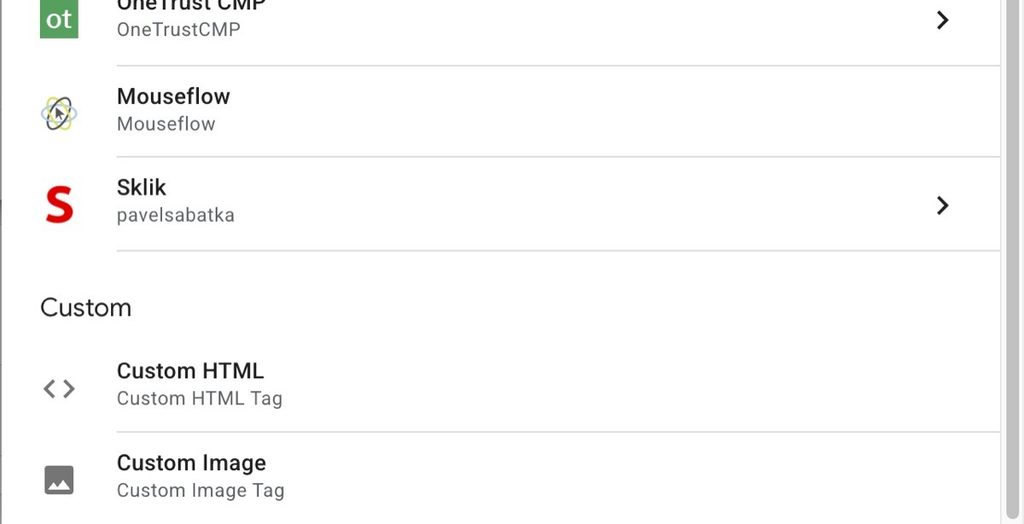
- Paste the script below into the HTML box.
- Under Triggering, choose DOM Ready. If it does not exist, click +, choose the trigger type DOM Ready (All DOM Ready Events), name it DOM Ready and save it.
- Click Save.
<script>
( function () {
  window.dataLayer = window.dataLayer || [];
  function push( action, container, extra ) {
    var data = {
      event: 'SureDonationActivities',
      eventCategory: 'SureDonation',
      eventAction: action,
      SureDonationFormID: container ? container.getAttribute( 'data-form-id' ) || '' : '',
      SureDonationCampaignID: container ? container.getAttribute( 'data-campaign-id' ) || '' : ''
    };
    for ( var key in extra ) {
      data[ key ] = extra[ key ];
    }
    window.dataLayer.push( data );
  }
  function donation( container ) {
    var amount = container.querySelector( '.sd-input-donation-amount-hidden' );
    var payment = container.querySelector( '[data-currency]' );
    return {
      SureDonationAmount: amount ? parseFloat( amount.value ) || 0 : 0,
      SureDonationCurrency: ( container.getAttribute( 'data-gtm-currency' ) ||
        ( payment ? payment.getAttribute( 'data-currency' ) : '' ) ).toUpperCase()
    };
  }

// DonationFormView: every SureDonation form on the page.
  var forms = document.querySelectorAll( '.sd-form-container' );
  for ( var i = 0; i < forms.length; i++ ) {
    push( 'DonationFormView', forms[ i ] );
  }

// Remember the currency a donor picks in the currency switcher (SureDonation Pro).
  document.addEventListener( 'sd-currency-changed', function ( e ) {
    var container = e.target.closest && e.target.closest( '.sd-form-container' );
    if ( container && e.detail && e.detail.currency ) {
      container.setAttribute( 'data-gtm-currency', e.detail.currency );
    }
  } );

// DonationCompleted: SureDonation shows its confirmation box after a successful donation.
  new MutationObserver( function ( mutations ) {
    mutations.forEach( function ( m ) {
      var box = m.target;
      if ( box.classList && box.classList.contains( 'sd-success-box' ) &&
        box.classList.contains( 'sd-active' ) && ! box.getAttribute( 'data-gtm-sent' ) ) {
        box.setAttribute( 'data-gtm-sent', '1' );
        var container = box.closest( '.sd-form-container' );
        push( 'DonationCompleted', container, container ? donation( container ) : {} );
      }
    } );
  } ).observe( document.body, { attributes: true, attributeFilter: [ 'class' ], subtree: true } );

// DonationCompleted after a Stripe authentication redirect (for example 3D Secure).
  var params = new URLSearchParams( window.location.search );
  if ( params.get( 'suredonation_payment' ) === 'success' && params.get( 'redirect_status' ) === 'succeeded' ) {
    push( 'DonationCompleted', forms[ 0 ] || null, {} );
  }
} )();
</script>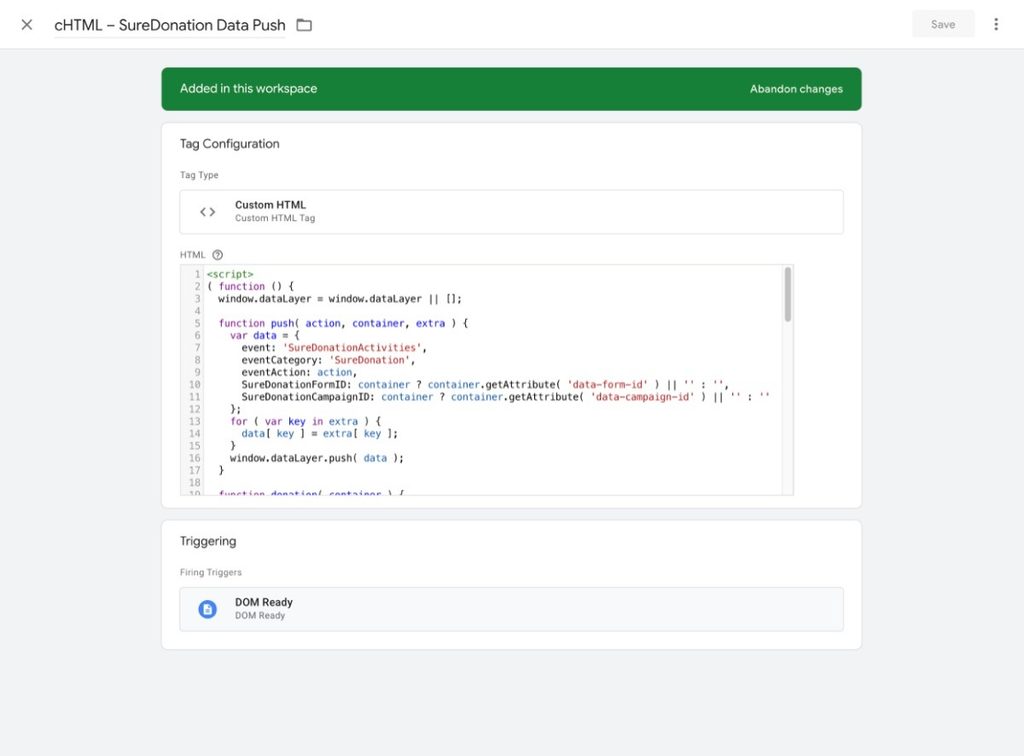
Step 2: Google Tag Manager Configuration
Create one trigger, five variables, and two more tags. Triggers and Variables are under Show more in GTM’s left sidebar.
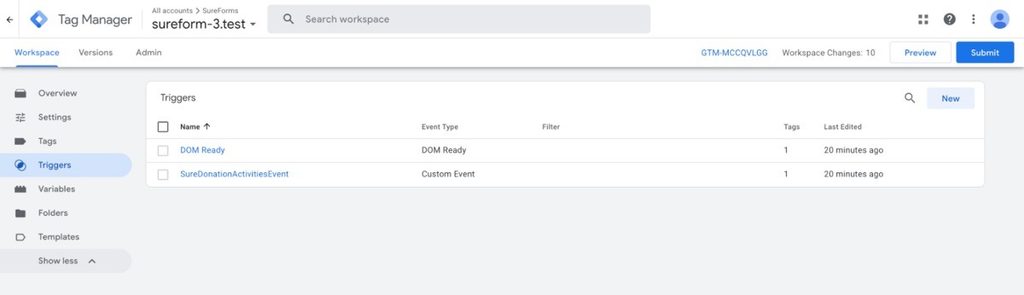
2.1 Trigger
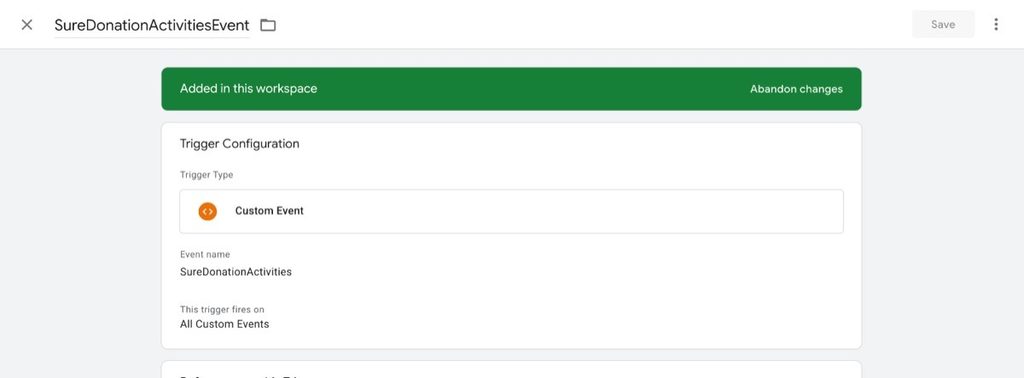
Go to Triggers → New, name it SureDonationActivitiesEvent, choose the type Custom Event, enter the event name SureDonationActivities, keep All Custom Events and click Save.
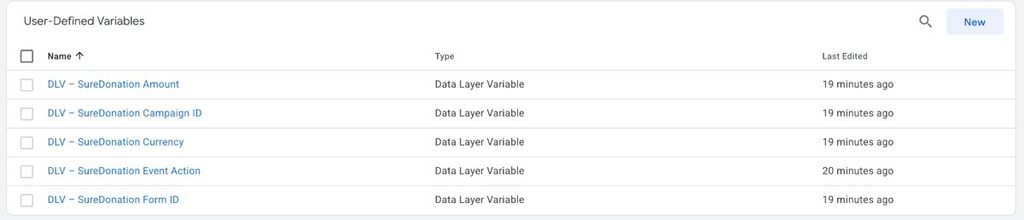
2.2 Data Layer Variables
Go to Variables, click New under User-Defined Variables, choose Data Layer Variable, and create one variable for each row below.
| Variable name | Data Layer Variable Name |
| DLV – SureDonation Event Action | eventAction |
| DLV – SureDonation Form ID | SureDonationFormID |
| DLV – SureDonation Campaign ID | SureDonationCampaignID |
| DLV – SureDonation Amount | SureDonationAmount |
| DLV – SureDonation Currency | SureDonationCurrency |
2.3 Google Tag
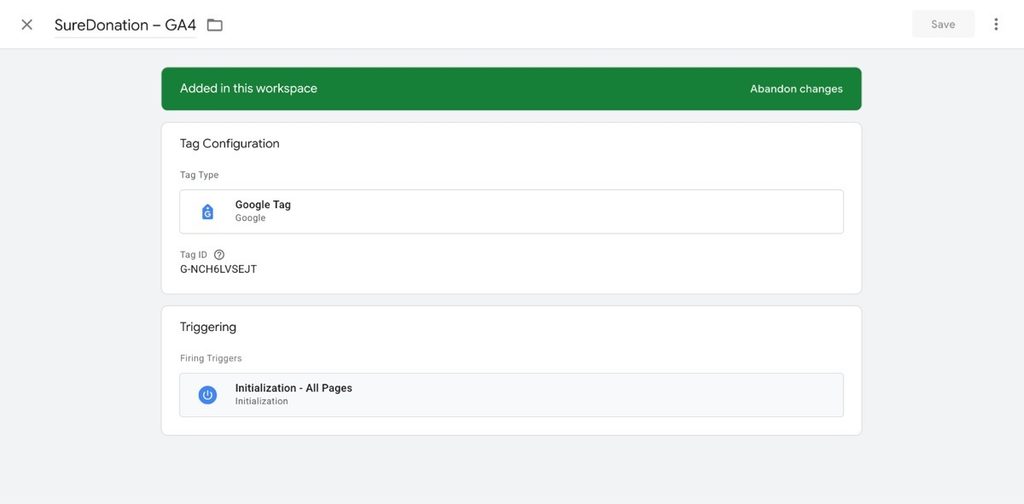
Go to Tags → New, name it SureDonation – GA4, choose Google Tag (under Other Google) and enter your Measurement ID in the Tag ID field. Keep the trigger Initialization – All Pages and click Save.
2.4 GA4 Event tag
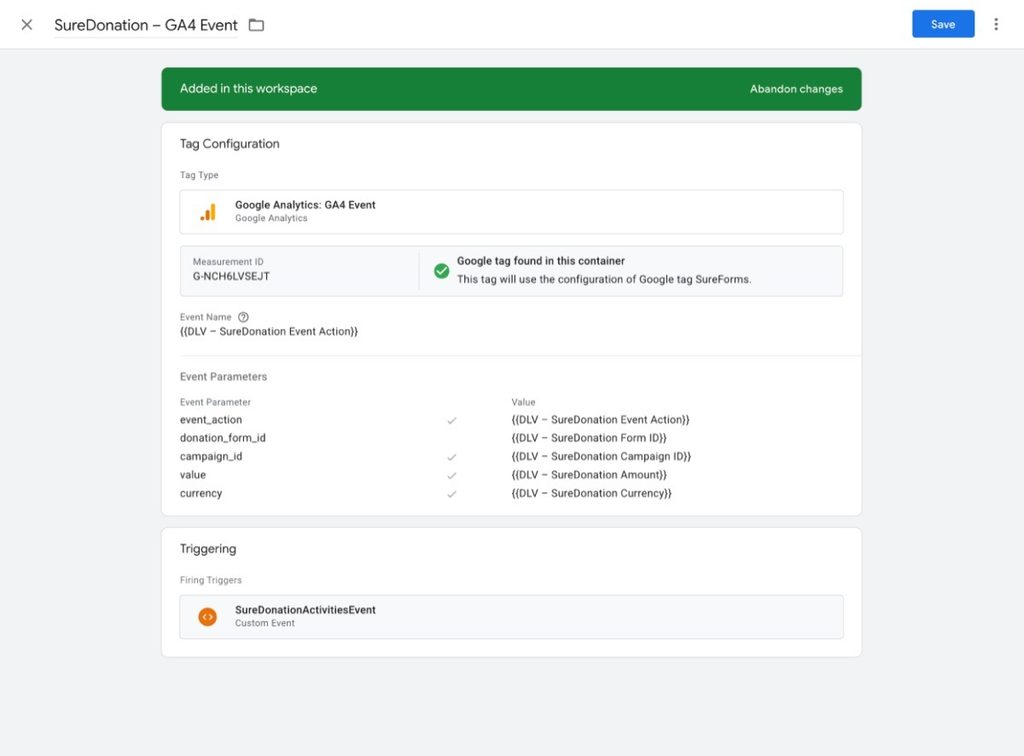
Go to Tags → New, name it SureDonation – GA4 Event, choose Google Analytics → Google Analytics: GA4 Event, enter the same Measurement ID, and set Event Name to {{DLV – SureDonation Event Action}}. Under Event Parameters, add the rows below. Set the trigger to SureDonationActivitiesEvent and click Save.
| Event Parameter | Value |
| event_action | {{DLV – SureDonation Event Action}} |
| donation_form_id | {{DLV – SureDonation Form ID}} |
| campaign_id | {{DLV – SureDonation Campaign ID}} |
| value | {{DLV – SureDonation Amount}} |
| currency | {{DLV – SureDonation Currency}} |
Summary of what you created
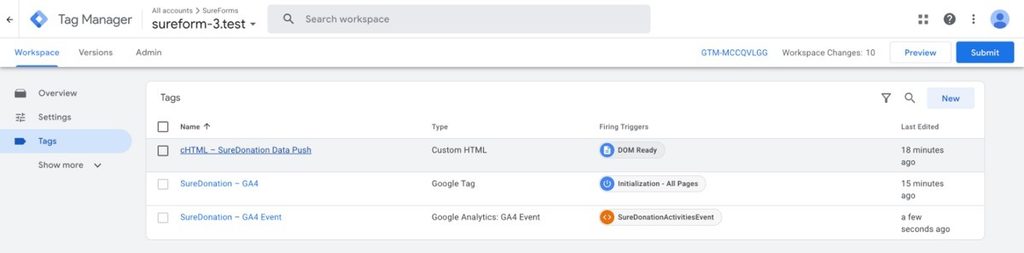
| Item | Type | Trigger / setting |
| cHTML – SureDonation Data Push | Custom HTML tag | DOM Ready |
| SureDonation – GA4 | Google Tag | Initialization – All Pages |
| SureDonation – GA4 Event | GA4 Event tag | SureDonationActivitiesEvent |
| SureDonationActivitiesEvent | Custom Event trigger | Event name: SureDonationActivities |
Step 3: Verifying Tags with GTM Preview
In GTM, click Preview, enter the URL of a page with a donation form, and click Connect. Your site opens in a new tab; keep the Tag Assistant tab open while testing.
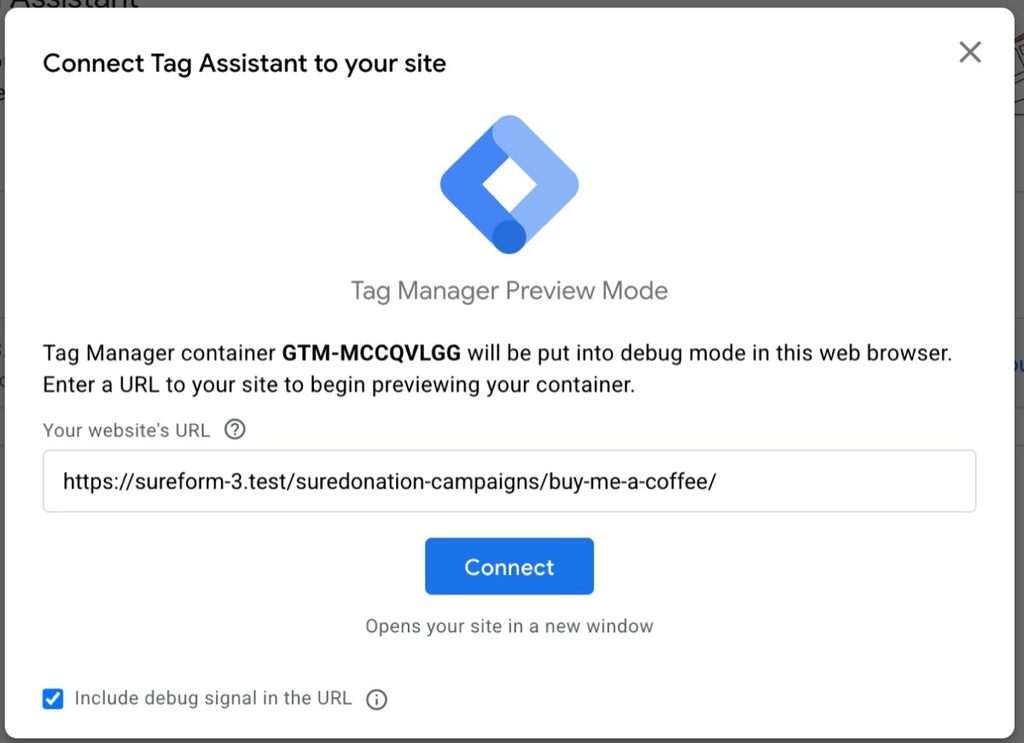
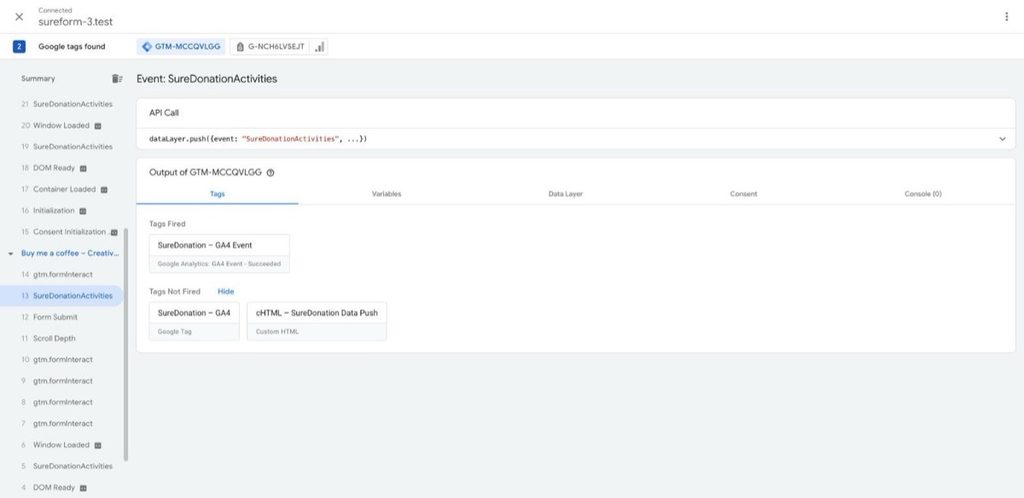
When the page loads, Tag Assistant should show cHTML – SureDonation Data Push and SureDonation – GA4 fired once, and SureDonation – GA4 Event fired for DonationFormView. Make a test donation with the payment gateway in Test Mode (for Stripe, card 4242 4242 4242 4242, any future date, any CVC). When the confirmation message appears, SureDonation – GA4 Event fires again for DonationCompleted.
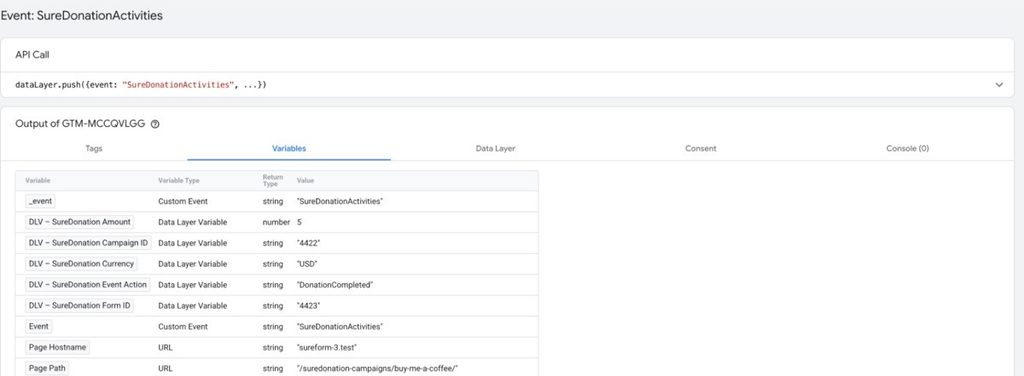
Open the Variables tab for that event to check the form ID, campaign ID, amount and currency.
Step 4: Viewing SureDonation Data in GA4
- Realtime (Reports → Realtime overview): events appear within seconds.
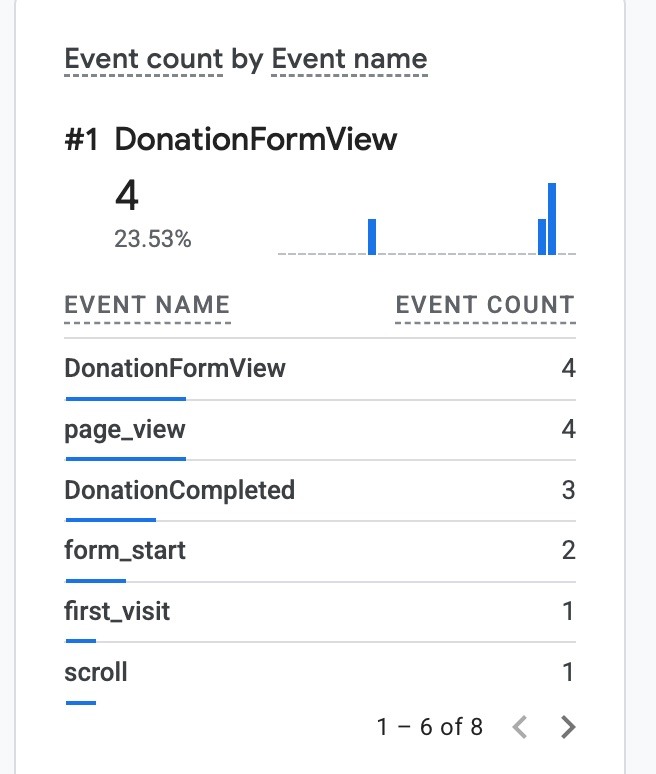
- DebugView (Admin → Data display → DebugView): a second-by-second timeline while GTM Preview is connected. Click an event to see its parameters.
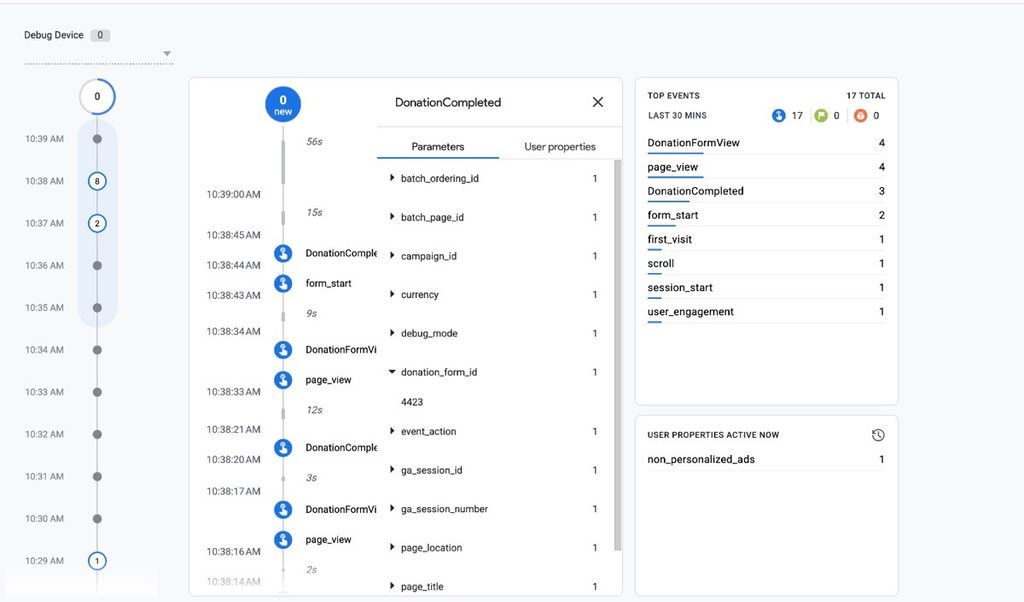
- Engagement Reports (Reports → Engagement → Events): available after 24–48 hours.
Troubleshooting
- No data at all, not even page views: the SureDonation – GA4 Google Tag must fire on Initialization – All Pages, not on the SureDonation trigger. If it only fires on the custom event, GA4 is never initialized on normal page loads.
- DonationCompleted does not fire on forms that redirect: if the form’s confirmation type is Redirect, the donor leaves the page before the confirmation appears. Track the donation with a Page View trigger on your thank-you page instead.
- Lower event counts than expected: ad blockers, consent banners, and throttling on staging or preview hosts can stop some events.
- Events in Realtime but not in reports: Realtime and DebugView are near-instant; standard reports take up to 48 hours.
Summary
With the data push script in place, the three GTM tags configured, and the GA4 Google Tag firing on Initialization – All Pages, SureDonation form views and completed donations flow into GA4 as DonationFormView and DonationCompleted events.
We don't respond to the article feedback, we use it to improve our support content.