
- Add New Form
- Form Settings in SureDonation
- Set a Default Donation Form in SureDonation
- Text Field in SureDonation
- Email Field in SureDonation
- Number Field in SureDonation
- Donation Amount Field in SureDonation
- Payment Field in SureDonation
- Donate Button in SureDonation
- Cover Processing Fees Field
- Creating Your First Campaign in SureDonation
- Configuring Spam Protection in SureDonation
- Creating and Managing Campaigns in SureDonation
- How to Edit a Campaign in SureDonation
- View Campaign
- View a SureDonation Campaign on the Frontend
- Campaign Social Sharing in SureDonation
- Importing and Exporting Your Data in SureDonation
- Handle Custom Stripe Webhook Events
- suredonation_export_secret_option_keys Filter Hook
- suredonation_import_batch_complete Action Hook
- suredonation_import_complete Action Hook
- suredonation_import_donation_inserted Action Hook
- suredonation_import_donor_inserted Action Hook
- suredonation_import_session_created Action Hook
- suredonation_import_givewp_batch_complete Action Hook
- suredonation_import_givewp_session_created Action Hook
- suredonation_privacy_data_exported Action Hook
- Validate Field Filter Hook
- Validatable Blocks Filter Hook
- Update donation data, Filter Hook
- OttoKit Integration: suredonation_suretriggers_integration_data_filter Filter Hook
- suredonation_show_setup_gateway_notice Filter Hook
- suredonation_show_review_notice_gateway Filter Hook
- suredonation_show_review_notice_donation Filter Hook
- suredonation_registered_payment_methods Filter Hook
- suredonation_register_additional_blocks Filter Hook
- suredonation_receipt_html Filter Hook
- suredonation_phone_geo_enabled Filter Hook
Importing and Exporting Your Data in SureDonation
SureDonation allows you to export donations, donors, campaigns, and settings, and import them back when needed.
This is useful for creating backups, moving campaign data between websites, managing donor information in spreadsheets, or restoring your SureDonation setup.
Access Import & Export
To access the Import & Export tools:
- Log in to your WordPress Dashboard.
- Navigate to SureDonation > Tools.
- Select Import & Export.
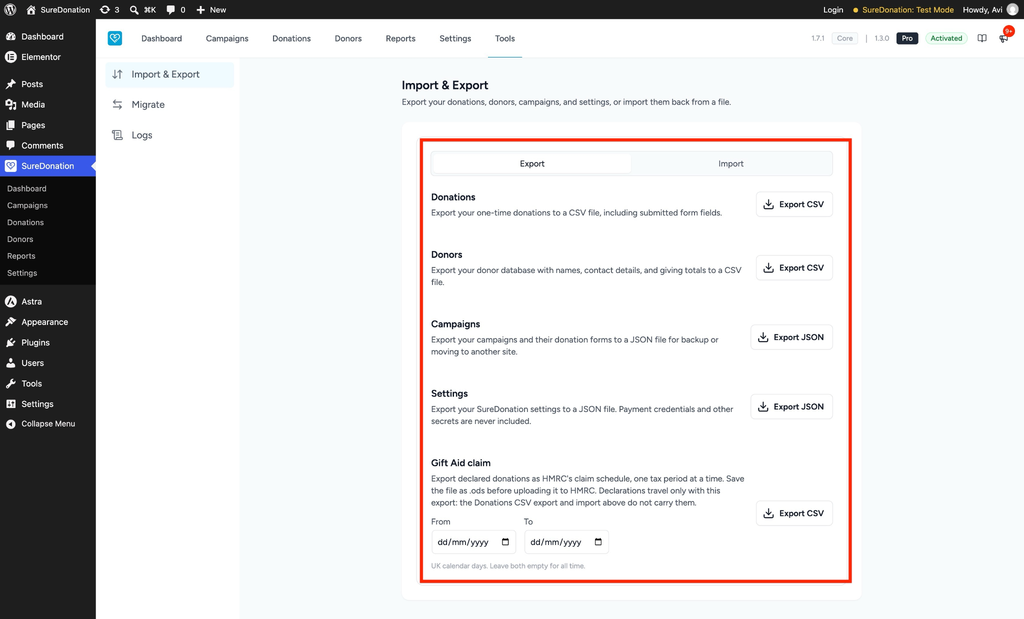
You will see separate Export and Import tabs.
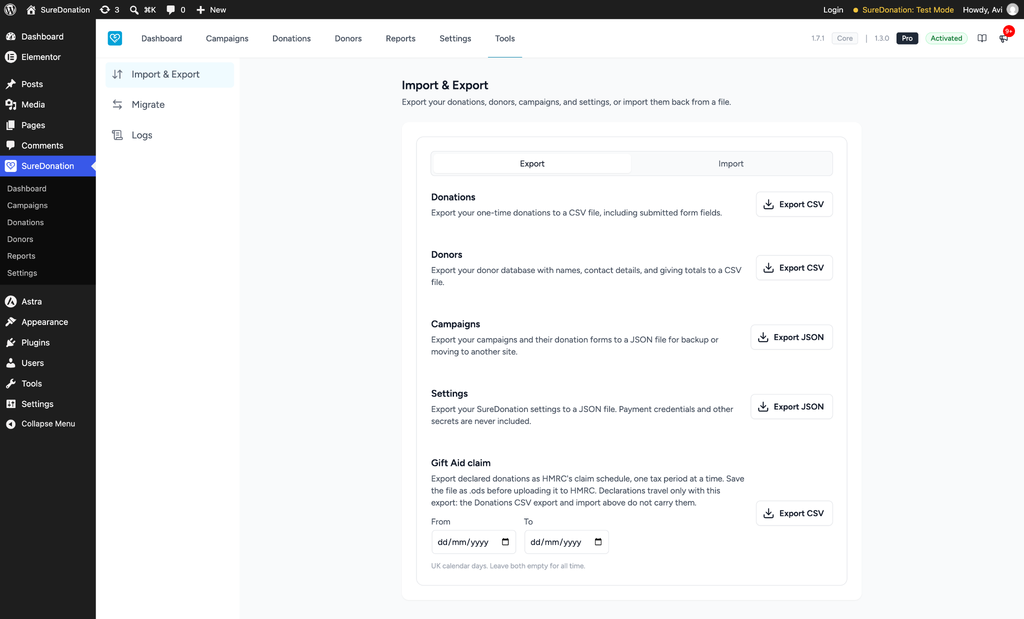
Export Your Data
Open the Export tab to download your SureDonation data.
You can export the following:
Donations
Export your one-time donation records to a CSV file, including submitted form field data.
Click Export CSV to download the file.
Donors
Export your donor database to a CSV file. The export includes donor information such as names, contact details, and giving totals.
Click Export CSV to download the file.
Campaigns
Export your campaigns and their associated donation forms to a JSON file.
This can be useful for backing up campaigns or moving them to another SureDonation website.
Click Export JSON to download the file.
Settings
Export your SureDonation settings to a JSON file.
Click Export JSON to download the settings.
Import Donations and Donors
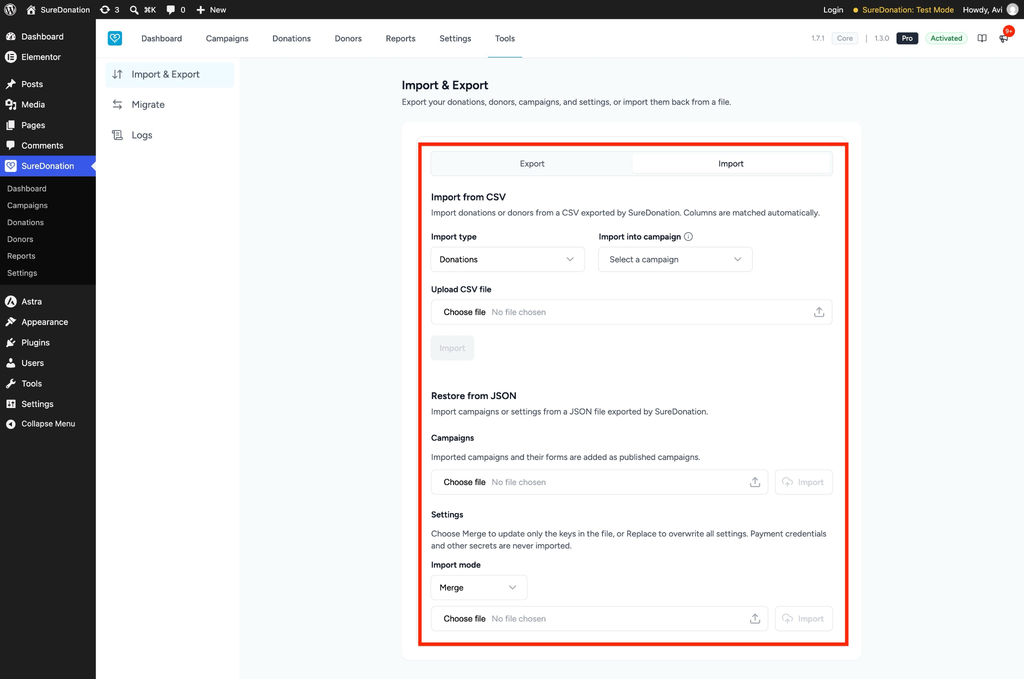
SureDonation allows you to import donations and donors from a CSV file.
To import:
- Go to SureDonation > Tools > Import & Export.
- Select the Import tab.
- Under Import from CSV, select an Import type:
- Donations
- Donors
- If you are importing donations, select the required campaign from Import into campaign.
- Click Choose file and select the CSV file.
- Click Import.
SureDonation automatically matches the CSV columns, so there is no separate field-mapping step.
How Existing Donors Are Handled
Donors are matched using their email addresses.
If a donor with the same email address already exists, SureDonation updates the existing donor record instead of creating a duplicate.
Additional columns that are not part of the standard donation fields are preserved as custom donation fields.
Restore Campaigns from JSON
You can restore campaigns and their donation forms from a SureDonation JSON export.
- Open the Import tab.
- Locate Restore from JSON.
- Under Campaigns, click Choose file.
- Select your campaign .json file.
- Click Import.
Imported campaigns and their associated forms are added to SureDonation and automatically linked together.
Restore Settings from JSON
You can also restore previously exported SureDonation settings.
Under Restore from JSON > Settings, select an Import mode:
- Merge – Keeps your existing settings and updates them with values available in the imported file.
- Replace – Replaces the existing SureDonation settings with those from the imported file.
Then:
- Select the required import mode.
- Click Choose file.
- Select your settings .json file.
- Click Import.
Verify the Imported Data
Once the import is complete:
- Go to SureDonation > Donations or Donors and confirm that the imported records are available.
- Go to SureDonation > Campaigns and verify that imported campaigns and their forms appear correctly.
- Preview an imported campaign or donation form on your website to make sure everything works as expected.
We don't respond to the article feedback, we use it to improve our support content.