
- Add New Form
- Form Settings in SureDonation
- Set a Default Donation Form in SureDonation
- Text Field in SureDonation
- Email Field in SureDonation
- Number Field in SureDonation
- Donation Amount Field in SureDonation
- Payment Field in SureDonation
- Donate Button in SureDonation
- Cover Processing Fees Field
- Creating Your First Campaign in SureDonation
- Configuring Spam Protection in SureDonation
- Creating and Managing Campaigns in SureDonation
- How to Edit a Campaign in SureDonation
- View Campaign
- View a SureDonation Campaign on the Frontend
- Campaign Social Sharing in SureDonation
- Importing and Exporting Your Data in SureDonation
- Handle Custom Stripe Webhook Events
- suredonation_export_secret_option_keys Filter Hook
- suredonation_import_batch_complete Action Hook
- suredonation_import_complete Action Hook
- suredonation_import_donation_inserted Action Hook
- suredonation_import_donor_inserted Action Hook
- suredonation_import_session_created Action Hook
- suredonation_import_givewp_batch_complete Action Hook
- suredonation_import_givewp_session_created Action Hook
- suredonation_privacy_data_exported Action Hook
- Validate Field Filter Hook
- Validatable Blocks Filter Hook
- Update donation data, Filter Hook
- OttoKit Integration: suredonation_suretriggers_integration_data_filter Filter Hook
- suredonation_show_setup_gateway_notice Filter Hook
- suredonation_show_review_notice_gateway Filter Hook
- suredonation_show_review_notice_donation Filter Hook
- suredonation_registered_payment_methods Filter Hook
- suredonation_register_additional_blocks Filter Hook
- suredonation_receipt_html Filter Hook
- suredonation_phone_geo_enabled Filter Hook
SureDonation: Stripe Credit Card Form Not Rendering
1. Issue Summary
The credit card fields are not displayed on the donation form because Stripe is rejecting the request to create the card payment element.
The connected Stripe account does not currently have the required Card payment method capability enabled or active.
The issue is not related to:
- SureDonation configuration
- WordPress theme
- Plugin conflicts
- Caching
- Reconnecting Stripe within SureDonation
The Stripe account itself needs to be reviewed and activated.
2. Symptoms
The issue can appear in two ways:
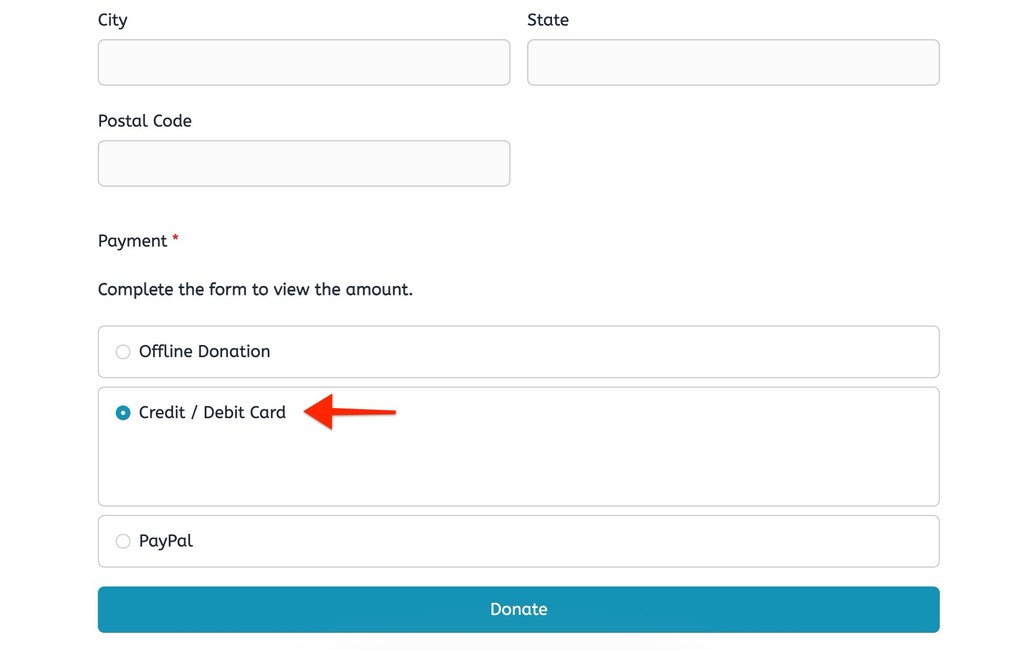
Frontend
The credit card fields are missing or appear as an empty area when the donor selects Stripe.
Stripe Checkout Error
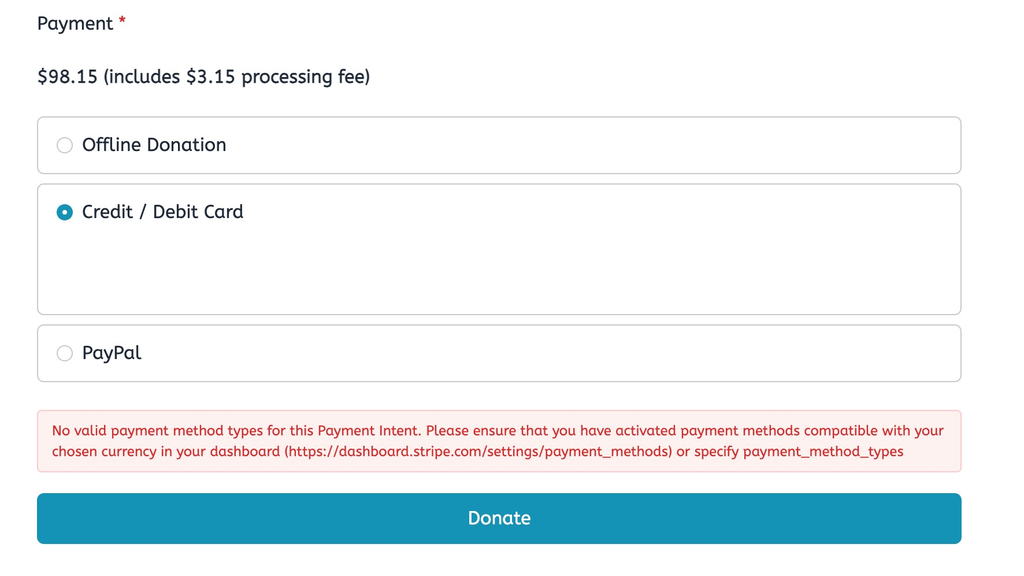
When attempting to make a donation through Stripe, the following type of error may appear:
No valid payment method types for this Payment Intent.
This indicates that Stripe could not find an eligible payment method for the transaction.
3. Root Cause
Stripe returns an API error indicating that the connected Stripe account does not have the required capability for card payments.
This results in both:
- The card element failing to render on the frontend.
- Stripe returning an error when creating or processing the Payment Intent.
The underlying issue is therefore with the Stripe account’s payment method availability, rather than SureDonation.
4. Troubleshooting Steps
Step 1: Check for Plugin or Theme Conflicts
First, verify whether another plugin, theme, or caching layer is causing the issue.
Check the following:
- Temporarily disable the caching plugin.
- Test the donation form again.
- Check whether the issue occurs with the default WordPress theme.
- Temporarily disable other plugins if required.
- Confirm that the issue still occurs with only SureDonation and the required plugins active.
In this case, plugin/theme and caching conflicts were already ruled out.
Step 2: Check the Browser Console
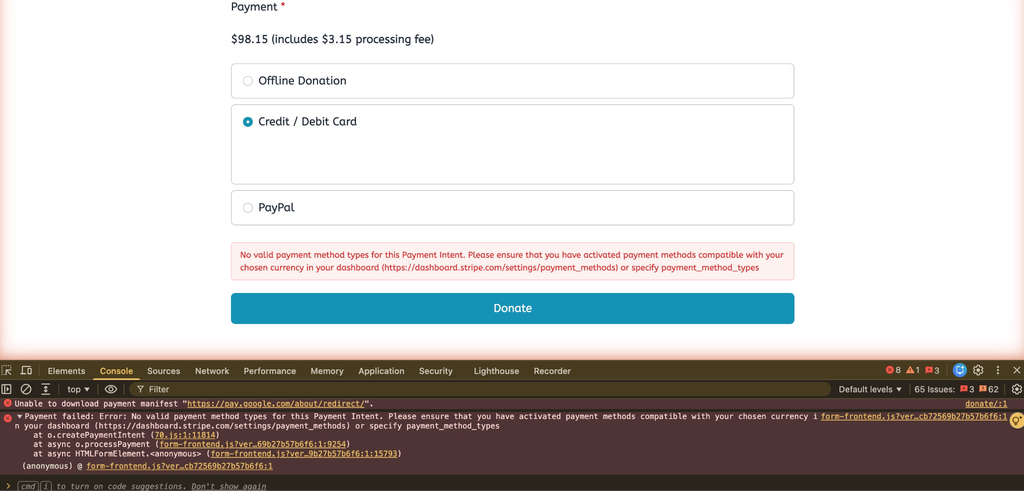
Open the donation page and inspect the browser console.
Steps:
- Open the donation form.
- Right-click the page and select Inspect.
- Open the Console tab.
- Reload the page.
- Look for Stripe-related errors.
Stripe may return an error indicating that the requested payment method is unavailable for the connected account.
What to Look For
Look for errors related to:
- Payment methods
- Payment Intent
- Stripe Elements
- Card capability
- Account restrictions
- Payment method availability
5. Check the Stripe Account Status
Log in to the Stripe Dashboard associated with the SureDonation connection.
Check whether Stripe displays any account status notifications or banners.
Look for messages indicating that the account is:
- Incomplete
- Restricted
- Pending verification
- Missing required information
- Unable to accept certain payment methods
Important
This is particularly important for:
- Newly created Stripe accounts
- Nonprofit organizations
- Accounts undergoing verification
- Accounts where Stripe has requested additional business information
6. Verify Card Payment Method
In the Stripe Dashboard, navigate to:
Settings → Payment methods
Locate the Cards payment method.
Verify that Cards is marked as:
Active / Available
and not:
- Pending
- Restricted
- Inactive
- Unavailable
Expected Result
The Cards payment method should be active and available for the connected Stripe account.
If Stripe shows that card payments are restricted or unavailable, the issue needs to be resolved within Stripe before SureDonation can display the card fields.
7. Verify the Connected Stripe Account in SureDonation
In WordPress, navigate to:
SureDonation → Settings → Payments → Stripe
Check which Stripe account is currently connected.
This is especially important if the customer manages multiple Stripe accounts.
Verify
Confirm that:
- The correct Stripe account is connected.
- The account is the same account being checked in the Stripe Dashboard.
- The account has Cards enabled.
If the wrong Stripe account is connected, disconnect it and connect the correct account.
8. Resolution
If Stripe shows that card payments are inactive, restricted, or unavailable:
- Log in to the Stripe Dashboard.
- Check the account status.
- Complete any pending verification or activation requirements.
- Provide any information requested by Stripe.
- Go to Settings → Payment methods.
- Confirm that Cards is active.
- Return to the SureDonation donation form.
- Test the Stripe payment method again.
Once Stripe enables card payments, the card fields should render automatically.
No plugin-side code changes are required.
We don't respond to the article feedback, we use it to improve our support content.