
- Add New Form
- Form Settings in SureDonation
- Set a Default Donation Form in SureDonation
- Text Field in SureDonation
- Email Field in SureDonation
- Number Field in SureDonation
- Donation Amount Field in SureDonation
- Payment Field in SureDonation
- Donate Button in SureDonation
- Cover Processing Fees Field
- Creating Your First Campaign in SureDonation
- Configuring Spam Protection in SureDonation
- Creating and Managing Campaigns in SureDonation
- How to Edit a Campaign in SureDonation
- View Campaign
- View a SureDonation Campaign on the Frontend
- Campaign Social Sharing in SureDonation
- Importing and Exporting Your Data in SureDonation
- Handle Custom Stripe Webhook Events
- suredonation_export_secret_option_keys Filter Hook
- suredonation_import_batch_complete Action Hook
- suredonation_import_complete Action Hook
- suredonation_import_donation_inserted Action Hook
- suredonation_import_donor_inserted Action Hook
- suredonation_import_session_created Action Hook
- suredonation_import_givewp_batch_complete Action Hook
- suredonation_import_givewp_session_created Action Hook
- suredonation_privacy_data_exported Action Hook
- Validate Field Filter Hook
- Validatable Blocks Filter Hook
- Update donation data, Filter Hook
- OttoKit Integration: suredonation_suretriggers_integration_data_filter Filter Hook
- suredonation_show_setup_gateway_notice Filter Hook
- suredonation_show_review_notice_gateway Filter Hook
- suredonation_show_review_notice_donation Filter Hook
- suredonation_registered_payment_methods Filter Hook
- suredonation_register_additional_blocks Filter Hook
- suredonation_receipt_html Filter Hook
- suredonation_phone_geo_enabled Filter Hook
Campaign Social Sharing in SureDonation
The Campaign Social Sharing block lets supporters share your campaign on social networks.
SureDonation also automatically adds social preview information to campaign pages, so shared links can display the campaign title, description, and image.
Add the Social Sharing Block
To add the block:
- Edit the campaign page.
- Click the Add (+) button.
- Find Campaign Social Sharing under the SureDonation block category.
- Select the block to add it to the campaign page.
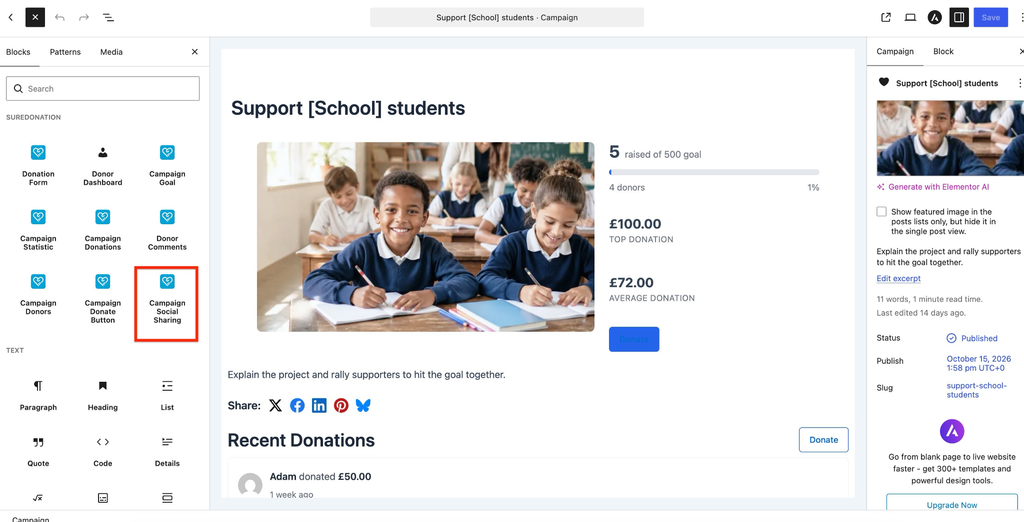
To configure the block:
- Select the Campaign Social Sharing block.
- Open the Block settings panel on the right.
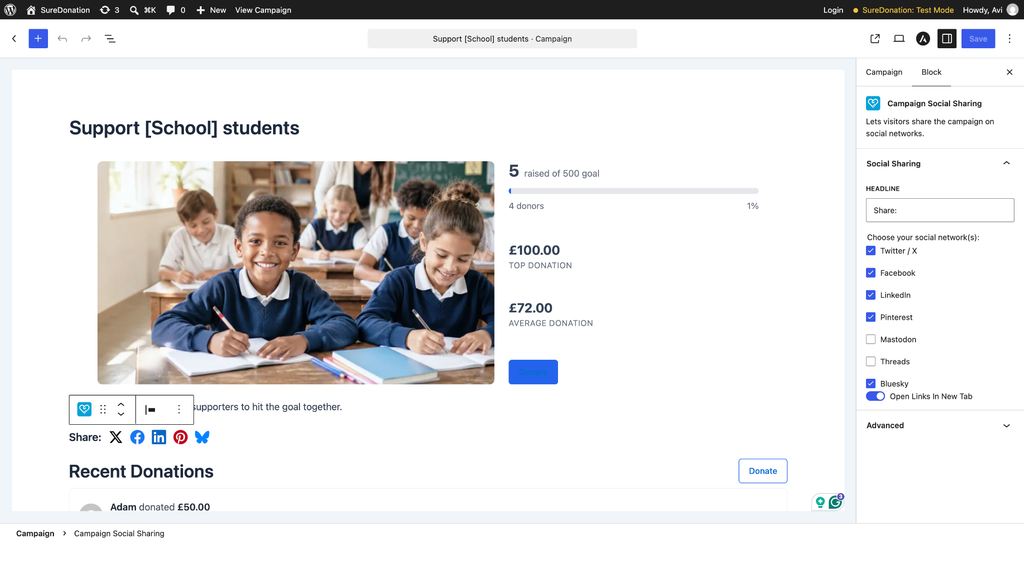
Block Settings
Headline
Enter the text displayed above the social sharing links.
The default value is:
Share:
You can also use text such as:
- Help us spread the word
- Share this campaign
Leave the field empty if you do not want to display a headline.
Social Networks
Select the social networks you want to display.
Available options include:
- Twitter / X
- Bluesky
- Threads
- Mastodon
Facebook, Twitter / X, LinkedIn, Pinterest, and Bluesky are enabled by default.
Open Links In New Tab
Enable Open Links In New Tab to open the sharing link in a new browser tab.
This is enabled by default and allows visitors to keep the campaign page open while sharing it.
Alignment
Use the alignment option to position the headline and sharing links:
- Left
- Center
- Right
Social Preview Tags
SureDonation automatically adds social preview tags to campaign pages. These tags help social networks and messaging apps display campaign information when someone shares the campaign URL.
The preview information can include:
- Campaign title
- Campaign description
- Canonical URL
- Campaign image
- Image dimensions and alt text
- Twitter/X card information
No additional configuration is required.
Verify Your Setup
After adding and configuring the block:
- Preview or publish the campaign page.
- Confirm that the selected social sharing links are displayed.
- Click a sharing link and verify that it points to the correct campaign.
- Paste the campaign URL into a social network or messaging app and check the preview.
We don't respond to the article feedback, we use it to improve our support content.