
- Add New Form
- Form Settings in SureDonation
- Set a Default Donation Form in SureDonation
- Text Field in SureDonation
- Email Field in SureDonation
- Number Field in SureDonation
- Donation Amount Field in SureDonation
- Payment Field in SureDonation
- Donate Button in SureDonation
- Cover Processing Fees Field
- Anonymous Donation Field
- Time Picker Field in SureDonation
- Gift Aid in SureDonation
- Image Field in SureDonation
- Creating Your First Campaign in SureDonation
- Configuring Spam Protection in SureDonation
- Creating and Managing Campaigns in SureDonation
- How to Edit a Campaign in SureDonation
- View Campaign
- View a SureDonation Campaign on the Frontend
- Campaign Social Sharing in SureDonation
- Importing and Exporting Your Data in SureDonation
- Handle Custom Stripe Webhook Events
- suredonation_export_secret_option_keys Filter Hook
- suredonation_import_batch_complete Action Hook
- suredonation_import_complete Action Hook
- suredonation_import_donation_inserted Action Hook
- suredonation_import_donor_inserted Action Hook
- suredonation_import_session_created Action Hook
- suredonation_import_givewp_batch_complete Action Hook
- suredonation_import_givewp_session_created Action Hook
- suredonation_privacy_data_exported Action Hook
- Validate Field Filter Hook
- Validatable Blocks Filter Hook
- Update donation data, Filter Hook
- OttoKit Integration: suredonation_suretriggers_integration_data_filter Filter Hook
- suredonation_show_setup_gateway_notice Filter Hook
- suredonation_show_review_notice_gateway Filter Hook
- suredonation_show_review_notice_donation Filter Hook
- suredonation_registered_payment_methods Filter Hook
- suredonation_register_additional_blocks Filter Hook
- suredonation_receipt_html Filter Hook
- suredonation_phone_geo_enabled Filter Hook
Image Field in SureDonation
The Image field allows you to add images directly inside your donation forms. You can use it to display a campaign image, organization logo, banner, or any other visual related to your fundraising campaign.
The Image field is for display purposes only and does not collect information from donors.
Add an Image Field
To add an Image field:
- Open your donation form in the SureDonation form editor.
- Click the Add (+) button to open the available fields.
- Find Image under General Fields.
- Click or drag the Image field into your donation form.
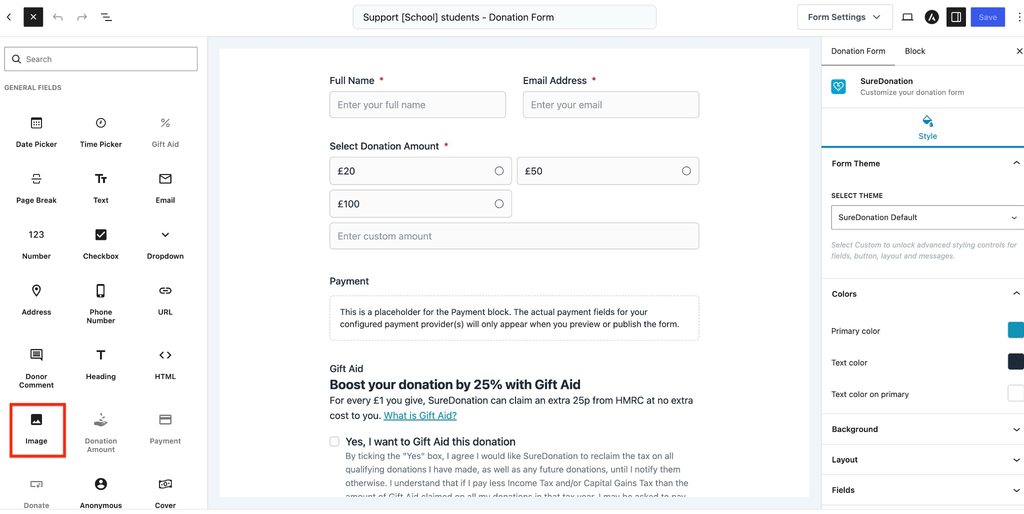
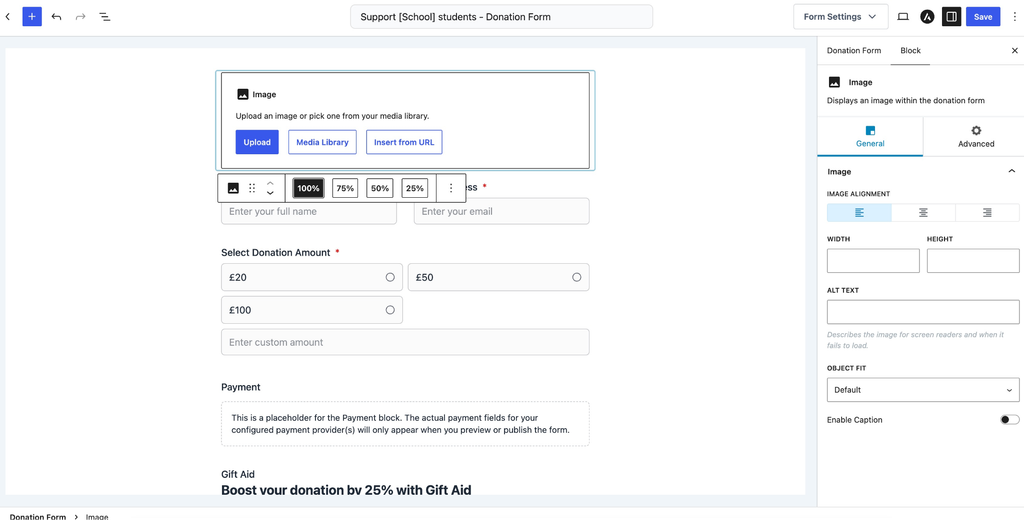
Once added, you can choose how you want to add the image:
- Upload – Upload a new image.
- Media Library – Select an existing image from your WordPress Media Library.
- Insert from URL – Add an image using its URL.
Configure the Image Field
Select the Image field in the editor and open the Block settings panel on the right.
Under the General tab, you can configure the following options.
Image Alignment
Choose how the image is positioned inside the donation form:
- Left
- Center
- Right
You can also use the image toolbar to quickly adjust its width to 100%, 75%, 50%, or 25%.
Width and Height
Enter custom Width and Height values to control the displayed dimensions of the image.
You can leave these fields empty to use the image’s default dimensions.
Alt Text
Use Alt Text to describe the image for screen readers and when the image cannot be displayed.
For example: Volunteers distributing food to families
For accessibility, add meaningful alt text whenever the image provides useful information.
Object Fit
Use Object Fit to control how the image fits within its specified dimensions.
Available options include:
- Default – Uses the image’s normal proportions.
- Fill – Stretches the image to fill the available space.
- Cover – Fills the available area while cropping parts of the image when necessary.
- Contain – Displays the complete image within the available area.
Enable Caption
Enable Caption if you want to display additional text below the image.
Once enabled, enter the caption directly below the image in the editor.
Advanced Settings
Open the Advanced tab to access additional customization options.
Additional CSS Class(es)
Add custom CSS classes if you want to style this specific Image field using your theme or custom CSS.
For example: campaign-banner
Additional CSS
Use this option to apply custom CSS properties directly to the Image field.
For example:
border-radius: 8px;
box-shadow: 0 2px 8px rgba(0, 0, 0, 0.15);
This gives you additional control over the appearance of the image without modifying your theme files.
Save Your Changes
After configuring the Image field:
- Preview the donation form and check that the image displays correctly.
- Verify its size and alignment on desktop and mobile devices.
- Click Save to save your changes.
We don't respond to the article feedback, we use it to improve our support content.